
Completing Your Seller Profile on Mystore
To start selling smoothly on Mystore, it’s important to complete your Seller Profile. A complete profile helps verify your store, ensures orders are processed without delays, and enables the timely release of payments.
Keeping your seller details accurate and up to date also builds trust with buyers and helps your business operate seamlessly on the Mystore platform.
To complete your seller profile, you need to log in to the Mystore Dashboard using the email and password you set during sign-up.
Note: If you’ve forgotten your password, you can reset it anytime using the Forgot Password option on the login page.
How to Access Seller Profile
- Log in to your Mystore Seller Panel
- From the left menu, click Profile
- You will land on the Seller Details page. You can also complete your profile using the Quick Navigation menu on the left or by scrolling through the page.
1. Account Information
This section contains your basic account and contact details.
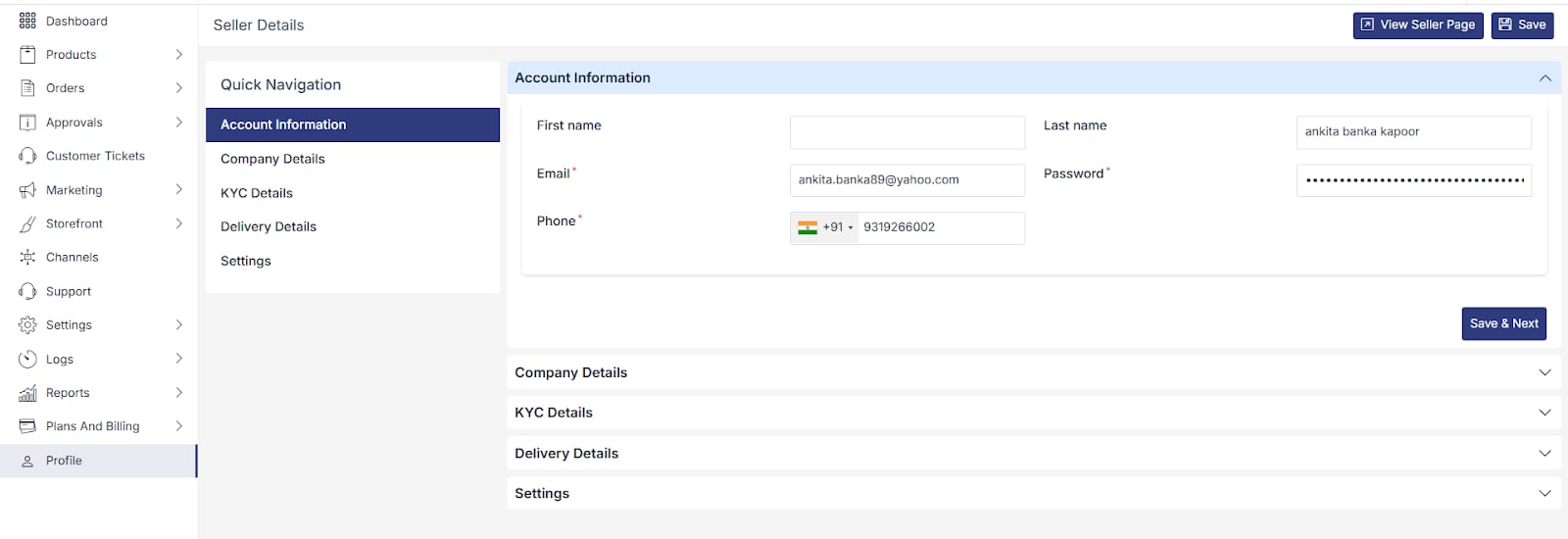
Details to verify or update:
- First Name & Last Name : Account holder’s name
- Email: Registered email ID (used for login and communication)
- Password: Update your login password if required
- Phone Number – Active mobile number for alerts and verification
Click Save or Save & Next to proceed to the next section.
2. Company details
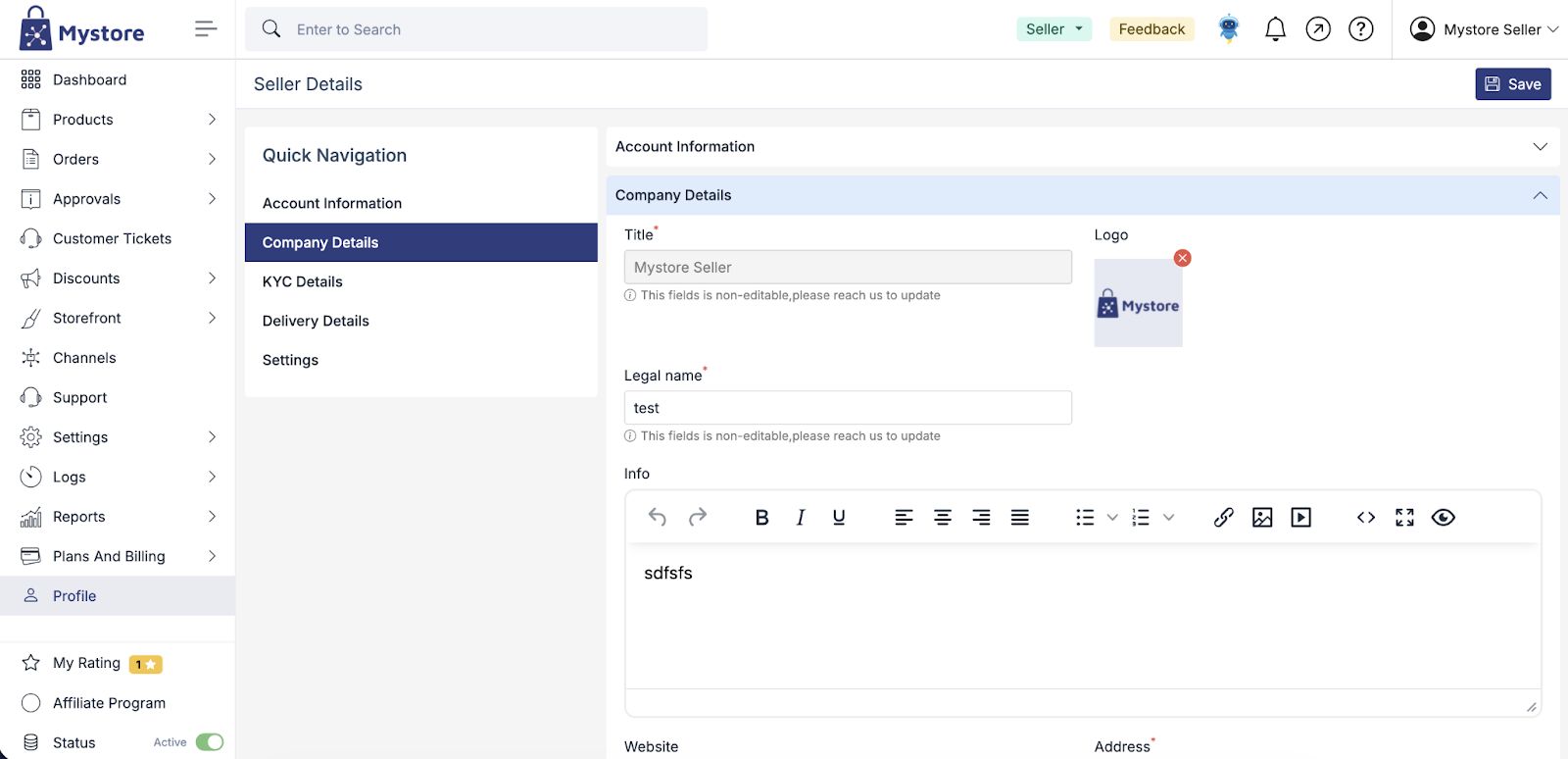
The Company Details section helps define your business identity on Mystore. These details are used for storefront display, invoices, and official communication, so it is important that the information is accurate and complete.
Title
The Title represents your store or brand name on Mystore. This name is visible to customers on your storefront. Once set, this field cannot be edited. If you need to change it, you must contact Mystore Support.
Logo
The logo is your brand or store logo and appears on your storefront, invoices, and customer communications. Upload a clear and high-quality image so your brand looks professional and easily recognizable.
Legal Name
The legal name is the registered name as per government registration. This field is non-editable after submission and is used for billing, taxation, and compliance purposes.
Info
The Info section allows you to add a short description about your business. You can describe what products you sell, your brand story, or your area of specialization. This information helps customers understand your store better and may be visible on your storefront.
Website
The Website field allows you to add your official business website link if you have one. This field is optional and can be left blank if not applicable.
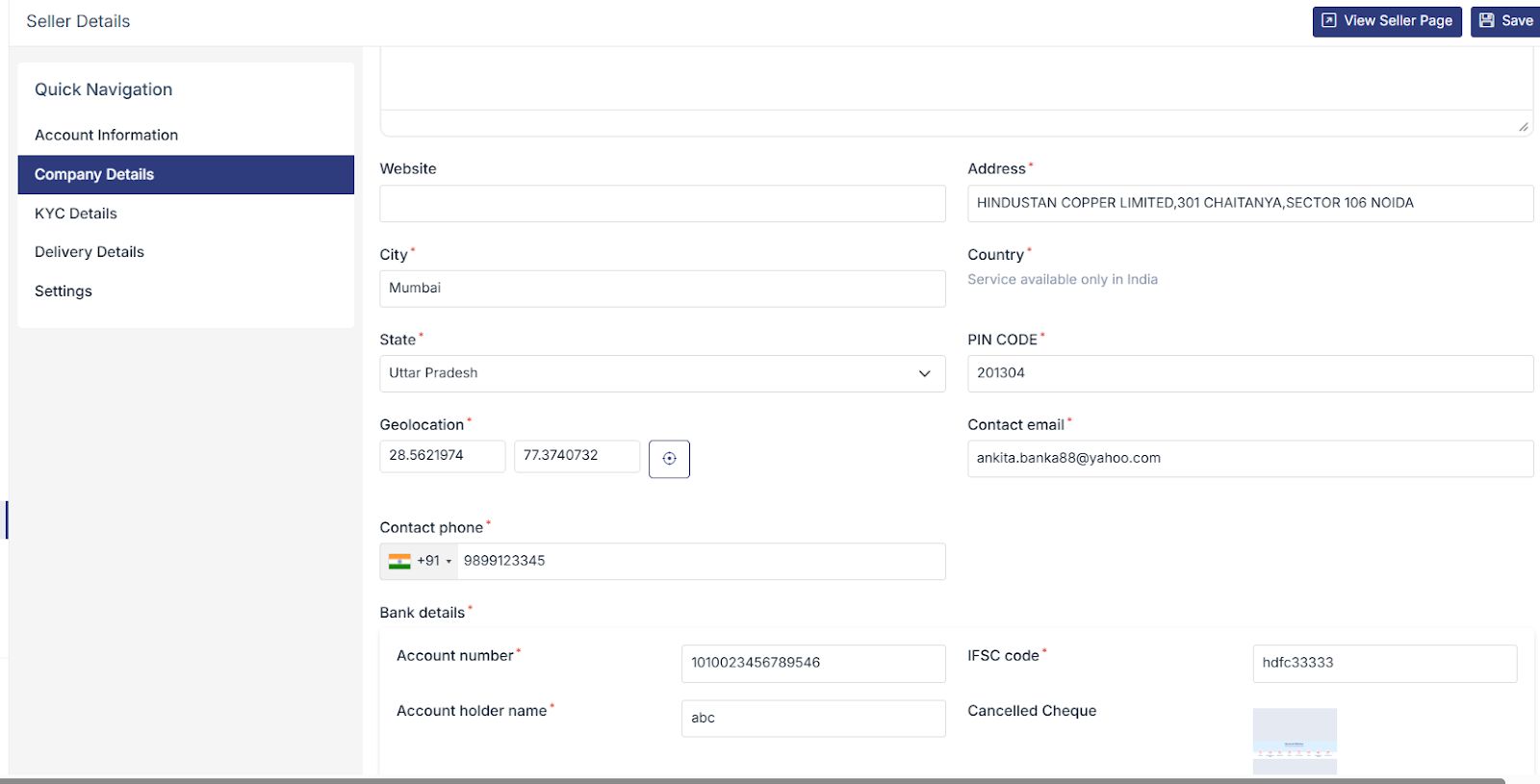
Address
The Address field captures your registered business address. This address is used for invoices, compliance checks, and official communication. Make sure the address is complete and accurate.
Geolocation shows the exact location of your store using latitude and longitude coordinates. This helps in accurate service and delivery mapping.
Contact Phone / Email are your registered contact details. These are pre-filled and cannot be edited.
Bank account details include your account number, IFSC code, and account holder name. These details are used for payment settlements.
Cancelled Cheque is the uploaded image of your cheque used to verify bank details. This cannot be edited once uploaded.
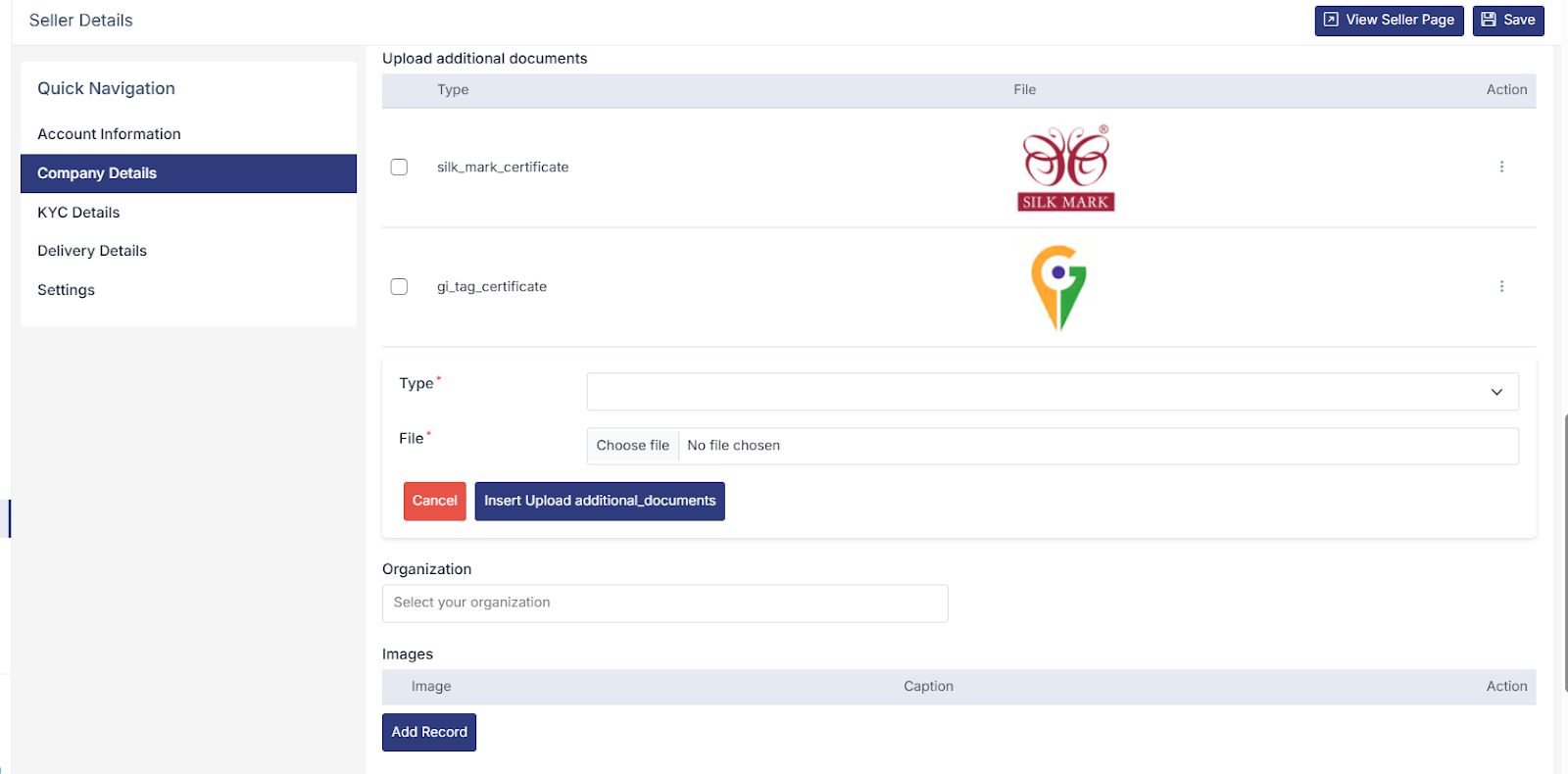
Upload additional documents: You can upload extra documents to verify your company or products. Select the type of document, choose the file from your computer, and then click Insert Upload Additional Documents to save it. You can also see documents you have already uploaded.
Organization Name is the legal name of your business or firm linked to your seller account. After entering the required information, click Save to store your changes. Some fields cannot be edited once saved. If any correction is needed later, please reach out to Mystore Support.
Once your company details are completed, you can proceed to the next sections of your seller profile and move closer to activating your Mystore account.
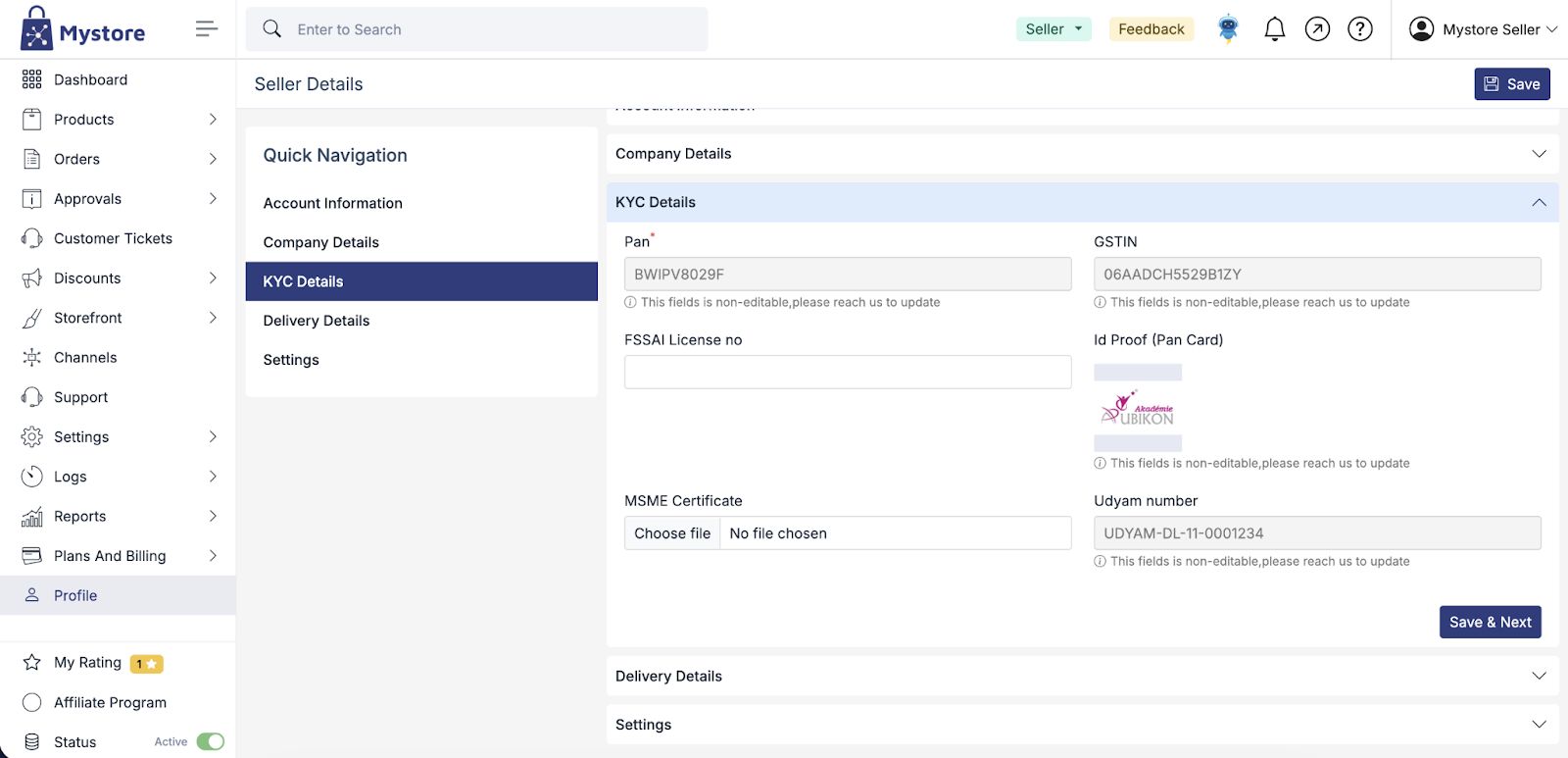
3. KYC Details
The KYC Details section is mandatory for seller verification on Mystore. Completing KYC ensures compliance, enables order processing, and allows timely payment settlements.
PAN
Enter your PAN number. This field is mandatory and non-editable once verified. If updates are required, contact Mystore Support
GSTIN
Enter your GST Identification Number (if applicable). This field is also non-editable after verification.
Note: If you want to change/update GSTIN no contact Mystore team
FSSAI License Number
Required only for sellers dealing in food, beverages, or consumables. Enter your valid FSSAI license number.
Uploading ID Proof
Upload the documents (PAN Card, GST Certificate, etc.)
MSME Certificate (Optional)
The MSME Certificate is provided after registering your business on the Udyam Registration portal. Upload your MSME certificate if available. Helps in availing MSME-related benefits
Udyam Number
Udyam Number (also called Udyam Registration Number) is a unique identification number issued by the Government of India to businesses registered as MSMEs (Micro, Small, and Medium Enterprises). Enter your Udyam Registration Number (if registered). This field is non-editable once saved.
Click Save & Next after entering all required details. Submitted KYC details will be reviewed by the Mystore team
4. Delivery Details
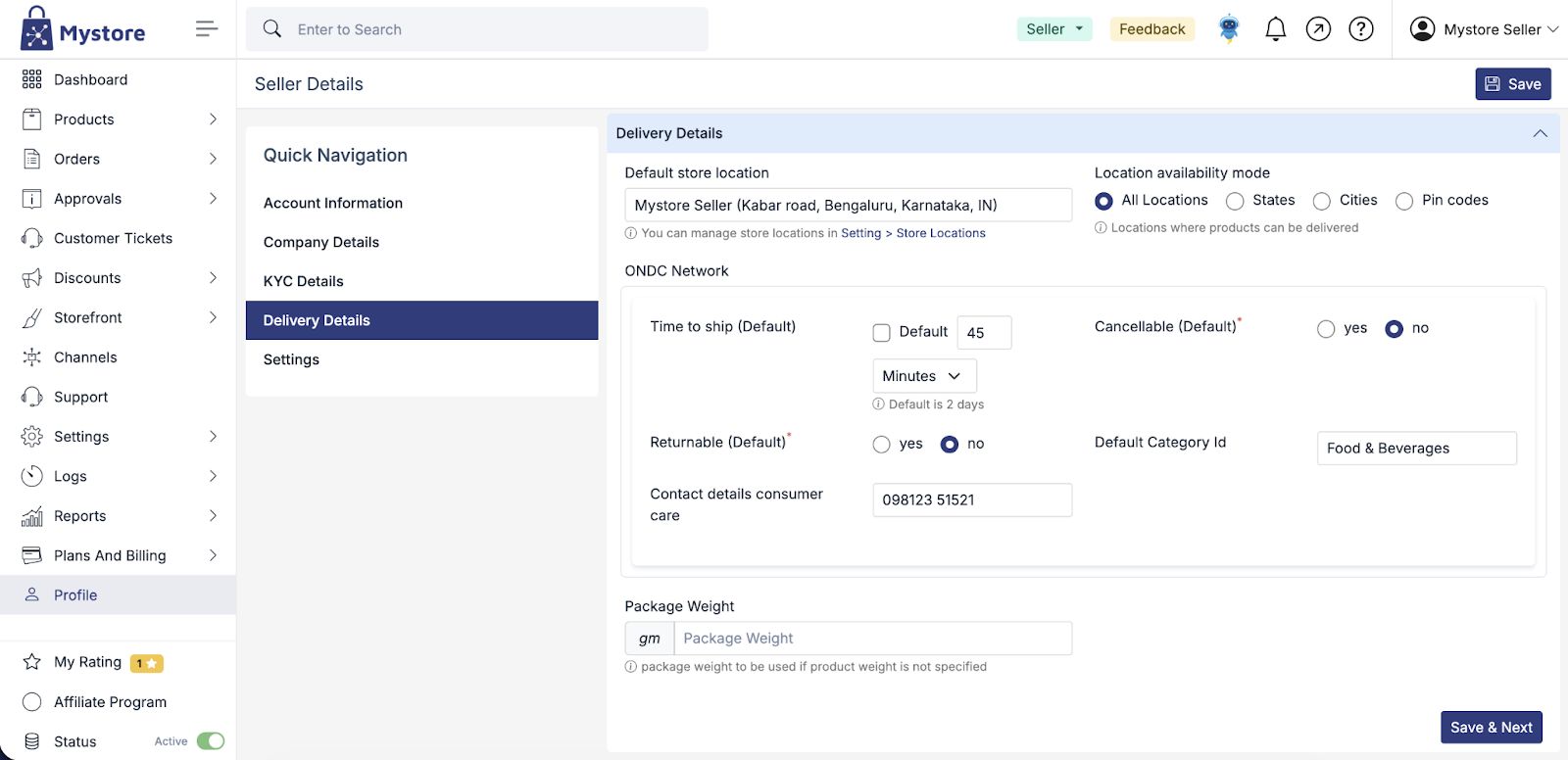
The Delivery Details section defines how and where your products can be delivered. These settings help Mystore and delivery partners process orders correctly and ensure customers receive accurate delivery information.
Default Store Location
This shows your primary store or pickup location. Orders are processed based on this location. If you need to add or manage store locations, you can do so from Settings > Store Locations.
Location Availability Mode
This setting controls the areas where your products can be delivered. You can choose to allow delivery to all locations or restrict delivery based on states, cities, or specific pin codes if you want to want to sell in certain locations only. Customers will only be able to place orders from the locations you allow.
ONDC Network Settings:
ONDC Network Settings help define how your orders are processed and handled on the ONDC platform.
Time to Ship (Default)
This defines the standard time you take to prepare and dispatch an order after it is placed. You can set the time in minutes, hours, or days. This helps set correct delivery expectations for customers. If you select the default time, time to ship will be 2 days.
Cancellable (Default)
This option determines whether customers can cancel orders after placing them. Choose the option that matches your store policy.
Returnable (Default)
This setting defines whether customers can return products after delivery. Select the option based on your return policy.
Seller Pickup Return should be enabled if sellers are willing to arrange pickup of returned items from the customer.
Default Category
This shows the main category your store belongs to. It helps Mystore apply category-specific rules and delivery settings.
Consumer Care Contact Details
This is the phone number customers will use to contact you for any order-related questions or issues or support.
Package Weight
This is the default package weight used when a product’s weight is not specified. It helps calculate shipping charges accurately.
Saving Delivery Details
After reviewing and updating the required information, click Save or Save & Next to store your changes.
5. Settings
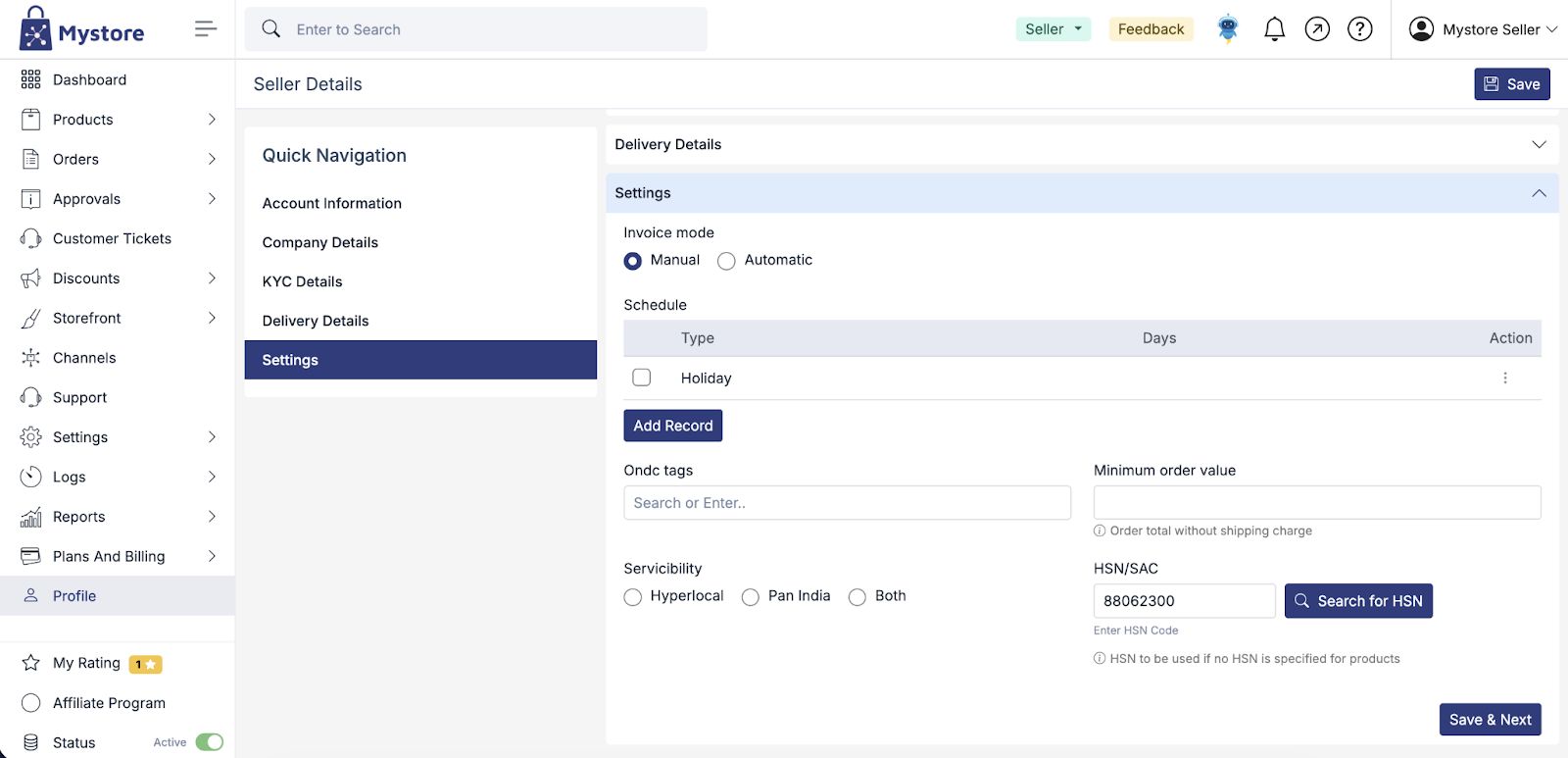
The Settings section allows you to control how your store operates on Mystore. These settings affect invoicing, order acceptance, service coverage, and compliance details.
Invoice Mode
Invoice Mode defines how invoices are generated for your orders. If you select Manual, the seller will create invoices manually. If you select Automatic, the Mystore platform will generate invoices automatically for each order. Choose the option that best fits your business process.
Schedule
The schedule helps you to Set business availability days. You can mark specific days as holidays so orders are not expected to be processed or shipped on those days. This helps set correct delivery expectations for customers.
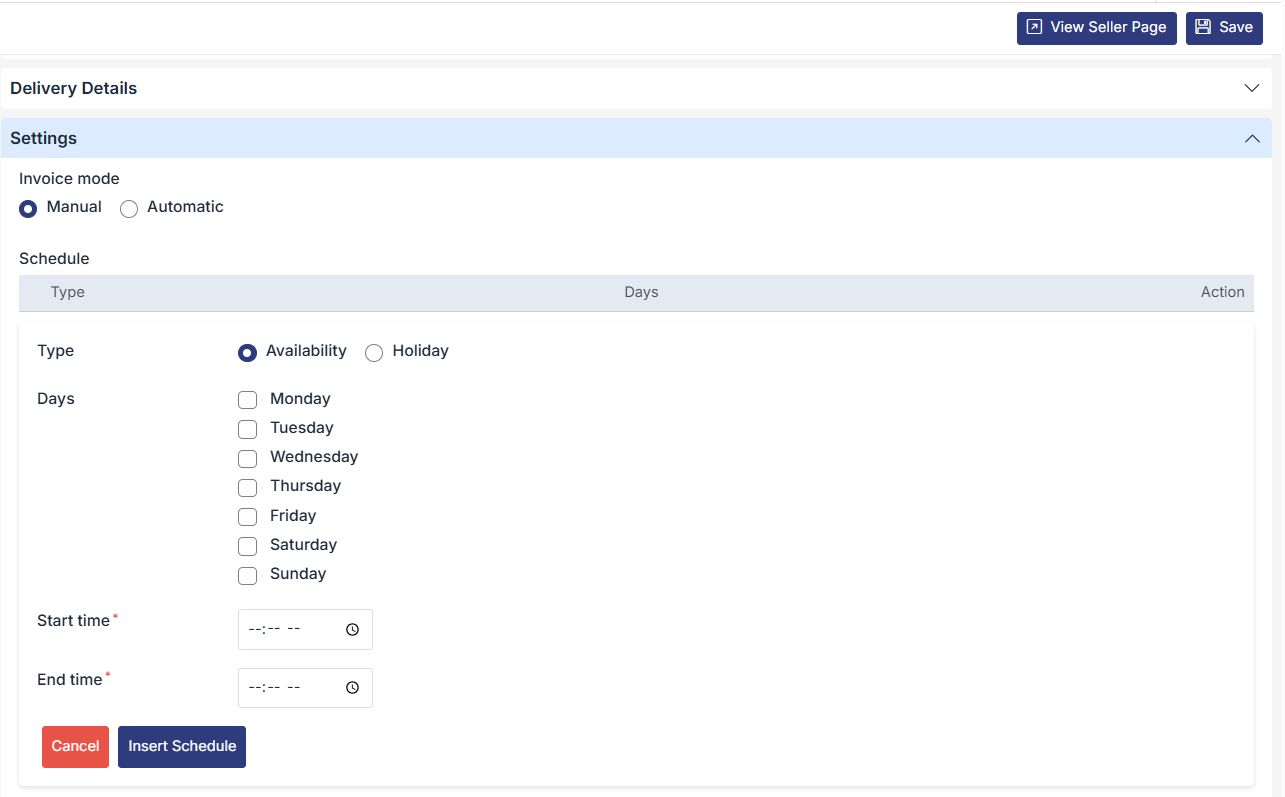
To mark a day as a holiday, simply check the Holiday box next to the relevant day. This will ensure that you are not available for business on that day. You can also set a start and end time to indicate the hours during which you are available.
ONDC Tags
ONDC tags are used to categorize and identify your store or products on the ONDC network. Adding relevant tags helps improve visibility and accurate discovery of your store.
Minimum Order Value
This setting lets you define the minimum cart value or minimum total value a customer must meet to place and accept an order. The amount entered here is calculated without including shipping charges.
Serviceability
Serviceability defines where your store can deliver orders. You can choose hyperlocal for nearby deliveries, pan-India for nationwide deliveries, or Both depending on your business reach. Customers outside the selected service area will not be able to place orders.
HSN/SAC
The HSN or SAC code is used for tax and compliance purposes. This code will be applied by default if a product-level HSN is not specified. Selecting the correct HSN/SAC ensures accurate GST calculation on invoices.
Saving Settings
After updating the required fields, click Save or Save & Next to apply the changes. These settings can be updated later if your business requirements change.
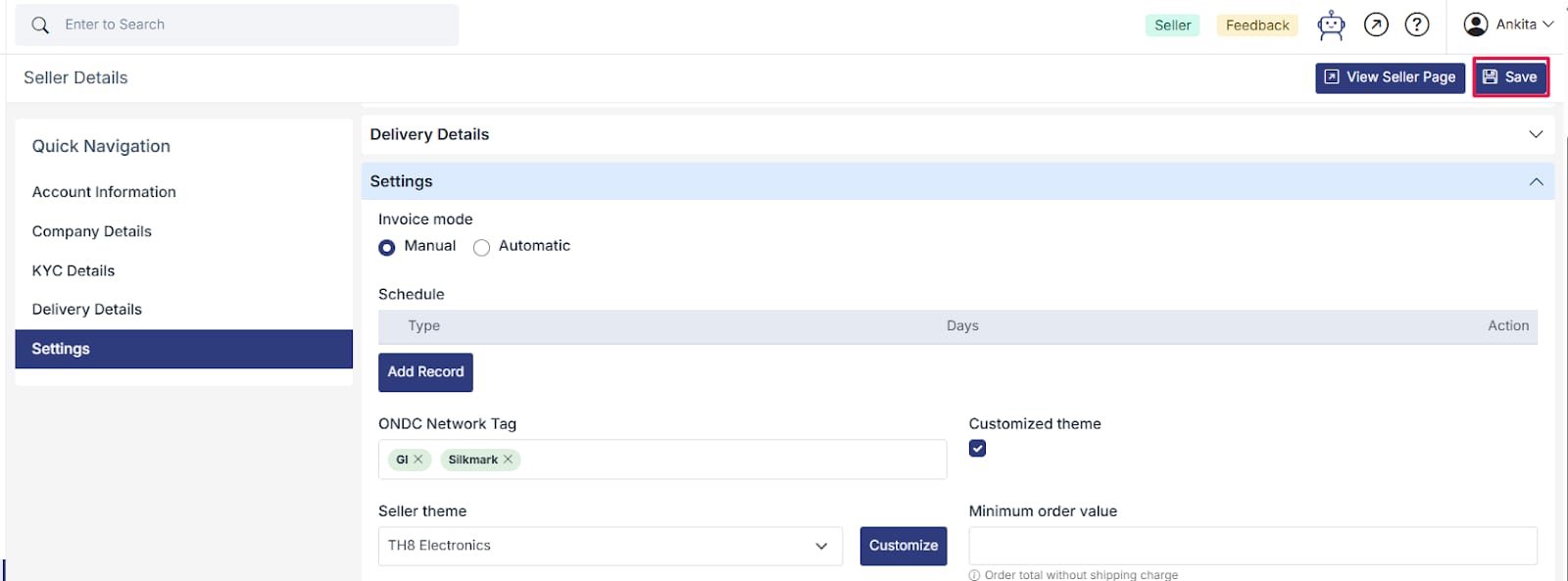
Finally, after updating all the required details, click on the Save button available at the top right corner of the screen to apply and store your changes.