
Order (Shipment View)
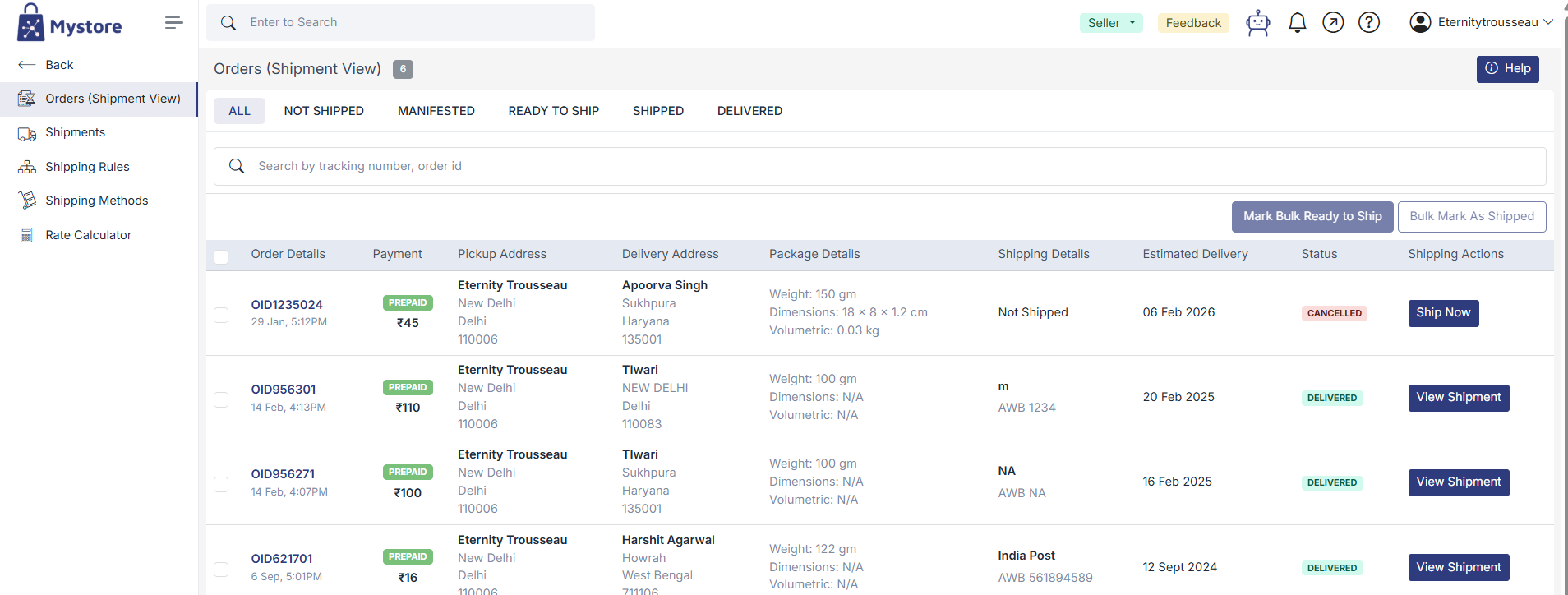
The Orders (Shipment View) section is used to manage the complete shipping lifecycle of your orders. From this page, sellers can track order movement, view shipment information, and perform shipping-related actions such as marking orders ready to ship or shipped.
This view is especially helpful when handling multiple orders, as it gives clear visibility into the current shipping status of each order.
1. Order Status Tabs
At the top of the page, different tabs are available to help you organize orders based on their shipment progress.

All
This tab displays all orders, regardless of their shipping status. It is useful when you want a complete overview of all orders in one place.
Not Shipped
This tab shows orders for which shipping has not yet been initiated. These orders are usually new or pending packing and courier assignments.
Manifested
Orders in this tab have been manifested, meaning the shipment has been created, an agent has been assigned, and an AWB (tracking number) has been generated, but the order has not yet been handed over to the courier.
Ready to Ship
This tab contains orders that are fully packed and ready for pickup or drop-off. Sellers should ensure packaging and documents are complete before moving orders to this stage.
Shipped
Orders appear here once they have been dispatched and handed over to the courier partner. Tracking becomes active at this stage.
Delivered
This tab shows orders that have been successfully delivered to the customer.
2. Search and Filter Options
The search bar allows you to quickly locate an order by entering the Order ID or Tracking (AWB) number.

The filter option helps narrow down orders based on specific criteria, making it easier to manage large order volumes.

3.Order Information Sections
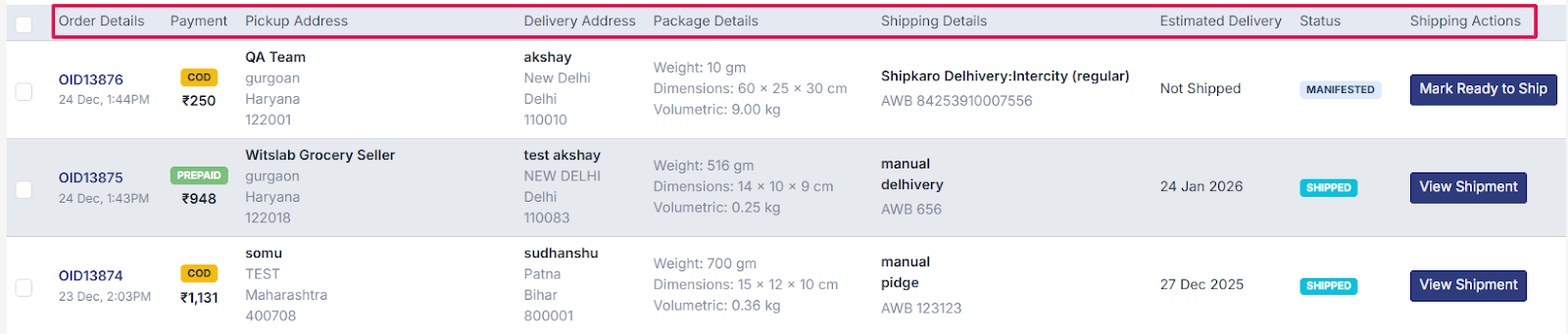
Each order is displayed in a row with detailed information across multiple columns.
Order Details
Displays the order ID, order date and time, payment mode, and the order value. This helps sellers quickly identify and verify orders.
Payment
Indicates whether the order is Prepaid, helping sellers manage payment expectations during dispatch.
Pickup Address
Shows the seller’s pickup address from where the courier will collect the package. It is important to ensure this address is accurate for smooth pickup.
Delivery Address
Displays the customer’s delivery address, including city, state, and pincode.
Package Details
Shows the actual weight, package dimensions, and volumetric weight of the order. These details are used to calculate shipping charges and must match the physical package to avoid courier discrepancies.
Shipping Details
Provides information about the shipping method (manual or automated), courier partner name, and the assigned AWB number. This helps sellers track which courier is handling each order.
Estimated Delivery
Displays the expected delivery date based on the courier and shipping method.
Status
Shows the current shipment status, such as "Manifested," "Shipped," or "Delivered," allowing sellers to track progress at a glance.
4. Bulk Shipping Actions
Mystore allows sellers to process multiple orders at once using Bulk Shipping actions. This helps save time and reduces manual effort when handling high order volumes.

Mark Bulk Ready to Ship
The Mark Bulk Ready to Ship option allows sellers to update the shipping status of multiple orders at once. This is useful when you have packed several orders and want to prepare them together for courier pickup or drop-off.
Bulk Mark as Shipped
The Bulk Mark as Shipped option allows sellers to update multiple orders as shipped in one action. This saves time when several orders have already been dispatched.