
Reship Order
Follow below steps to reship an order using On-Network Logistics when the fulfillment status is marked as Cancelled.
1. Log in to Your Mystore Seller Admin Panel
- Open your Mystore Seller Admin Panel.
- Log in using your credentials.
2. Access the Orders Section
- From the left-hand menu, click on “Orders.”
- Go to the “Open Orders” tab.
- Find and click the Order ID of the order you want to reship. The order must have its fulfillment status marked as “Cancelled.”
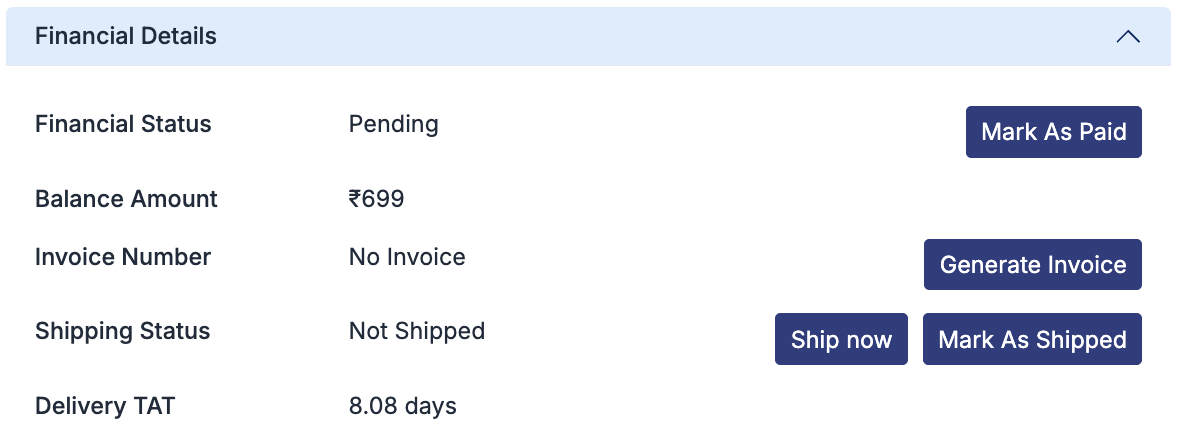
- A panel will open on the right with a message prompting you to create a new shipment.
3. Start the Reshipping Process
- Click on “Ship Now” to begin the reshipping process.
- A new tab will open showing three sections: Pickup Address, Delivery Address, and Package Details.
- The Customer’s Address and Package Details will be auto-filled.
- Select your Pickup Address from the available store locations.
4. Fetch and Select Shipping Rate
- After confirming all the shipping details, click on “Fetch Rates.”
- Choose a shipping rate that matches the original shipping charges paid by the customer.
- Note: If you select a higher rate, the additional cost will be borne by you.
- Once selected, schedule the pickup. A new tab will open.
5. Confirm Shipment and Download Shipping Label
- Click on “Ship Now.”
- You’ll receive a confirmation message that the shipment has been created.
- Click “View Shipping Label.” The label will automatically download to your system.
- Print the shipping label and attach it securely to the package.
That’s it! You have successfully reshipped an order using ON-Network Logistics.
Was this page helpful?