
Support
At Mystore, we are here to help you with any questions or issues. The Support section helps you get answers quickly so you can focus on selling. To reach us, go to the dashboard and click on support.
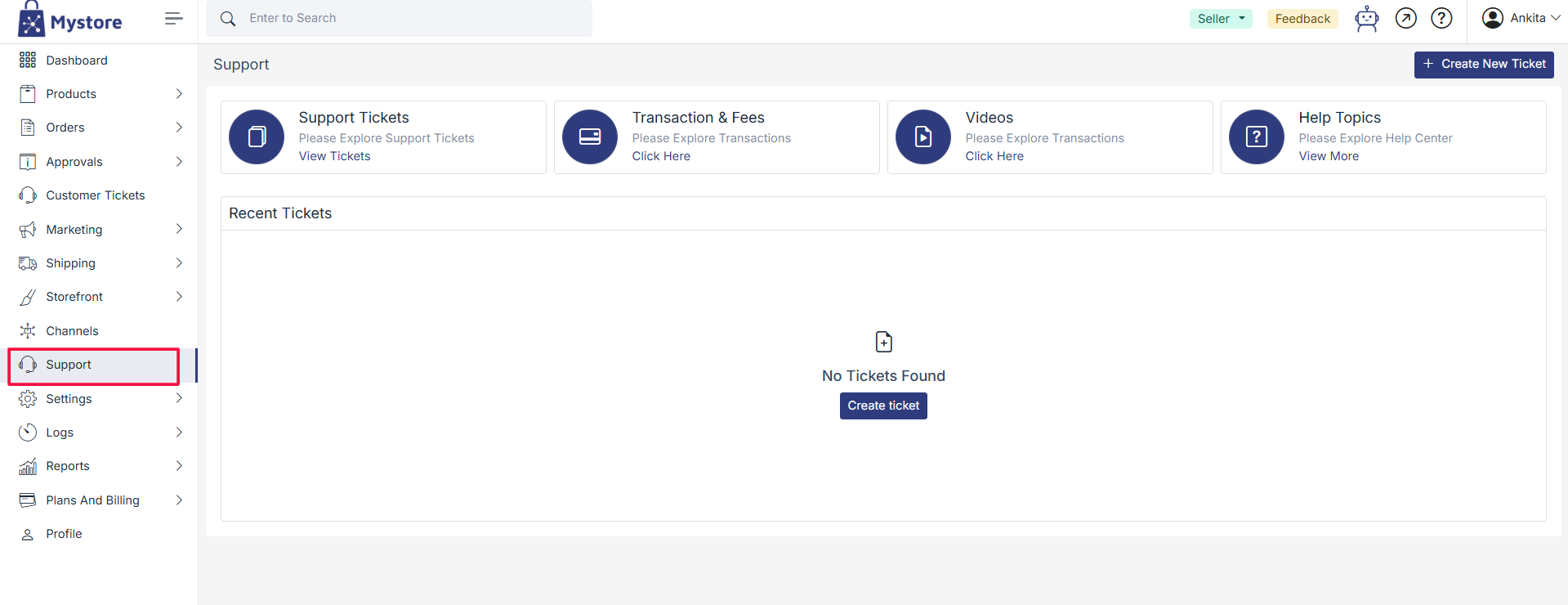
1️. Support Tickets
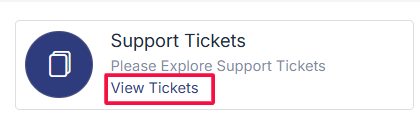
Support Tickets lets you raise or track issues with your store. You can view all your existing tickets by clicking on View Tickets, or report a new problem by clicking Create New Ticket. Providing clear and detailed information about your issue helps us resolve it faster.
How to Create a Support Ticket on Mystore
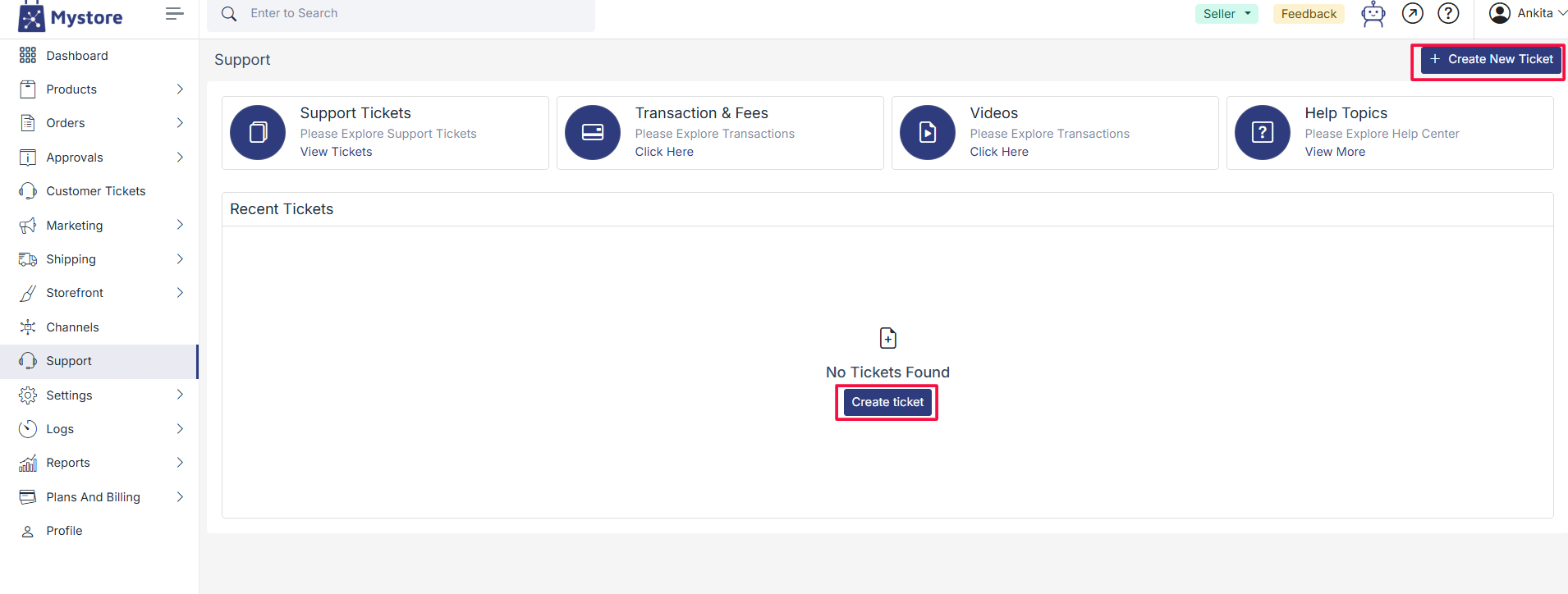
If you face any issues or have questions about your store, products, or orders, you can create a support ticket to get help from the Mystore support team. To do this, first log in to your seller account and go to the Support section. You will see a form to create a new ticket along with a list of frequently asked questions.
Click on create ticket
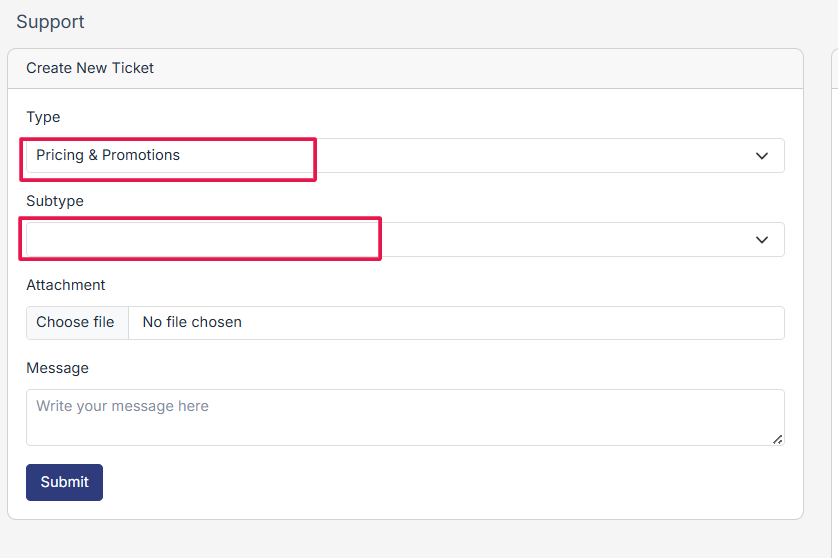
This will open the following form,
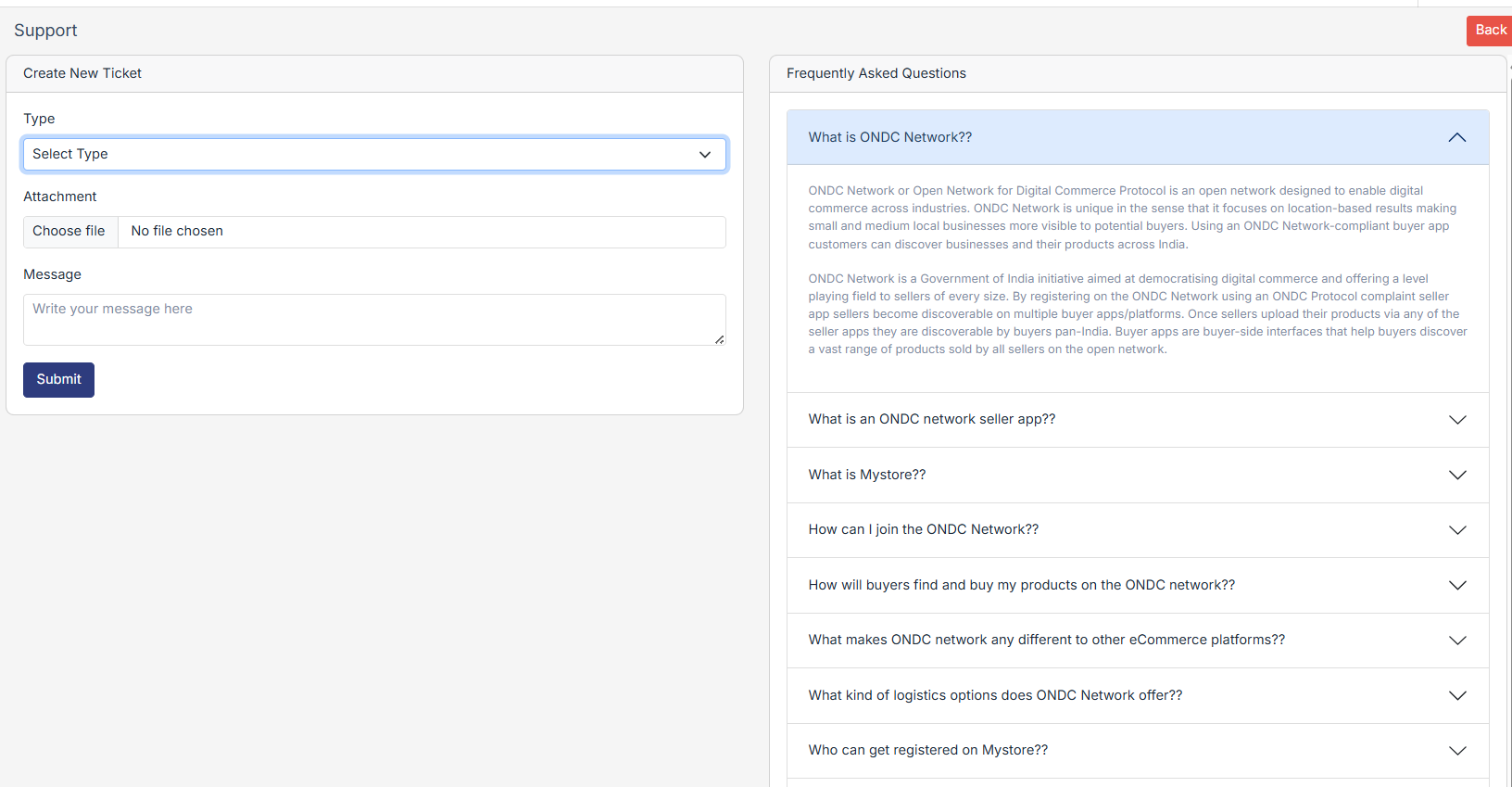
Select the Type of Issue
In the form, select the type of issue you are facing from the dropdown menu. Choose the category that best describes your problem, such as Orders, Payments, or Technical Issue. Next, select the subtype of the issue.
Add Attachments (Optional)
If you have any screenshots or documents that can help explain your issue, you can attach them by clicking on Choose File. Adding attachments makes it easier for the support team to understand your problem quickly.
Write Your Message
Next, write your message in the text box provided. Be clear and include important details like order numbers, approval IDs, or specific descriptions of the problem. The more information you provide, the faster the support team can assist you.
Submit the Ticket
Once your message is ready, click the Submit button. Your ticket will be sent to the Mystore support team, and you will receive updates via email or in your Mystore account.
Tips for Faster Resolution
To get your issue resolved quickly, include all relevant documents and screenshots, and provide reference details like order numbers or product names. You can also check the Frequently Asked Questions (FAQ)section before creating a ticket, as your question might already be answered there.
2️. Transactions & Fees
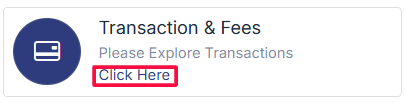
Transactions & Fees is the section where sellers are redirected to view the transactional costs (commission charges) applied by Mystore. In this you will find buyer and seller app fees and logistic charges, if applicable.
3️. Videos & Tutorials
Videos & Tutorials help you learn Mystore features quickly through step-by-step guides. By clicking Click Here, you can watch videos covering topics like adding products, managing orders, and understanding shipping rules, making it easier to manage your store efficiently.

4️. Help Topics
Help Topics provides answers to common questions and guidance for using Mystore. Clicking View More will show topics such as Store Setup, Product Management, Shipping & Returns, and Payments & Fees. For example, you can learn how to set your store logo or manage return requests effectively.

5️. Recent Tickets
Recent Tickets shows all the support requests you have submitted. If you have not raised any tickets yet, it will display No Tickets Found. You can create a new ticket anytime by clicking Create Ticket and track the status of your requests conveniently.
Viewing Support Tickets
1. Go to the “Support Tickets” card on the main Support page.
2. Click “View Tickets” to see a list of all your submitted tickets.
3. You can check ticket numbers, subjects, status (e.g., Open, Closed), and submission dates.
Chat with Operations Team
- Click on a ticket to open the Support Panel.
- You can view replies from the operations team.
- Respond using the rich-text editor at the bottom.
- Use “Submit Reply” to respond or “Submit & Close” to resolve the ticket.