
Add-ons (Credits & Usage)
Some Mystore features run on credits Magic Edit, AI Cataloging, and B2B Enquiry. Each time you use one of these features, it spends one credit. This guide explains where your credits come from, how to check them, and the order in which they’re used.
What’s new: Credits can now come from more than one place at once (your plan and any purchased add-ons). Mystore now spends them automatically in a smart order always using the credits that expire or reset soonest first - so nothing goes to waste. The details are in Section 2.
1. Where your credits come from
You can hold credits from two sources at the same time:
- Plan credits: Included with your subscription plan. They reset each billing cycle - for example, every 31 days. Unused plan credits do not roll over; they simply refresh at the next reset. (Exception: on the Freemium plan, plan credits are one-time and do not reset - see the note in Section 3.)
- Purchased (Add-on) credits: Extra credits you buy with the Top up button. They stay available until they’re used up or they expire. Some purchased credits have an expiry date; others are one-time credits with no expiry.
The Addon Credits & Usage panel each feature shows credits left, plus a Plan line and a Purchased line.
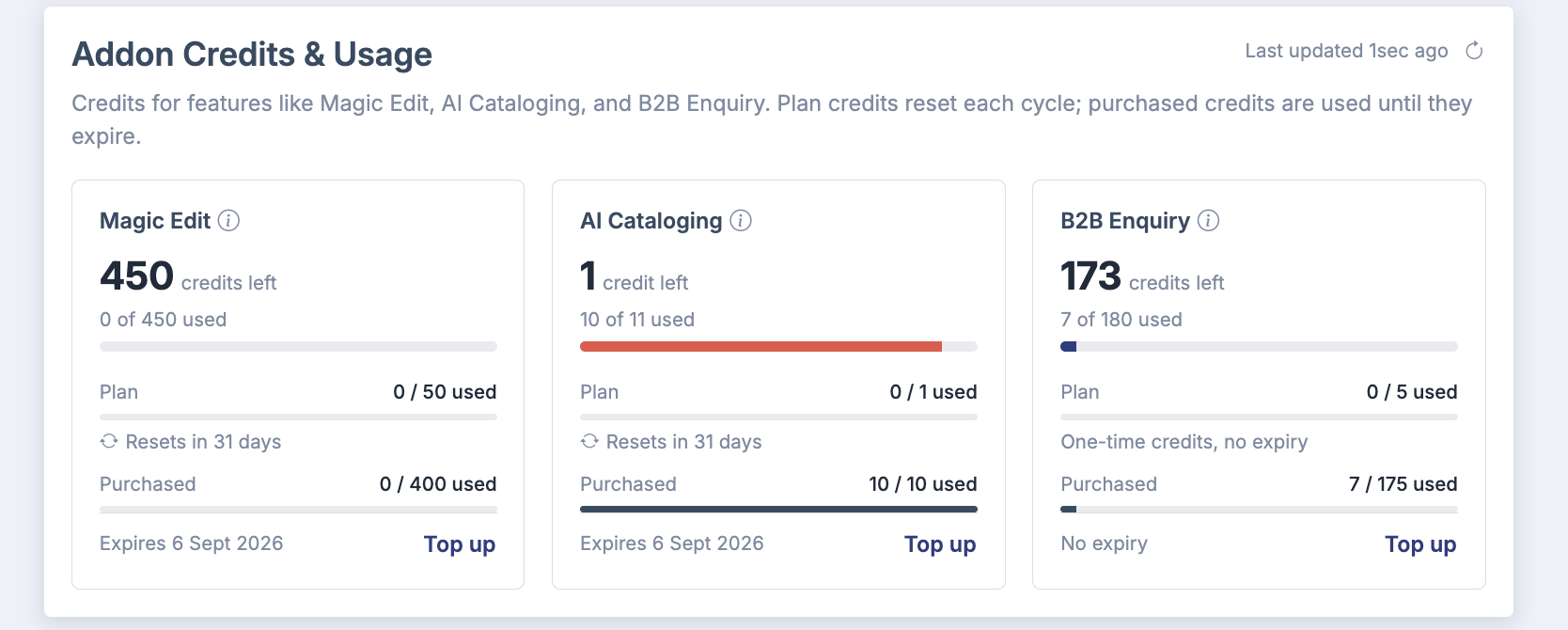
For each feature you’ll see the total credits left, how many are used, and a breakdown into Plan and Purchased. The Plan line shows when it resets; the Purchased line shows when it expires (or “One-time credits, no expiry”).
2. How your credits are used
When you use a feature, Mystore decides which credit to spend using these rules, in order:
- Soonest to expire or reset goes first. Mystore looks across all your sources and uses whichever credits will expire or reset the soonest so you don’t lose credits you’ve already got.
- If that source runs short, it moves to the next. When the first source doesn’t have enough, Mystore automatically checks your next source.
- Each credit is spent safely. Two requests happening at the same time can never spend the same credit twice.
- Used-up sources are skipped. Once a source is fully used, it’s skipped the next time Mystore goes straight to the next available source.
- If there aren’t enough credits anywhere, the request is denied. You’ll need to wait for your plan to reset, or Top up, before trying again.
Example: Say you have 5 plan credits that reset in 10 days and 20 purchased credits that expire in 40 days. Your next Magic Edit uses a plan credit first (it resets soonest). After all 5 plan credits are gone, Mystore switches to your purchased credits and if those run out too, the request is denied until you top up or the plan resets.
3. Reset vs expiry
The two sources behave differently over time:
| Source | What happens over time | Shown as |
|---|---|---|
| Plan credits | Refresh back to your plan’s allowance each cycle. Unused credits don’t carry over. | “Resets in N days” |
| Purchased credits | Stay until used or expired. They do not reset. Some never expire. | “Expires <date>” or “One-time credits, no expiry” |
Note (Freemium plan): On the Freemium plan, plan credits are one-time - they do not reset each cycle. Once they’re used, top up with purchased credits to keep using these features.
4. The features that use credits
Magic Edit: AI image editing clean up, enhance, or restyle your product photos.
AI Cataloging: AI help to generate and enrich your product catalogue content.
B2B Enquiry: Credits used for business-to-business enquiries.
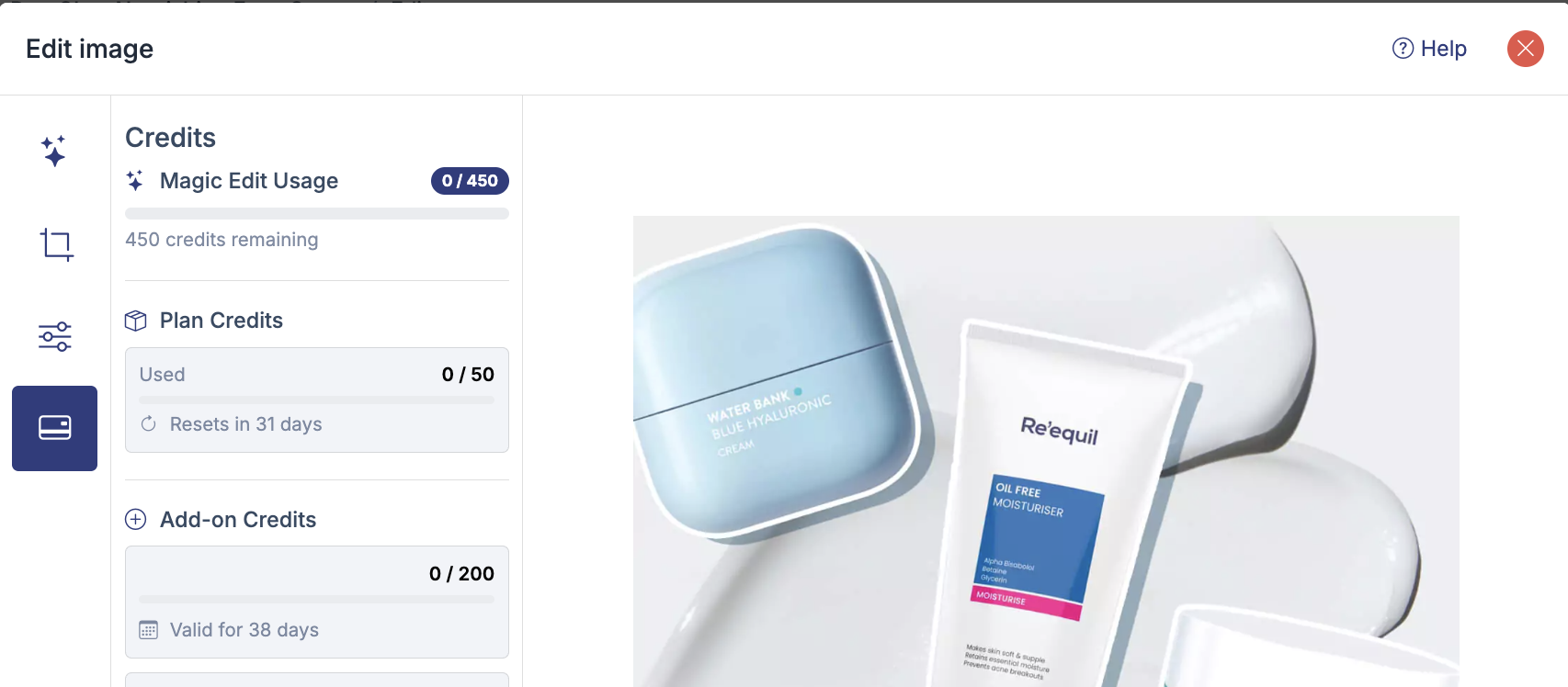
Some tools also show your credit balance while you work. For example, the Edit image (Magic Edit) window shows your current usage, plan credits, and add-on credits right alongside the image.
5. Checking your balance
Credits left: The total you can still use for that feature, across all sources.
X of Y used: How many credits you’ve used out of your total.
Plan / Purchased lines: The same balance split by source, each with its reset or expiry.
Last updated: The panel refreshes live; use the refresh icon to update it.
6. Topping up
Running low? Click Top up on any feature card to buy more credits. Purchased credits are added on top of your plan credits and are spent using the same order described in Section 2 - soonest to expire first.
Tip: If some purchased credits are close to expiring, use that feature before the expiry date so the credits aren’t lost.