
Adding Shipping Assignment Rule
Shipping assignment rules help you decide how orders are assigned to sellers and shipping partners based on defined conditions. Follow the steps below to create a new rule. (available in basic and above plans)
Go to Mystore Admin Panel > Shipping → Shipping Rules. Click on Add to create a new rule.
Step 1: Add a New Shipping Rule
Go to Shipping Rules in the admin panel and click Add.
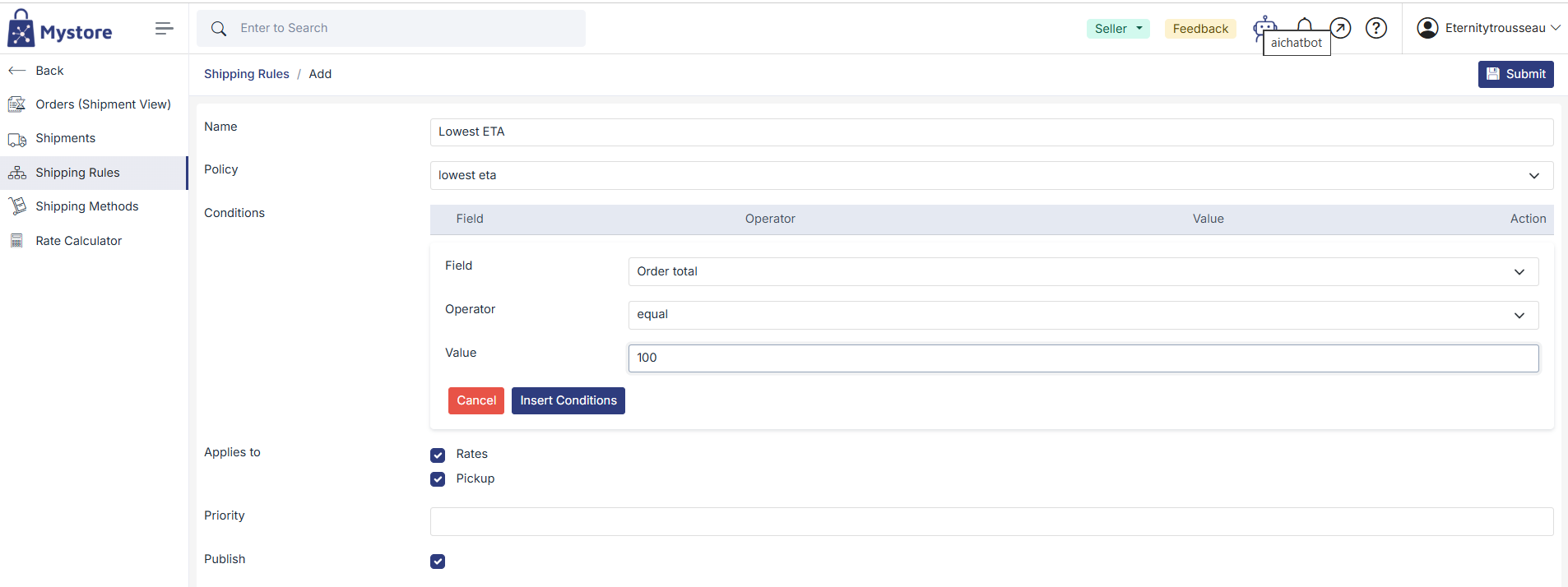
This will open the Shipping Assignment Configuration page, where you can set up a new rule.
Step 2: Enter Basic Details
In the Name field, enter a clear and meaningful rule name so you can easily identify it later.
Step 3: Select Policy
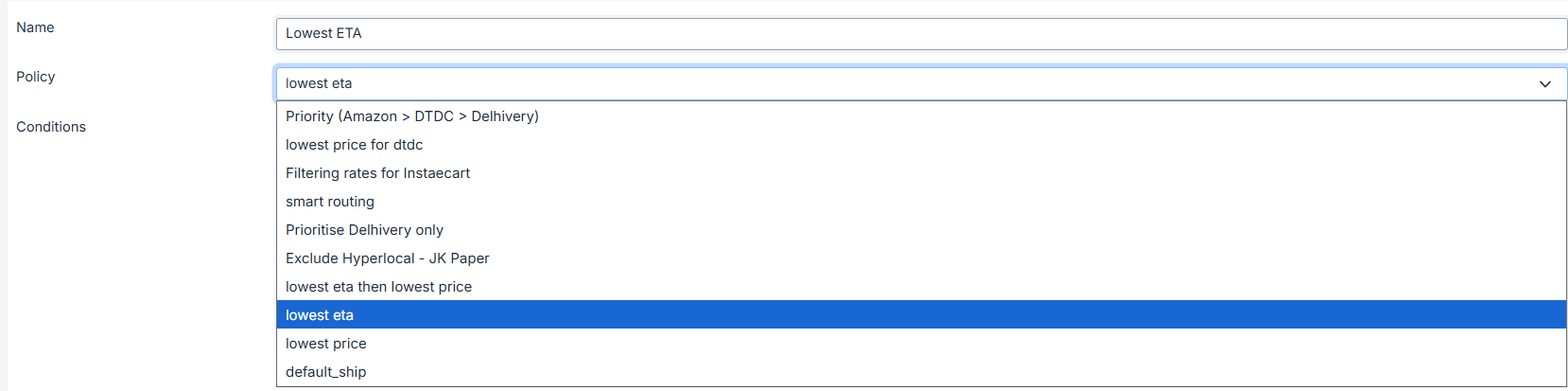
Next, select a policy. The selected policy defines how orders will be assigned.
Step 4: Add Conditions
Click Add Conditions to define when this shipping rule should be applied. You can set conditions based on order value, customer delivery location, product type, or other order details. The rule will be triggered only when these conditions are met.
Step 5: Select Applies To Options
Enable rates if you want this rule to be applied during shipping rate calculation at checkout. Enable Pickup if the rule should apply to orders fulfilled through pickup options.
Step 6: Set Rule Priority
Enter a priority value for the rule. Rules with a lower priority number are checked first, so this helps control which rule gets applied when multiple rules match an order.
Step 7: Publish the Rule
Turn on the Publish option to activate the shipping rule. Only published rules are considered for shipping assignment.