
Assignment Rules, SLAs & Agents
The Help Centre lets you manage support conversations in Mystore deciding how tickets are routed to bots and agents, how long agents have to respond, and how agents pick up, snooze, and hand off conversations. This article walks through the four main building blocks Assignment Rules, SLAs, Staff Roles & Agents, and the day-to-day conversation flow so you can set up automated ticket routing for your store.
How a Conversation Flows
Before configuring anything, it helps to understand what happens when a customer starts a conversation (for example, raising a query about a delayed delivery on an order):
- Every new conversation or ticket is assigned to a bot first, automatically. A human agent is not involved at this stage.
- If the customer wants to talk to a person, they can ask for a human in the chat (for example, by typing "human").
- This triggers your Assignment Rules, and the ticket is reassigned from the bot to a human agent.
- The Assignment Rule decides which agent the ticket is assigned to.
Creating an Assignment Rule
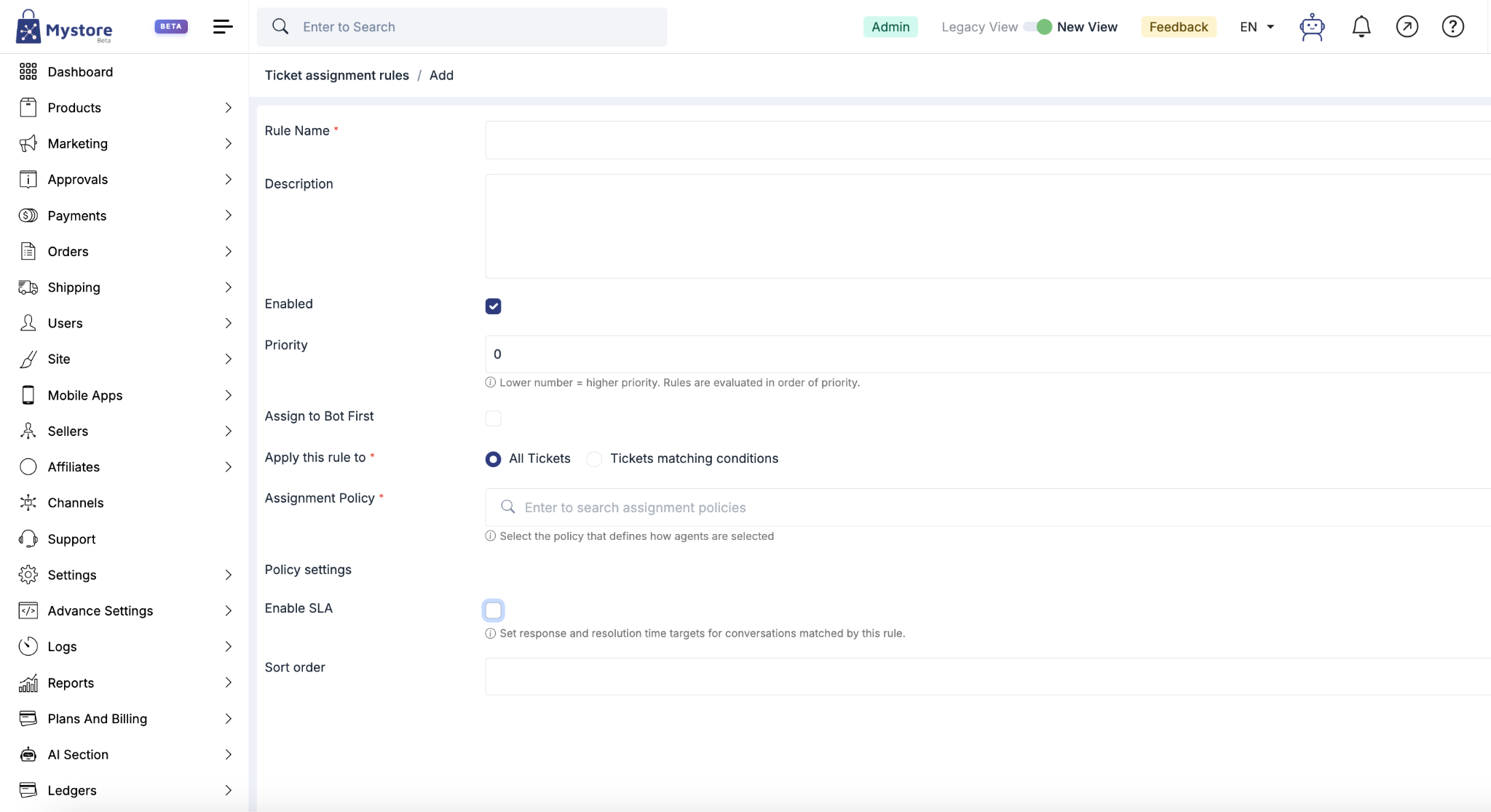
An Assignment Rule controls how a ticket is routed once it leaves the bot. Each rule is made up of a few key fields:
- Name: A clear name for the rule.
- Description: A short description (optional).
- Rules: The conditions that make up the rule. You can define multiple rules.
- Priority: Used when more than one rule could apply. The lower the number, the higher the priority.
Additional Options
- Assign to Bot First: Optional. In Mystore this is not required, because every conversation is already assigned to a bot automatically as soon as it is created.
- Apply This Rule To Choose the scope of the rule:
- All tickets (the default, always available).
- A specific seller.
- A specific source, such as WhatsApp.
Choosing an Assignment Policy
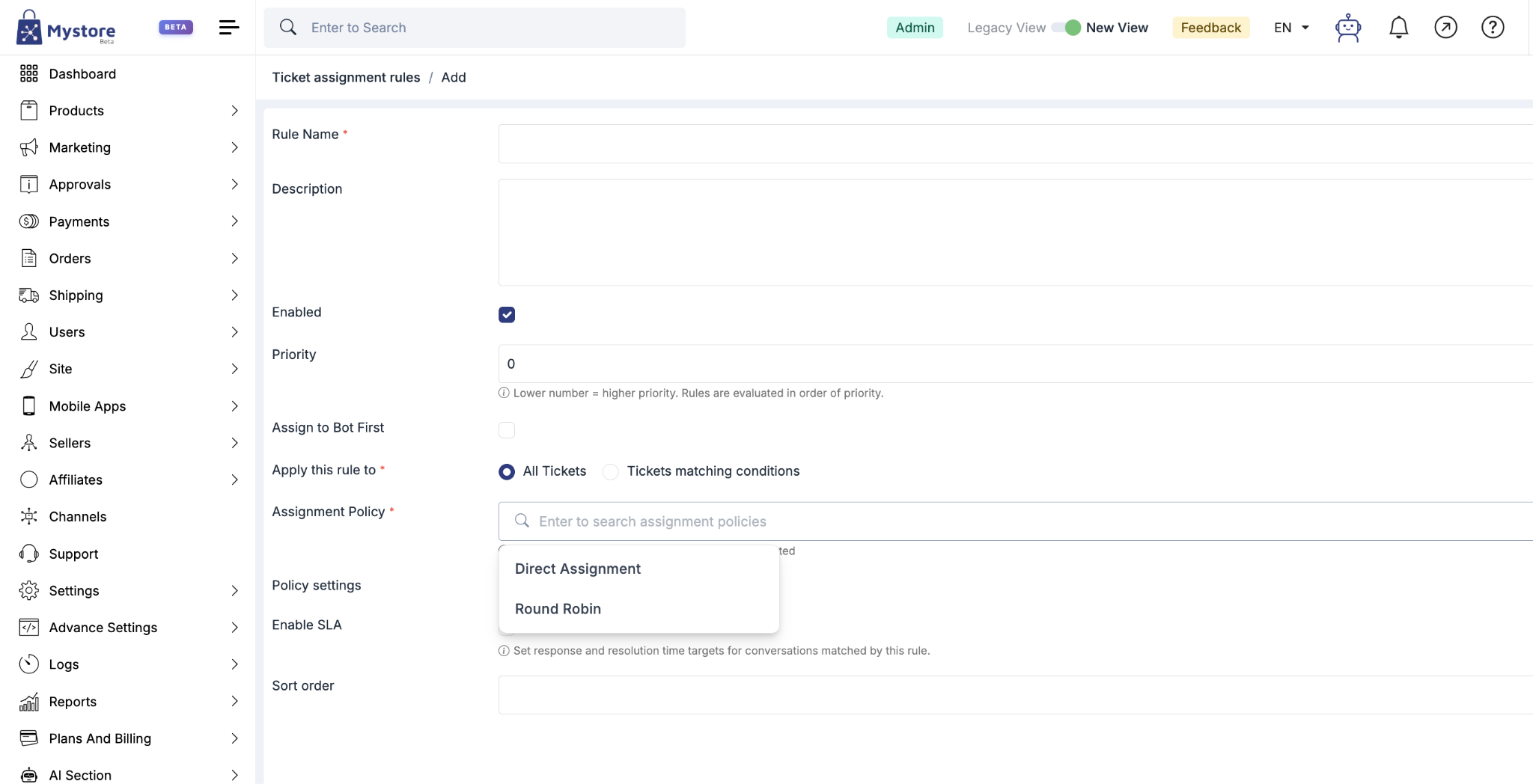
The policy decides how a ticket is distributed to your agents. There are two default assignment policies:
- Direct Assignment: The ticket is assigned directly to a specific agent.
- Round Robin: The ticket is distributed across all applicable agents in a round-robin fashion, one after another.
"Applicable agents" are the agents who match the rule for example, agents whose role is allowed to handle that ticket's category.
Assigning by Category and Role
You can route tickets so that a particular type of query always reaches the right team:
- Each category can be given a role assignment.
- Each agent is given a role.
- When a ticket of that category comes in, only agents with the matching role receive it.
For example, you can set the Customer Support Operations role to handle tickets of a specific category. Assign that role to the relevant category and to the agents who should take those tickets, and only those agents will receive that category of ticket.
Setting Up SLAs
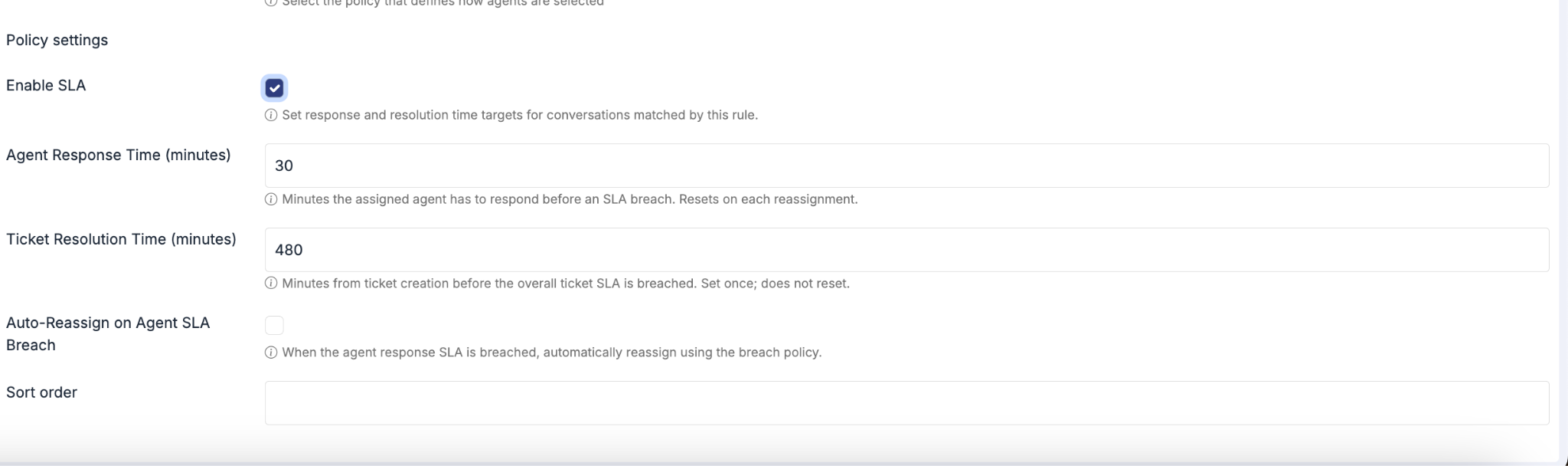
SLAs (Service Level Agreements) define the response and resolution times your agents are expected to meet. There are two types:
- Agent Response Time
This is the time an agent has to respond to the customer. If the SLA is breached (the agent does not respond in time), you can choose how the system reacts:
- Re-run assignment: Automatically run the assignment logic again so the ticket moves on to the next agent.
- Breach Assignment Policy: Choose which assignment policy is applied when the SLA is breached, so the ticket is reassigned based on that policy.
- You can also leave this blank if you do not want any automatic action.
- Ticket Resolution Time
This applies to the entire ticket, not just the agent's first response. The whole ticket must be resolved within the specified time, otherwise it is marked as a breached ticket.
- The default is 480 minutes, which you can change.
- This is only enforced if the setting is enabled.
Assignment Policies (Advanced)
Beyond the two default policies, assignment policies are more developer-oriented. If you need custom routing logic, it can be defined here, or you can ask a developer to modify these policies to fit your workflow.
Creating an Agent
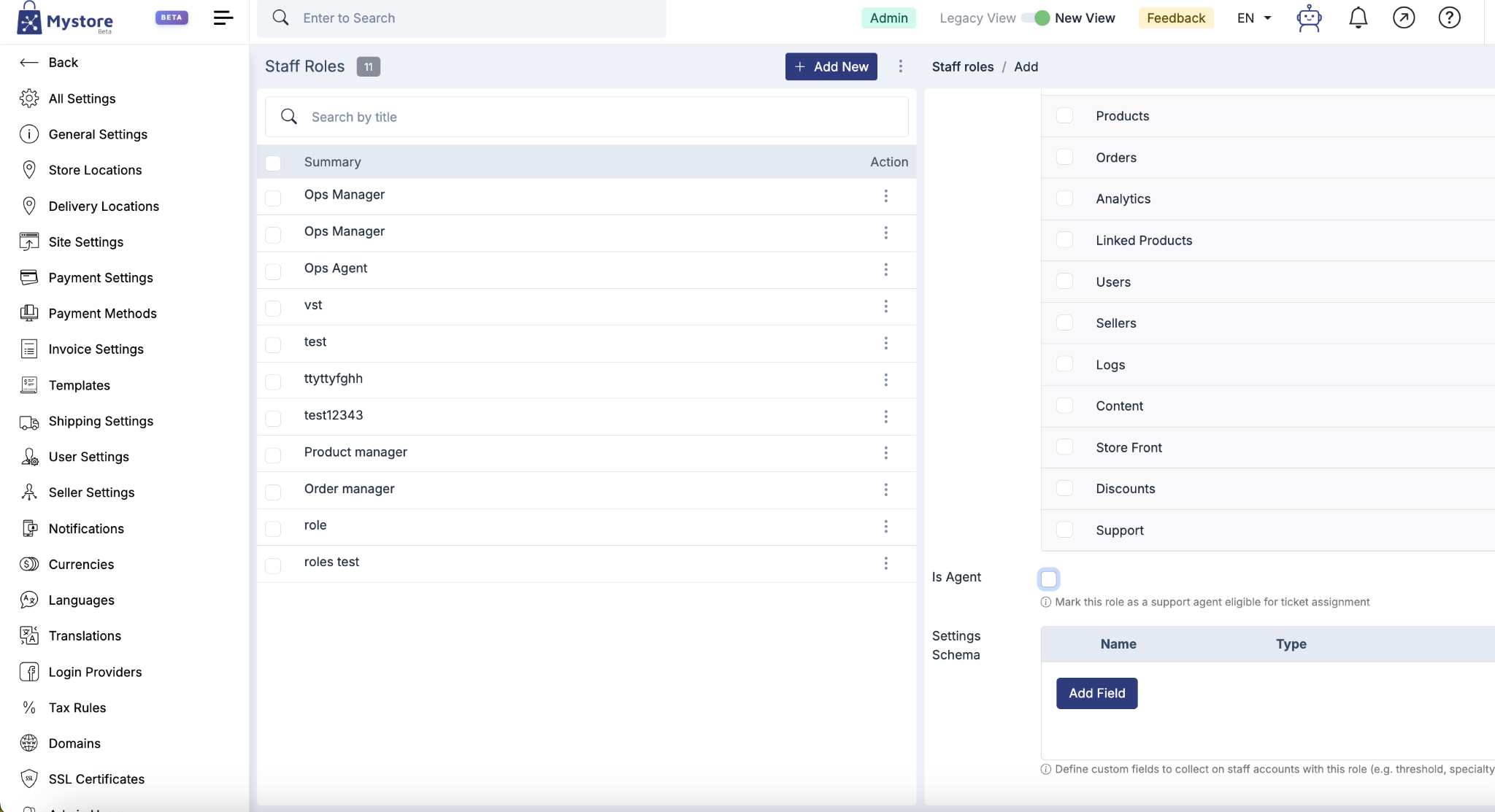
Agents are the staff members who handle human conversations. To set one up:
- Open the Staff Role for the person you want to make an agent.
- Mark the role as an Agent. A staff member will not be eligible to receive conversations unless this is switched on.
- Review the permissions assigned to that role these control what the agent can do.
- Set the agent details, such as Agent User ID, Account, Staff Threshold, Password, Email, and Phone.
Some settings, such as the agent settings schema, are usually configured by a developer and are typically not needed for a standard Seller Help Centre setup.
Managing a Conversation
Once a ticket reaches a human agent, the agent has a few options:
- Respond: The agent replies within the conversation they are part of.
- Reassign: If an agent is unable to handle a ticket, it can be manually reassigned to another agent at any time.
- View Log / Summary: See everything that has happened on the ticket, including who is watching it.
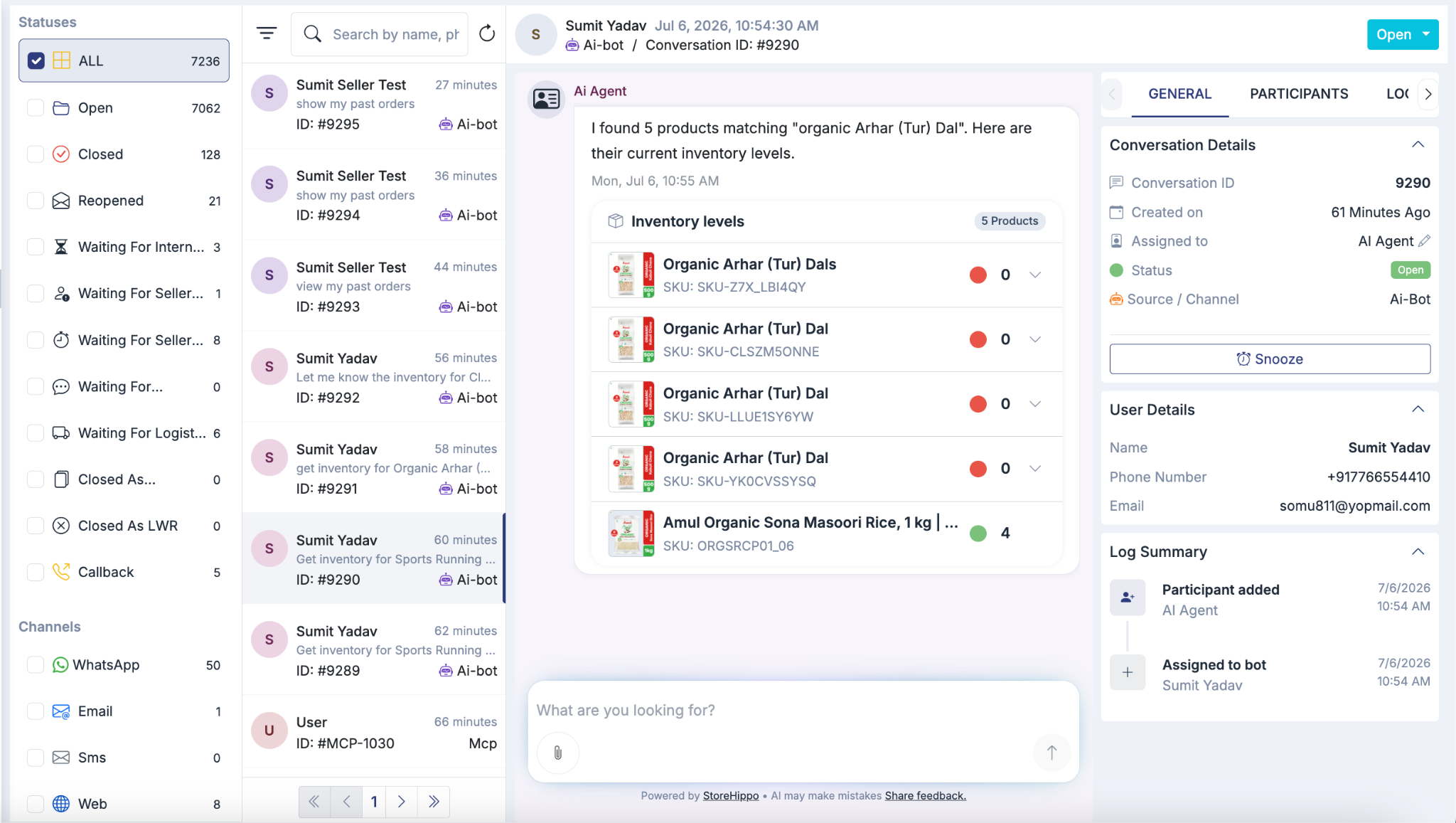
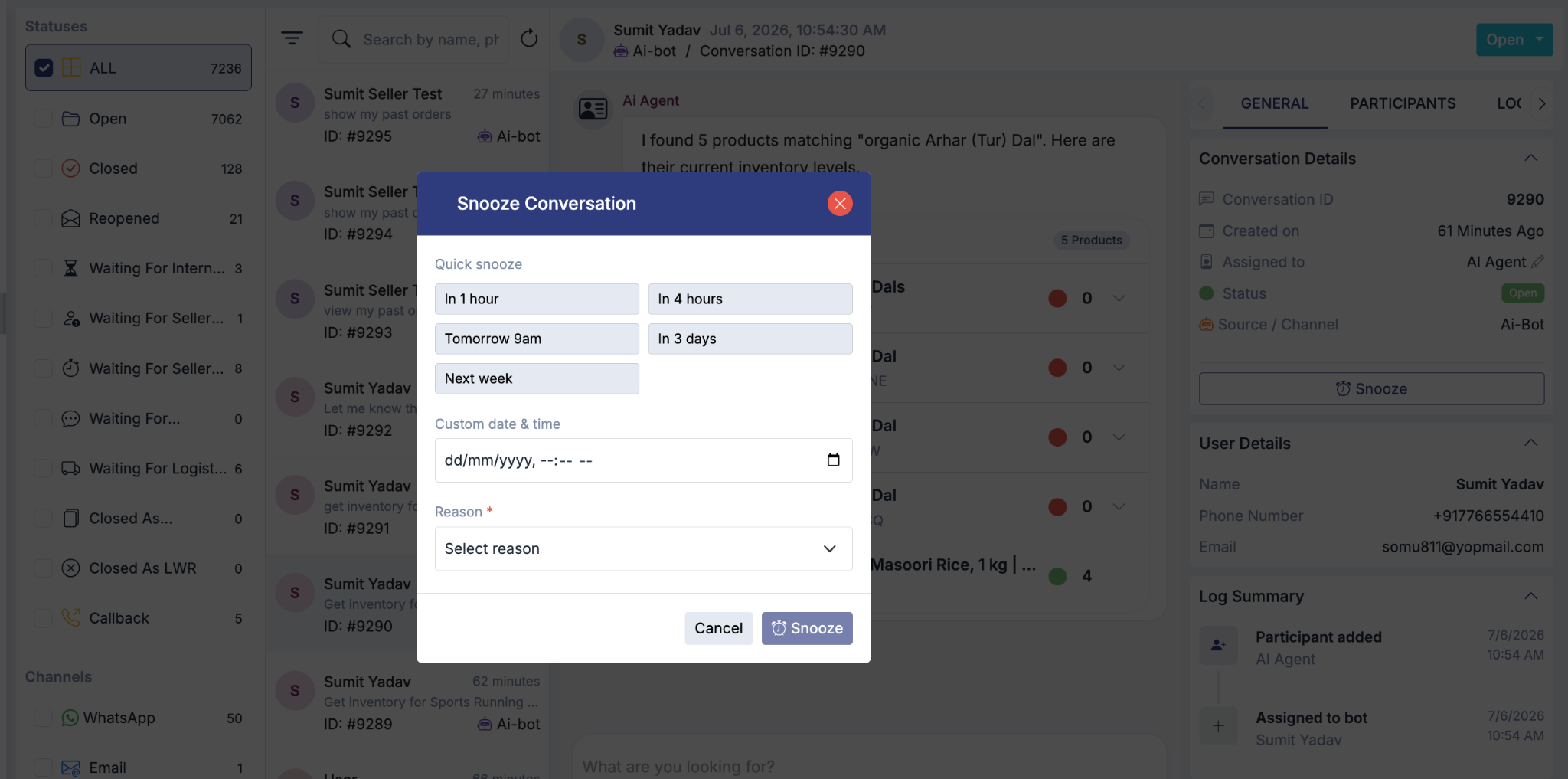
Snoozing a Ticket
Snooze is useful when a ticket is waiting on something outside the agent's control — for example, a refund that depends on a reply from a payment gateway or another third party. In these cases you do not want the SLA timer to keep running.
When you snooze a ticket:
- The ticket is parked, and the agent becomes available for other tickets.
- When the snooze timer ends, the ticket is flagged for follow-up so the agent knows to take action on it.
Setting Agent Status
An agent's availability is controlled by their status:
- Online: The agent can receive conversations. An agent must be marked online to be assigned any new conversation.
- Break: The agent is temporarily unavailable and will not receive conversations until they mark themselves online again.
- Offline: The agent is done for the day and will not receive conversations.
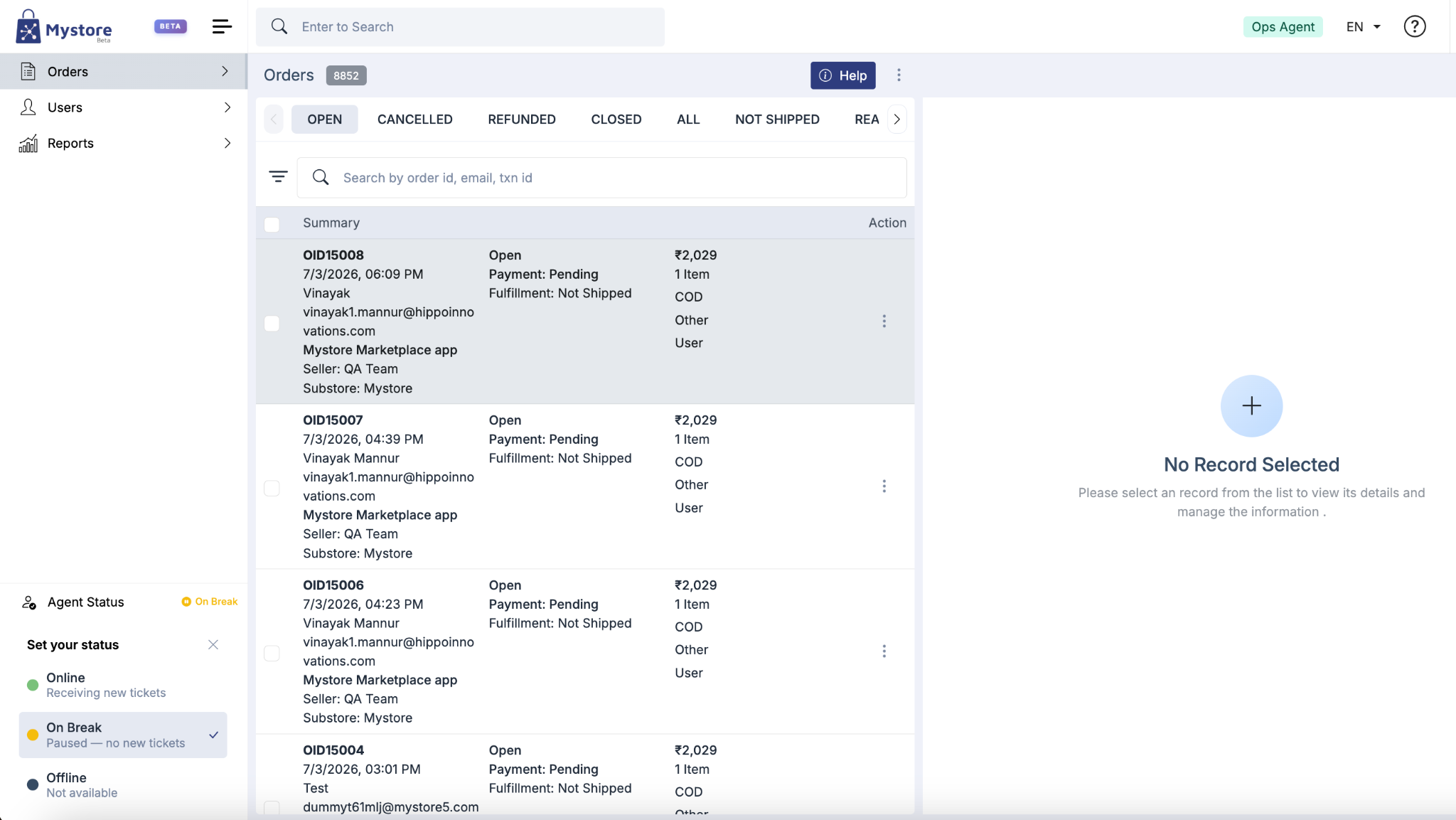
Each agent only sees the conversations they are a part of.