
Bulk shipping
Mystore allows sellers to process multiple orders at once using Bulk Shipping actions. This helps save time and reduces manual effort when handling high order volumes.
You can perform the following bulk actions from the Orders (Shipment View) section:
Go to Shipping> Orders (Shipment View) from seller dashboard.
Select multiple orders using the checkboxes
Use the action buttons at the top-right:
Mark Bulk Ready to Ship
Bulk Mark As Shipped
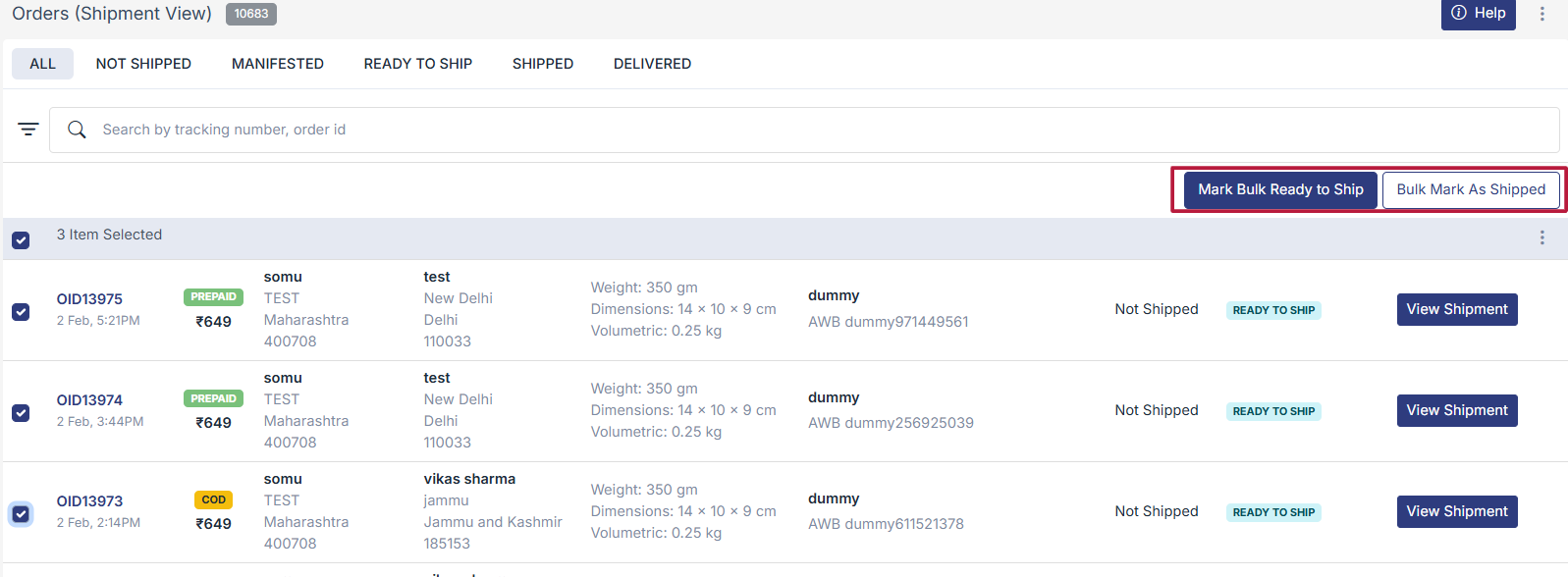
Mark Bulk Ready to Ship
Use this action when orders are packed and ready for courier assignment or pickup.
Use Mark Bulk Ready to Ship when:
- Orders are packed and labeled
- Package weight and dimensions are confirmed
- AWB numbers are already generated (manifested orders)
- Orders are ready to be handed over to the courier
Steps to Mark Orders Bulk Ready to Ship
Select multiple orders from the order list which need to be shipped.
Click Mark Bulk Ready to Ship.
A popup will open showing all selected orders.
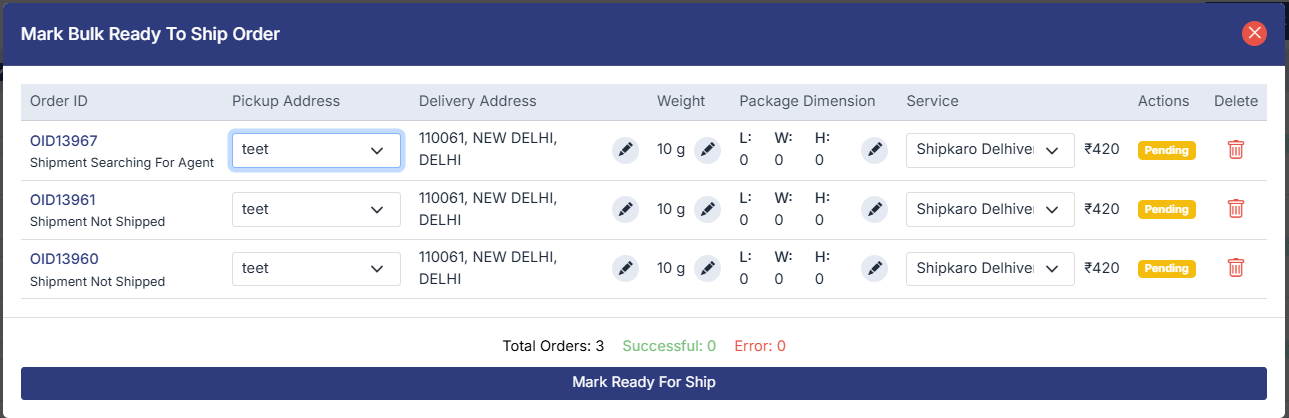
For each order, review and update:
Pickup Address
Weight
Package Dimensions (L × W × H)
Courier Service / Logistics Partner
Click Mark Ready for Ship.
What Happens Next?
Orders move to Ready to Ship / Manifested status.
Courier assignment is initiated.
AWB is generated (if applicable).
Orders become available for pickup or further shipment processing.
Bulk Mark As Shipped
Use this action when orders have already been handed over to a courier and you want to update shipment details in bulk.
Use Bulk Mark as Shipped when:
- Orders have been handed over to the courier
- Shipping has already started
- You have AWB/tracking numbers available
- Courier pickup or drop-off is completed
Steps to Bulk Mark Orders as Shipped
Select multiple Ready to Ship / Manifested orders.
Click Bulk Mark As Shipped.
In the popup, provide the following for each order:
Tracking Number (AWB)
Logistics Provider
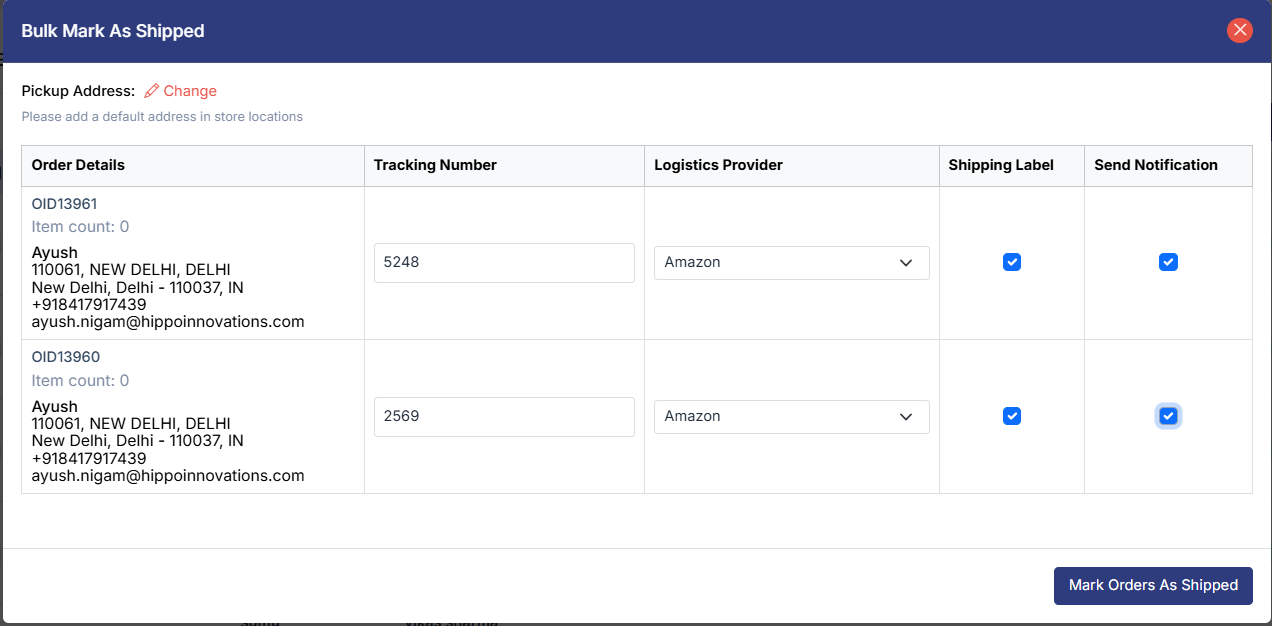
Optional selections: Check on box if you want,
Generate / Attach Shipping Label
Send Shipment Notification to Customer
Click Mark Orders As Shipped.
What Happens Next?
Order status changes to Shipped.
Tracking details are saved.
Customers receive shipment notifications (if enabled).
Orders appear under the Shipped tab.