
Conversations (CRM)
The Conversations feature in your Mystore seller dashboard is a built-in CRM that brings every customer interaction into a single inbox. When a customer raises an order query, an AI agent answers first. If the issue isn't resolved, the conversation is assigned to a human agent on your team.
This guide walks you through how Conversations work and how to use each section of the screen.
How Conversations Work
When a customer contacts you through any channel, a new conversation is created in your inbox with a unique Conversation ID (e.g., #CSC-123456).
To open Conversations, go to Users > Conversations in the left navigation of your seller dashboard.
The Conversations Screen
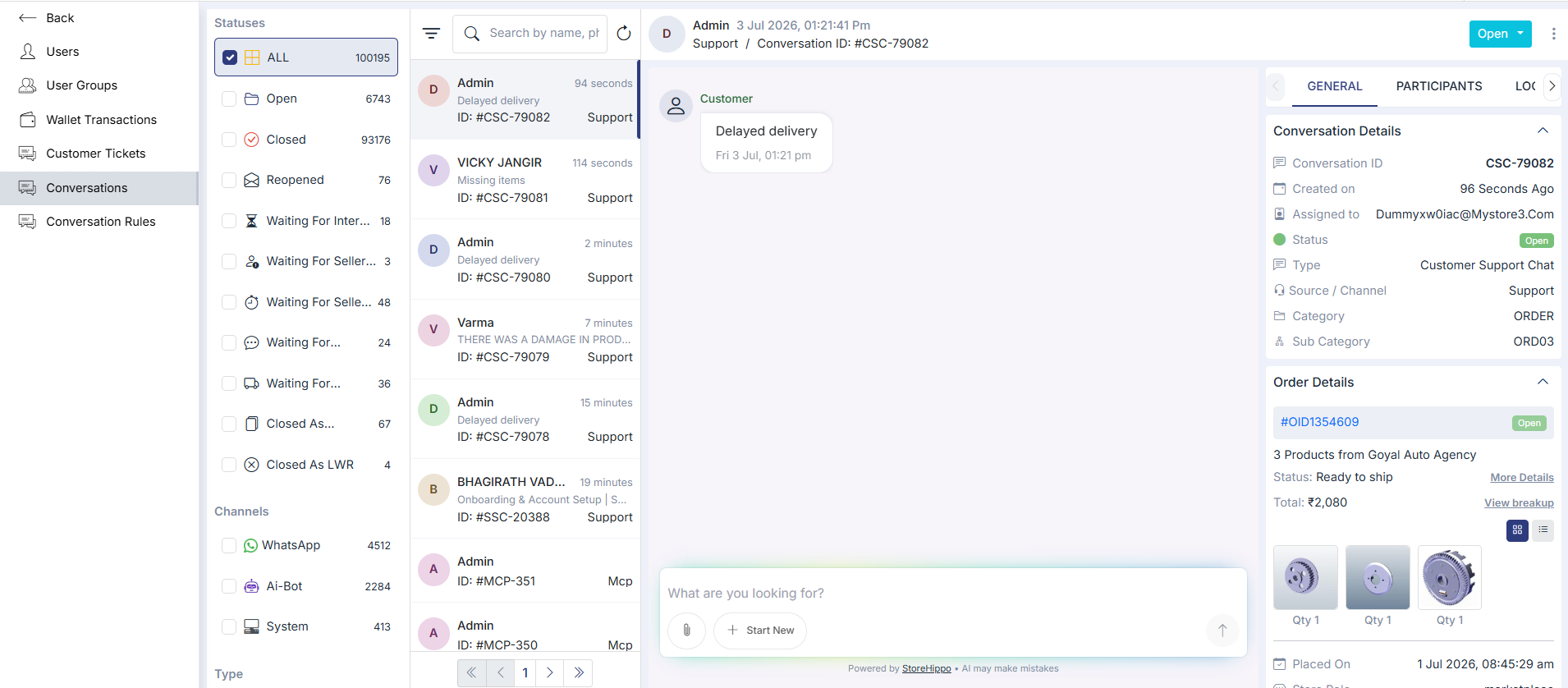
The screen is split into four working areas:
- Filter sidebar — filter by Status, Channel, and Type
- Conversation list — every ticket with a quick preview
- Chat panel — the full message thread for the selected conversation
- Details panel — context about the conversation, customer, and order
1. Filter Sidebar
The filter sidebar narrows the conversation list. The number next to each filter shows how many tickets currently match.
Statuses
Each conversation has a status that reflects where it stands in the support flow.
- ALL — every conversation, regardless of status.
- Open — active, being handled by the AI or a human agent.
- Closed — the issue has been resolved.
- Reopened — the customer has followed up on a previously closed ticket.
- Waiting For Internal update — paused while another internal team completes a step.
- Waiting For Logistics — pending an update from a logistics partner.
- Closed As / Closed As LWR — closed under a custom reason, or closed without a final response from the customer (Last Word Response).
Channels
Filter by the platform the customer used to reach you.
- WhatsApp — conversations from WhatsApp.
- Ai-Bot — conversations started with the Mystore Mitra bot in the admin dashboard.
Type
Filter by the nature of the request.
- Seller Support — internal support tickets raised by sellers.
- Customer Support — tickets raised by your end customers.
- System-automated alerts and notifications.
2. Conversation List
The conversation list shows every ticket that matches your selected filters. At the top, you have:
- A filter icon for advanced filtering.
- A search bar to search by customer name or phone number.
- A refresh icon to pull in the latest activity.
Each conversation card shows:
- Avatar and name — the customer who raised the ticket. Shows as User until a name is captured.
- Time stamp — how long ago the ticket was last updated.
- Subject — a short preview of the issue (e.g., Damage product delivered).
- Conversation ID — a unique reference like #CSC-72557.
- Channel tag — a label such as Support or Ai-bot.
Click any card to open the full thread.
3. Chat Panel
The chat panel in the centre of the screen is where you read and reply to the selected conversation.
The header shows the customer's name, the start date and time, and the channel breadcrumb (e.g., Support / Conversation ID: #CSC-72557).
The message thread shows every message in chronological order, labelled by sender — the customer, Admin (your team), or Ai Agent. Between messages, you may also see system entries such as Agent: Order Assistant, Tool: Customer Support Tool, and Type: Tool_call. These document what the AI did behind the scenes — useful for auditing before you respond.
The reply box at the bottom lets you type a message, attach a file using the attachment icon, and send using the send icon.
4. Details Panel
The right-hand panel gives you context about the open conversation without leaving the chat. It has two tabs: General and Logs.
General Tab
Grouped into expandable sections:
Conversation Details — Conversation ID, Created on, Assigned to, Status, Type, Source/Channel, and Sub Category.
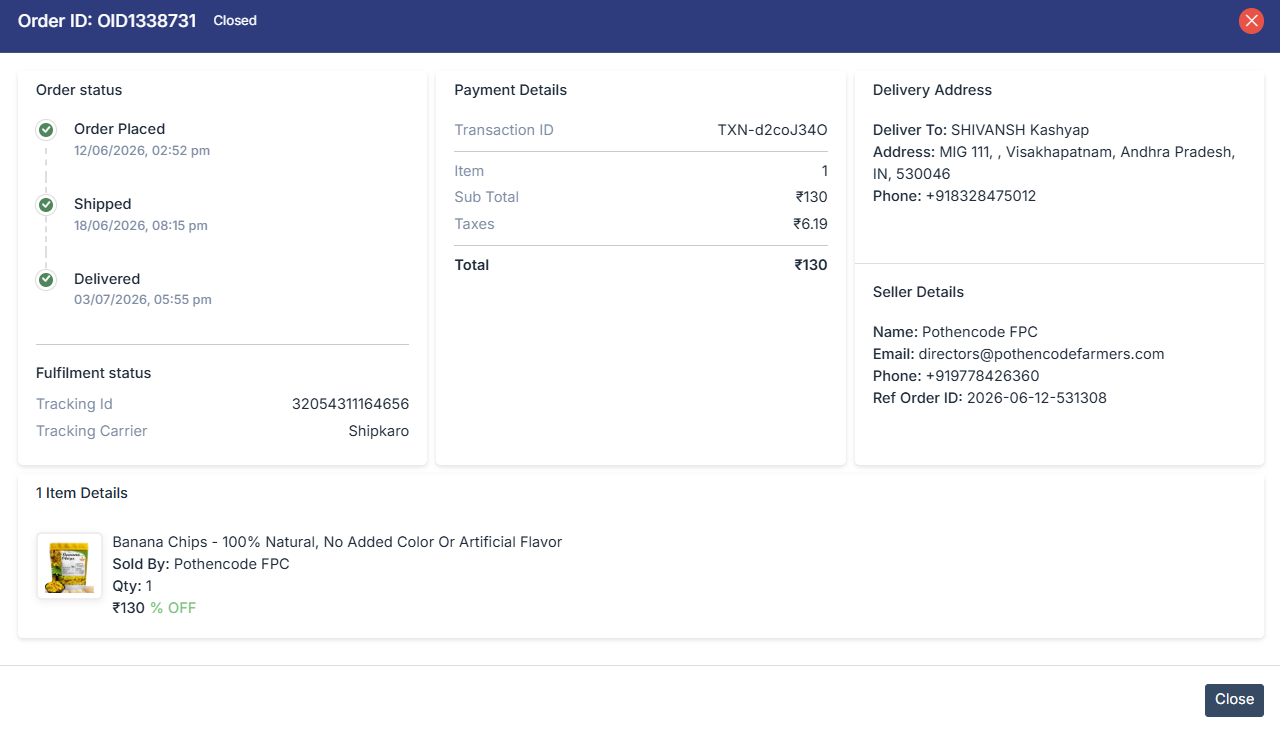
Order Details — when the conversation is linked to an order, you'll see the Order ID with a status pill, product information, total amount, price breakup, placement date, store role, seller app, provider ID, and the seller app order ID. Click More Details to open the full order page.
Logs Tab
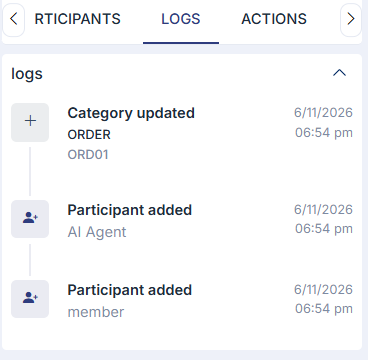
The Logs tab gives you a full activity timeline for the conversation. Every system event is recorded with a date and time, including:
- Status changed: e.g., conversation moved to Open or Closed
- Participant added : e.g., user or AI Agent was added.
- Category Update: e,g order
Attachments
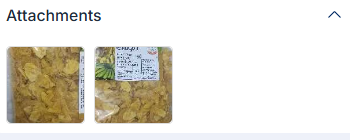
Here you can see the attachement/ iamges shared by the customer.
This helps you track exactly how a conversation progressed and who was involved at each step.