
EasyEcom Integration
This section shows how inventory and orders are synchronized between EasyEcom and Mystore, enabling centralized stock control and streamlined order management .
By following the below-mentioned procedure you can easily integrate Mystore with EasyEcom.
Step 1: On the dashboard, click on the “Three dots”
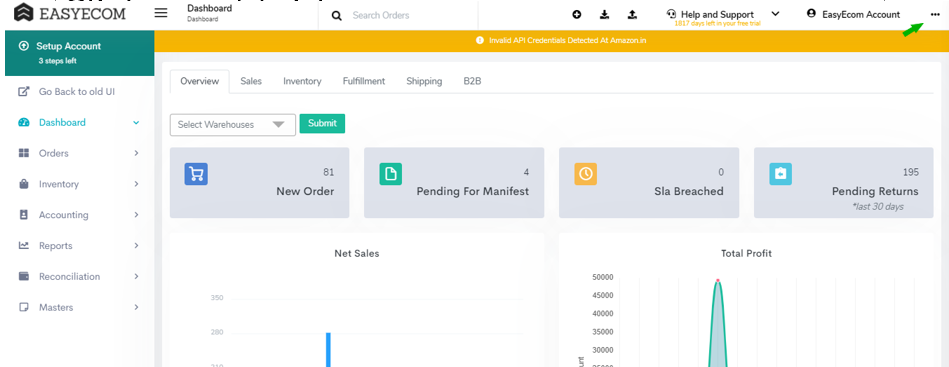
Step 2: Click on the “Account Settings” option
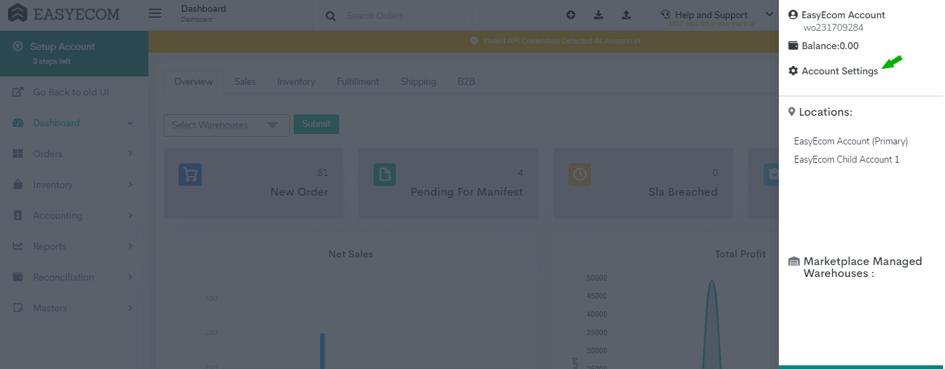
Here click on the “Account Settings” option.
Step 3: Click on “Add Channels”
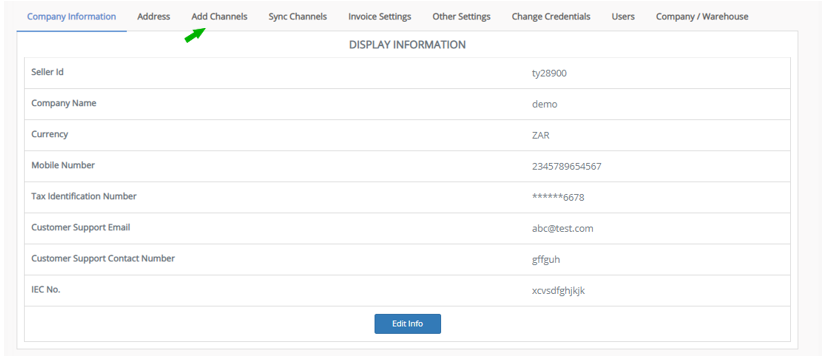
Here click on “Add Channels”.
Step 4: Select Website Builder: "Mystore "
Once you click on “Add Channels” you will be navigated to the following webpage:
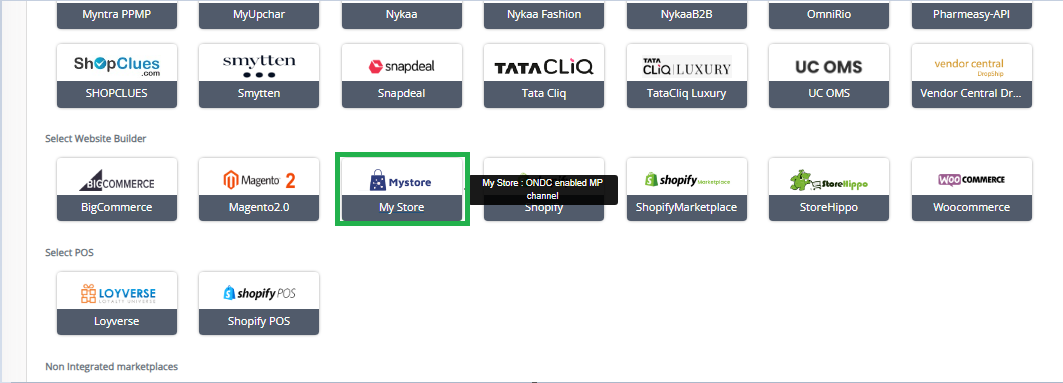
Select Mystore as your website builder.
Step 5: Enter the details
Once you click on it the following pop-up will appear:
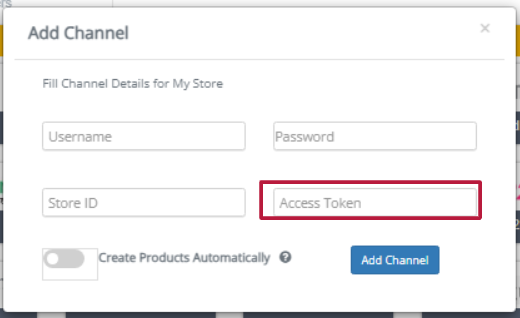
Username:Enter your Mystore e-mail ID.
Password: Enter your Mystore account password.
Store ID: Store ID is the Base URL value preceding the "mystore.in" in the URL.
EG: Base URL: client.mystore.in
Hence the store ID will be "client"
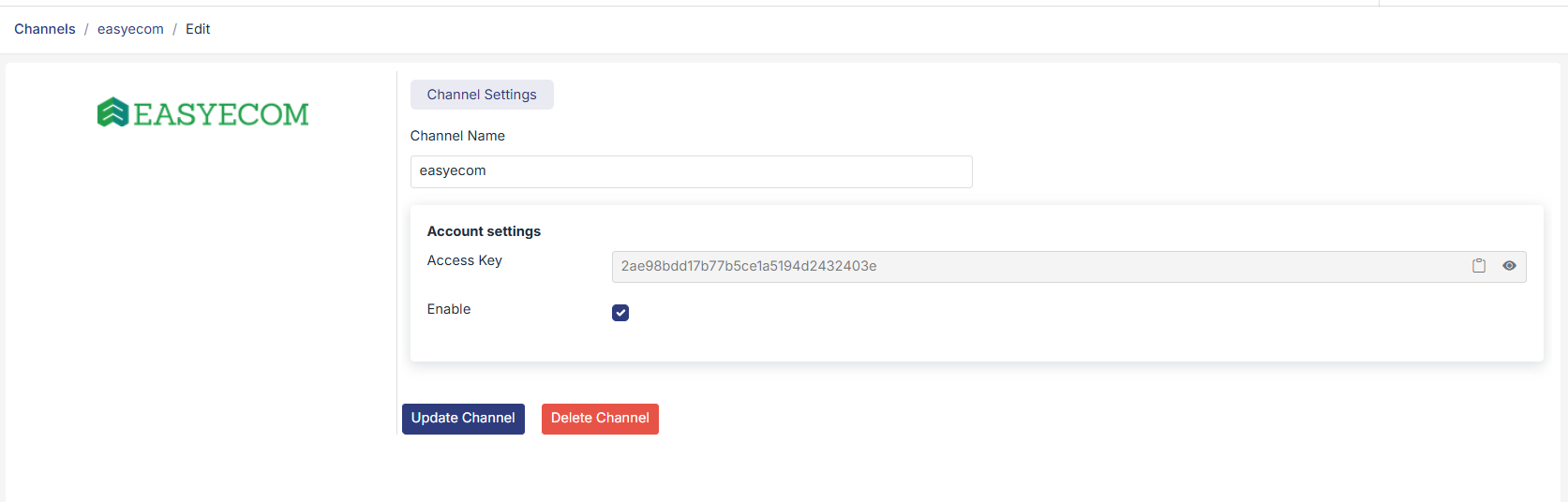
Access Token: To get access key log in to Mystore seller dashboard, go to channels click on easycom channel, this page will have access token, copy the tocken and add.
After entering all the details, click on "Add channel".
You have now successfully integrated Mystore with EasyEcom.