
Google Tag Manager (GTM)
Google Tag Manager (GTM) is an essential tool for any e-commerce business, allowing you to manage and deploy marketing tags (like Google Analytics, Google Ads, and Meta Pixel) without modifying your website's code. Mystore simplifies GTM integration by providing a dedicated field in your site settings. This guide will walk you through the process.
Step 1: Create a Google Tag Manager Account
- Go to the Google Tag Manager website (tagmanager.google.com) and sign in with your Google account.
- Click "Create Account."
- Enter your "Account Name" (e.g., your business name).
- Select your country.
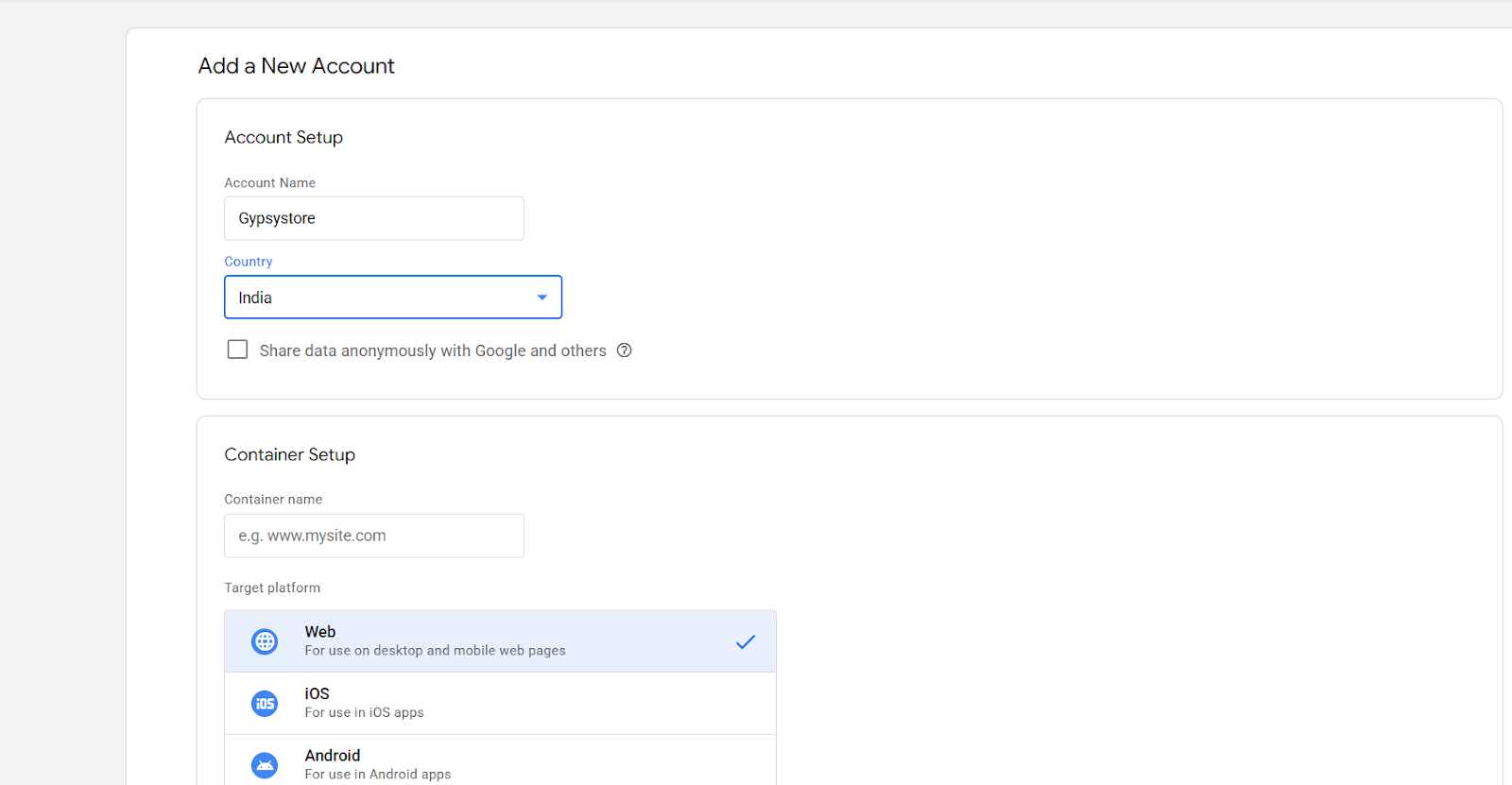
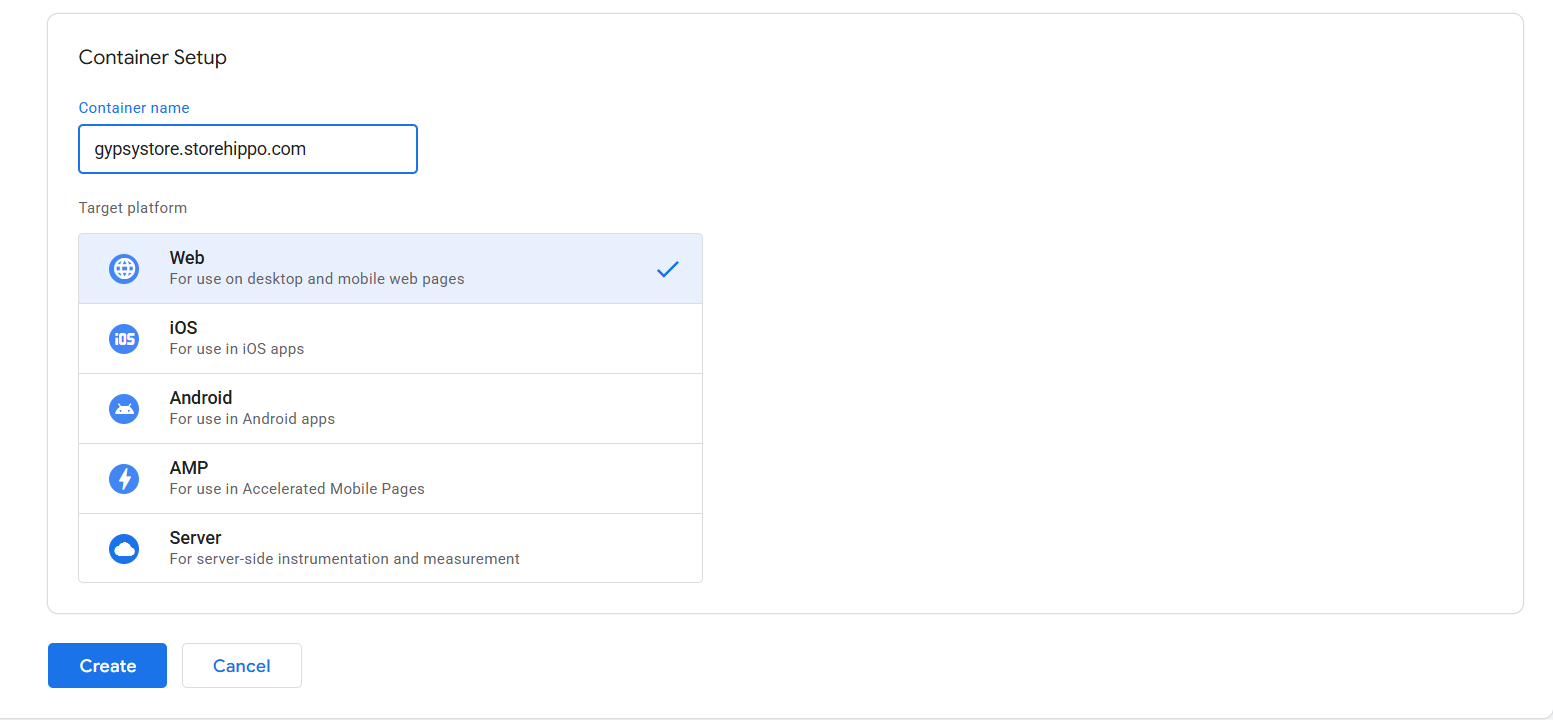
- Enter a "Container Name" (e.g., your website's domain).
- Choose "Web" as the target platform.
- Click "Create" and accept the Google Tag Manager Terms of Service.
Step 2: Retrieve Your Google Tag Manager Code
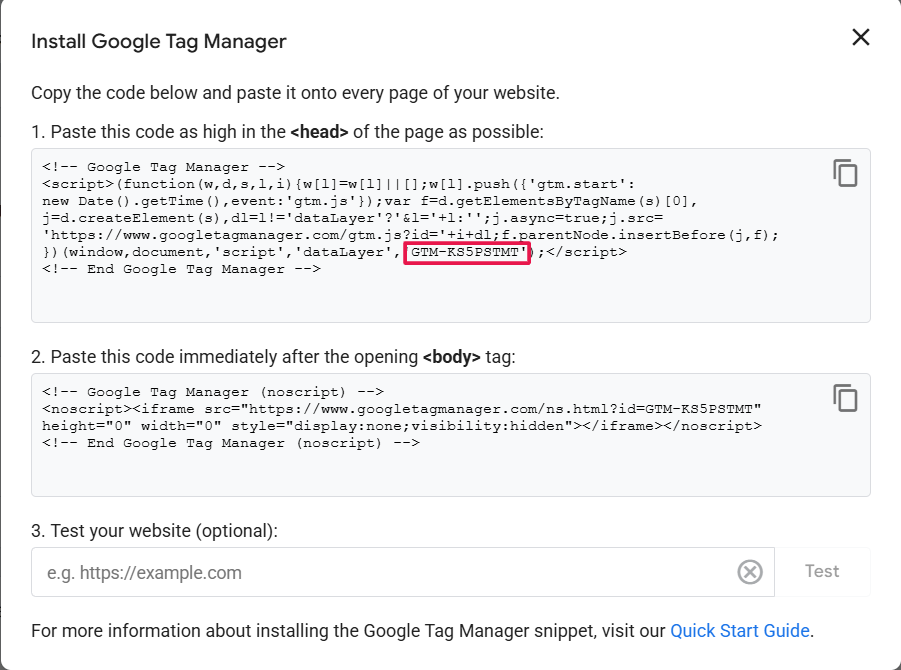
- After creating your container, you'll be presented with the Google Tag Manager installation code.
- You'll see two code snippets: one for the <head> section and one for the <body> section of your website.
- Mystore will only need the Container ID, which begins with "GTM-". You can also find this ID at the top of your GTM workspace.
Step 3: Add the Google Tag Manager ID to Mystore
- Log in to your Mystore admin panel.
- Navigate to "Storefront settings."
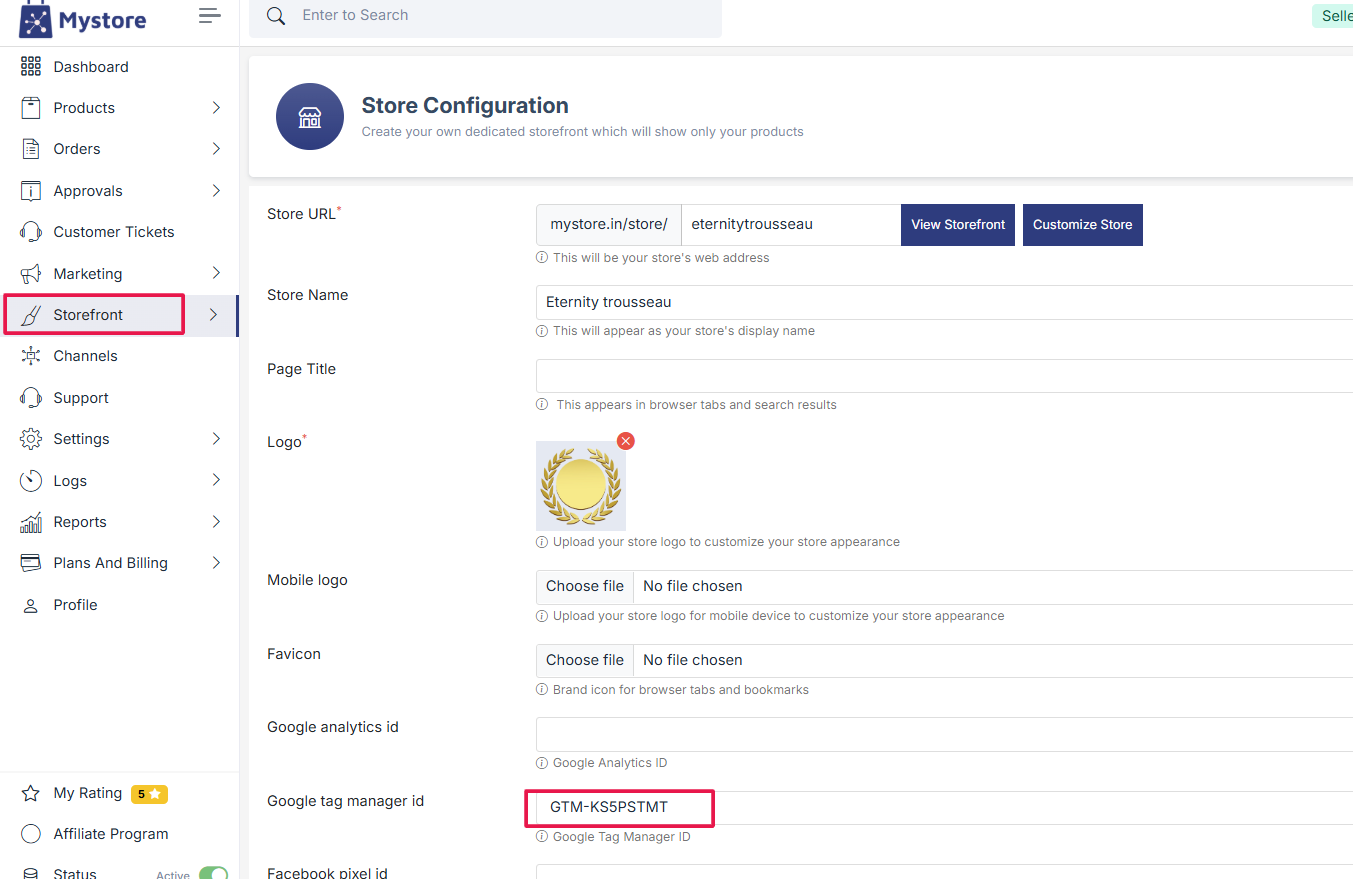
- Select the site you wish to connect to Google Tag Manager.
- Look for the "Google Tag Manager ID" field.
- Paste your GTM Container ID (e.g., "GTM-XXXXXXX") into this field.
- Save your site settings.
Step 4: Verify Your Google Tag Manager Installation
- Go back to your Google Tag Manager workspace.
- Click "Preview" in the top right corner.
- Enter your Mystore website's URL and click "Connect."
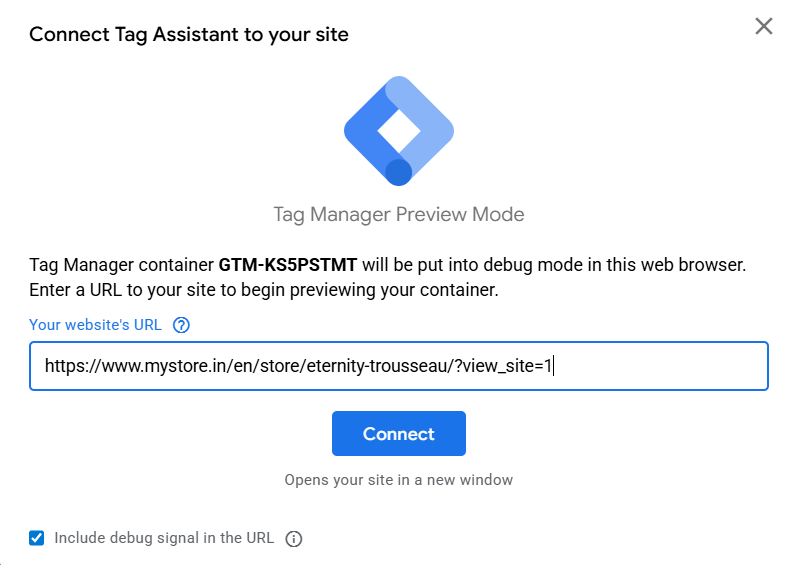
- A new browser tab will open, displaying your mystore website.
- In the GTM preview tab, you should see that the GTM container is connected.
- Navigate through your website to ensure that the GTM container is firing on all pages. If the tag assistant shows that your GTM tag is connected, then the setup is complete.
- Once confirmed, click "Leave Preview Mode" in the GTM interface and then click “Submit” to publish your container.

Why Use Mystore's Integrated GTM Feature?
- Simplicity: Mystore's dedicated field eliminates the need to manually edit your website's code, reducing the risk of errors.
- Efficiency: Streamlines the GTM setup process, saving you time and effort.
- Maintenance: Simplifies future updates and management of your GTM container.
By following these steps, you can quickly and easily integrate Google Tag Manager with your Mystore site, unlocking a world of marketing and analytics possibilities.
Video Guide
Was this page helpful?