
How to Add a Product Feed in Google Merchant Center
Adding your product feed to Google Merchant Center is what lets your products appear on Google. This guide shows Mystore sellers how to add a feed using a feed URL from your store.
Before you start, you'll need your product feed URL. Your store generates this automatically, following a simple structure based on your domain. For example, if your website is example.com, your feed URL would be https://www.example.com/en/store/example/all.atom. Take your own store's domain, follow the same pattern, and keep the URL handy for the steps below.
Step-by-Step Setup Guide
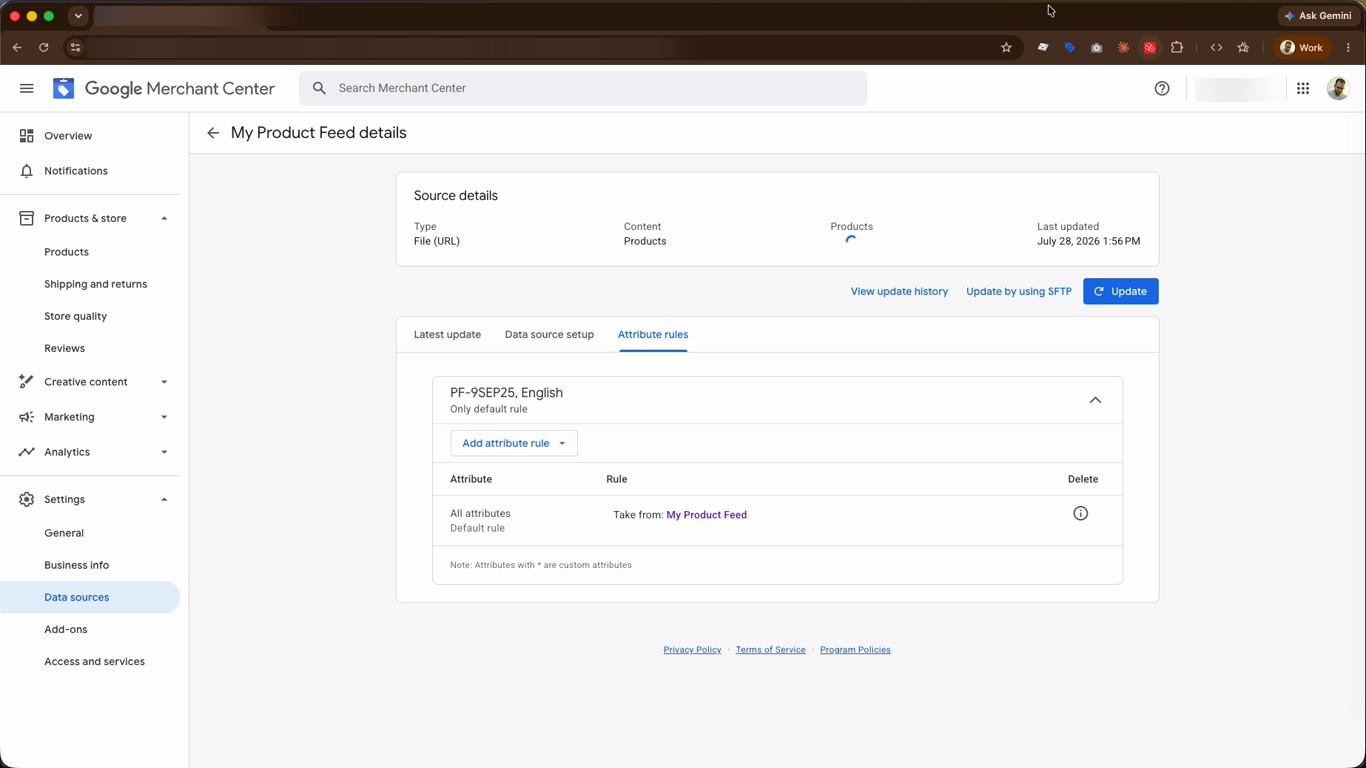
- In Merchant Center, go to Settings and open Data sources. On the Product sources tab, under Primary sources, click Add product source.
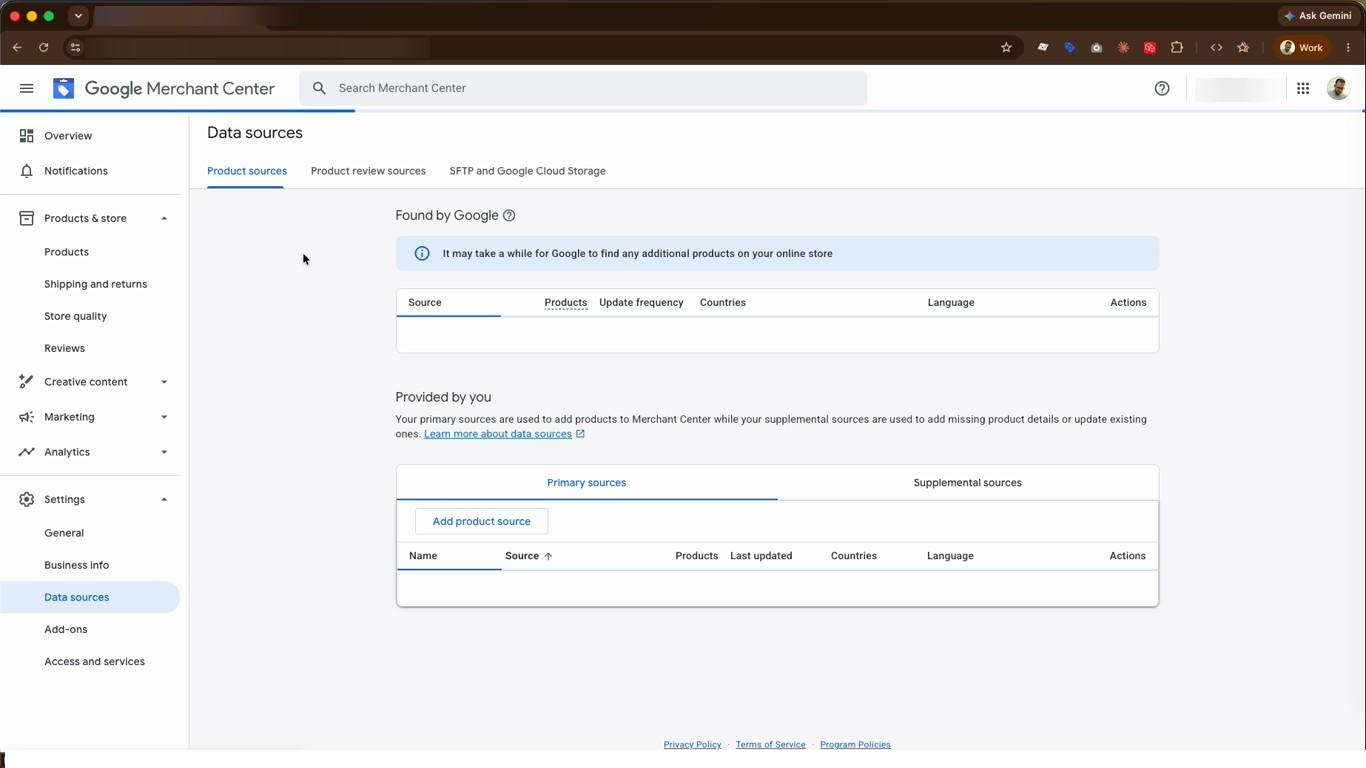
- Choose how to add products. Since we have a feed URL from the store, select Add products from a file, then choose Enter a link to your file. This only needs to be set up once and updates automatically.
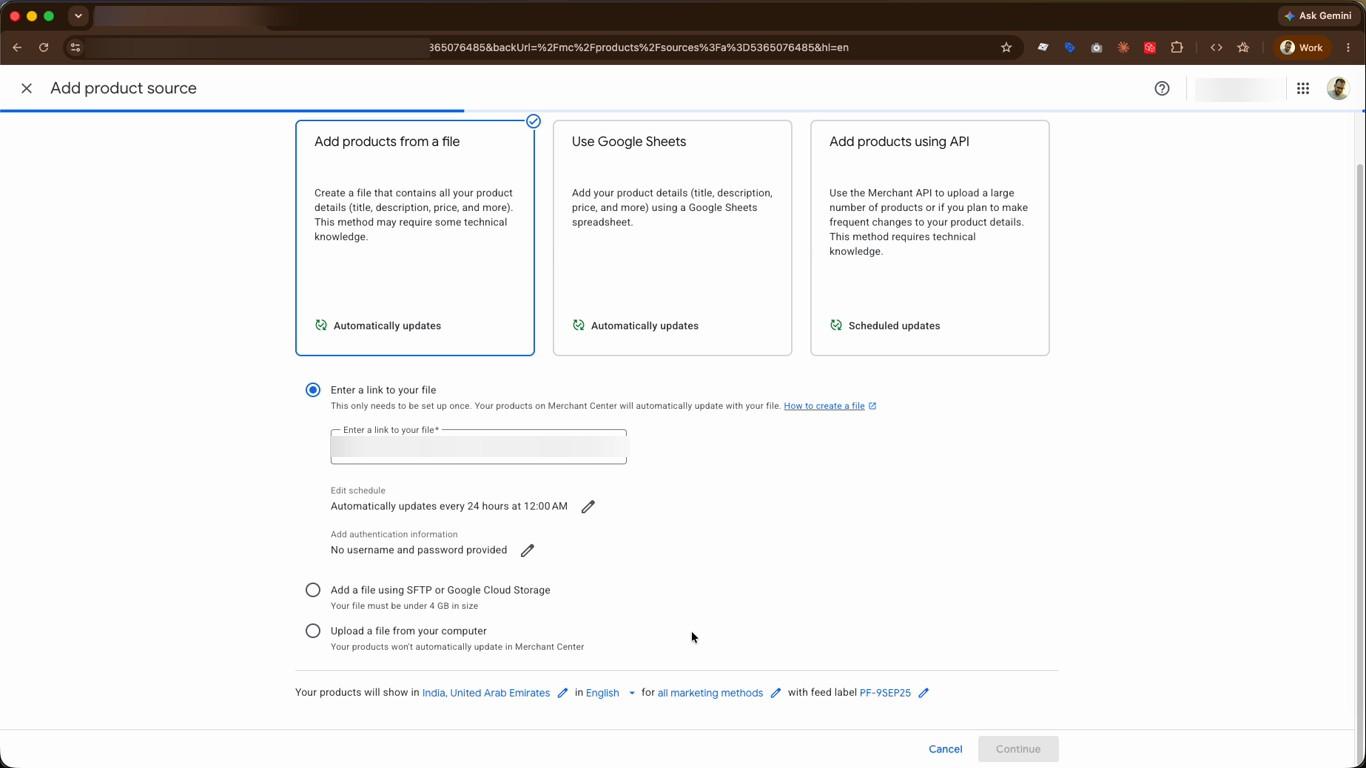
- Paste your product feed URL into the Enter a link to your file field — the link you prepared at the start. Set how often it refreshes under Edit schedule, then click Continue.
- Merchant Center fetches your products and creates the data source. Under Latest update, confirm that your products are updated and that no issues were found.
- Open the Data source setup tab to review the details — your File URL, update schedule, countries, and language. Use the edit icon next to Source name to give your feed a clear name, then click Save.
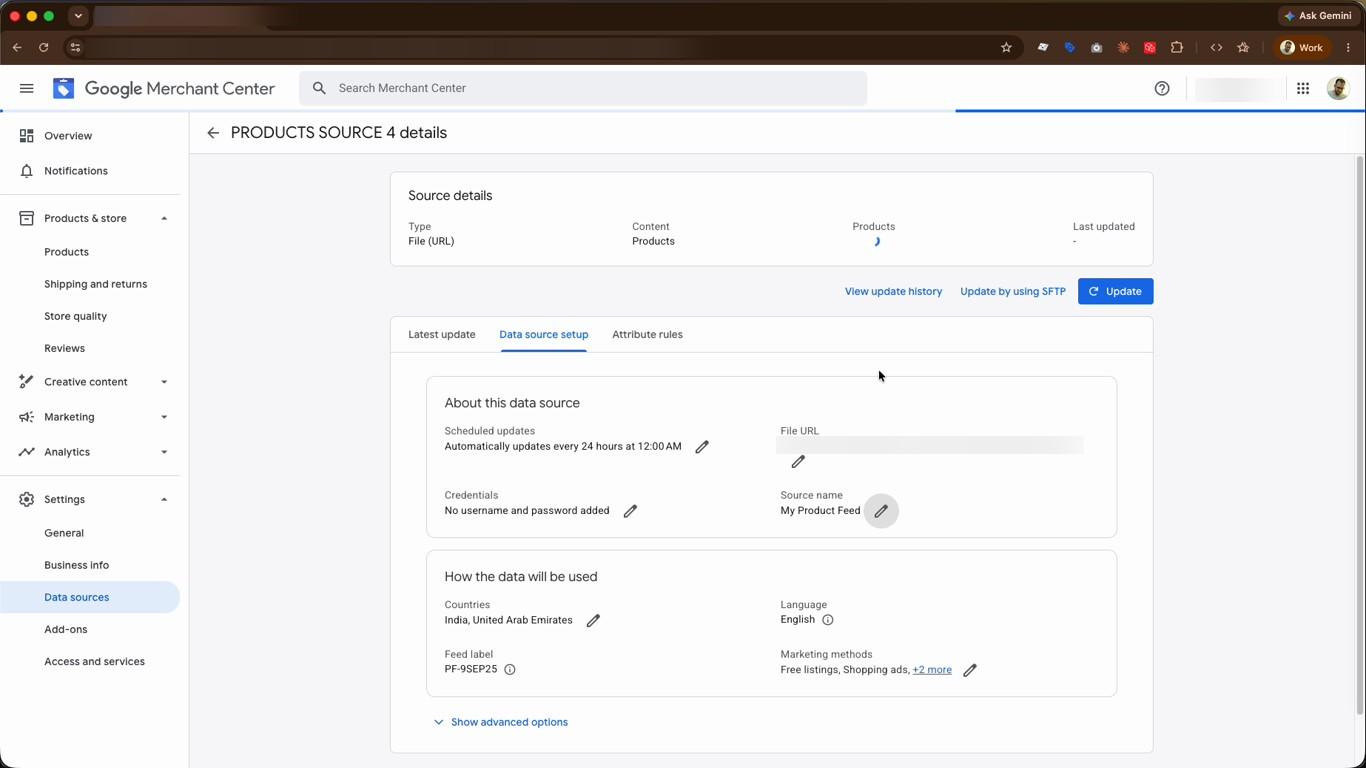
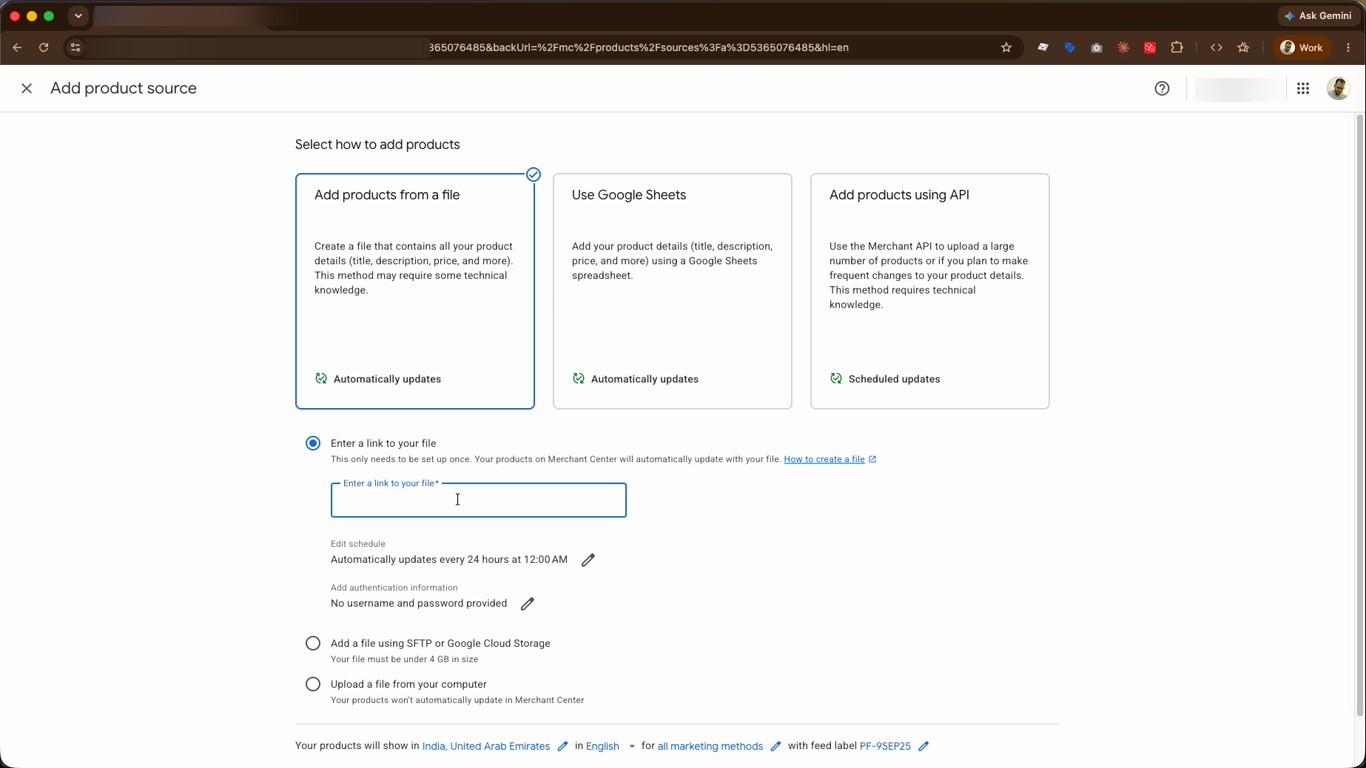
- If you ever need to adjust your product data, use the Attribute rules tab to map or modify product attributes. Otherwise, your feed is ready.
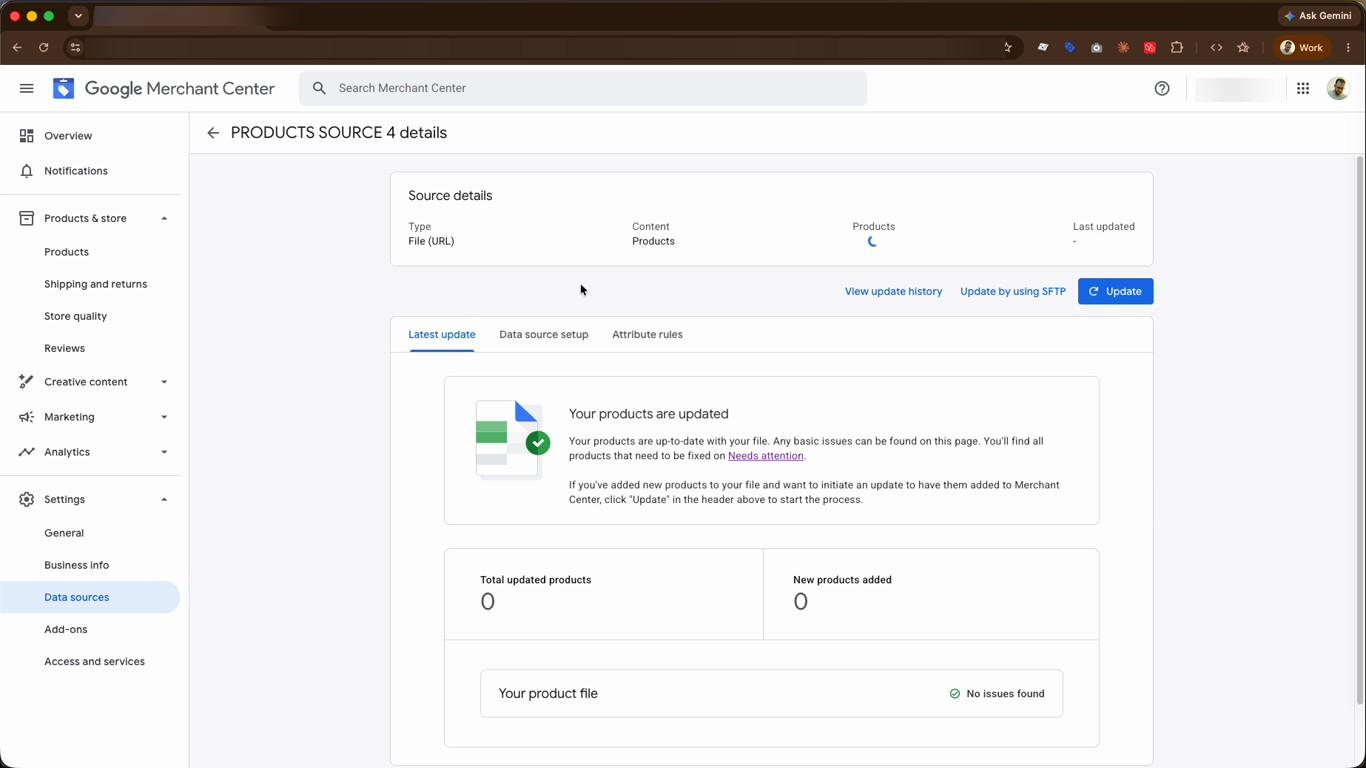
This is the final step. Your product feed is now connected to Merchant Center, and your products will sync automatically on the schedule you set.
Video Guide
Was this page helpful?