
How to Add Facebook Page, Instagram, WhatsApp and Threads in Meta Business Manager
Meta Business Manager allows you to connect all your social and messaging assets, Facebook Pages, Instagram accounts, WhatsApp Business accounts, and Threads - under one business portfolio. This centralised setup gives your team, partners, and ad accounts unified access to manage and advertise across all platforms. Your Meta Business Manager portfolio must be set up before adding these assets.
Step-by-Step Setup Guide
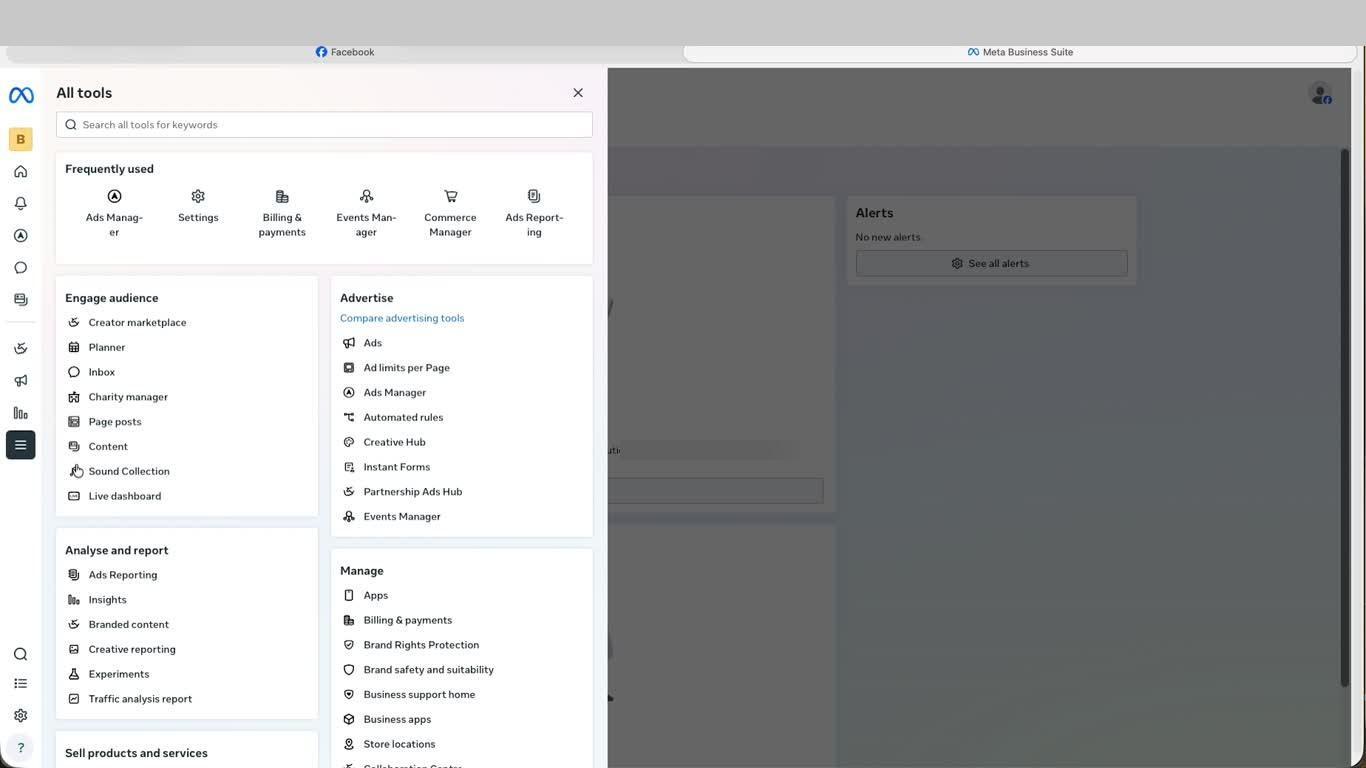
- From Meta Business Suite, open All tools from the left navigation. Click Settings to open Business Settings.
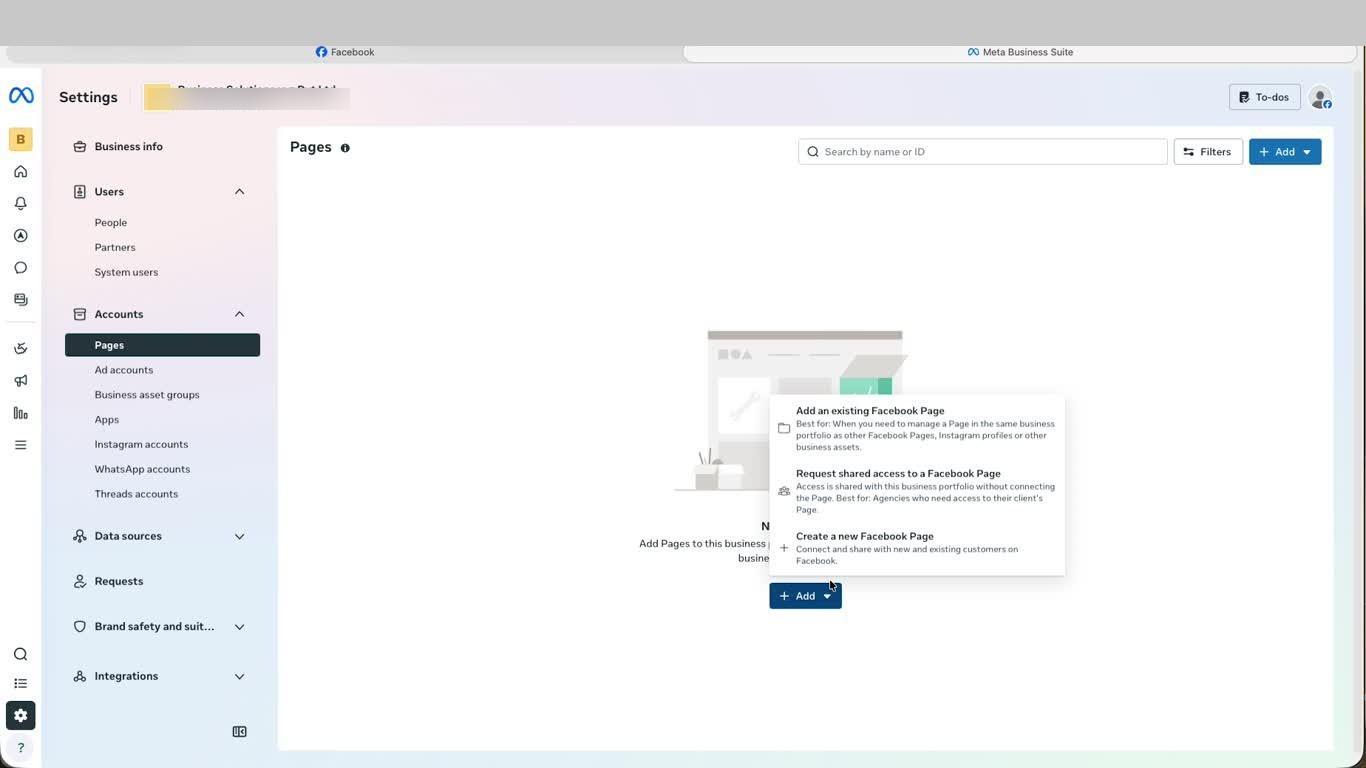
- In Settings, under the Accounts section in the left panel, click Pages. Click the + Add button to see three options: Add an existing Facebook Page, Request shared access, or Create a new Facebook Page. Select the option that applies to your situation.
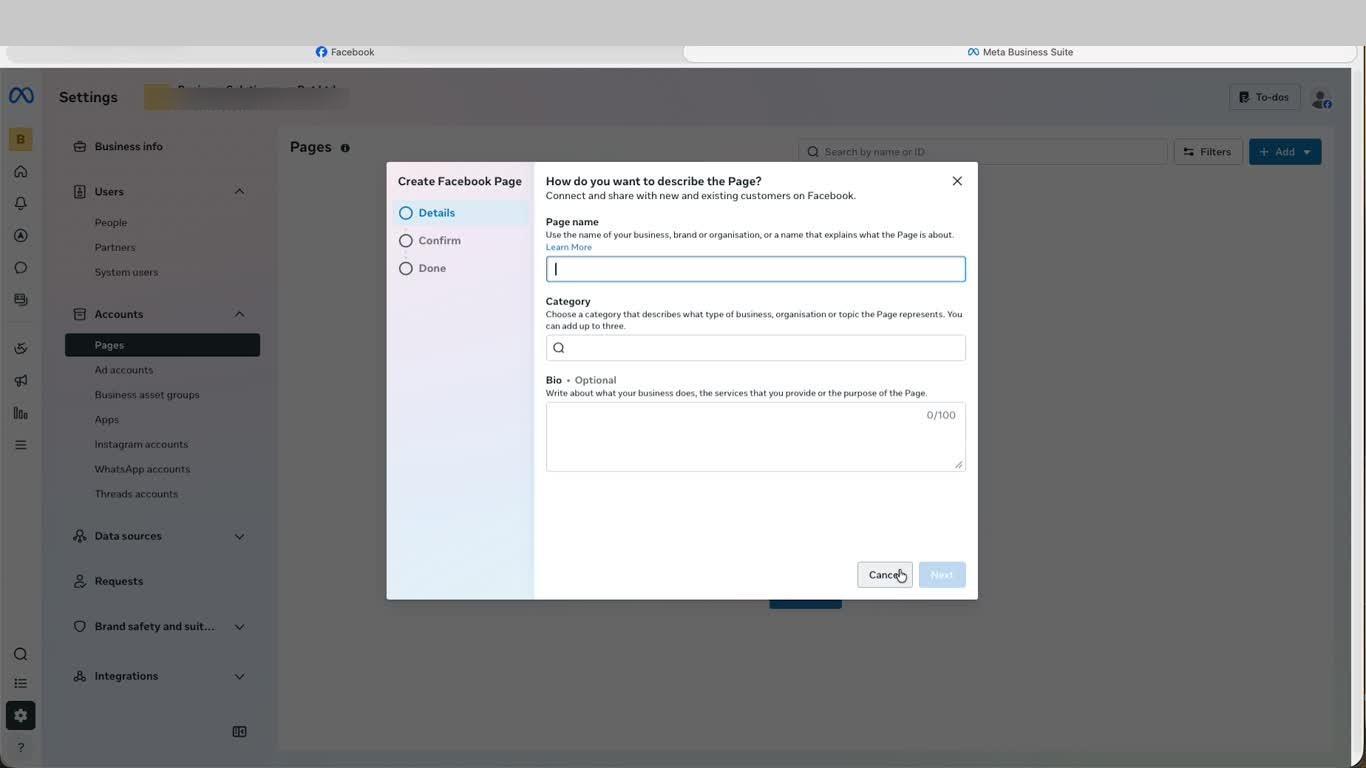
- To create a new page, select Create a new Facebook Page. On the Create Facebook Page form, enter your Page name (your business or brand name), select up to three Categories that describe your business, and optionally add a Bio. Click Next then follow the Confirm and Done steps.
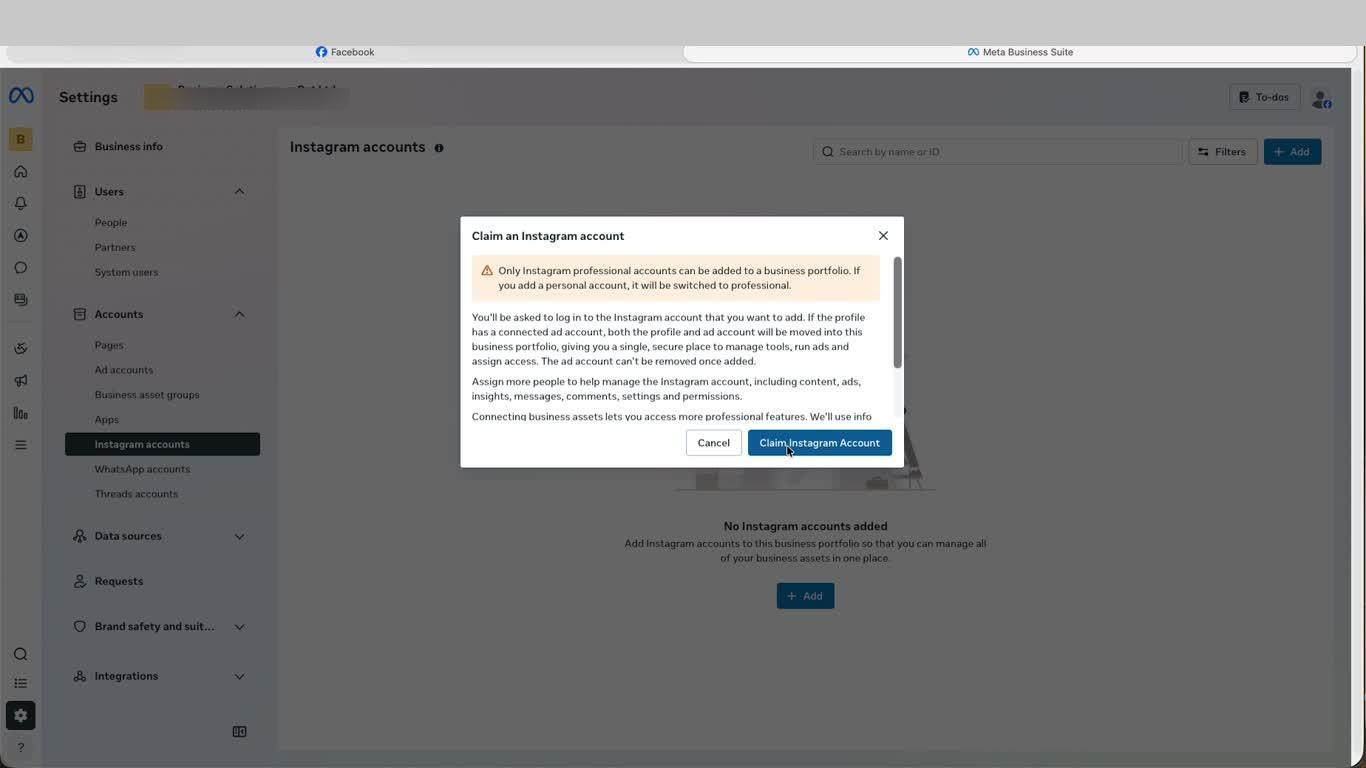
- Click Instagram accounts in the left panel, then click + Add. A Claim an Instagram account dialog will appear. Note: only professional Instagram accounts can be added - if you add a personal account it will be automatically converted. Click Claim Instagram Account and log in to the Instagram account you want to connect.
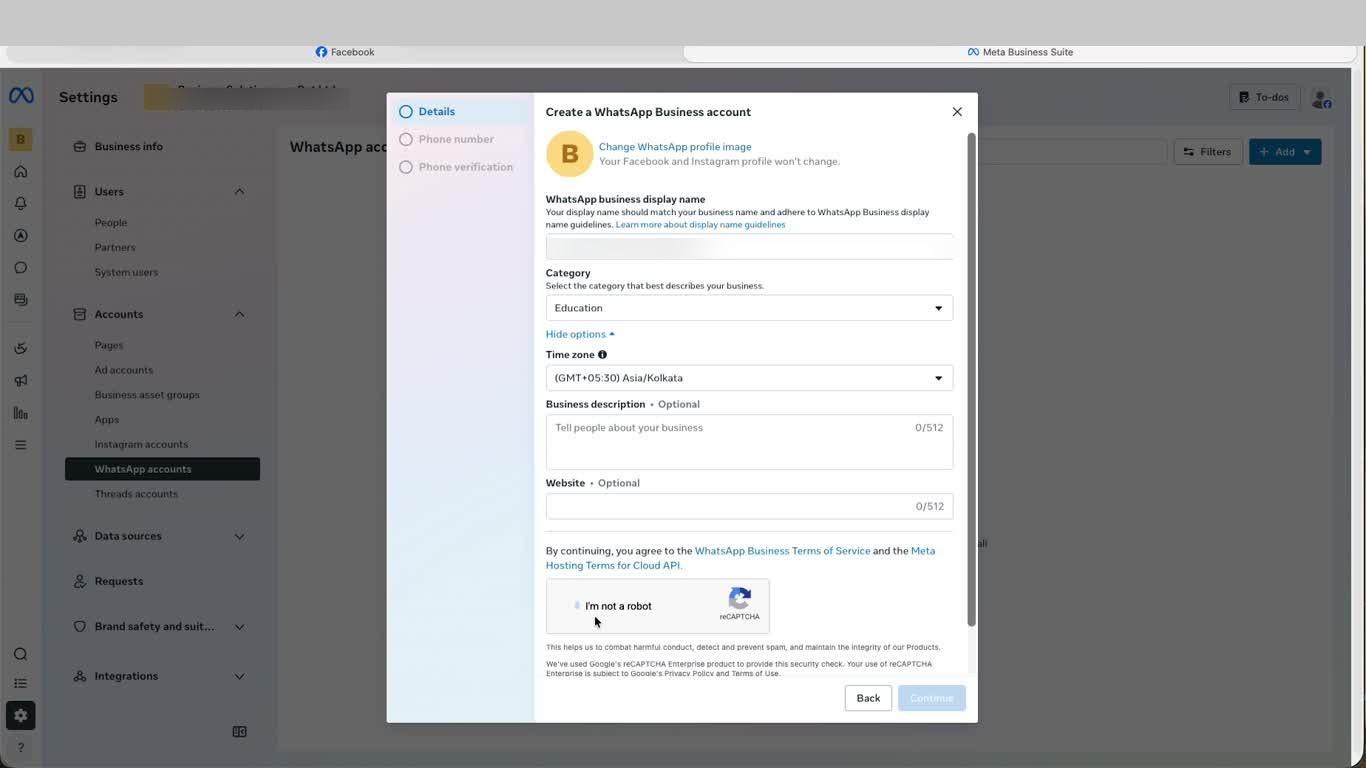
- Click WhatsApp accounts in the left panel, then click + Add. Select Create a new WhatsApp Business account. Enter your WhatsApp business display name (must match your registered business name), select a Category, set your Time zone, and optionally add a Business description and Website. Complete the CAPTCHA and click Continue to proceed to phone number and verification steps.
- Click Threads accounts in the left panel. This is where you connect and manage your Threads presence under the same business portfolio. Click + Add to link your Threads account and keep all your Meta assets managed in one place.
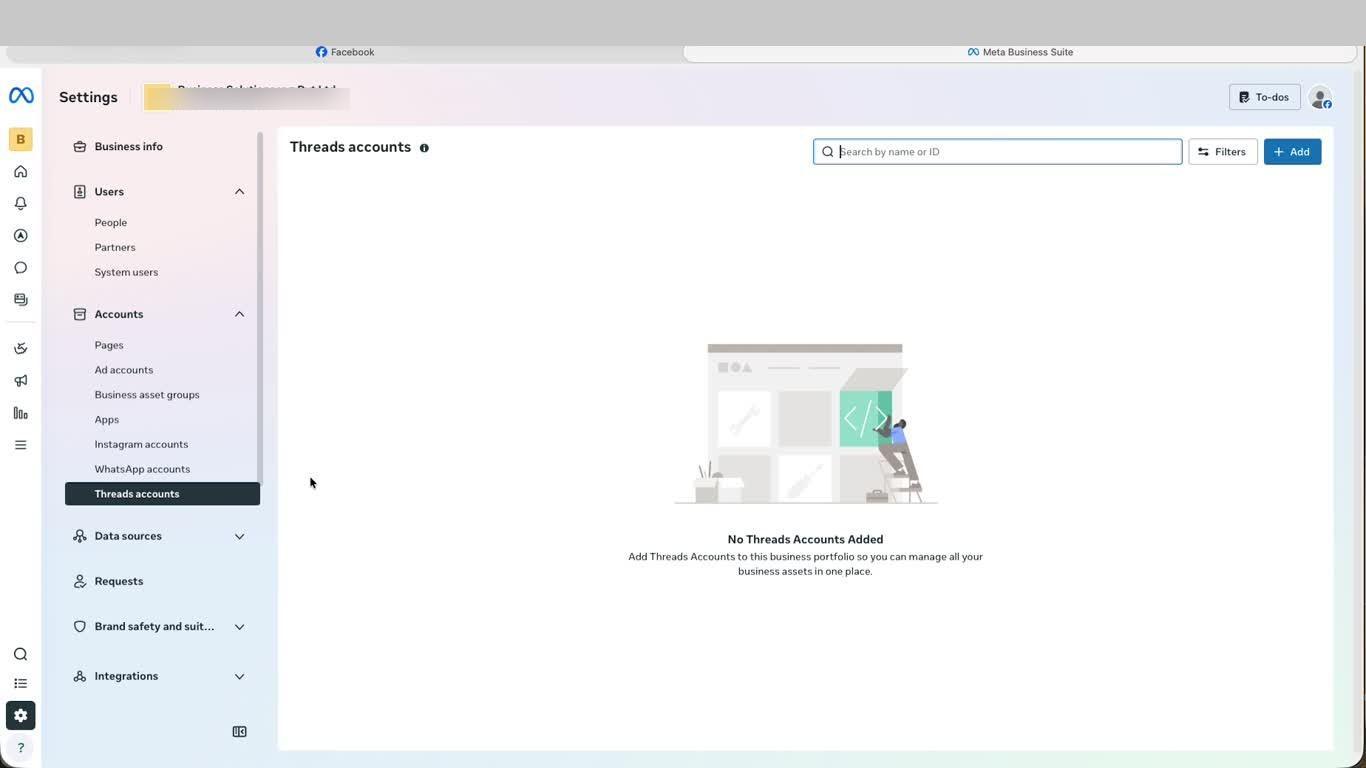
This is the final step. Once all your accounts are linked under Meta Business Manager, you can manage content, run ads, and assign team access across Facebook, Instagram, WhatsApp, and Threads from a single centralised dashboard.
Video Guide
Was this page helpful?