
How to Add Products in Meta Commerce Manager
Meta Commerce Manager is the platform where you create and manage your product catalogues - the foundation for running Shopping ads, Dynamic ads, and Advantage+ catalogue ads on Facebook and Instagram. A product catalogue connects your inventory to Meta's advertising system, allowing Meta to automatically match the right products to the right audiences. A Meta Business Manager portfolio must be set up before creating a catalogue.
Step-by-Step Setup Guide
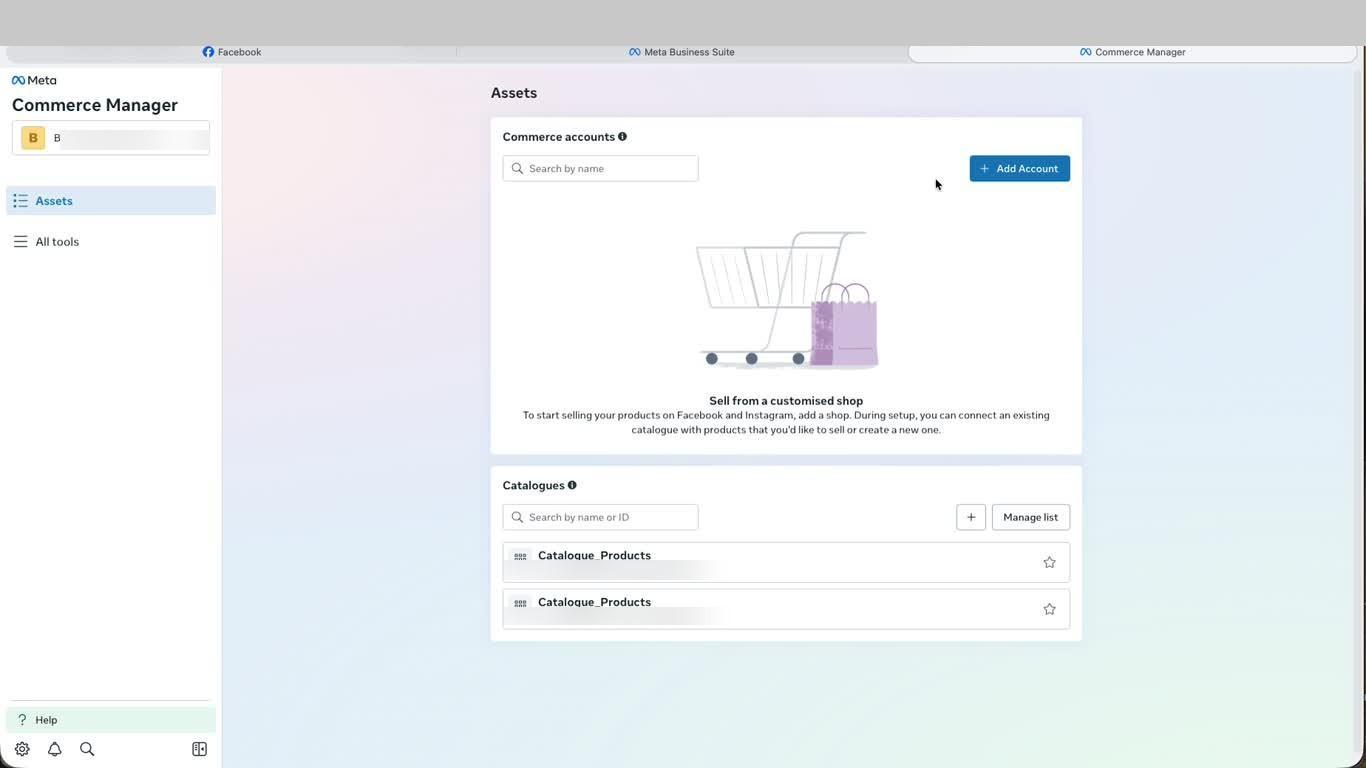
- From Meta Business Suite, navigate to Commerce Manager via All tools or directly at business.facebook.com/commerce. On the Assets page you will see two sections: Commerce accounts for shop setup, and Catalogues for ad-focused product feeds. Click the + icon next to Catalogues to add a new one.
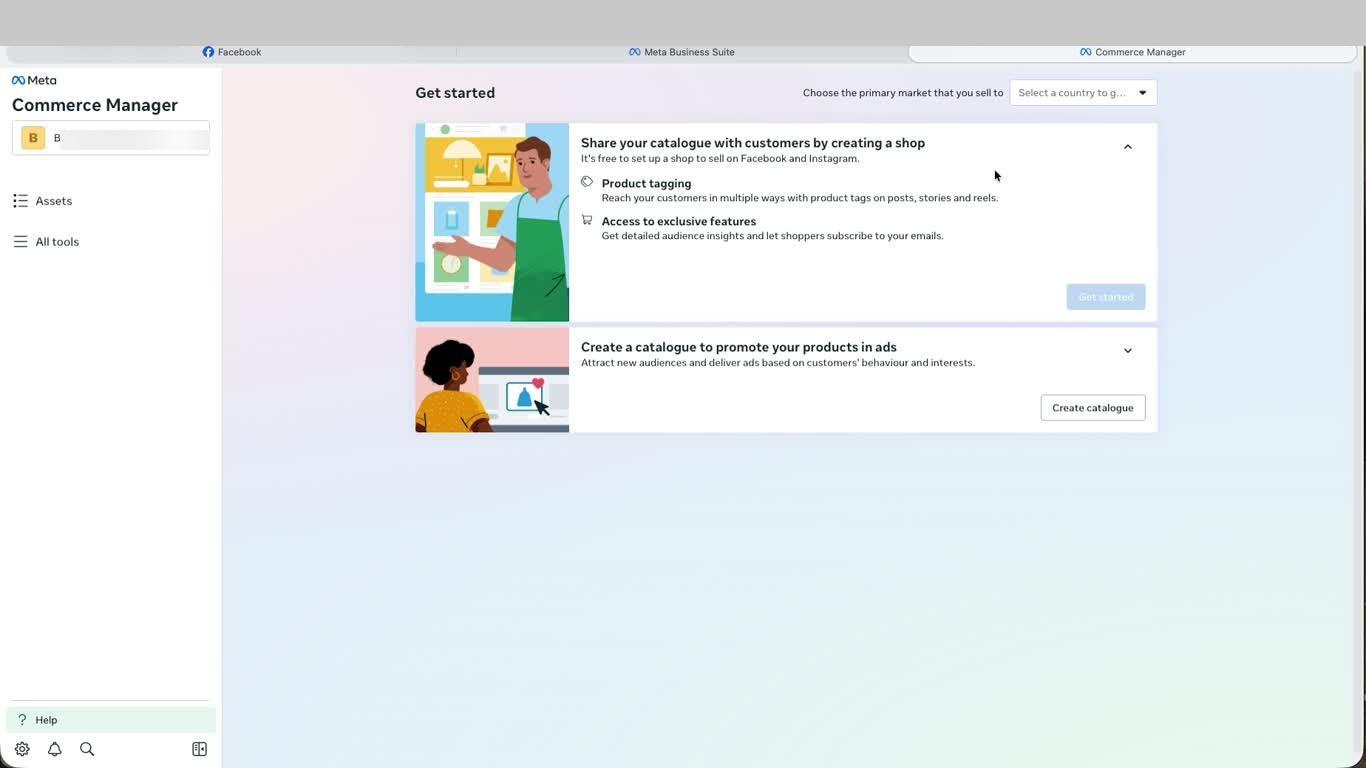
- A Get started screen presents two paths: Share your catalogue by creating a shop (for selling directly on Facebook and Instagram with product tagging), or Create a catalogue to promote your products in ads (for running ad campaigns). Select Create catalogue for ad use.
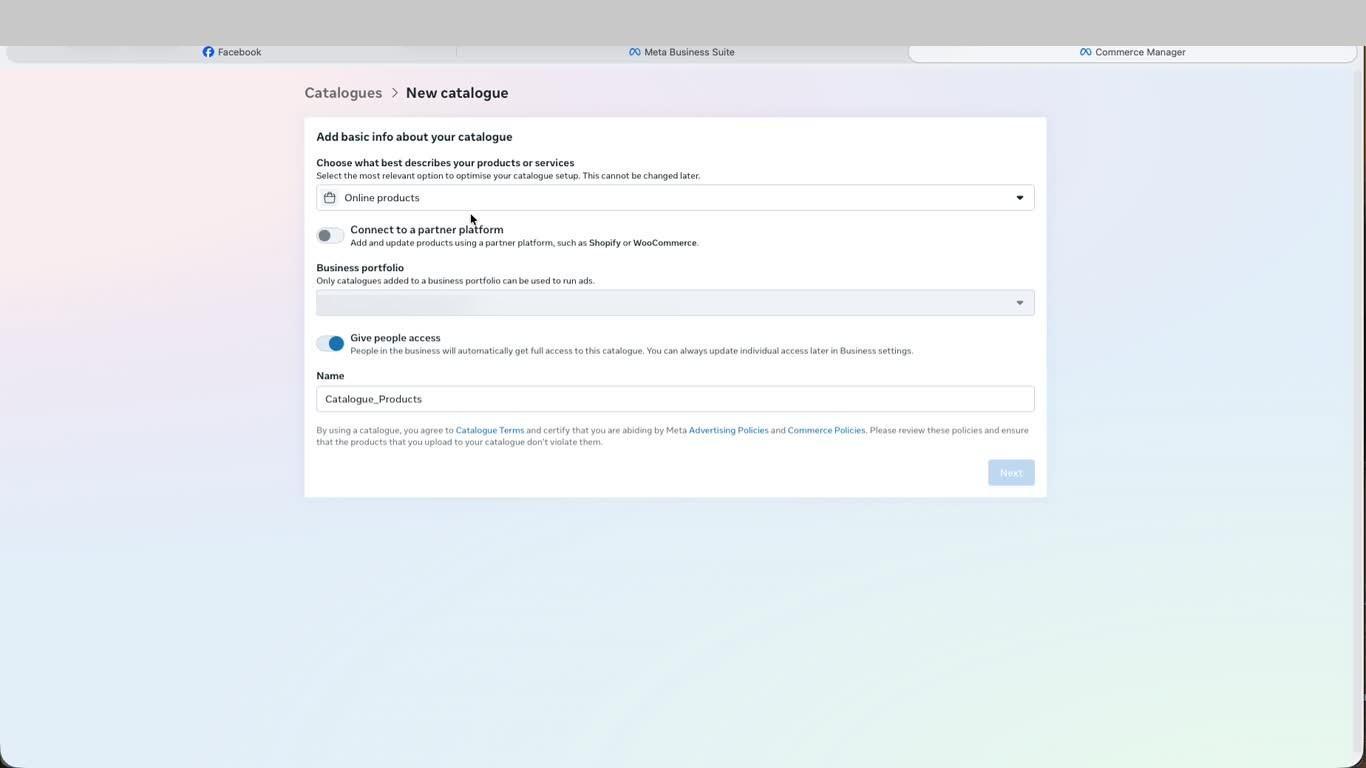
- On the New catalogue page, select Online products as the catalogue type from the dropdown — this setting cannot be changed later. Ensure your Business portfolio is correctly selected, toggle on Give people access so your team has access, give your catalogue a clear Name, and click Next.
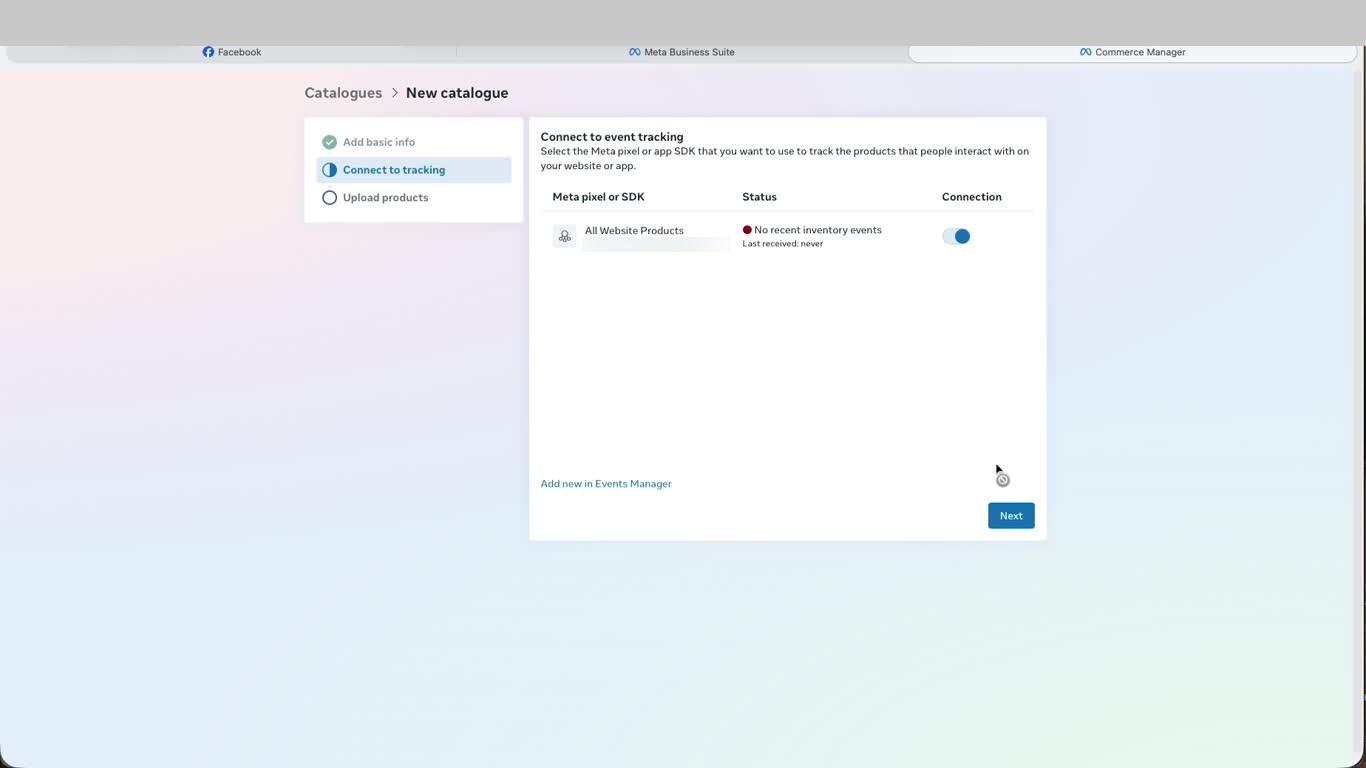
- On the Connect to event tracking step, you will see your Meta Pixel listed. Toggle the connection on so Meta can match product views, add-to-carts, and purchases to catalogue items for better ad targeting. Click Next.
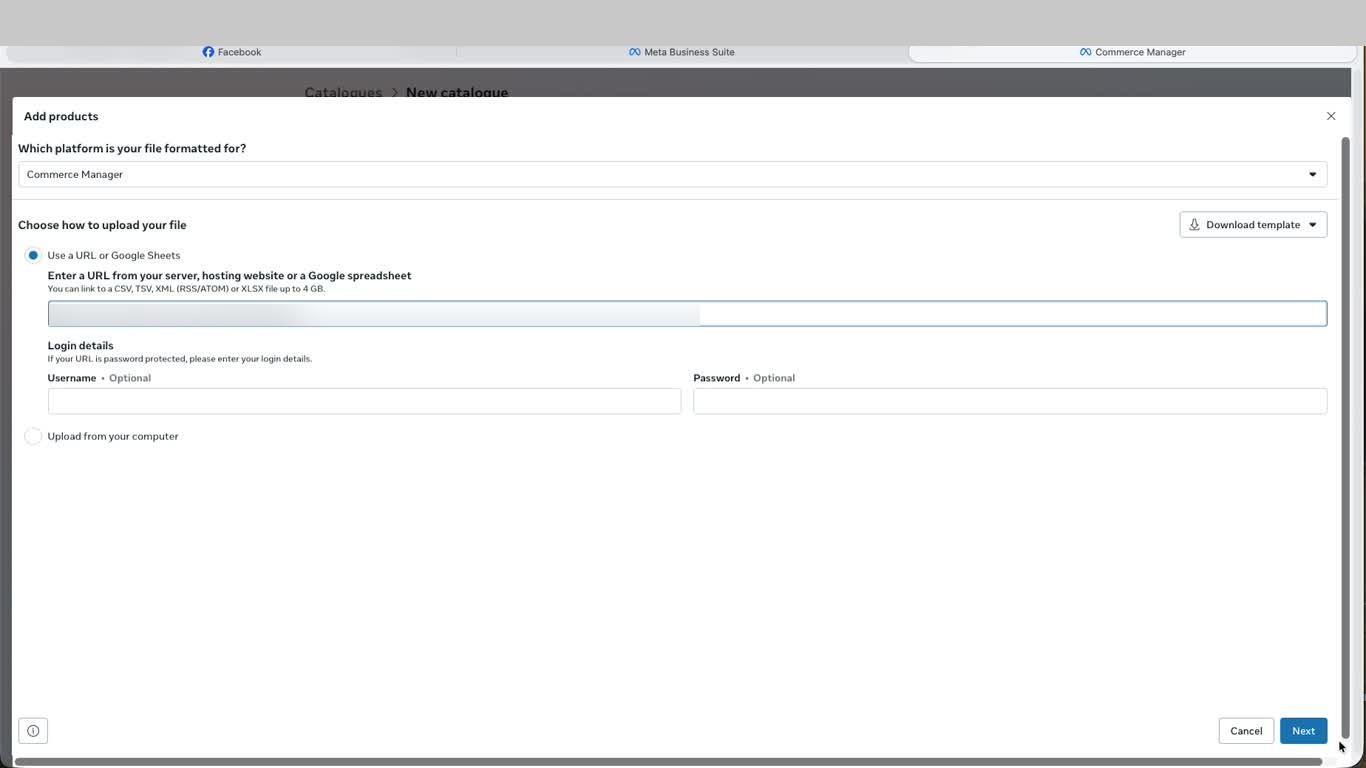
- On the Add products screen, keep the platform set to Commerce Manager. Select Use a URL or Google Sheets as the upload method. Paste your product feed URL — this can be a CSV, TSV, XML (RSS/ATOM), or XLSX file hosted on your store server. Click Next.
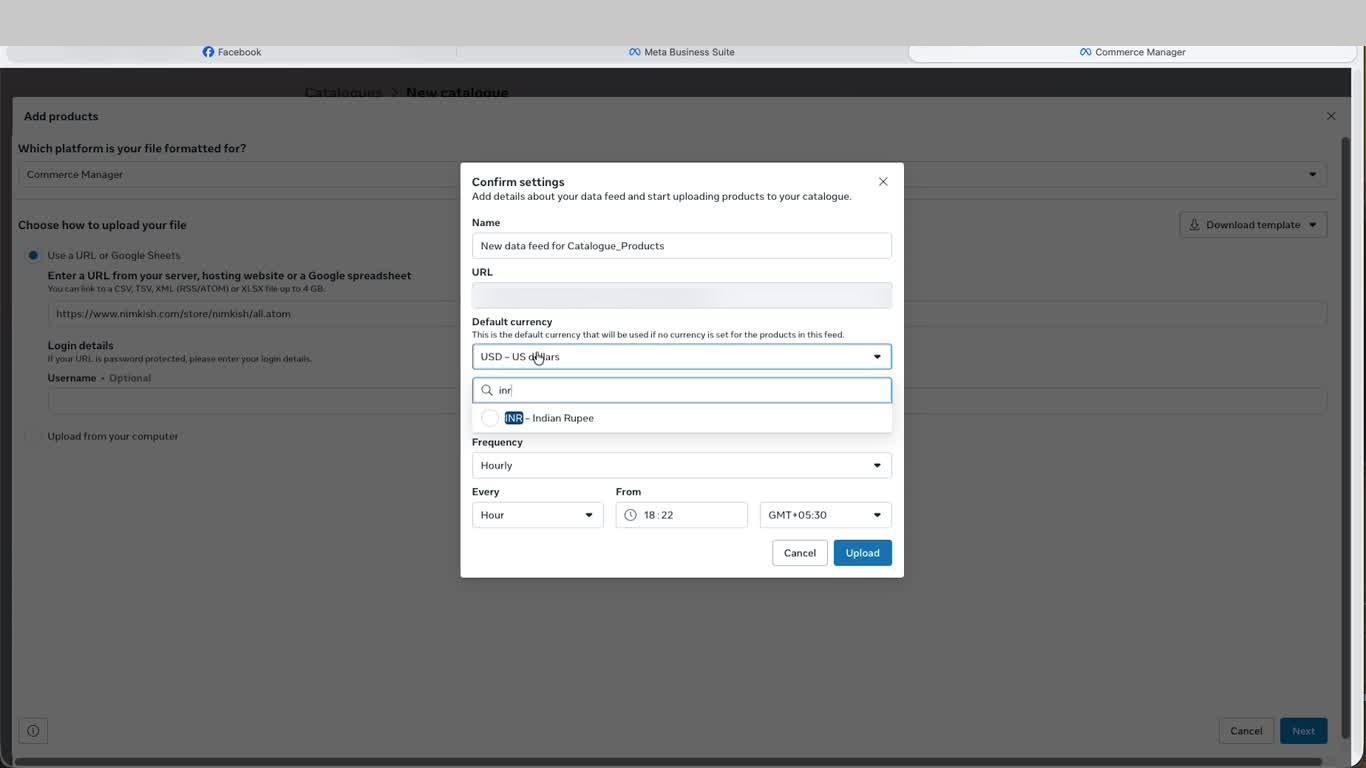
- In the Confirm settings popup, give your data feed a Name. Set the Default currency to match your market — for India select INR — Indian Rupee. Set the Frequency to Hourly so your catalogue stays automatically updated with stock and pricing changes. Click Upload to submit.
- Your catalogue Overview will now show the setup checklist with all steps marked complete and your data feed processing. Once the feed is uploaded, all products go through Meta's automatic review. Click Products in the left panel to view your full product list with name, variants, availability, price, and last updated timestamp.
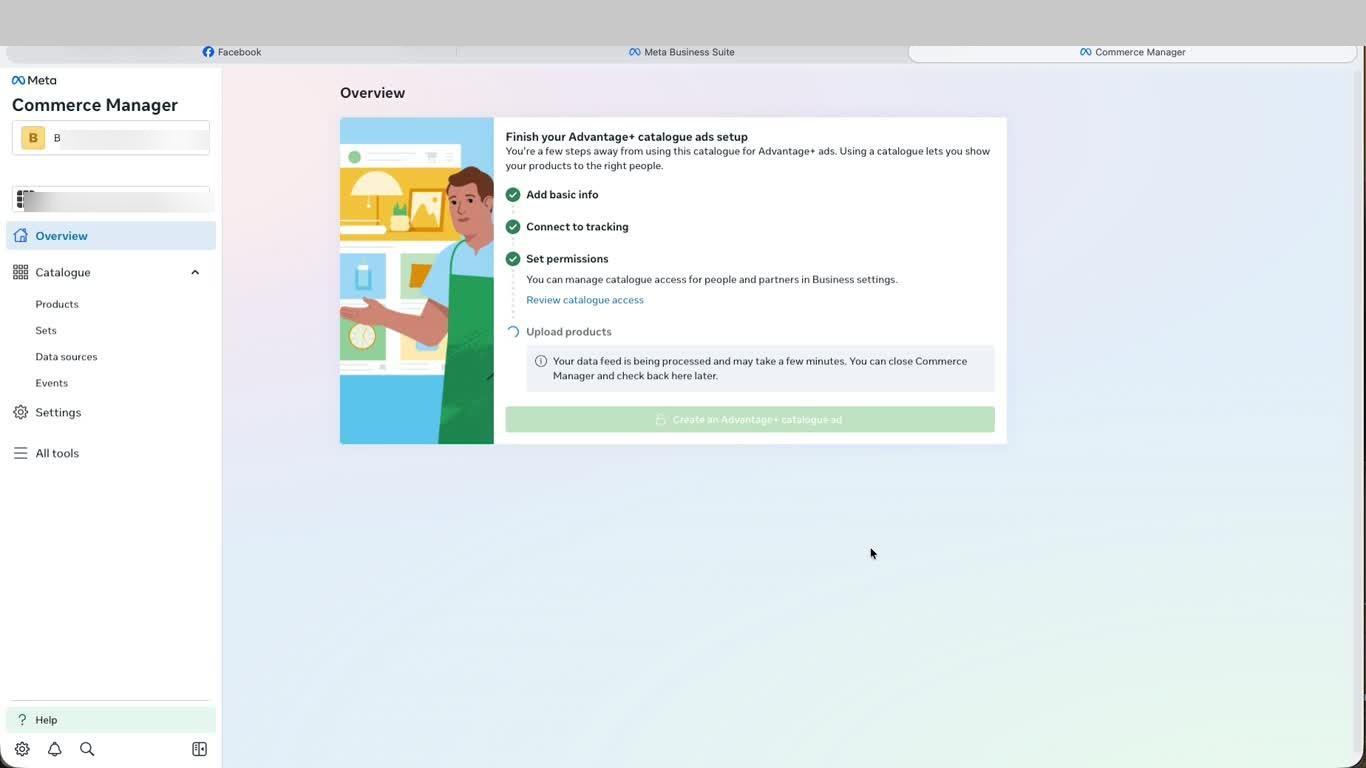
This is the final step. Once your product catalogue is created and the feed is processing, it is ready to use in Meta ad campaigns. You can return to Commerce Manager at any time to manage your products, update data sources, and monitor catalogue health.
Video Guide:
Was this page helpful?