
How to Create a Google Ads Account
A Google Ads account allows you to advertise your business across Google Search, YouTube, Gmail, Google Maps, and the Google Display Network. This guide walks you through creating a new Google Ads account and accessing your dashboard, so you can start promoting your Mystore products and driving traffic to your store.
Prerequisites
Before you begin, make sure you have:
- A Google account (Gmail)
- Your Mystore website or landing page URL (recommended)
- Your business name and basic information
- A payment method (this can be added during or after setup)
Step 1: Open Google Ads
- Visit the Google Ads website.
- Click Start Now.
- Sign in using your Google account.
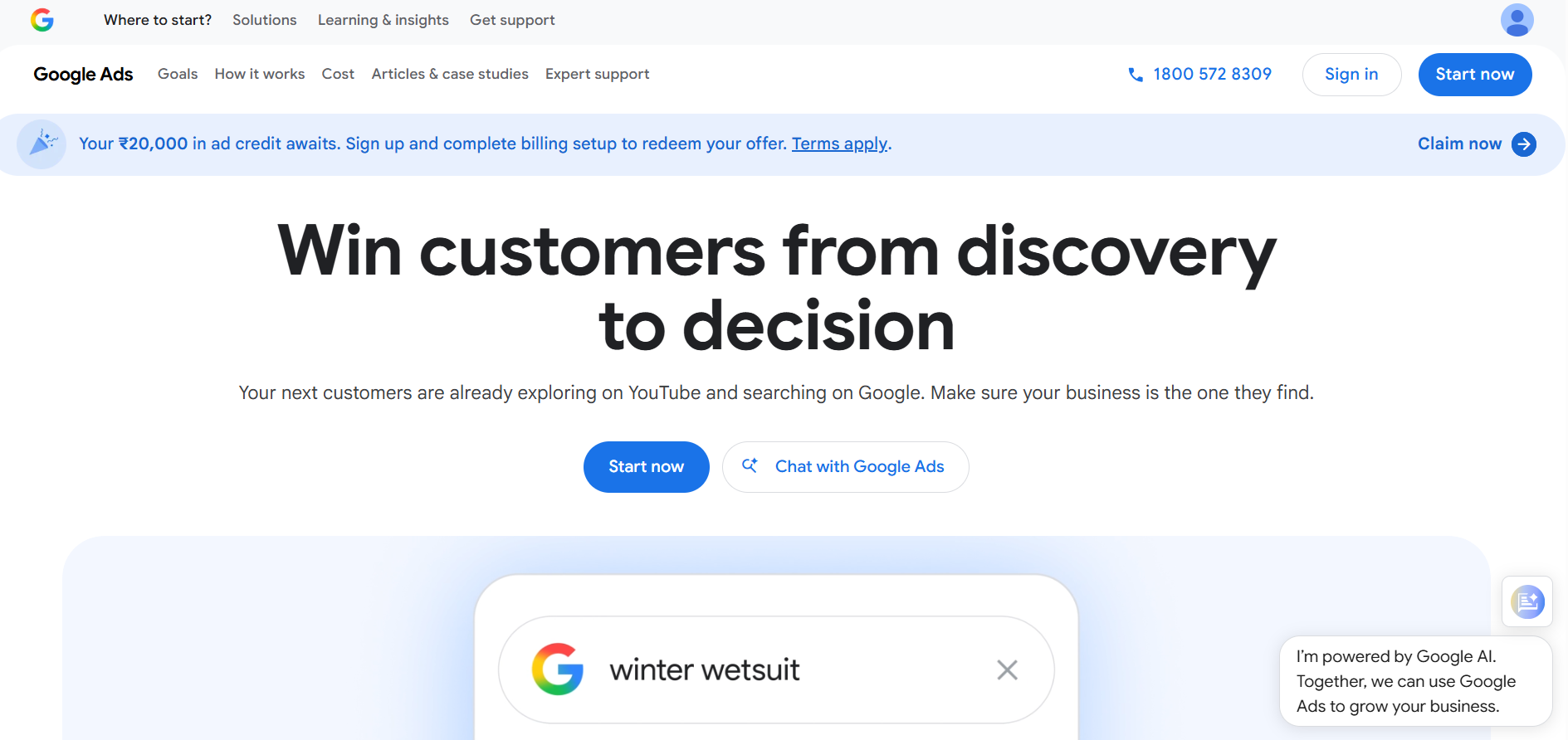
Step 2: Enter Business Information
- Enter your Business Name.
- Enter your Website URL (optional but recommended you can use your Mystore storefront link).
- Click Next.
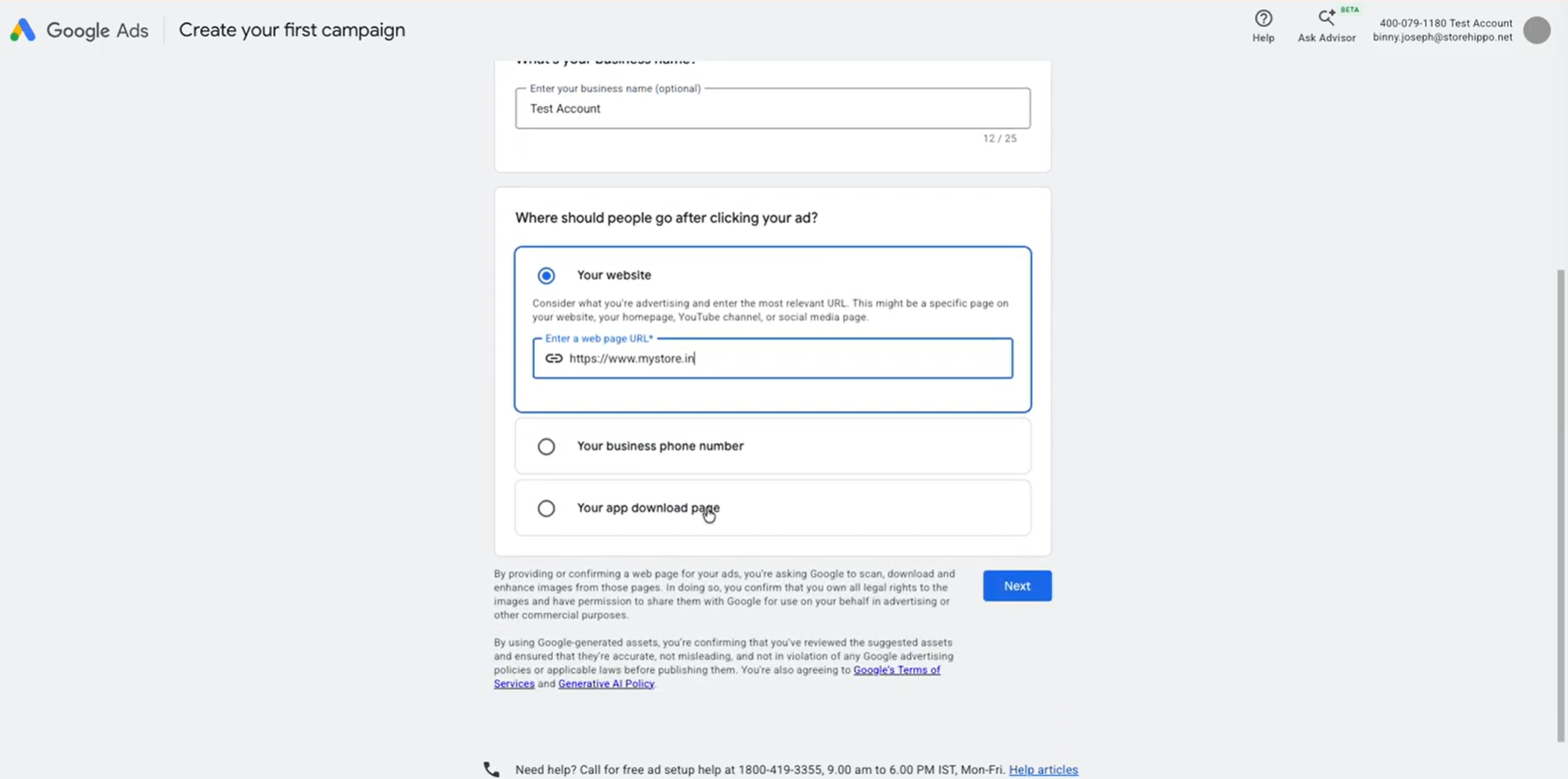
Note: Google may automatically scan your website to suggest keywords, headlines, and other campaign details.
Step 3: Skip Campaign Creation (Optional)
If you only want to create the account without launching an ad right away:
- Look for Switch to Expert Mode near the bottom of the page.
- Click it.
- Select Create an account without a campaign.
- Click Confirm.
This sets up your Google Ads account without requiring you to publish an ad immediately.
Step 4: Configure Account Settings
Provide the following details:
- Billing Country
- Time Zone
- Currency
Important: Time zone and currency cannot be changed after the account is created. Choose them carefully.
Click Next once you've confirmed these settings.
Step 5: Create a Billing Profile
Complete your billing information by providing:
- Account Type (Individual or Organization)
- Name
- Address
- Tax details (if applicable)
- Payment method (Credit/Debit Card, Bank Account, or other available options)
If you have a promotional coupon, you can apply it during this step.
Step 6: Finish Account Creation
- Review all the information you've entered.
- Click Submit or Create Account.
- Your Google Ads account will be created successfully.
You can now access the Google Ads dashboard and begin creating campaigns for your Mystore products whenever you're ready.
After Creating Your Account
Once your account is set up, you can:
- Create Search, Display, Shopping, Video, or Performance Max campaigns
- Set up conversion tracking to measure Mystore sales and sign-ups
- Link your YouTube channel
- Link your Google Business Profile
- Invite team members to help manage the account
- Configure billing and payment settings
Video guide