
How to Set Up Conversion Tracking in Google Ads through Google Tag Manager
Conversion tracking lets you measure the actions that matter most on your store - like purchases and sign-ups - so you can see exactly how your Google Ads campaigns are performing. This guide shows Mystore sellers how to create a conversion action in Google Ads and install it on your website using Google Tag Manager. Before you start, make sure your Google Tag Manager container is already added to your website.
Step-by-Step Setup Guide
Follow these steps in your Google Ads account, then finish the setup inside Google Tag Manager.
- In Google Ads, click Goals in the left menu, then open Conversions. This is where you manage all your conversion actions. Start a new conversion setup.
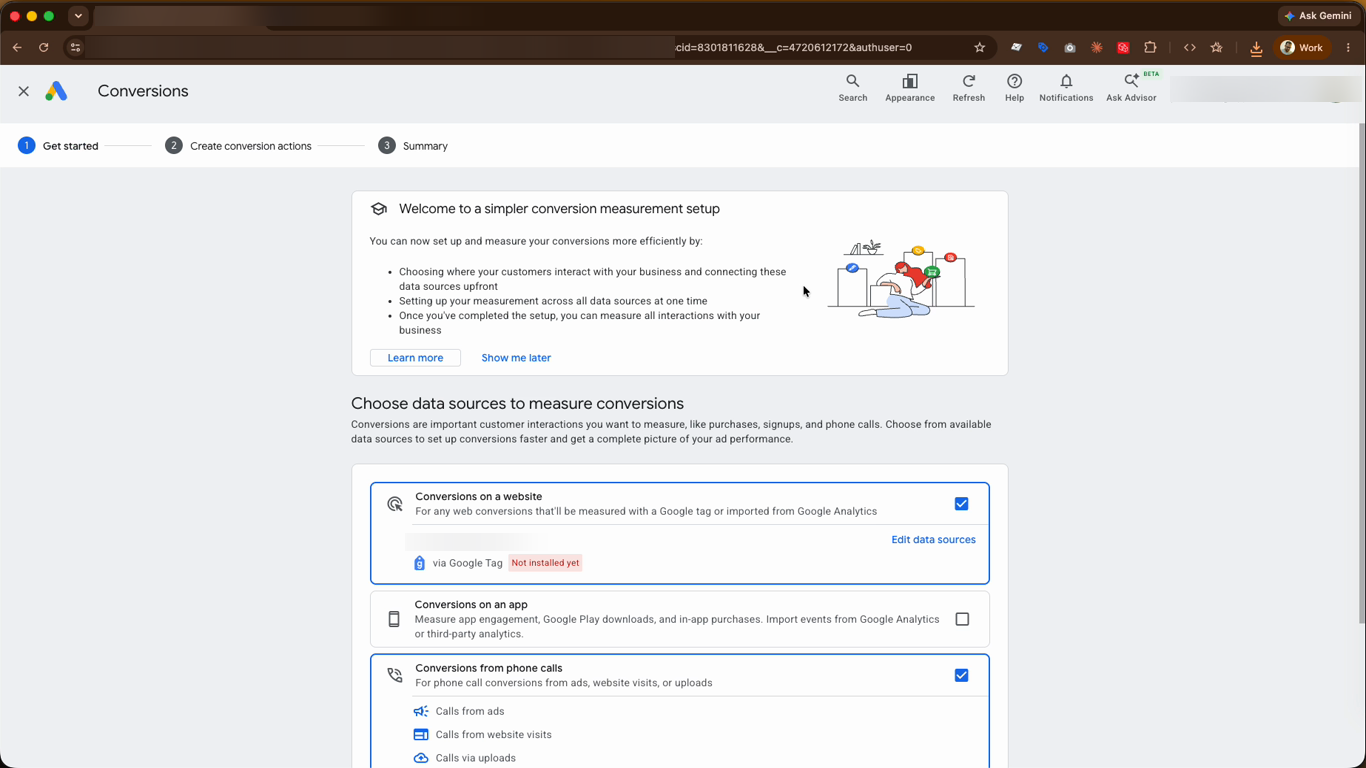
- On the Get started step, under Choose data sources to measure conversions, select where your customers interact with you. Keep Conversions on a website selected, then continue.
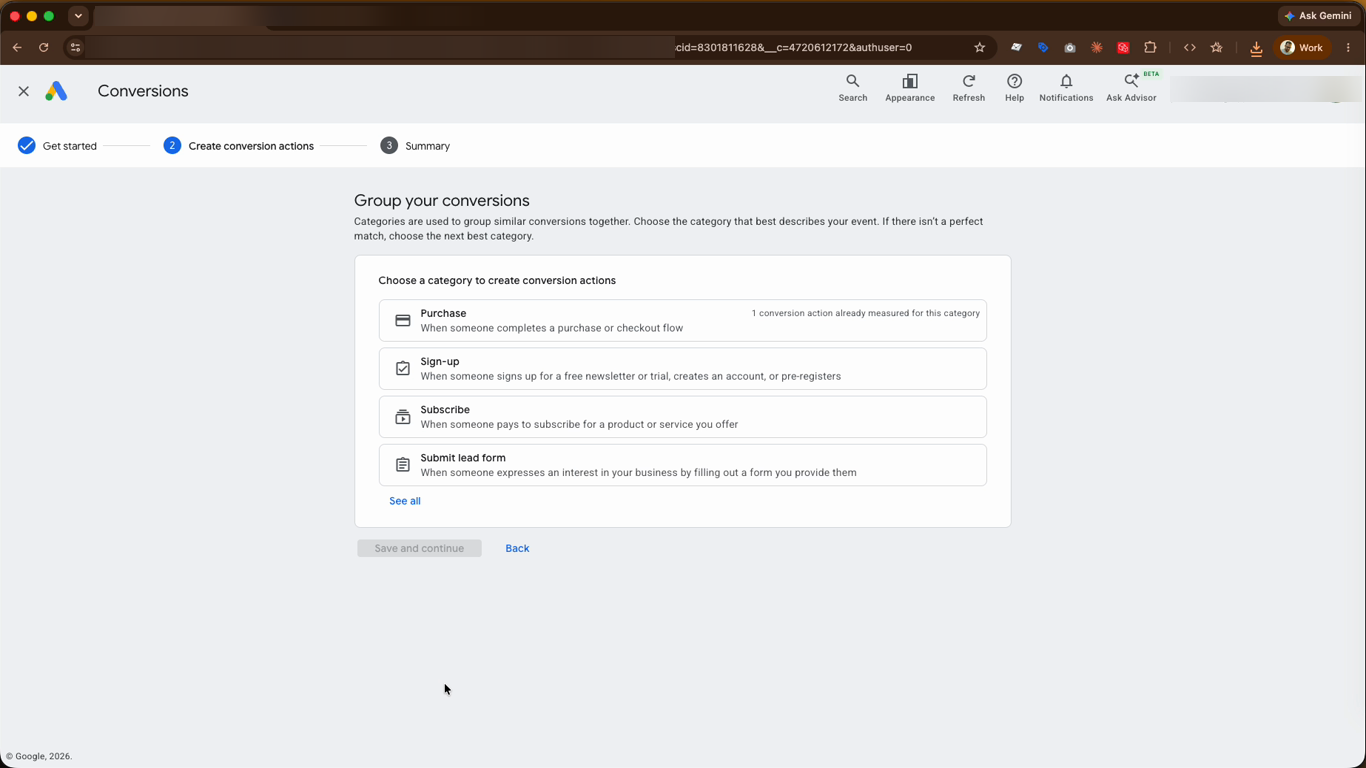
- Choose a category that best describes the action you want to track - such as Purchase, Sign-up, Subscribe, or Submit lead form. For an online store, choose Purchase.
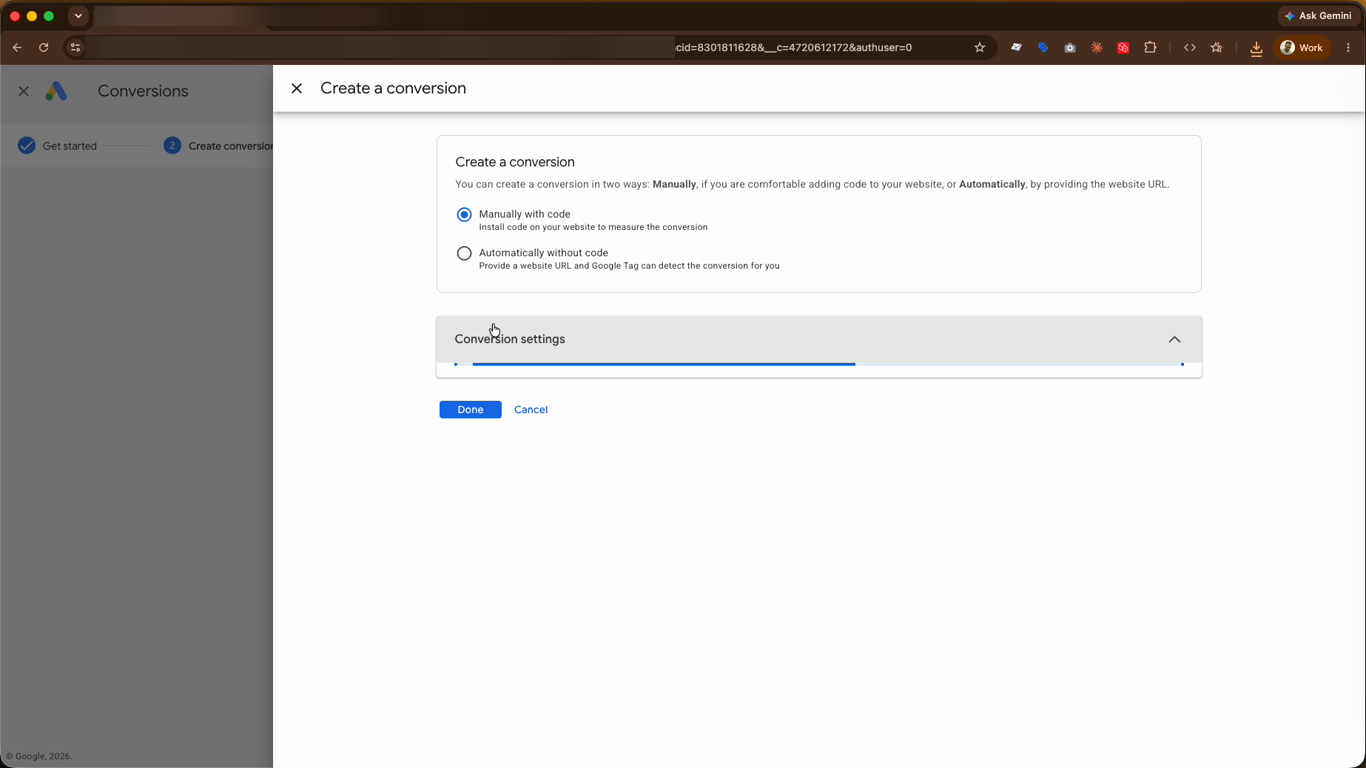
- Choose how to create the conversion. Select Manually with code, since we'll install it through Google Tag Manager rather than adding code directly to your site.
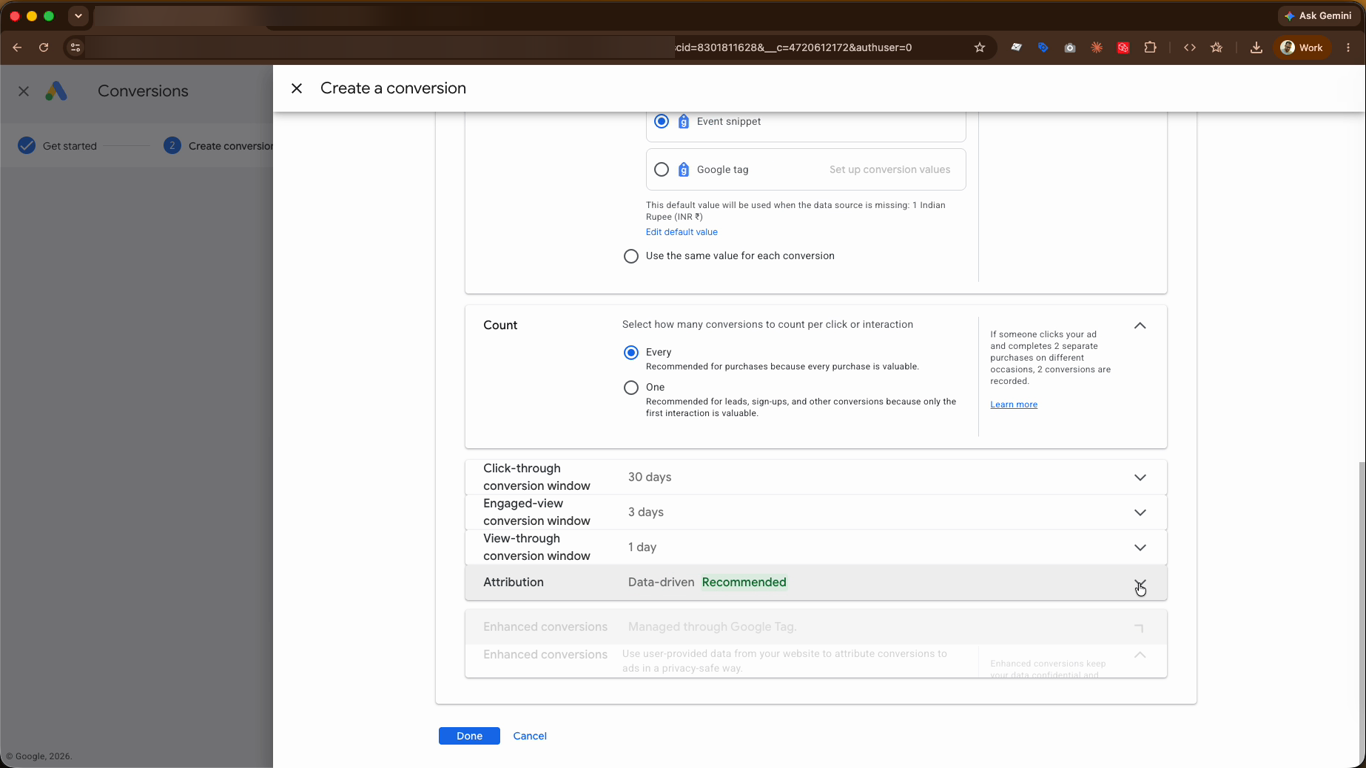
- Configure your conversion settings. Set a default value, choose your Count - use Every for purchases so each sale is counted - and review the conversion windows and Attribution model. Click Done, then save your conversion.
- On the summary step, select the Use Google Tag Manager tab. Here Google gives you your Conversion ID and Conversion label - the two values you'll need in Tag Manager. Make a note of them.
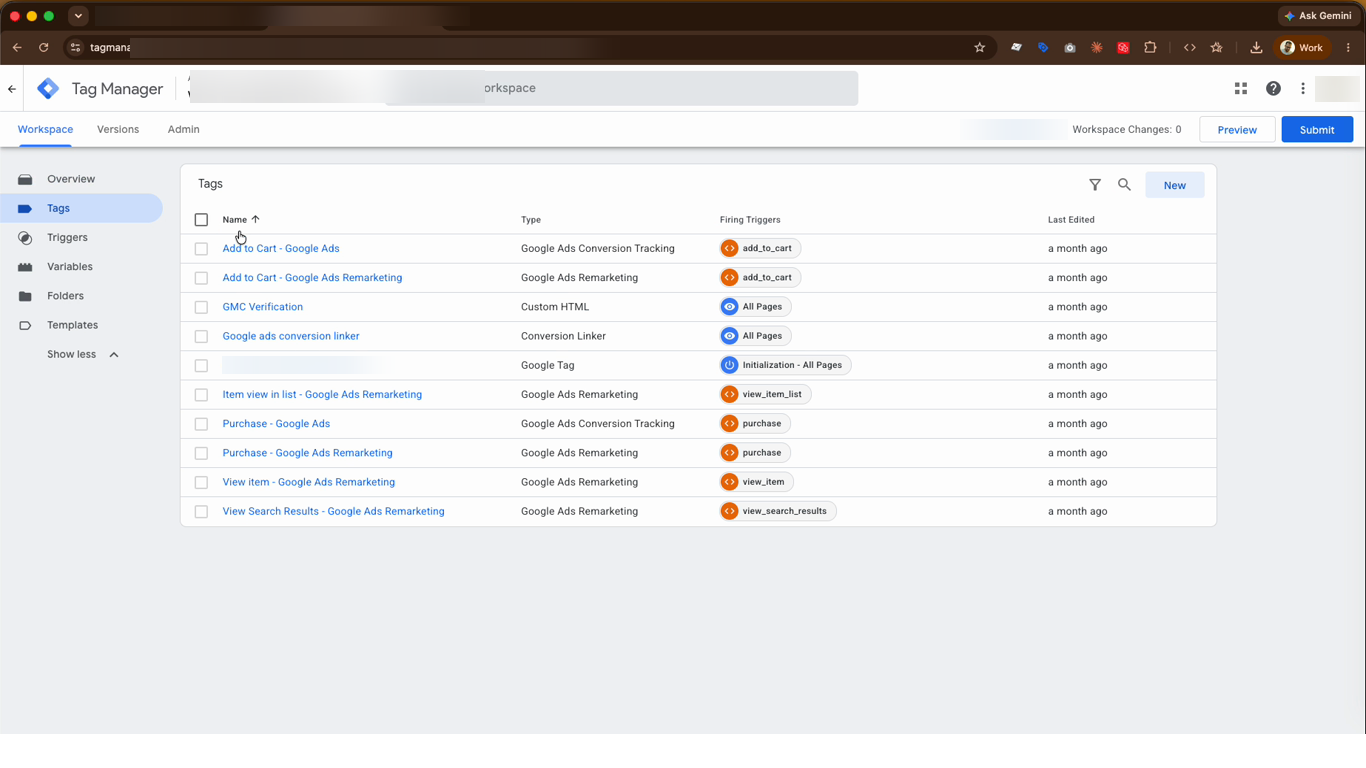
- Now open Google Tag Manager for your website's container and go to the Tags section. Create or open your Google Ads Conversion Tracking tag for the purchase event.
- In the tag configuration, set the Tag Type to Google Ads Conversion Tracking, then paste in your Conversion ID and Conversion Label. Set the Conversion Value and Currency Code, attach your purchase trigger, and Save.
This is the final step. Once you submit your Tag Manager container, your Google Ads conversions will start tracking. It can take a few hours for the first conversions to appear in your Google Ads account.
Video Guide
Was this page helpful?