
How to Update Business Information in Meta Business Manager
Meta Business Manager (also known as Meta Business Suite) lets you manage all your Meta assets - ad accounts, pages, and team members - from a single centralised portfolio. Keeping your business information up to date ensures your account is accurate, compliant with local tax regulations, and eligible for business verification. A Meta Ads Manager account is required before setting up a business portfolio.
Step-by-Step Setup Guide
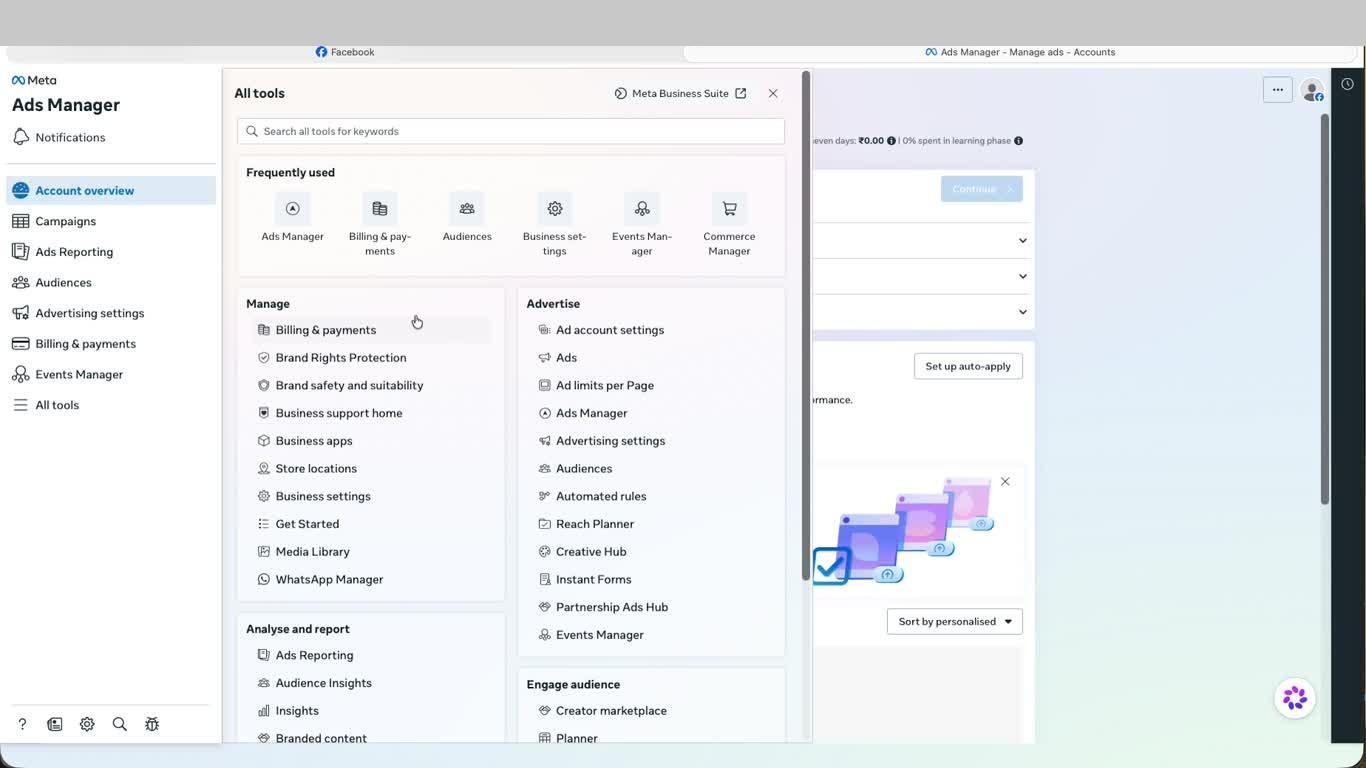
- From Meta Ads Manager, open All tools from the left navigation. Under the Manage section, click Business Settings or navigate directly to business.facebook.com.
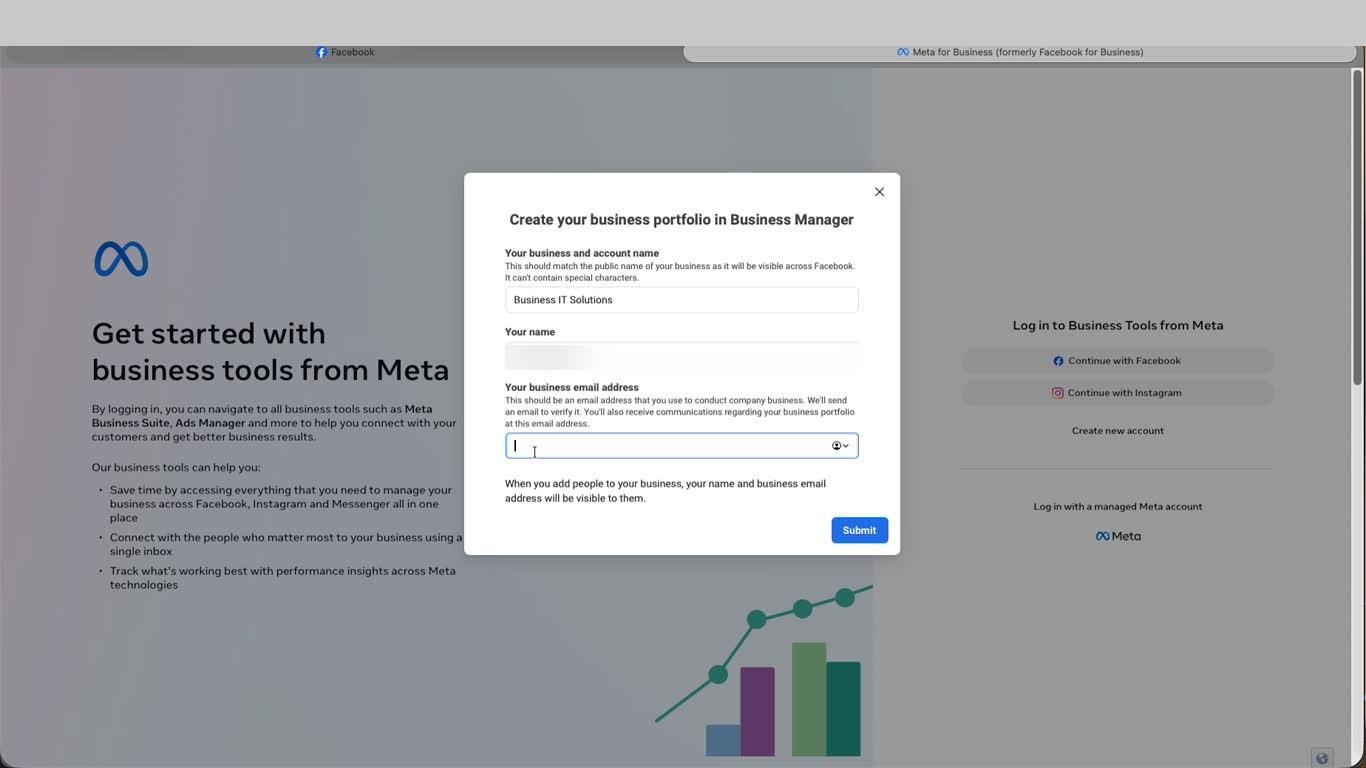
- A Create your business portfolio in the Business Manager dialog will appear. Enter your Business and account name - this must match your official business name and will be visible publicly on Facebook. Enter your name as the account admin, add your business email address, and click Submit.
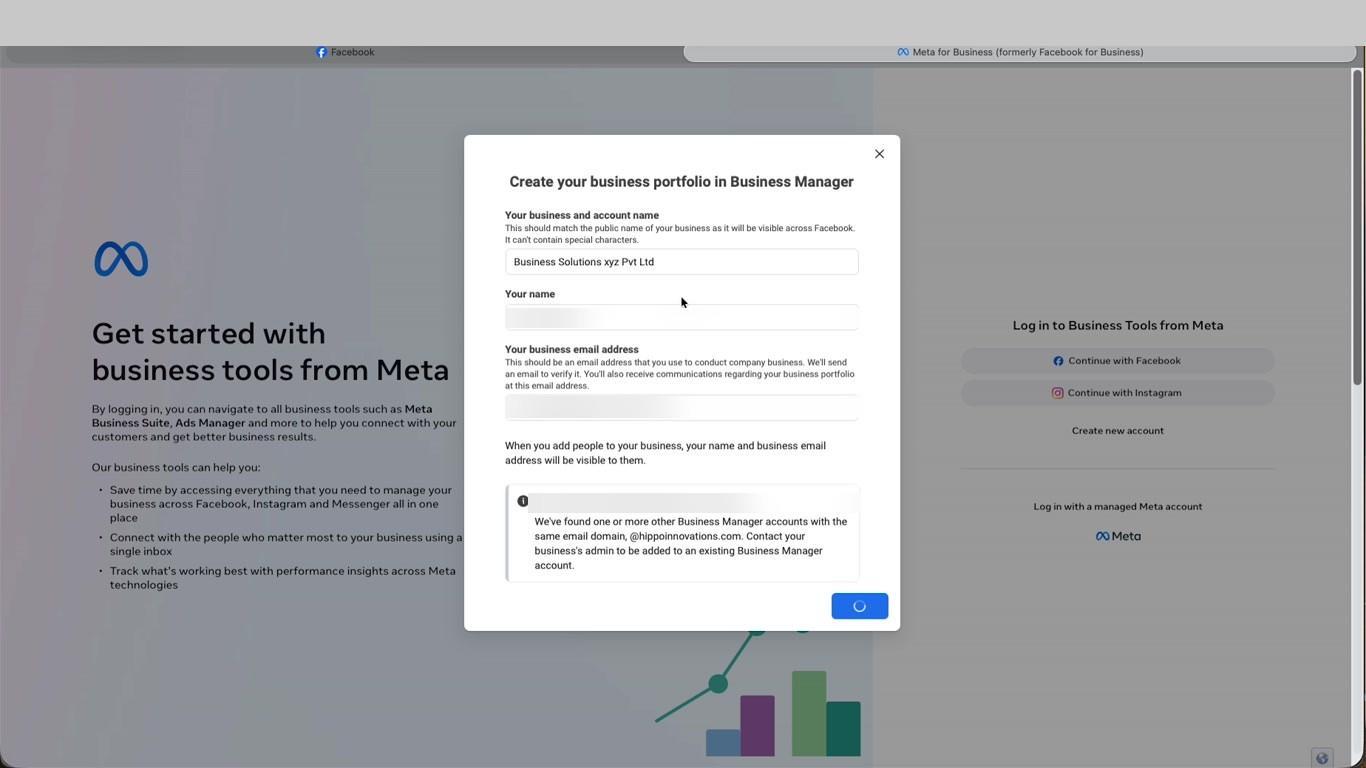
- If the business name you entered is too generic, Meta will show an Unable to Create Account error with a suggested valid name. Update the business name to a more specific format - such as your official registered company name - and click Submit again.
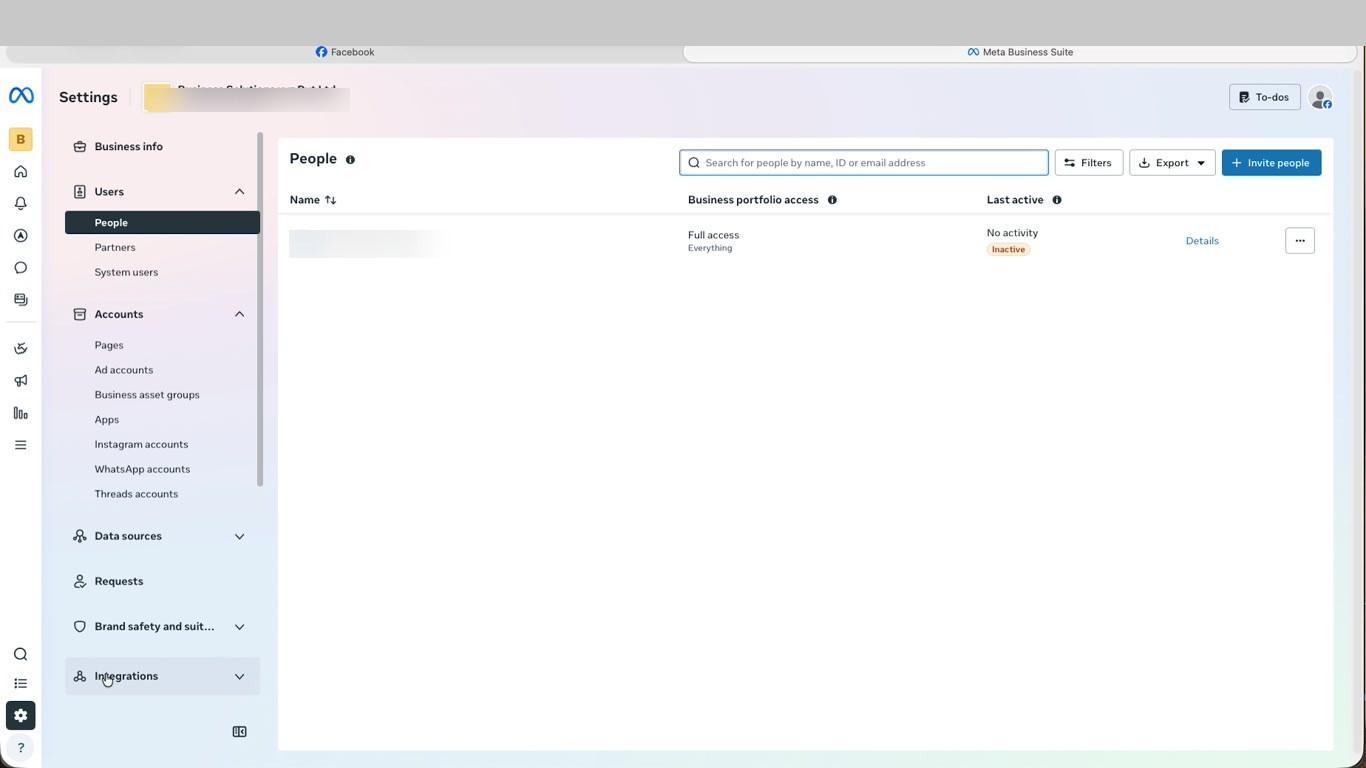
- Once the portfolio is created, you will land on the Meta Business Suite home page. From the bottom of the left navigation panel, click Settings. In the left panel under Users, click People to confirm you are listed as the admin with full access.
- In Settings, click Business info in the left panel. Under the Business details section, click the Edit button to open the Edit business details form.
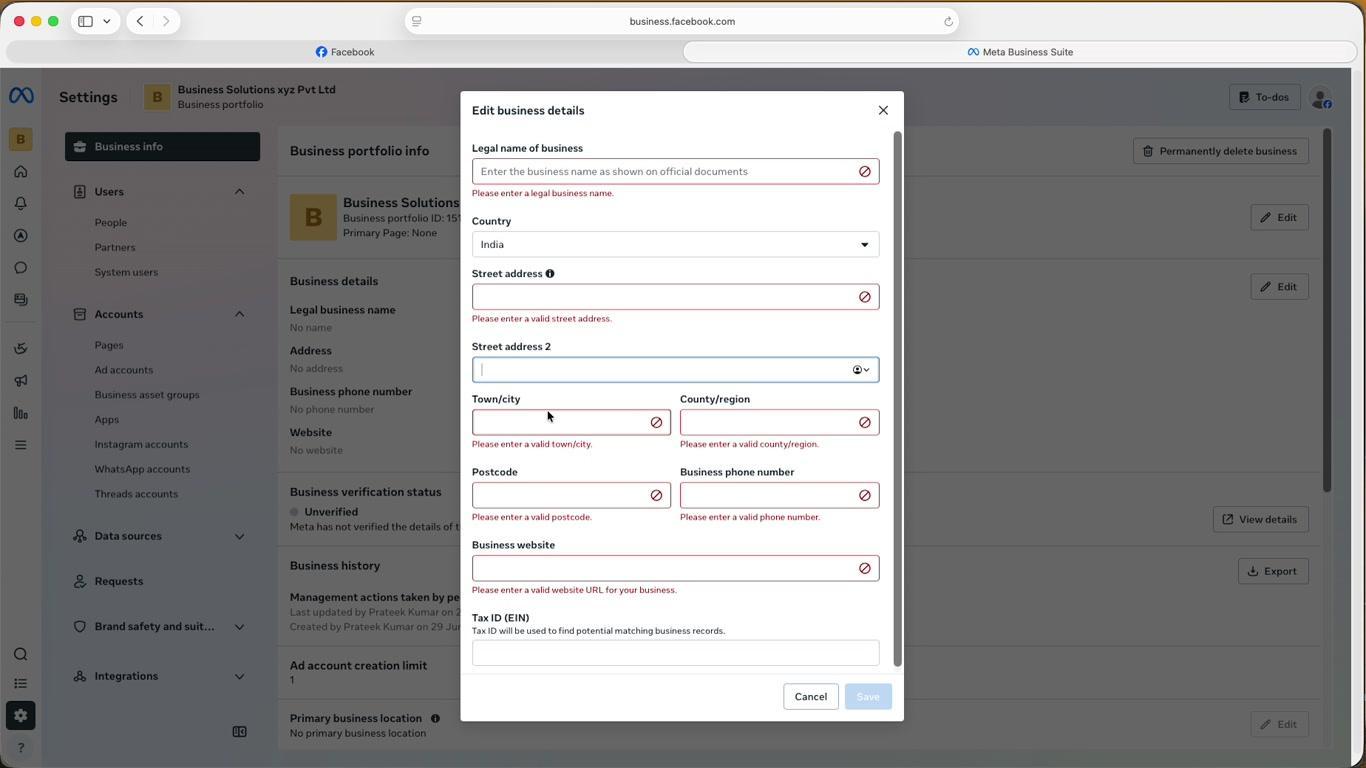
- Fill in your Legal name of business exactly as shown on official documents. Add your Country, Street address, Town/city, County/region, Postcode, Business phone number, and Business website. Optionally add your Tax ID (EIN) if applicable, then click Save.
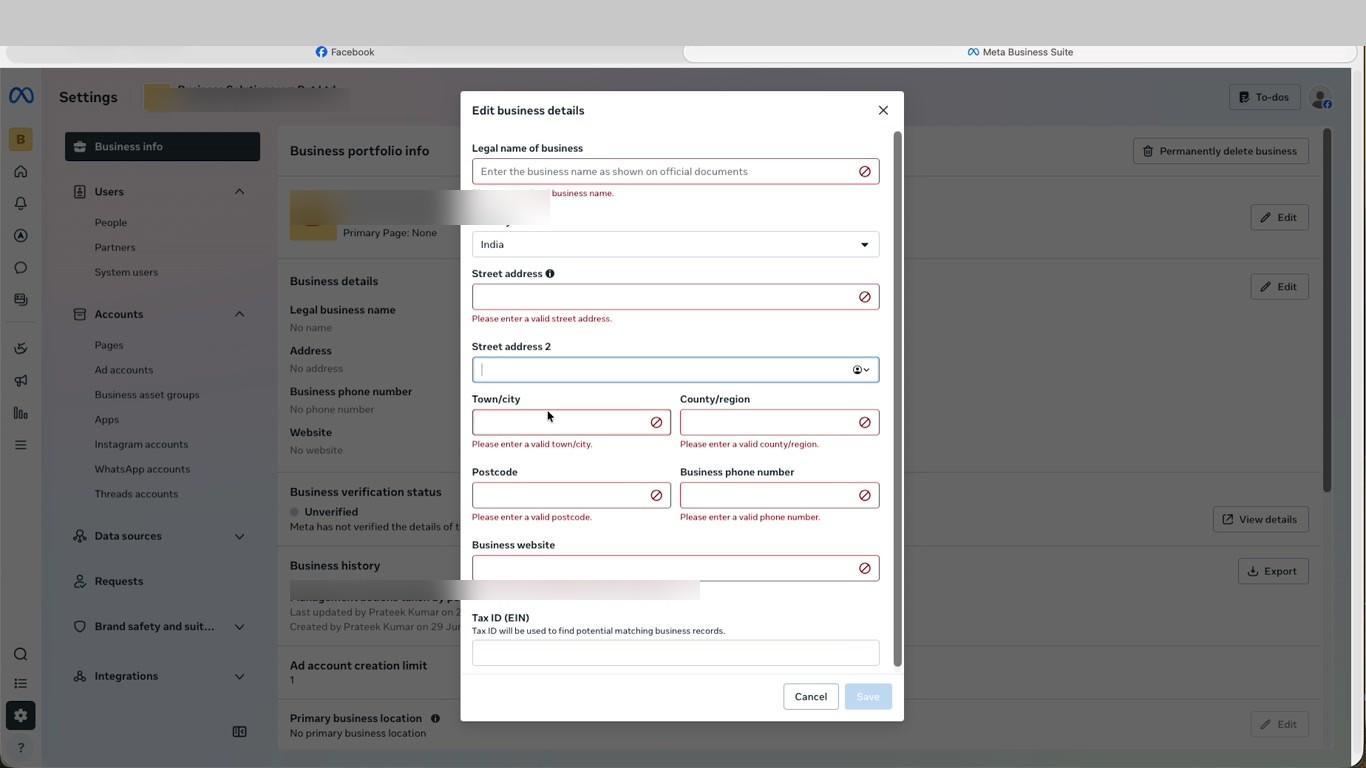
This is the final step. Once your business details are saved, your portfolio is fully configured. You can return to Business info at any time to update your details, track your Business verification status, and manage your Ad account creation limit.
Video Guide
Was this page helpful?