
Meta Pixel
The Meta Pixel (formerly Facebook Pixel) is a powerful tool for tracking user actions on your website and optimizing your Meta Ads campaigns. It enables you to measure conversions, build targeted audiences, and leverage dynamic product ads to drive sales.
Creating Your Meta Pixel
- Access Meta Events Manager: Visit to Meta pixel and navigate to the Meta Events Manager (formerly the Facebook Pixel tab within Ads Manager).
- Create a Pixel (or Dataset): Click "Add" and select "Web." Then, choose "Meta Pixel."
- Name Your Pixel/Dataset: Provide a descriptive name for your pixel/dataset. Note that Meta has moved towards datasets, which can contain multiple pixels and other data sources.
- Install Base Code: Choose "Install code manually" to obtain your pixel's base code.
- Copy and Paste the Base Code: Copy the provided pixel base code.
- Event Setup: You can now set up standard events, custom events, or conversion tracking. Alternatively, click "Continue" to proceed to your pixel dashboard.
Configuring the Meta Pixel on Mystore
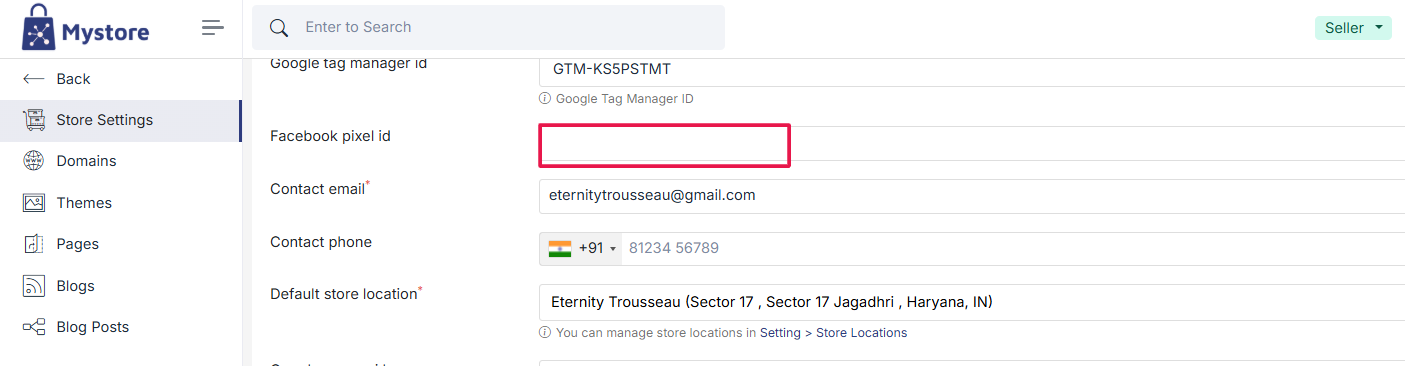
- Access Storefront Settings: In your Mystore dashboard, go to "Storefront" > "Storefront Settings."
- Enter Pixel ID: Paste the Meta Pixel ID (the numeric ID from the base code) into the "Facebook Pixel ID" field.
Standard Events Automatically Tracked
Connecting your Mystore store with your Meta Pixel automatically tracks the following standard events:
- ViewContent (view_item): Product page views.
- AddToCart (add_to_cart): Products added to the cart.
- InitiateCheckout (begin_checkout): Checkout process initiated.
- AddPaymentInfo (add_payment_info): Payment information added.
- Purchase (purchase): Completed purchases.
- Search (search): Site searches.
Verifying Meta Pixel Functionality
- Meta Pixel Helper: The Meta Pixel Helper Chrome extension is the most reliable way to verify pixel functionality. Install it from the Chrome Web Store.
- Events Manager Real-Time: Go to Meta Events Manager and check the "Test Events" tab for real-time data.
- Website Activity: Visit your store.mystore.in website and perform actions that trigger pixel events (e.g., view a product, add to cart).
- Check Pixel Helper: The Meta Pixel Helper extension will display the events fired on the page.
- Events Manager Dashboard: Review the data in your Meta Events Manager dashboard.
Troubleshooting
- No Activity: If no data appears, ensure the pixel is correctly installed and wait for user activity.
- Real-Time Testing: Use the "Test Events" tab in Events Manager to observe events in real-time.
Was this page helpful?