
MSG91 Channel
The SMS Channel Integration feature allows sellers to configure third-party SMS gateways and send automated SMS notifications to customers for events like order confirmation, shipment updates, OTP verification, and more.
Accessing SMS Channels
Follow the steps below to access SMS integrations in the admin panel:
- Login to your Mystore Admin Panel.
- Navigate to Channels from the left menu.
- Click on the SMS tab.
You will see:
- Active Channels → Already configured integrations
- Available Channels → Supported SMS providers available for setup
Accessing the MSG91 SMS Channel
Steps
- Login to the Mystore Admin Panel.
- Navigate to Channels from the left-side menu.
- Open the SMS tab.
- Under Available Channels, select MSG91.
You can also view already configured MSG91 integrations under Active Channels.
Configuring MSG91 Channel
After selecting MSG91, configure the following settings.
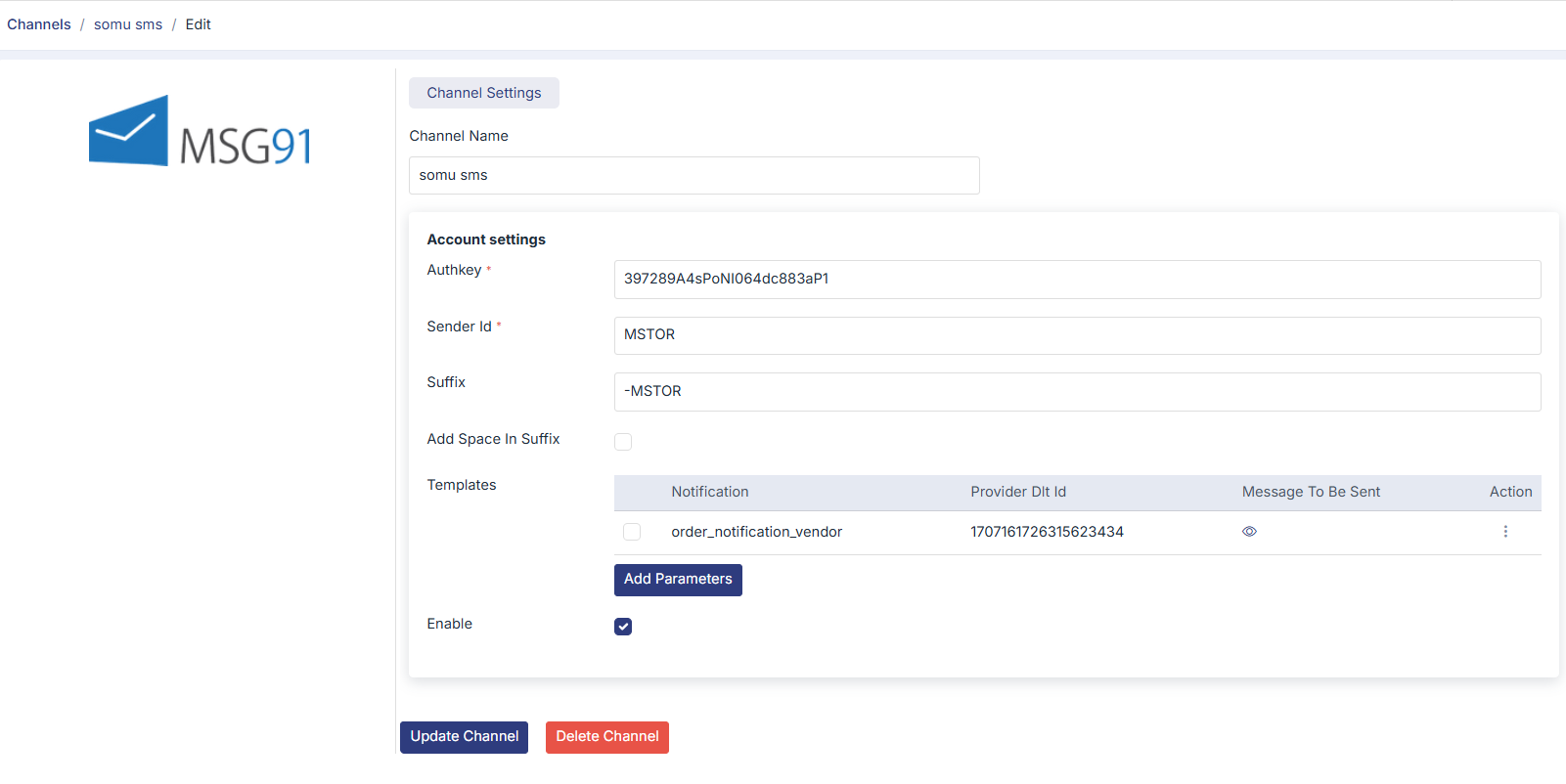
Channel Settings
Enter a unique name for the SMS channel.
Enter Account Settings
Provide the credentials shared by your SMS service provider.
Required Fields
Field | Description |
Auth key | Authentication key/API key provided by SMS vendor |
Sender ID | Approved sender ID registered with DLT |
Suffix | Optional text appended to SMS |
Add Space in Suffix | Adds spacing before suffix text |
Configuring SMS Templates
Templates define which SMS message should be triggered for specific notifications.
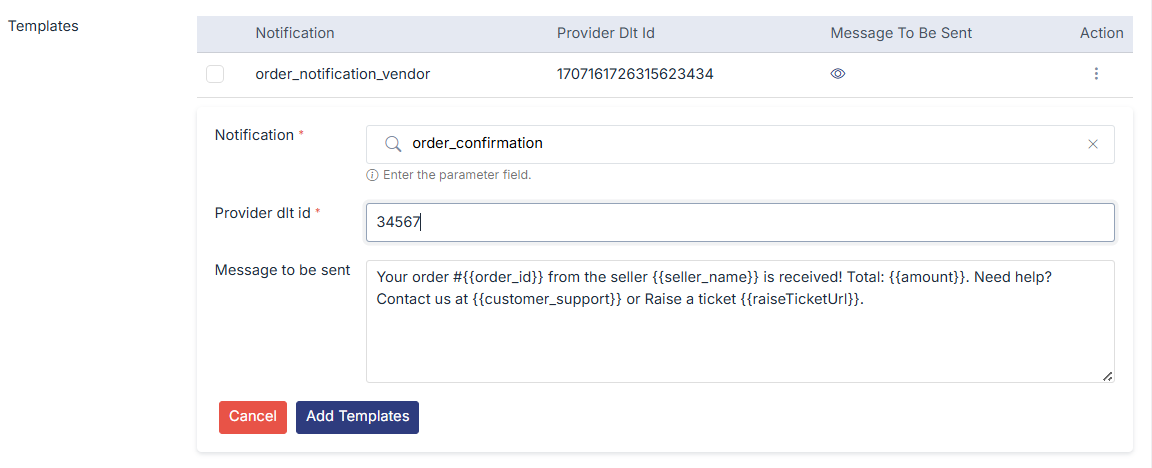
Template Fields
Field | Description |
Notification | Event for which SMS will trigger |
Provider DLT ID | Approved DLT template ID |
Message to be Sent | SMS content/message |
Example notifications:
- order_confirmation
- shipment_created
- otp_verification
- Order_delivered
Steps to Add Template
- Select the notification type.
- Enter the DLT Template ID.
- Add the SMS message content. (The SMS content in Mystore must exactly match the approved DLT template.)
- Click Add Templates.
Preview the Template:
Click on eye icon to preview the template

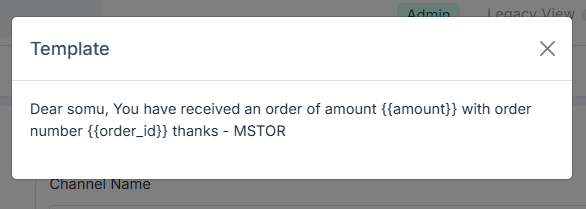
Editing Templates:
Click on three dots to edit the existing template. The following dialogue box will appear; you can edit the details
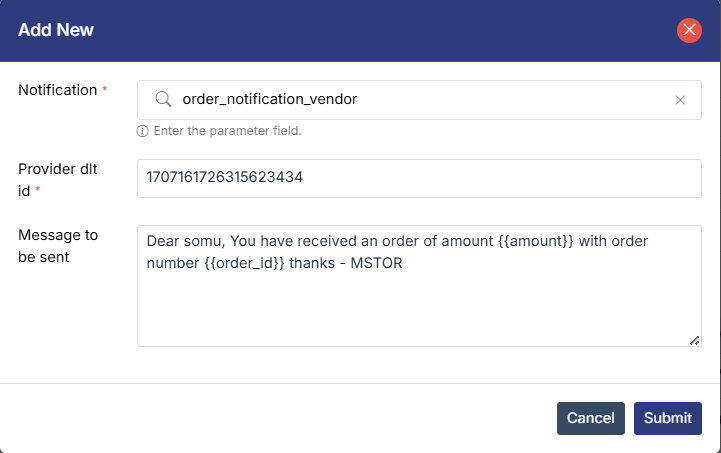
Enabling the SMS Channel
After configuration:
- Enable the channel using the toggle/button.
- Click Update Channel to save settings.
- After updating the channel, go to store front and select SMS channel

Once enabled: SMS notifications will start triggering automatically based on configured events.