
Mystore Connector for Claude
Connect your Mystore store to Claude and ask about your products, orders, customers, and sales in plain language right inside a conversation.
What you can do
Once connected, ask Claude things like:
- “Show me my latest products,” or “find published socks that are in stock.”
- “What were my total sales in the last 30 days?”
- “List my most recent orders and their payment status.”
- “Pull up the full details of order OID1345302.”
- “How many customers do I have, and who are the latest?”
- “What collections do I have?”
- “How do I set up a payment gateway?” — answered from Mystore’s help docs.
Claude picks the right tool, fetches the data from your store, and presents it back to you.
The connector is read-only. Claude can look up and summarize your store data, but it can never create, edit, delete, or place anything in your store.
Before you start
You need an active Mystore seller account with access to the store you want to connect.
When you connect, Claude appears as a channel in your Mystore admin under Channels. The channel is created under your account, so Claude’s access is scoped to your role — it only ever sees what your Mystore account is allowed to see. You can enable, disable, or delete the connection from that same screen at any time.
How to connect
- Open Claude (web or desktop) and go to Settings → Connectors.
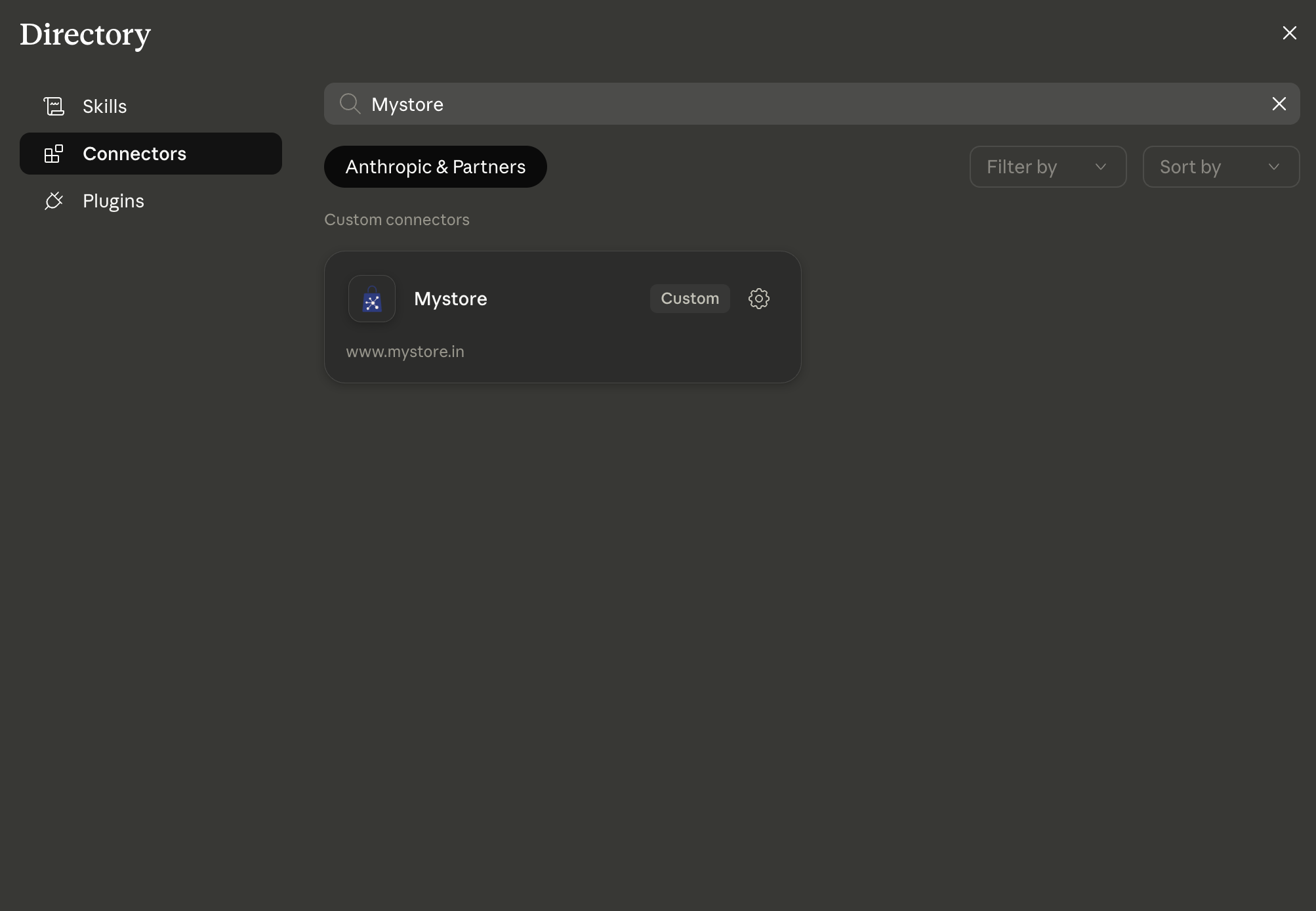
- Find Mystore in the connector directory and click Connect.
- You’ll be redirected to a secure Mystore sign-in and consent screen.
- Review the requested access and click Authorize.
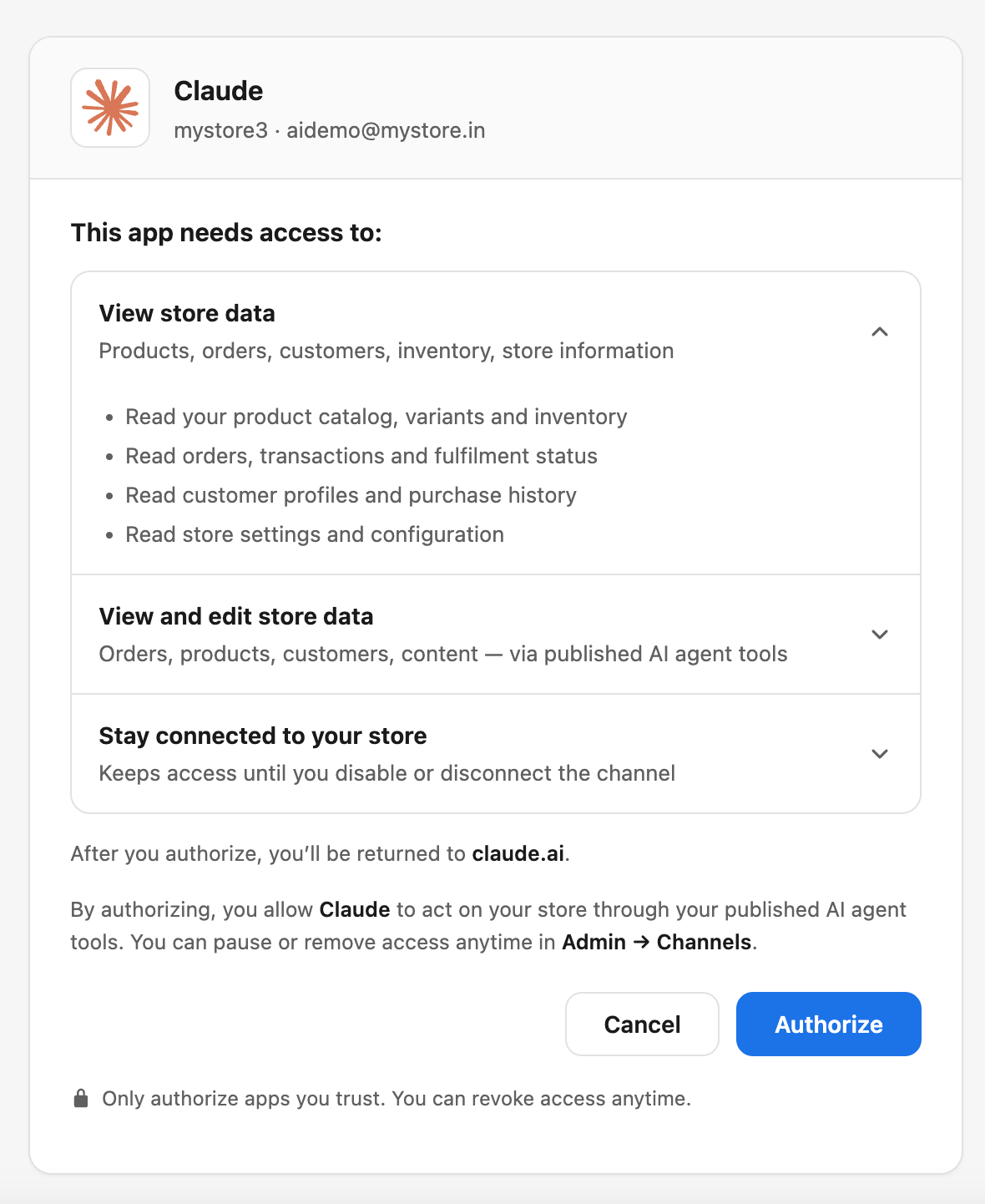
- You’ll return to Claude, with the Mystore tools ready to use.
Sign-in uses OAuth 2.0 with PKCE. Your Mystore password is never shared with Claude or stored by the connector — only a secure access token is used.
Available tools
All tools are read-only.
Tool | What it returns |
|---|---|
Search Products | Products matching your query — price, stock, brand, status, and image. Leave the query empty to get your latest products. |
Get Product | Full detail for one product — price, inventory, categories, variants, description, and images. |
Search Collections | Product collections with their status and images. |
Get Collection | Full detail for one collection — alias, status, description, and images. |
List Orders | Recent or matching orders with totals, payment, and delivery status. |
Get Order | Full detail for one order — totals, taxes, payment method, and line items. Accepts the order ID (e.g. OID1345302) or the record ID. |
List Customers | Recent or matching customers with email, phone, and order count. |
Get Customer | Full detail for one customer — contact information and account status. |
Analytics Query | Aggregate metrics from natural-language questions — sales totals, orders by status, top products, and more. |
Help Search | Grounded answers drawn from the Mystore help documentation. |
The “search” and “list” tools return record IDs, which Claude uses automatically to fetch full details with the matching “get” tool.
Example prompts
Catalog
- “Find my published RedTape shoes that are in stock.”
- “Show me the full details of my VR3 English Willow Cricket Bat.”
Orders
- “List my latest 10 orders.”
- “Show me everything about order OID1345302.”
Customers
- “Who are my most recent customers?”
- “Look up the customer with email [email protected].”
Analytics
- “What were my total sales last month?”
- “Break down my revenue by month for the last 3 months.”
Help
- “How do I add a product in Mystore?”
- “How do I configure shipping?”
Privacy and security
To answer your requests, the connector reads:
- Product and collection catalog data.
- Order data — totals, status, line items, and the contact email on an order.
- Customer data — names, emails, and phone numbers.
- Aggregate analytics such as sales and order counts.
- The questions you ask in Claude, in order to fulfil them.
Data the connector returns is sent to Anthropic so Claude can display it to you. Because customer contact details can appear in order and customer results, be mindful when asking for large customer or order lists.
The connector is built to keep your data safe:
- Read-only — it cannot change, delete, or create anything in your store.
- Role-scoped — results respect your account’s permissions.
- Secure sign-in — OAuth 2.0 with PKCE; your password is never shared.
- Encrypted transport — all data moves over HTTPS/TLS.
For full details on data handling, see the Mystore Connector Privacy Policy (https://www.mystore.in/en/page/privacy-policy).
Managing the connection
After you authorize Claude, the connection appears as a channel in your Mystore admin under Channels. From there you control it.
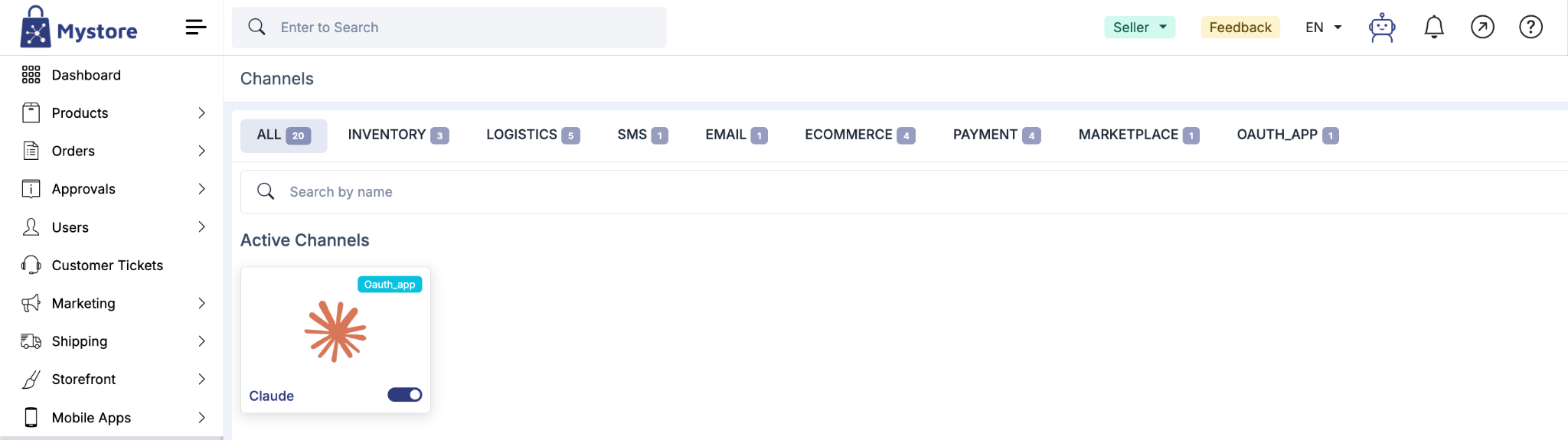
Disable / enable. Toggle the channel off to instantly block Claude from reading your store without losing the connection. Your access token is kept, so toggling it back on resumes service immediately — no need to re-authorize. While disabled, any reconnection attempt by Claude is refused until you re-enable it.
Delete. Deleting the channel permanently revokes Claude’s access and refresh tokens for your account. To use Claude again, reconnect from scratch via Claude → Settings → Connectors → Mystore → Connect.
You can also disconnect from the Claude side at Settings → Connectors → Mystore → Disconnect. Either side immediately stops Claude from accessing your store; deleting the channel in Mystore also revokes the stored tokens.
Each seller’s connection is separate. Disabling or deleting yours never affects another seller’s, even though everyone uses the same connector.
Troubleshooting
The Mystore tools don’t appear after connecting. Refresh Claude or start a new conversation. If they still don’t show, disconnect and reconnect from Settings → Connectors.
I get an authorization or sign-in error. Your session may have expired. Disconnect the connector, then reconnect and complete the consent screen again.
A tool returns no data. Confirm you’re signed in to the correct store and that your account role has access to that data type (for example, customer records).
Results look incomplete. Lists return a limited number of results per request. Ask Claude to narrow the search — by brand, status, or order ID — to find a specific record.