
On-Network (ONDC Integrated Logistics) Shipping
On-network fulfillment refers to orders that are shipped using logistics partners integrated with the ONDC (Open Network for Digital Commerce) platform. In this setup, sellers don’t need to manually arrange shipping the system automatically assigns a logistics provider once an order is confirmed. All shipping steps, including pickup, tracking, delivery, and status updates, are handled within the Mystore dashboard through a streamlined and standardized process. This ensures faster fulfillment, real-time tracking, and reduced manual effort for sellers.
When you use On-network or integrated logistics, the order fulfillment status can be:
- Not Shipped
- Manifested
Follow the steps below based on the fulfillment status.
Fulfilment Status: Not Shipped
- Open the order from the Orders section.
- Click on Ship Now.
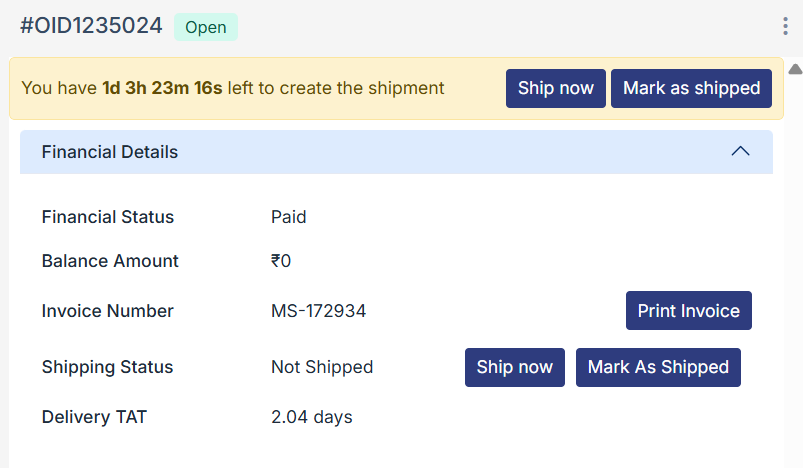
- A slider will open displaying:
- Shipping address
- Pincode
- Contact details
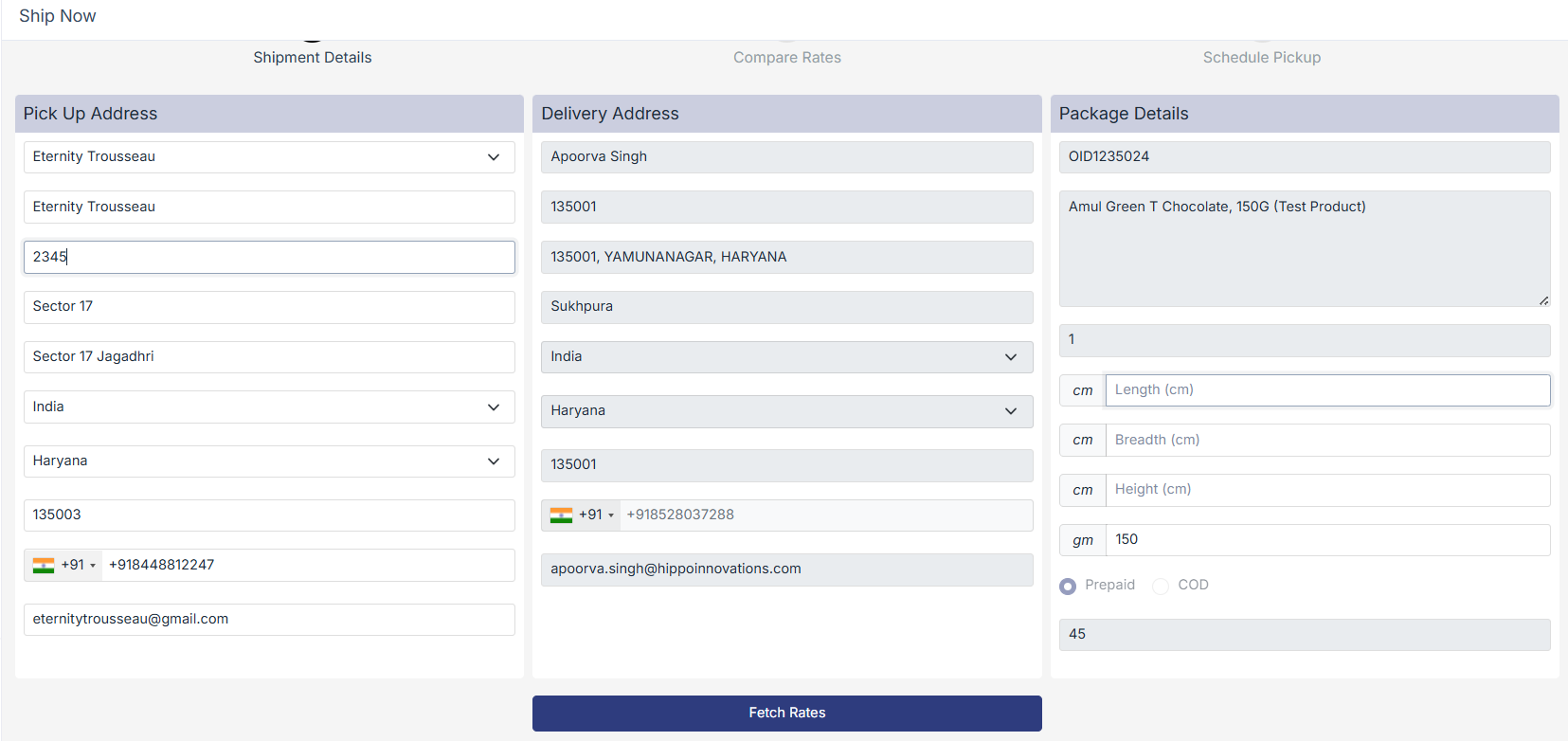
- If required, you can edit these details while shipping the order.
- Review the package details (weight and dimensions) and update them if needed.
- You will see a list of available logistics service providers (LSPs).
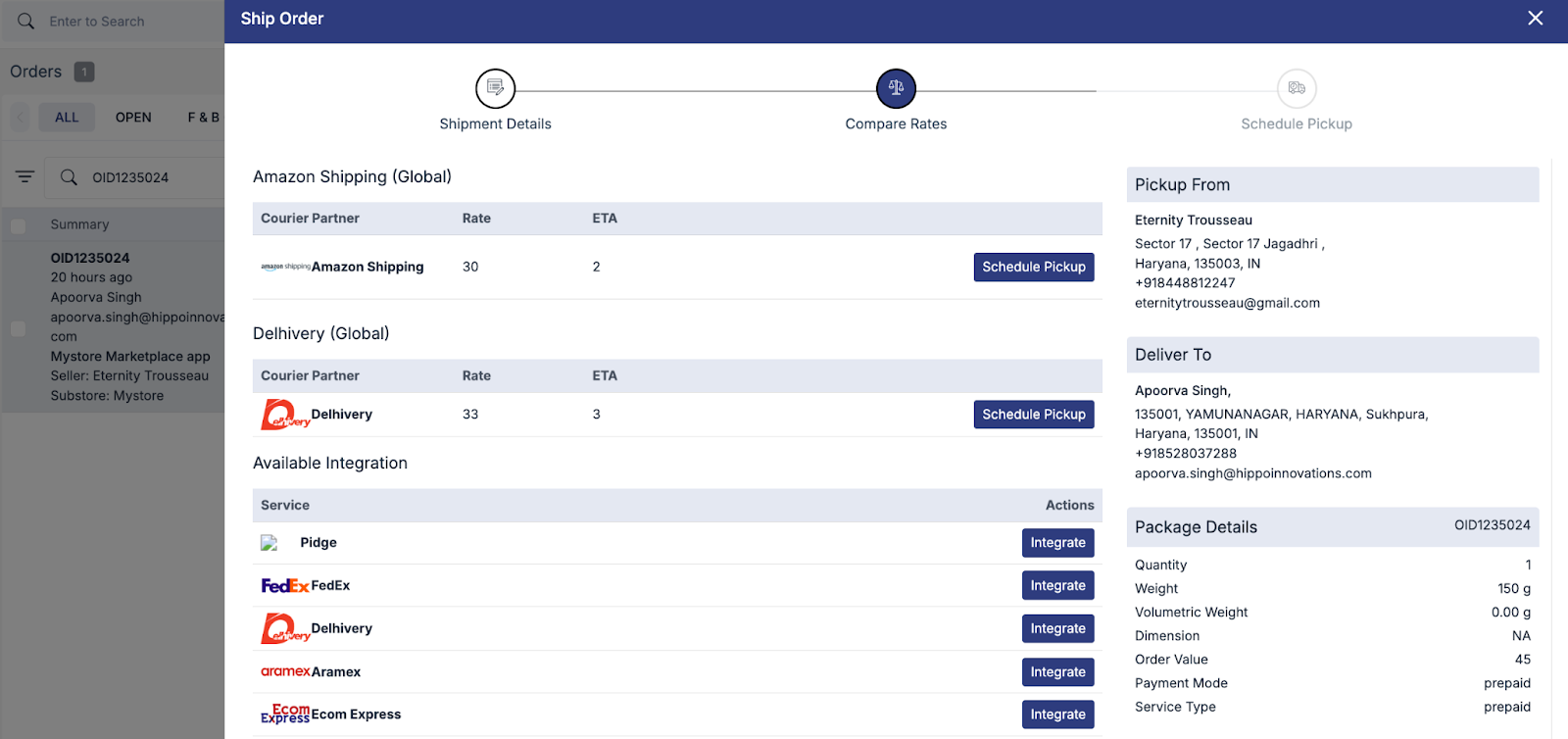
- Compare logistic service providers based on:
- Shipping rates
- Serviceability
- Turnaround time
- Select the preferred logistic service providers by clicking Schedule Pickup. Example: Amazon Logistics
- Click Ship Now to confirm.
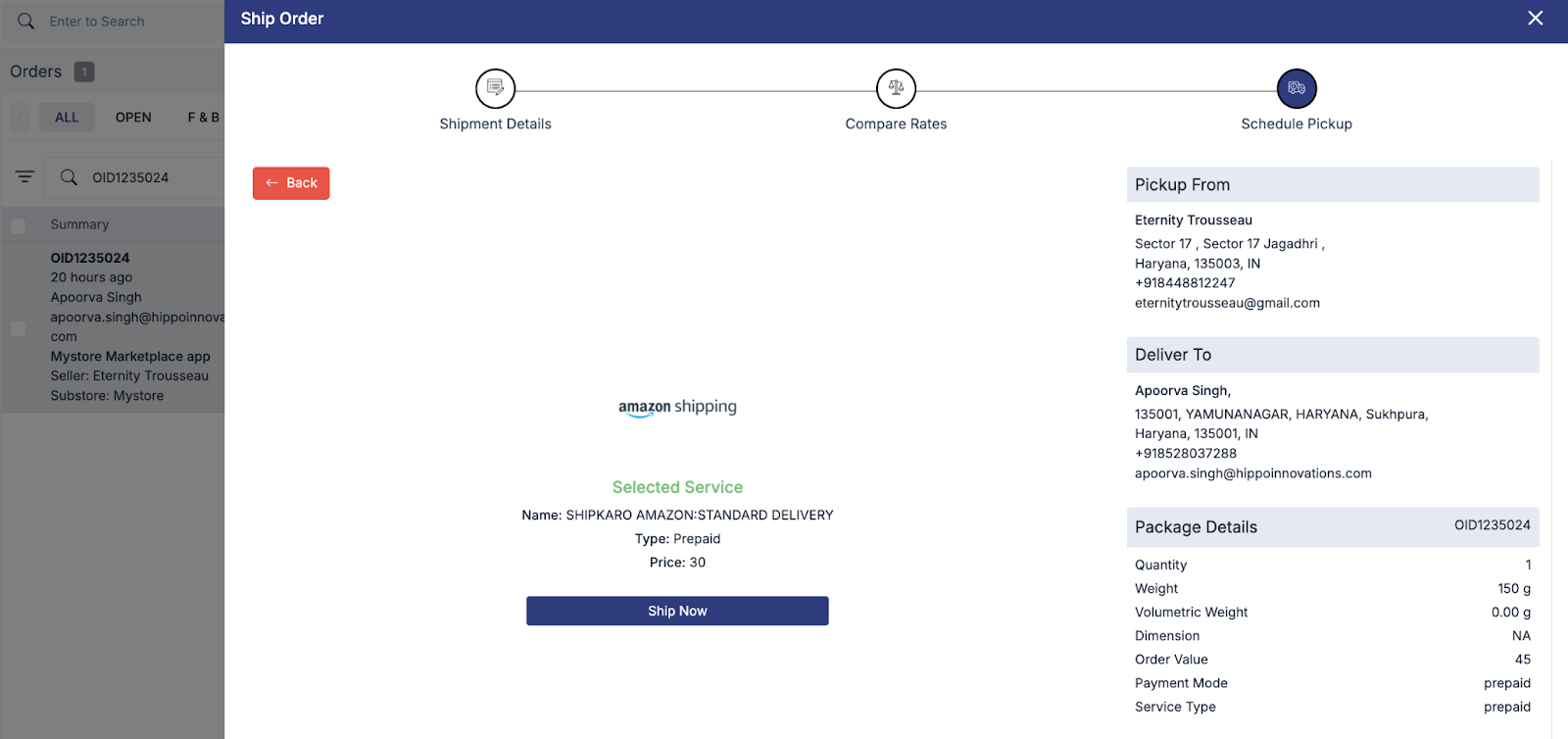
After Clicking Ship Now
- You will be redirected to the order details page.
- The shipping label will be available for download.
- If the label is not visible immediately, refresh the page.
Packaging & Pickup Guidelines
- Pack the product securely as per the packaging guidelines.
- Paste the downloaded shipping label on the package.
Pickup Timelines:
- Orders packed before 11:00 AM are usually attempted for pickup on the same day.
- Orders packed after 11:00 AM are generally picked up the next day.
In some cases, logistics partners may contact the seller on the provided phone number on the same day, depending on their operational capacity.
Fulfilment Status: Manifested
When the order fulfillment status is Manifested, it means the logistics partner has already been auto-selected based on your shipping rules or the customer’s choice.
Steps to Proceed with a Manifested Order
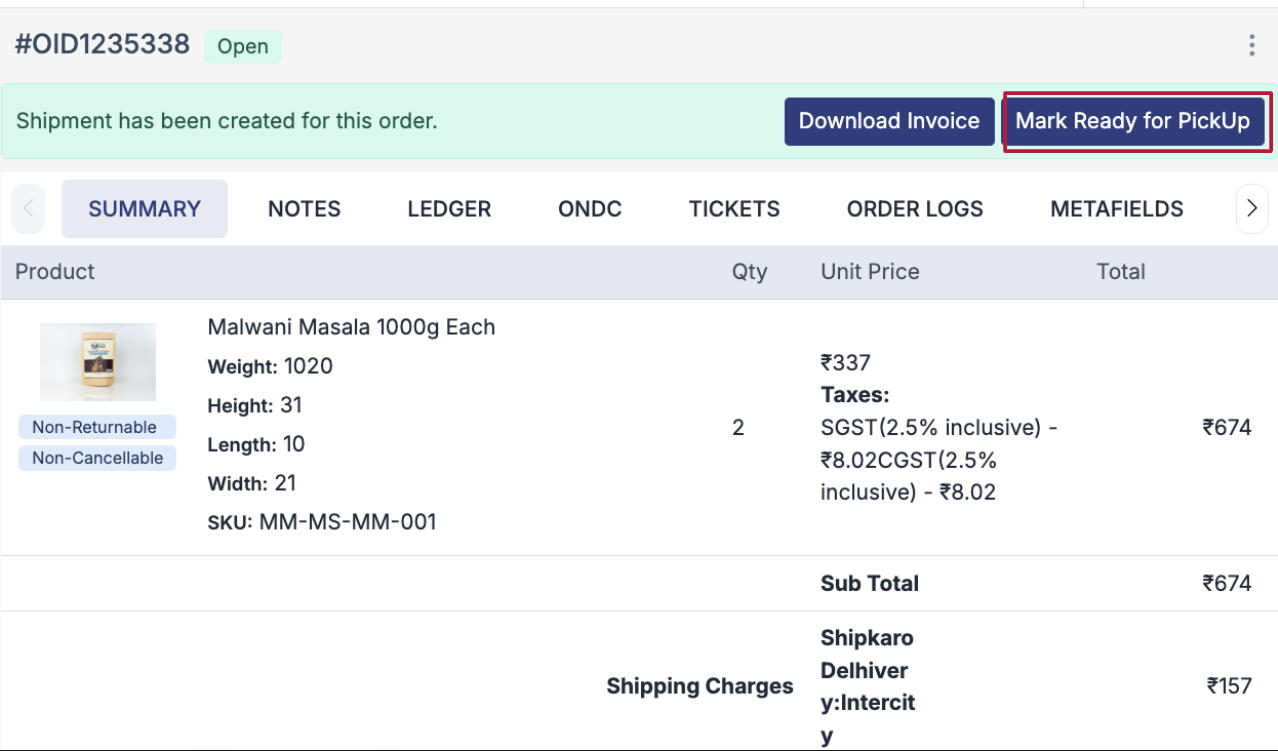
- Open the order from the Orders section.
- Click on Mark Ready for Pickup.
- Once marked ready:
- The shipping label will be generated and available for download.
- Pack the product securely as per the packaging guidelines.
- Keep the package ready for pickup.
Upload Package Image (Optional but Recommended)
To confirm that the package is physically ready for pickup:
- Click on Upload Package Image.
- Upload a clear image of the packed order with the shipping label visible.
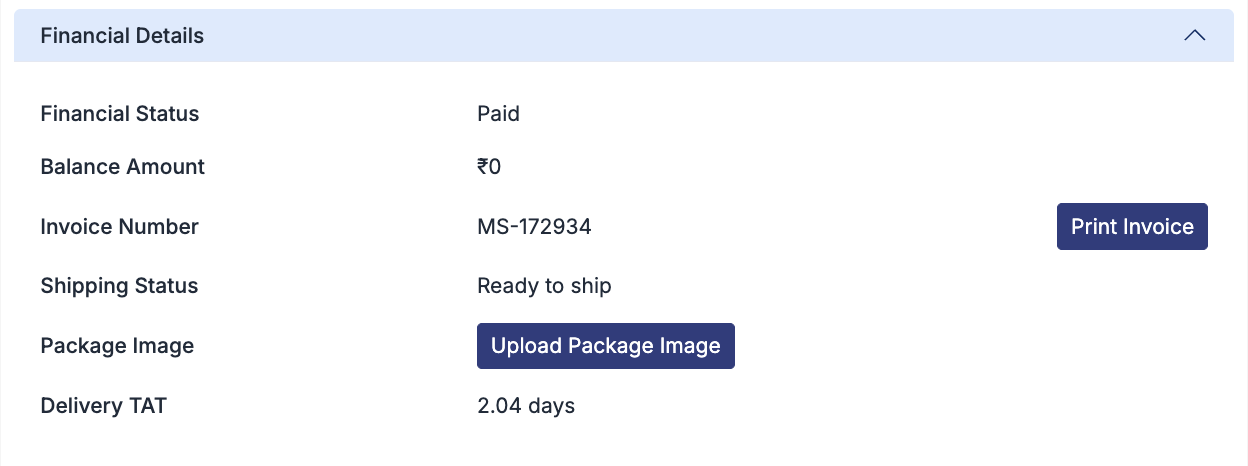
This helps confirm pickup readiness for the logistics partner.