
Real Time Shopify Sync
Shopify Real-Time Sync
Shopify Real-Time Sync connects your Shopify store to Mystore so your products, inventory and orders stay in step automatically. This guide covers what you need before you start, how to switch each sync on, and how to check it is working.
Before you start
Make sure the following are in place:
- Your Shopify catalogue has been fetched into Mystore, and the first level of product fetching is complete.
- The Mystore team has approved your catalogue.
- You have your Shopify shop name and an Admin API access token with the permissions listed later in this guide.
- Your plan covers the data types you want to sync. Products are available to everyone; order and customer sync show a padlock until your plan includes them.
Once your catalogue is approved, go to All Channels in the left menu, open your Shopify channel and select Edit. A green Connected badge in the top right confirms the channel is live.
Where everything lives
Tab | What you do there |
|---|---|
Overview | See how much has synced, and check which real-time syncs are on |
Configuration | Your store connection details and product defaults |
One-Time Import | Pull data that already exists in Shopify into Mystore |
Sync History | Check every record that synced, and export the log |
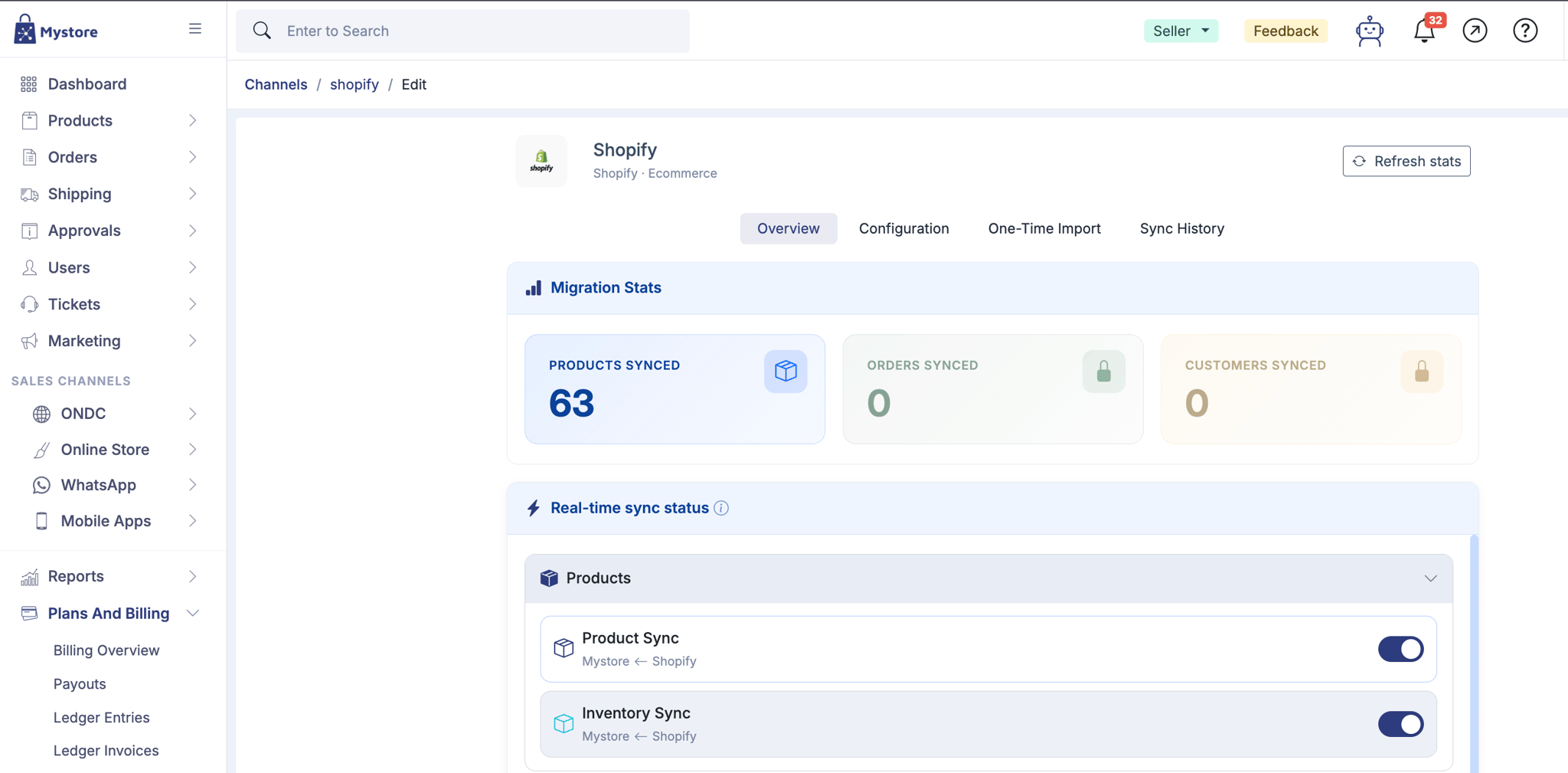
Overview opens on Migration Stats - a count of products, orders and customers synced, with a Refresh stats button to update them. A padlock on the Orders or Customers card means that data type is not included in your plan.
Below that, Real-time sync status lists each sync in two groups, Products and Orders. Real-time sync is available on the Basic plan. Every row shows the direction it runs:
- Mystore ← Shopify - the change starts in Shopify and comes into Mystore.
- Mystore → Shopify - the change starts in Mystore and goes out to Shopify.
Configuration
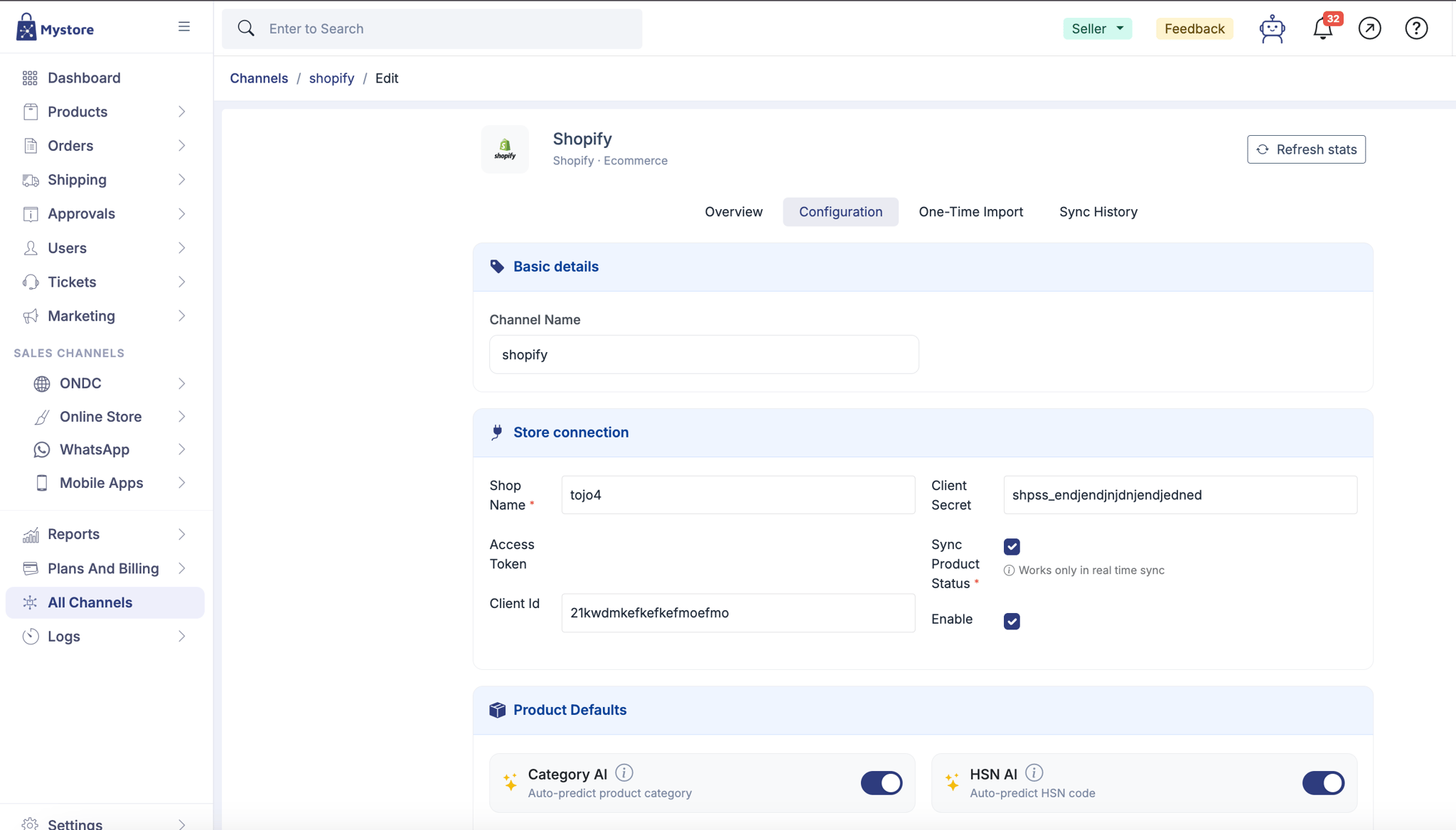
The Configuration tab holds your connection details.
Field | What to enter |
|---|---|
Shop Name | Required. The subdomain part of your .myshopify.com address |
Client Id and Client Secret | Only needed for a custom Shopify app |
Sync Product Status | Required. Keeps a product’s active or draft status in step with Shopify. Works only in real-time sync |
Enable | Turns the channel on. Clear this and syncing stops |
Your shop name is the store name in your Shopify admin URL. For example:
https://admin.shopify.com/store/demostore/app/grant?access_change_uuid=11111111-2222-3333-4444-555555555555&client_id=abcdef1234567890abcdef1234567890
Here, demostore is the shop name.
Product Defaults has two options that fill in product data for you as it arrives:
- Category AI - auto-predicts the product category.
- HSN AI - auto-predicts the HSN code.
Both are on by default. Turn them off if you would rather set categories and HSN codes yourself.
One-time import
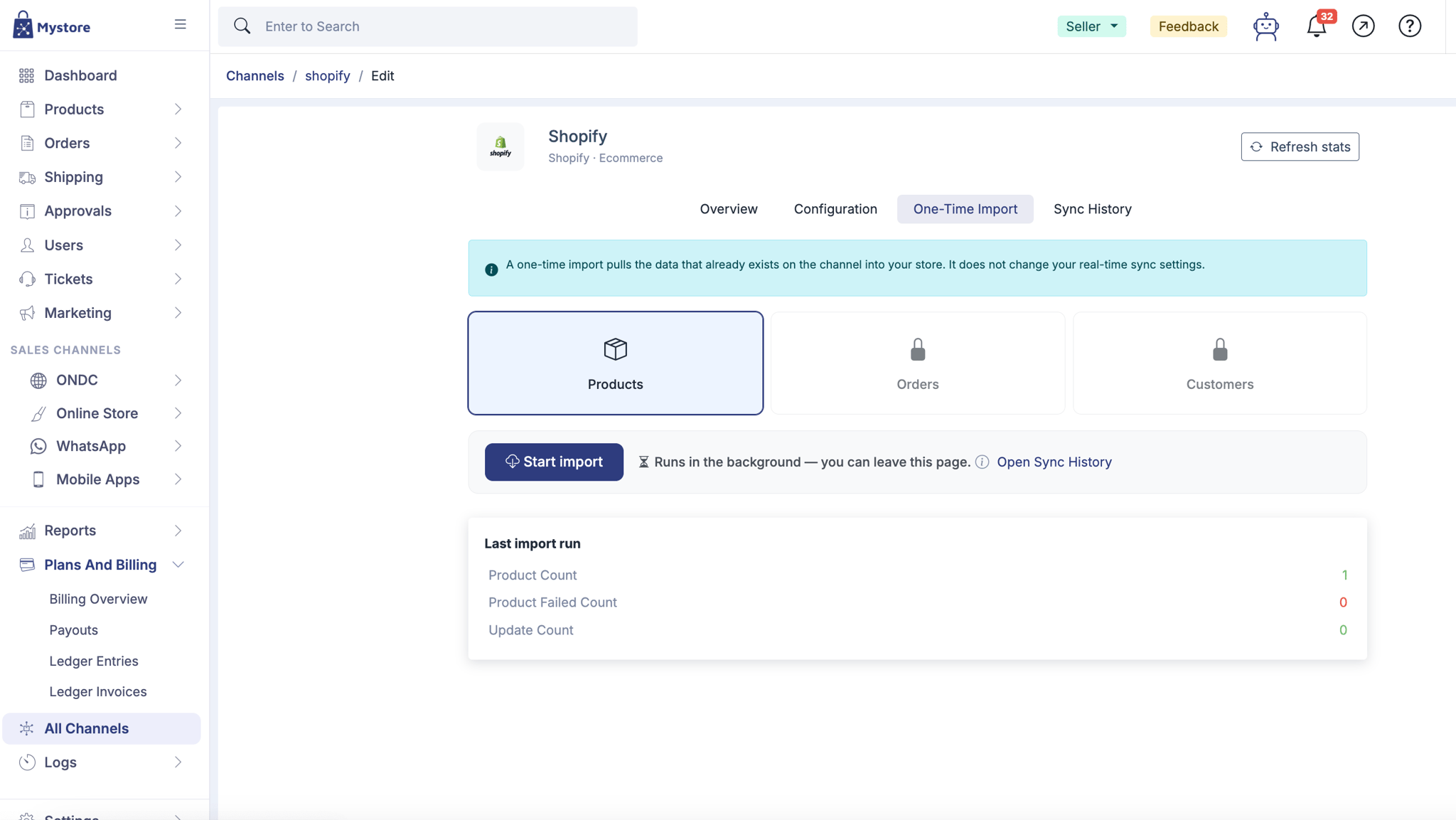
A one-time import pulls the data that already exists in Shopify into your store. It does not change your real-time sync settings, so the two work independently.
- Go to the One-Time Import tab.
- Select what to import: Products, Orders or Customers. A padlock means that data type is not included in your plan - most sellers will have Products only.
- Select Start import.
The import runs in the background, so you can leave the page. Select Open Sync History to follow it.
When it finishes, Last import run shows three counts:
Count | Meaning |
|---|---|
Product Count | Products brought in successfully |
Product Failed Count | Products that could not be imported - check Sync History for the reason |
Update Count | Existing products that were updated rather than created |
Running an import again re-reads Shopify from scratch. For ongoing changes, use real-time sync rather than repeating the import.
Product sync
These two syncs sit in the Products group on the Overview tab. Both run Mystore ← Shopify.
Product Sync keeps your catalogue current. Changes you make in Shopify reach Mystore within seconds:
- New Shopify products are added to Mystore automatically.
- Edits to product details such as title, description and price follow through.
- Products deleted in Shopify are removed from Mystore.
Inventory Sync covers stock only. Use it on its own if you want to manage stock from Shopify without syncing the rest of the product data. Any inventory change in the Shopify product section is applied to the matching SKU on Mystore.
Order sync
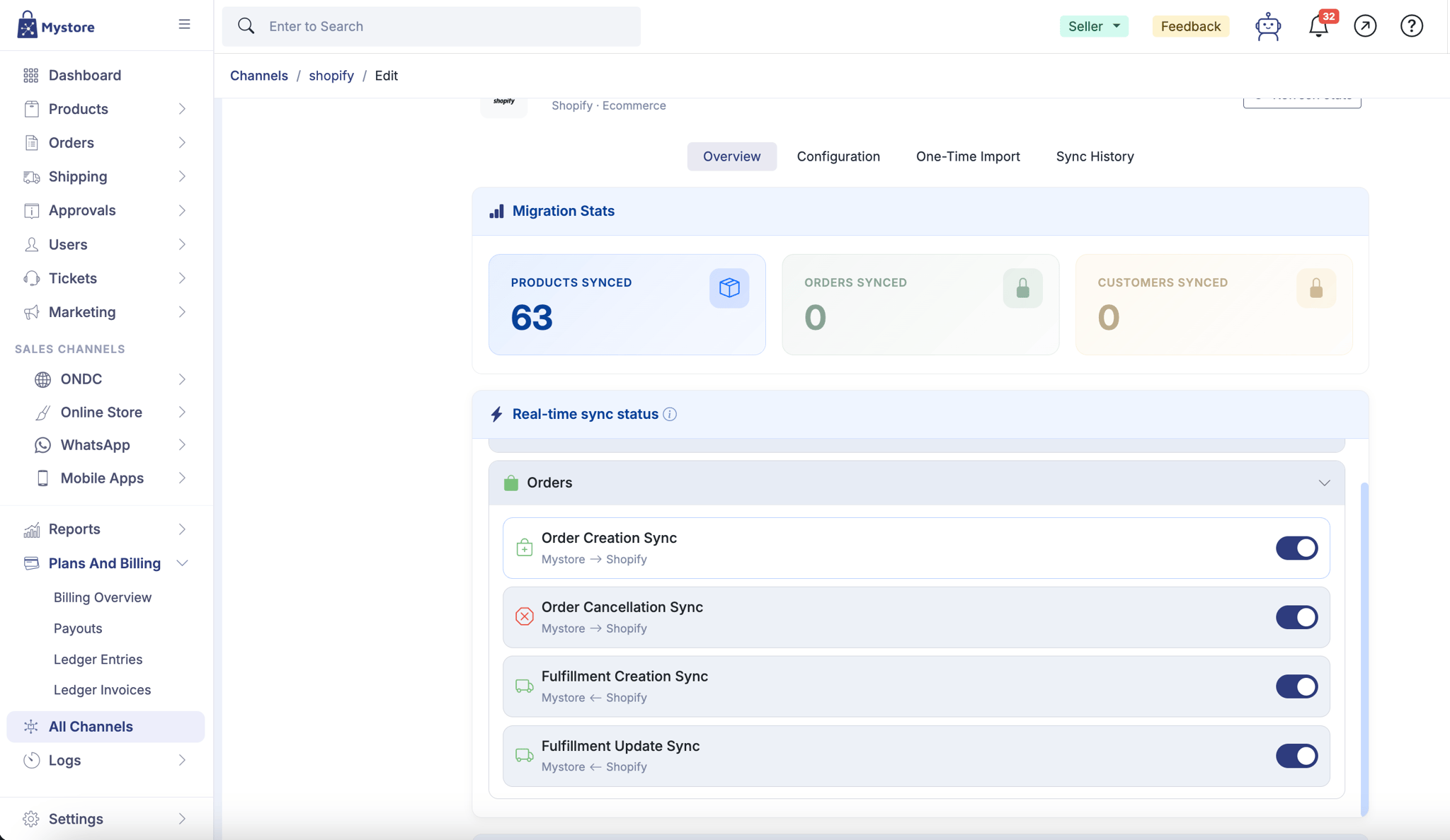
Order sync lets you run fulfilment from your Shopify dashboard while your storefront stays on Mystore. These four syncs sit in the Orders group on the Overview tab.
Sync | Direction | What happens |
|---|---|---|
Order Creation Sync | Mystore → Shopify | An order placed on Mystore appears in Shopify automatically |
Order Cancellation Sync | Mystore → Shopify | An order cancelled on Mystore is cancelled in Shopify too |
Fulfillment Creation Sync | Mystore ← Shopify | A fulfilment raised in Shopify is created against the Mystore order |
Fulfillment Update Sync | Mystore ← Shopify | Later fulfilment changes, such as tracking or shipped and delivered status, come back to Mystore |
Run together, these four mean orders flow out to Shopify, you pick and ship from Shopify, and the delivery status appears on the Mystore order without you touching it.
Shopify permissions required
Shopify permissions are required for the sync to work properly. Please connect with our team to get the required permissions configured.
If the Shopify access token is revoked or regenerated, please connect with our team to update the token and resume syncing.
Check your sync
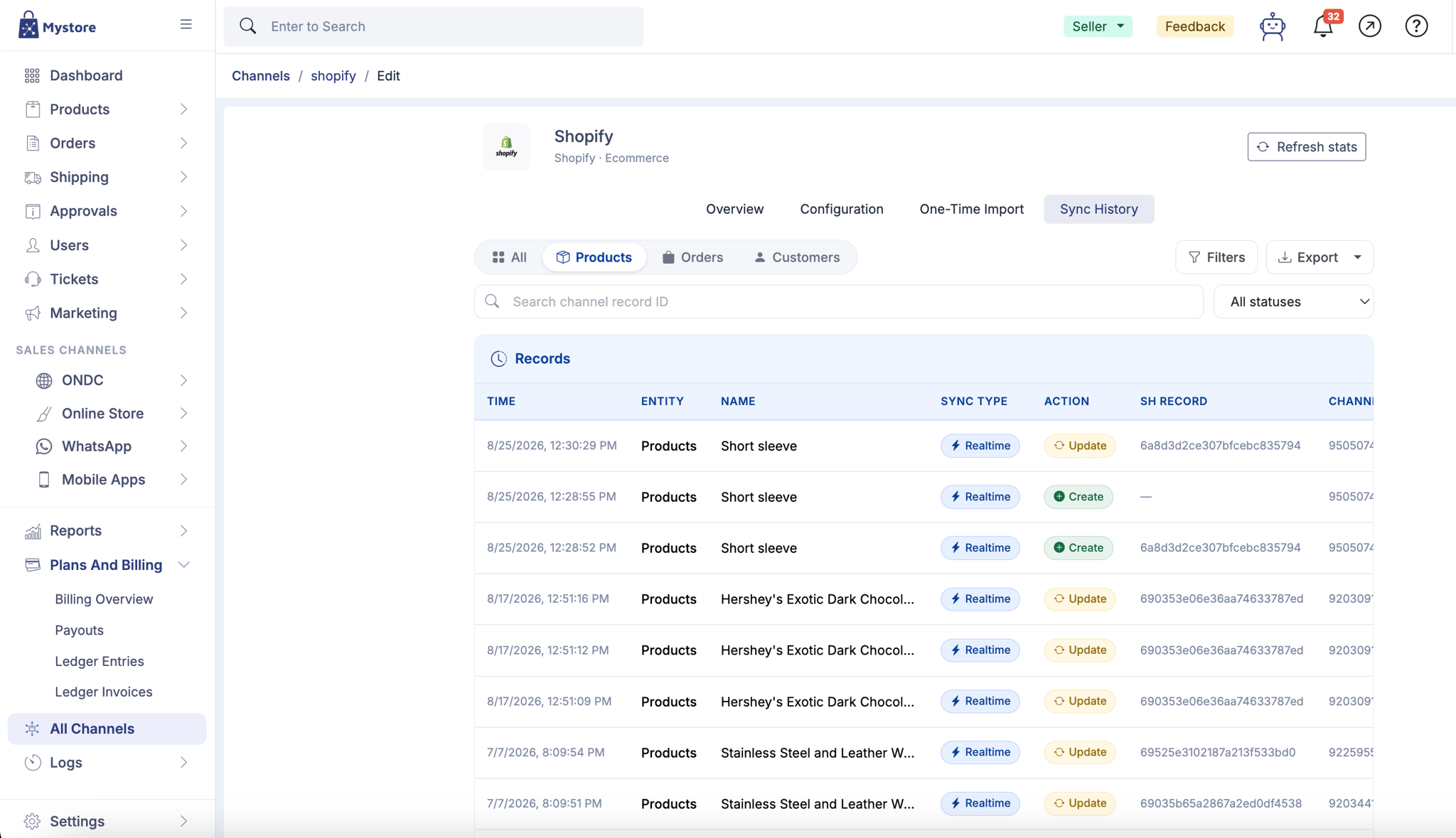
The Sync History tab lists every record that has synced, newest first. Each row shows:
Column | What it tells you |
|---|---|
Time | When the record synced |
Entity | Whether it was a product, order or customer |
Name | The product title or order reference |
Sync Type | Realtime for an automatic sync, or one-time for an import |
Action | Create for a new record, Update for a change to an existing one |
SH Record | The matching record ID in Mystore. A dash means no record was created |
Channel record ID | The ID of the record in Shopify |
To narrow the list, use the All / Products / Orders / Customers chips at the top, the All statuses dropdown, or Filters for a date range such as the last 24 hours. Searching by channel record ID is the quickest way to trace one specific product or order.
Filtering to failures is the usual starting point after a large import. Select a row to see the full detail, including the error message if it failed.
Export records
Select Export to download what you are currently looking at, failures included, then open Exports in your dashboard to collect the file. The export carries the failure reason for each record, so you can fix one class of problem at a time in Shopify and let sync pick up the corrections.
Why your products are not live yet
Products imported from Shopify do not go straight onto your storefront. Each one lands in Pending approval and waits for the Mystore team to review it. This is expected.
Go to Products and filter by approval status to see where yours stand. Approved products go live; a rejected product goes back for review once you correct the issue it was rejected for.
A successful sync and a live product are two different things. Sync History tells you the product reached Mystore; the approval status tells you whether shoppers can see it.
Common issues
What you see | What to do |
|---|---|
Most products failed with a duplicate SKU error | Give each product a unique SKU in Shopify, then sync again. Check for products you had already added to Mystore by hand |
Products synced but are not on the storefront | They are in Pending approval. Check the status under Products - nothing else is needed from you |
A padlock on the Orders or Customers card | That data type is not in your plan. Upgrade to unlock order and customer sync |
Migration Stats look out of date | Select Refresh stats |
Changes in Shopify are not reaching Mystore | On Overview, check the sync you need is on. Then check Enable is ticked on the Configuration tab and your access token is still valid in Shopify |
Product status is not matching Shopify | Tick Sync Product Status on the Configuration tab. It works only with real-time sync |
Orders are not reaching Shopify | Check Order Creation Sync is on in the Orders group |
Categories or HSN codes are wrong on imported products | Category AI and HSN AI predict these. Turn them off under Product Defaults to set them yourself |
Import seems stuck | It runs in the background and large catalogues take time. Refresh Sync History after a few minutes |
If a failure is not explained by the message in Sync History, contact Mystore support with your shop name and the channel record ID from the row that failed.