
Seller & Product QR Codes and Digital Catalog
Promoting your store on Mystore ONDC network becomes easy when you use Seller QR codes, Product QR codes, and a Digital Catalog. These tools help customers discover your store, view products quickly, and place orders without searching manually. The Mystore provides a QR code for your store and products once you create a storefront.
Promote Using Seller QR Code
The Seller QR Code represents your entire store on Mystore ONDC. When customers scan this QR code, they are taken directly to your store page, where they can see all your products and start shopping. Mystore ONDC provides a seller QR code for every store. This QR code is available on your store page and can be downloaded directly using the Download QR option.

Using the Seller QR Code increases store visibility, helps convert offline customers into online buyers, and makes repeat orders easier.
Promote Using Product QR Code
Mystore provides a product QR code for every product listed in your store. This QR code allows customers to directly open the specific product page and place an order without browsing the entire store.When a customer scans the product QR code, it opens the specific product page with details like price, description, and availability.
The product QR code can be downloaded directly from the product page using the Download QR option.
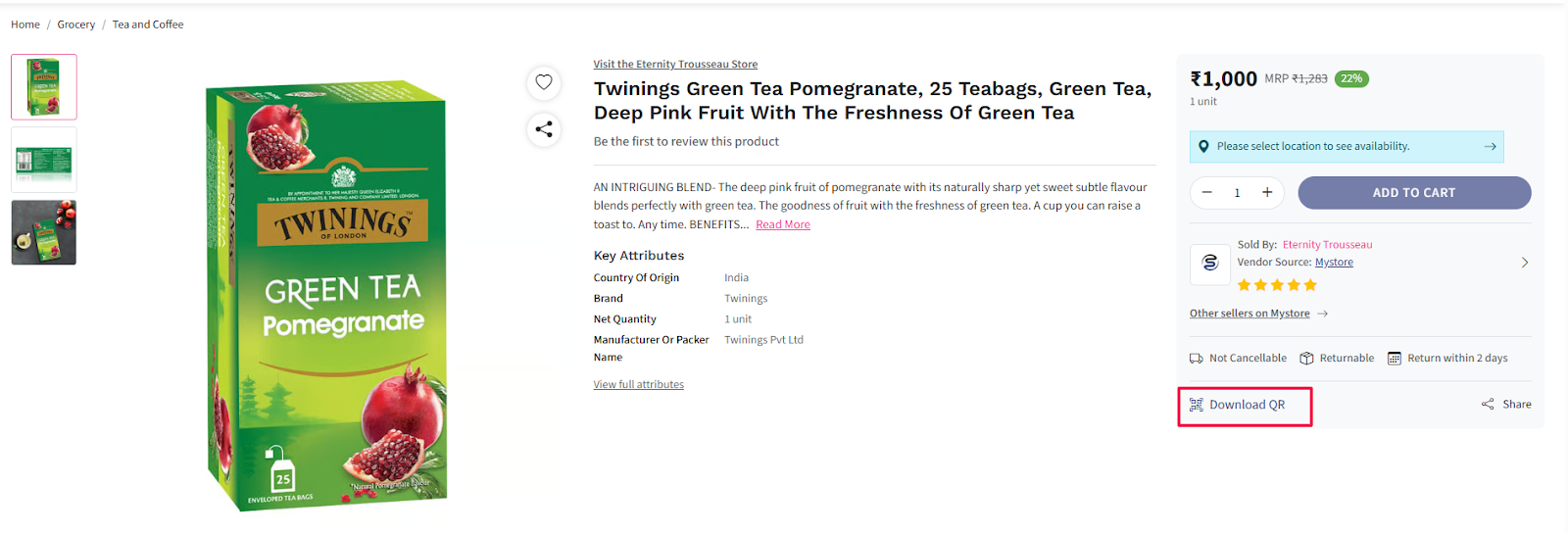
Product QR Codes reduce customer confusion, speed up purchase decisions, and help customers order the exact product they want.
Promote Using Digital Catalog
The Digital Catalog is an online collection of all your products with images, prices, and descriptions. You can share the Digital Catalog link through WhatsApp, social media, SMS, email, or QR codes.
With a digital catalog, customers can browse your products anytime without visiting the store. It works like an online brochure and helps customers compare products before buying.
Digital Catalog in Mystore
The Digital Catalog in Mystore is an online collection of all your store products displayed in one place. It works like a digital brochure where customers can browse your products, view images, prices, and details, and place orders easily.
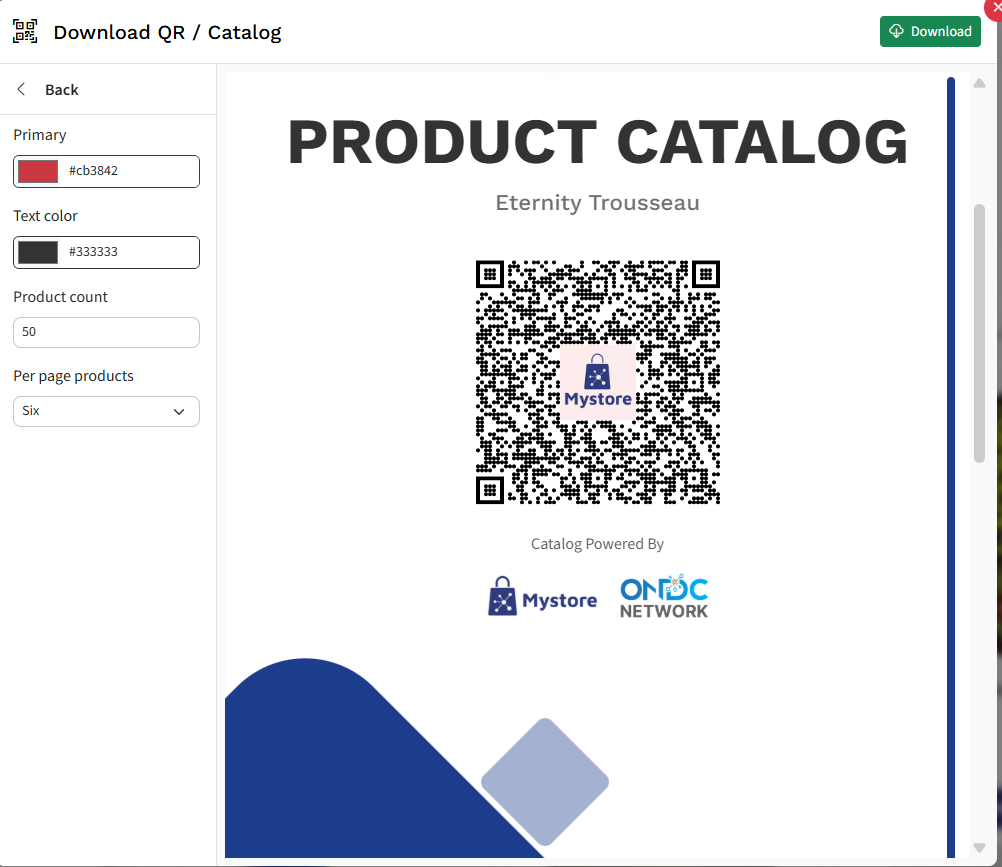
Your Digital Catalog is automatically created based on the products listed in your Mystore ONDC network store.
The Digital Catalog is an online collection of all your products with images, prices, and descriptions. You can share the Digital Catalog link through WhatsApp, social media, SMS, email, or QR codes.
Manage QR Codes & Digital Catalog in Mystore
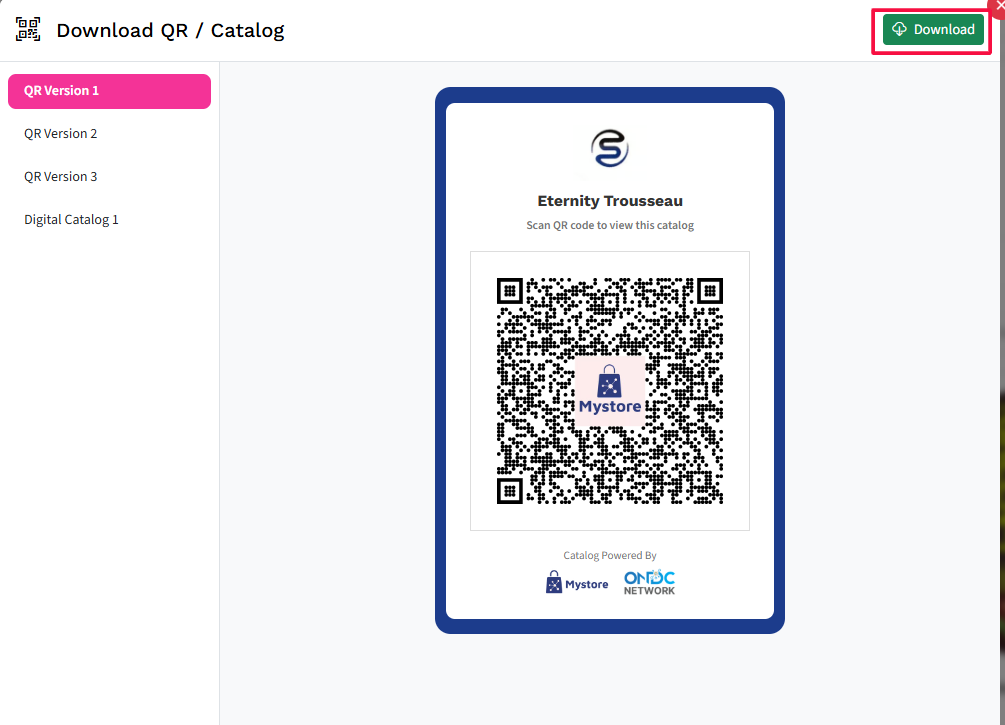
Mystore ONDC allows sellers to download and customize QR codes and digital catalogs for store and product promotion. Using the Download QR / Catalog option, you can personalize the look of your QR and control how your digital catalog appears to customers.
Choose a QR Code Version
In the Download QR / Catalog section, you can see multiple QR layout options such as:
- QR Version 1
- QR Version 2
- QR Version 3
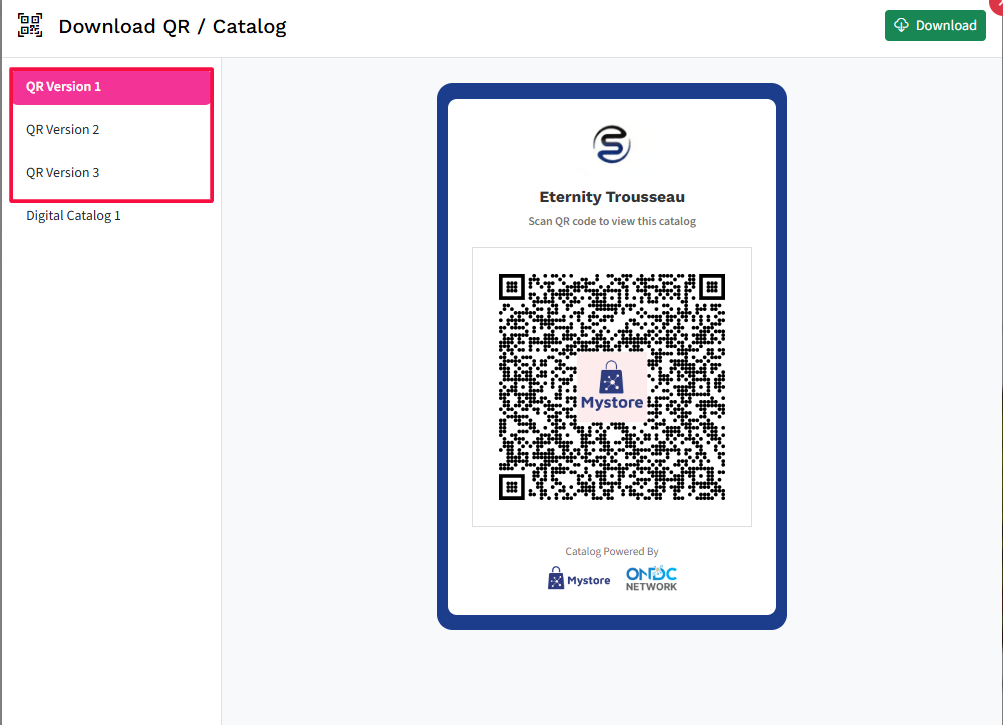
Each version has a different design and layout style. You can click on any version to preview how the QR code will look.
Customize QR Code Design
Mystore provides customization options so your QR code matches your brand identity.
Primary Color: You can select a primary color for your QR design. This color is used in the background or highlights of the QR layout. Choose a color that matches your store branding.
Text Color: You can change the text color used in the QR layout. This helps improve readability and ensures your QR looks clean and professional.
Custom Settings
Custom settings allow you to fine-tune the QR appearance as per your promotional needs. This is useful when you want a unique look for posters, banners, or printed materials.
Manageing Digital Product Catalog Settings
When downloading a product catalog, sellers can control how many products are shown and how they are displayed.
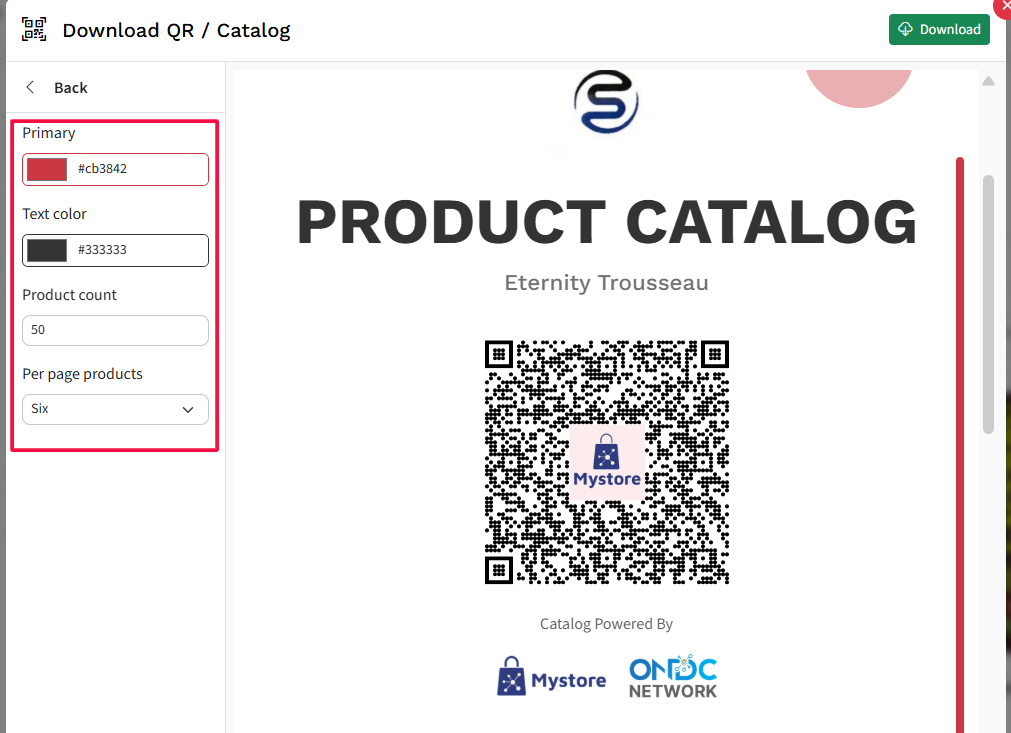
You can set primary and text color as you need
Product Count: You can set the total number of products to include in the catalog. This helps you create focused catalogs for specific promotions or categories.
Products Per Page: You can choose how many products appear on each page of the catalog. This makes the catalog easier to browse and more visually appealing.
Preview Before Download
The right side of the screen shows a live preview of the QR code or catalog layout. Any changes you make to colors or settings are reflected instantly in the preview, allowing you to review before downloading.
Download and Use QR/Catalog
Once customization is complete, click the Download button to save the QR code or catalog.
You can then use it across multiple channels such as store displays and billing counters, Product packaging, Flyers, posters, and banners, WhatsApp, social media, and email campaigns