
Serial / IMEI Capture for Device Orders
If you sell mobile phones, tablets, or other electronic devices, each unit has a unique identification number known as a serial number or IMEI (International Mobile Equipment Identity).
The Serial / IMEI Capture feature allows you to record these unique identifiers against an order before generating the invoice. This helps maintain accurate device records and ensures traceability for every unit sold.
Benefits
- Track the exact device sold to each customer.
- Simplify returns, warranty claims, and service requests.
- Help identify lost or stolen devices.
- Meet compliance and audit requirements for device sales.
Enable Serial / IMEI Capture
Before using this feature, configure the product categories that require Serial / IMEI tracking.
Steps
- Log in to your Mystore Seller Admin Panel.
- Navigate to Settings → Invoice Settings.
- Enable the option Show "Mandatory Categories for Serial / IMEI" Setting.
- A new field named Mandatory Categories for Serial / IMEI will appear.
- Select the product categories that require Serial / IMEI capture (for example, Mobile Phones, Tablets, or other electronic devices).
- Click Save.
Once enabled, every order containing products from the selected categories must have Serial / IMEI details captured before an invoice can be generated.
Capture Serial / IMEI for an Order
After receiving an order for a tracked product, record the device identifiers before creating the invoice.
Steps
- Go to Orders.
- Open the required order.
- Click Capture Serial / IMEI.
- Enter the Serial Number or IMEI 1 for each device.
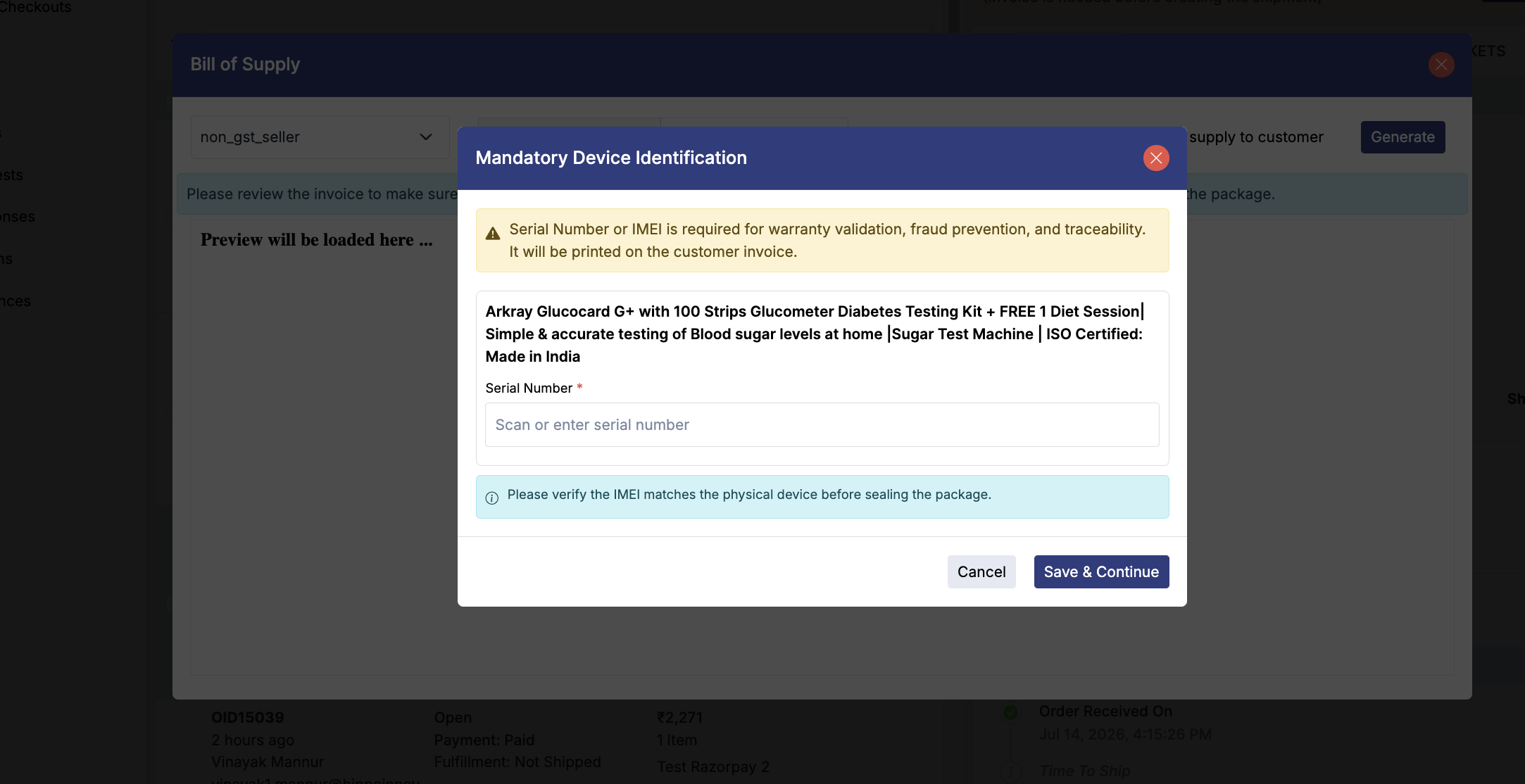
- If the product category is smartPhones, You will have option of If the device supports Dual SIM, enable the option This device has a second IMEI (Dual SIM only for smartphones); enter IMEI 2.
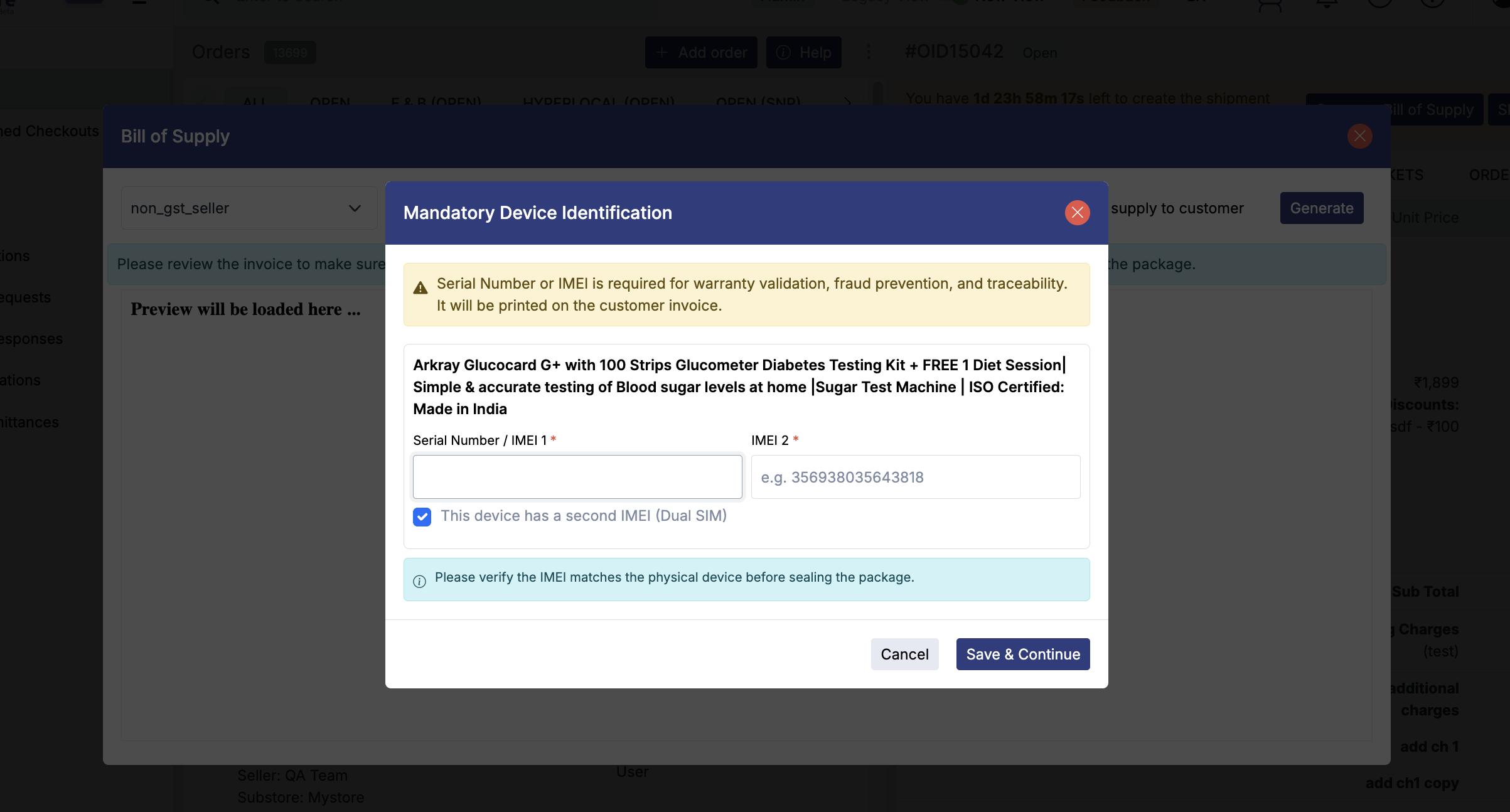
- If multiple quantities of the same product are ordered, enter separate Serial/IMEI details for each unit.
- Click Save.
Note: An IMEI is usually a 15-digit number. It can be found on the device packaging, printed on the device, or by dialing *#06# on the handset.
Generate the Invoice
After all required Serial / IMEI details have been saved:
- Return to the order.
- Click Generate Invoice.
The invoice will be generated successfully.
If Serial / IMEI Details Are Missing
If you attempt to generate an invoice before entering the required Serial / IMEI information, the system will display the following message:
"Serial Number / IMEI must be captured for all applicable items before generating the invoice."
Simply return to the Serial / IMEI section, enter the missing information, save the details, and generate the invoice again.
Automatic Invoice Generation
If your store is configured for automatic invoice generation:
- Orders containing products that require Serial / IMEI tracking will still be created successfully.
- However, invoice generation will remain on hold until the required Serial / IMEI details are captured.
- Once the information is saved, you can manually generate the invoice.