
Ship Now
Ship Now (powered by Shipkaro) lets you send any order across India from a single screen. You can compare live rates from 15+ couriers, book a pickup, and print a shipping label whether it’s a manual order, a walk-in customer, or anything sold outside Mystore and ONDC.
There’s no monthly fee you simply pay per shipment, and you can cancel anytime.
Note: Ship Now uses a prepaid Shipkaro Wallet. Add money once, and each booking is deducted automatically. You’ll need to recharge the wallet and complete a quick KYC before your first shipment (see Section 2).
1. What you get with Ship Now
A quick look at what Ship Now offers:
- Low starting price: Shipping starts at ₹22 for 500 g.
- Nationwide reach: Delivers to 29,000+ pincodes across India.
- Fast COD payouts: Cash-on-delivery money is remitted to you in about D+2 (two days after delivery).
- Parcel insurance: Cover of up to ₹5,000 per shipment.
- Many couriers, one dashboard: 15+ partners including India Post, DTDC, Delhivery, Shadowfax, and Amazon.
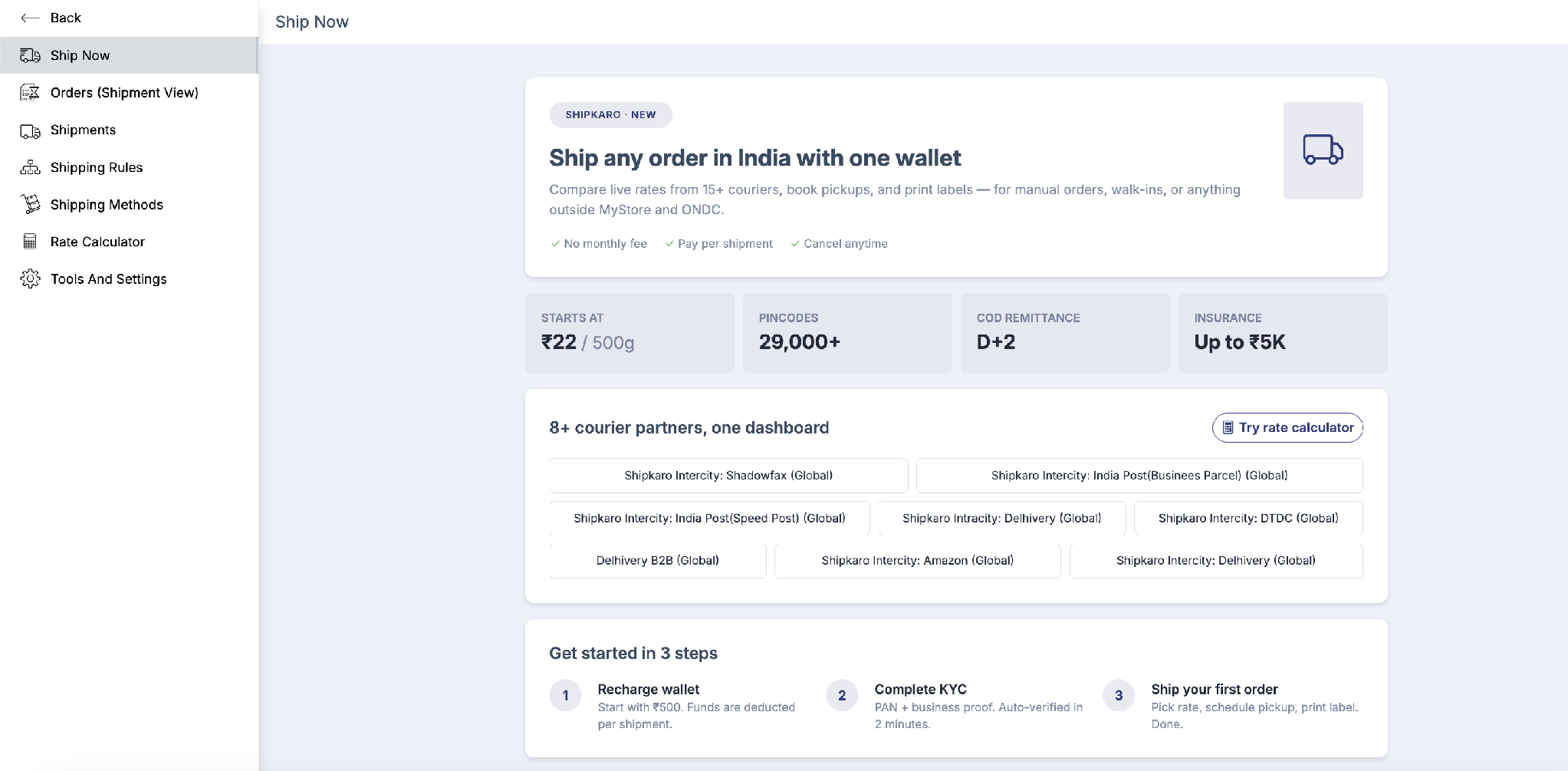
The Ship Now home screen, showing pricing, coverage, and courier partners.
2. Before you begin
Opening Ship Now
Follow the steps given below:
- Log in to your Mystore Seller Dashboard.
- Open the Shipping area and click Ship Now in the left menu.
From the same menu you can also reach Orders (Shipment View), Shipments, Shipping Rules, Shipping Methods, Rate Calculator, and Tools and Settings.
Get set up in 3 steps
You only need to do this once:
- Recharge your wallet — Start with ₹500. Funds are deducted per shipment. Use the Pay Now button on the Shipkaro Wallet card to add money.
- Complete KYC — Add your PAN and a business proof. It’s auto-verified in about 2 minutes.
- Ship your first order — Pick a rate, schedule a pickup, and print the label. Done.
Tip: Want to check a price before booking? Use Rate Calculator (or the Try rate calculator button on the Ship Now home screen) to see live rates for any route and parcel size
3. Book a shipment, step by step
Open Ship Now. Your Shipkaro Wallet balance appears at the top right — you can top it up anytime with Pay Now. Then work down the page through the three parts: Pick up, Ship to, and Package.
Step 1 — Pick up from
Choose the address the courier will collect the parcel from.
- Under Pick up from, search by title, city, or pincode.
- Select one of your saved pickup addresses, or click + Add new pickup address to create one.
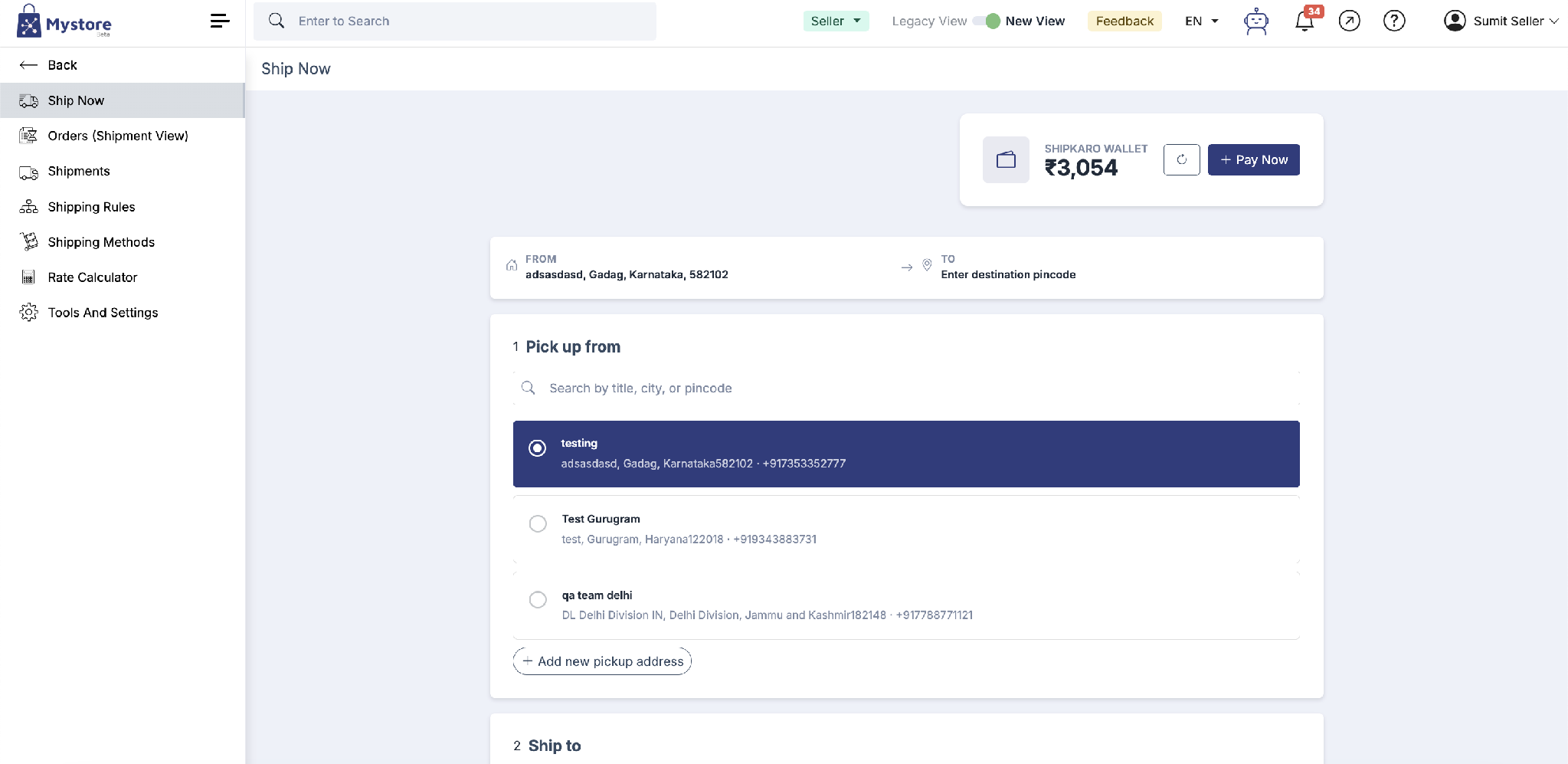
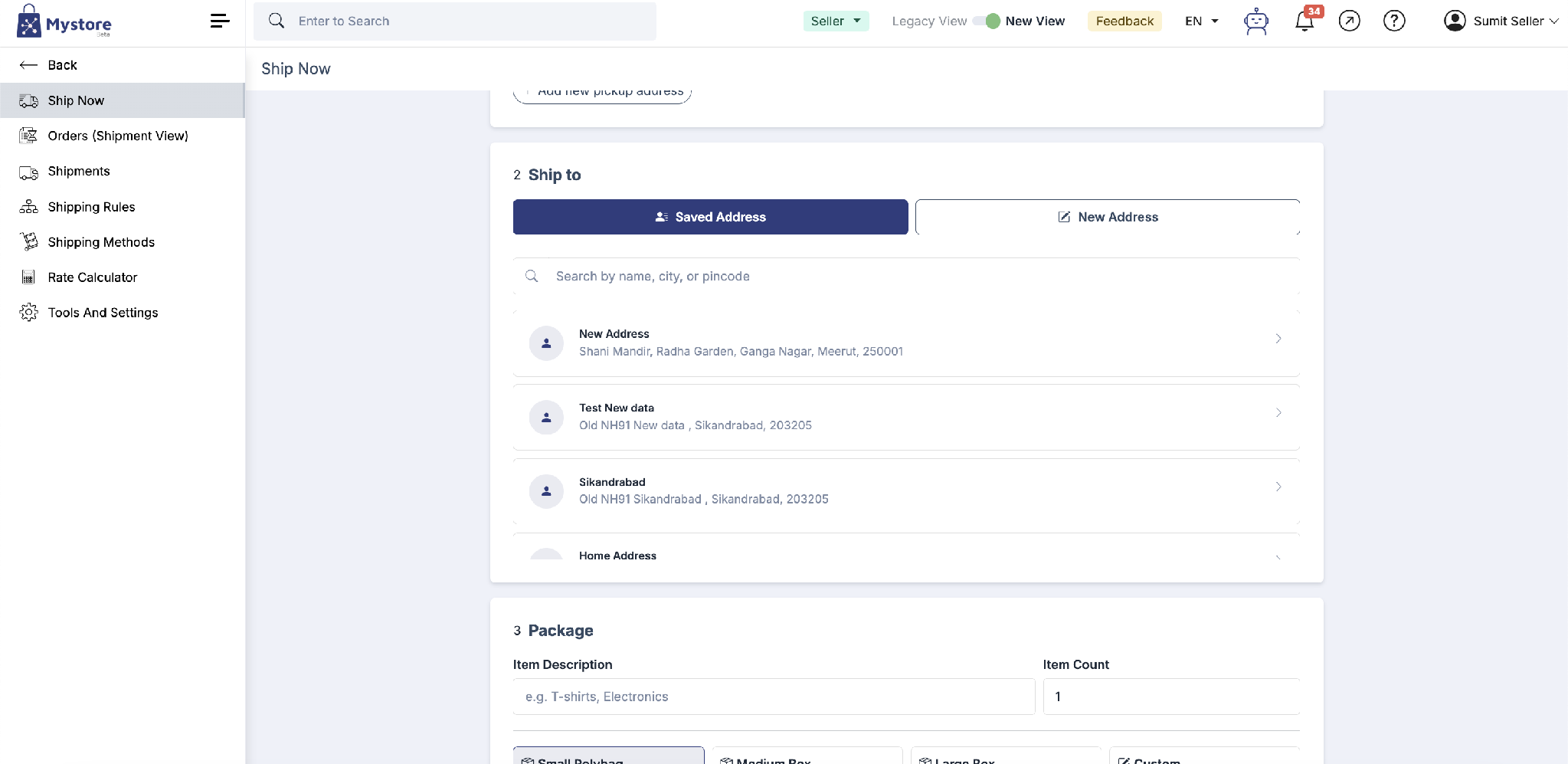
Step 2 Ship to: choosing the delivery address.
Choose where the parcel is going.
- Under Ship to, pick Saved Address to reuse a saved contact, or New Address to type a fresh one.
- Search by name, city, or pincode and select the delivery address.
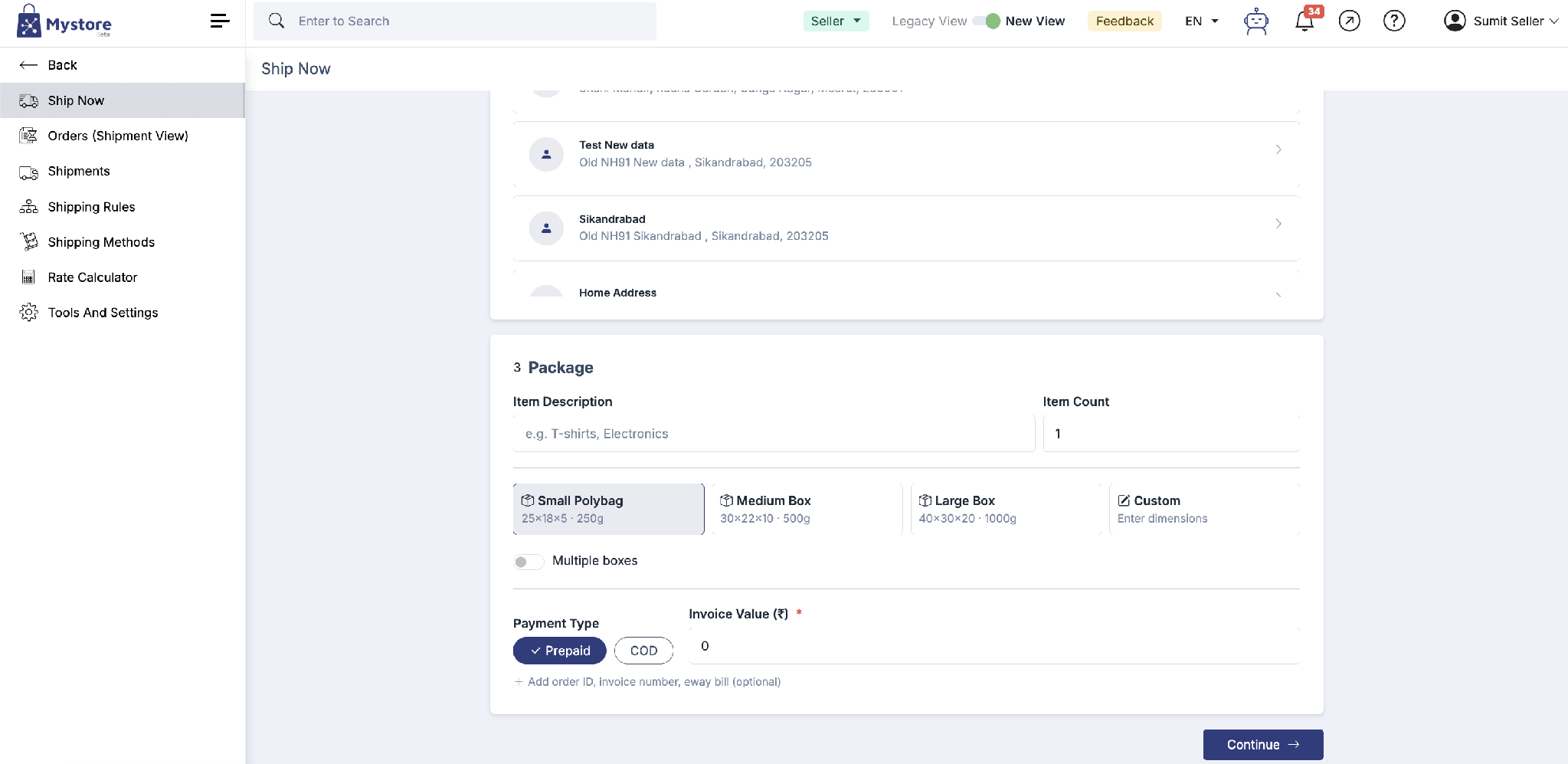
Step 3 package details, payment type, and invoice value
Tell us what you’re sending so we can price it correctly.
- Enter an Item Description (e.g. T-shirts, Electronics) and the Item Count.
- Pick a package size Small Polybag, Medium Box, Large Box, or Custom to enter your own dimensions. Turn on Multiple boxes if you’re sending more than one.
- Choose the Payment Type: Prepaid or COD and enter the Invoice Value (₹). Invoice value is required.
- Optionally, click Add order ID, invoice number, eway bill to include those details.
- Click Continue.
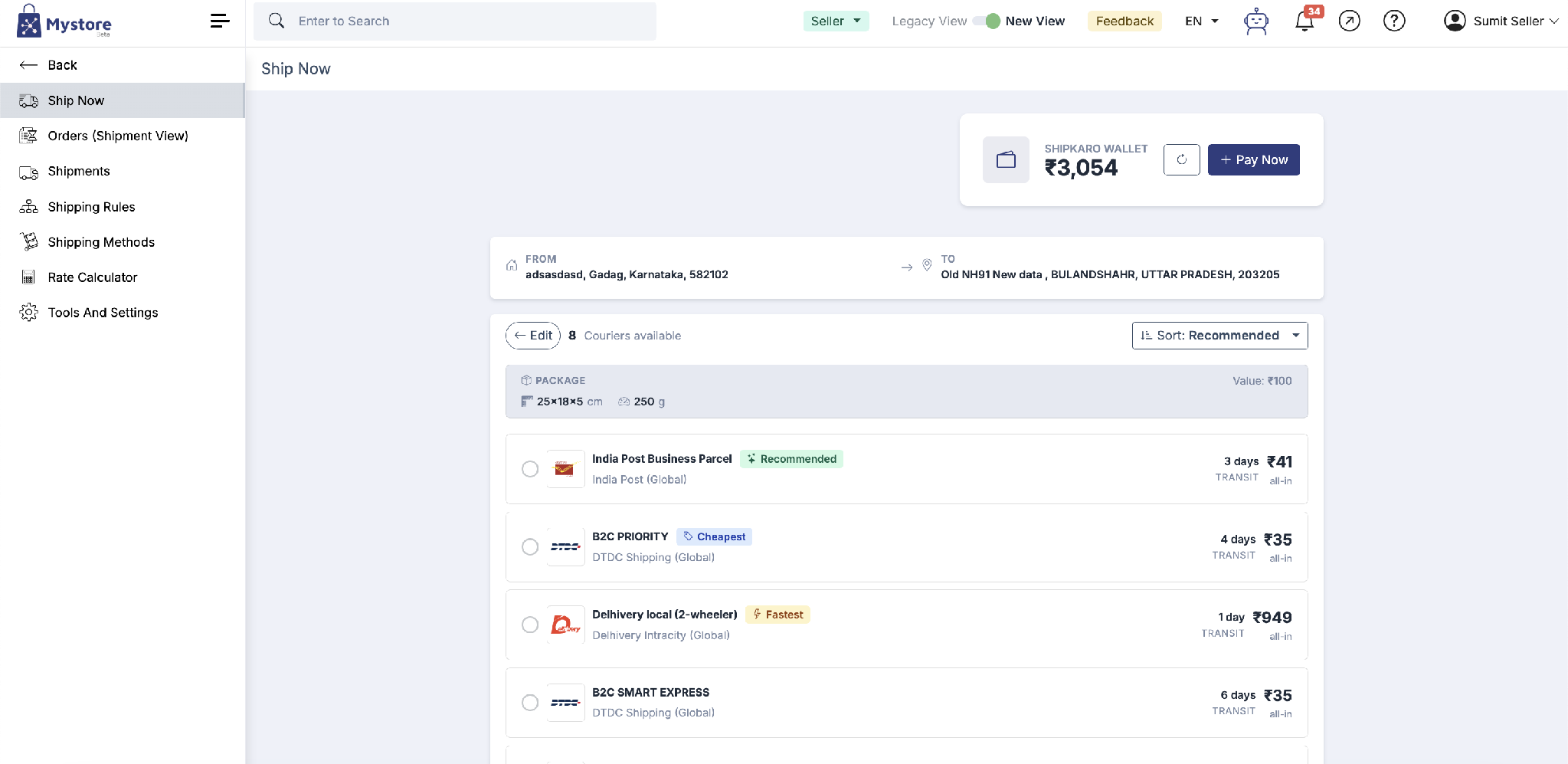
Step 4 Choose a courier
You’ll see every available courier for your parcel, each with a delivery time and an all-in price.
- Use Sort to order the list by Recommended, Cheapest, or Fastest.
- Compare the transit days and the all-in price, and look for the Recommended, Cheapest, and Fastest tags.
- Select the courier you want.
Step 5 Confirm & book
Confirm your choice. The shipping charge is deducted from your Shipkaro Wallet, and your pickup is booked.
You’ll see a Shipment Created! message with an AWB / Tracking No. From here you can View Shipment to see details and print the label, or Ship Another Order.
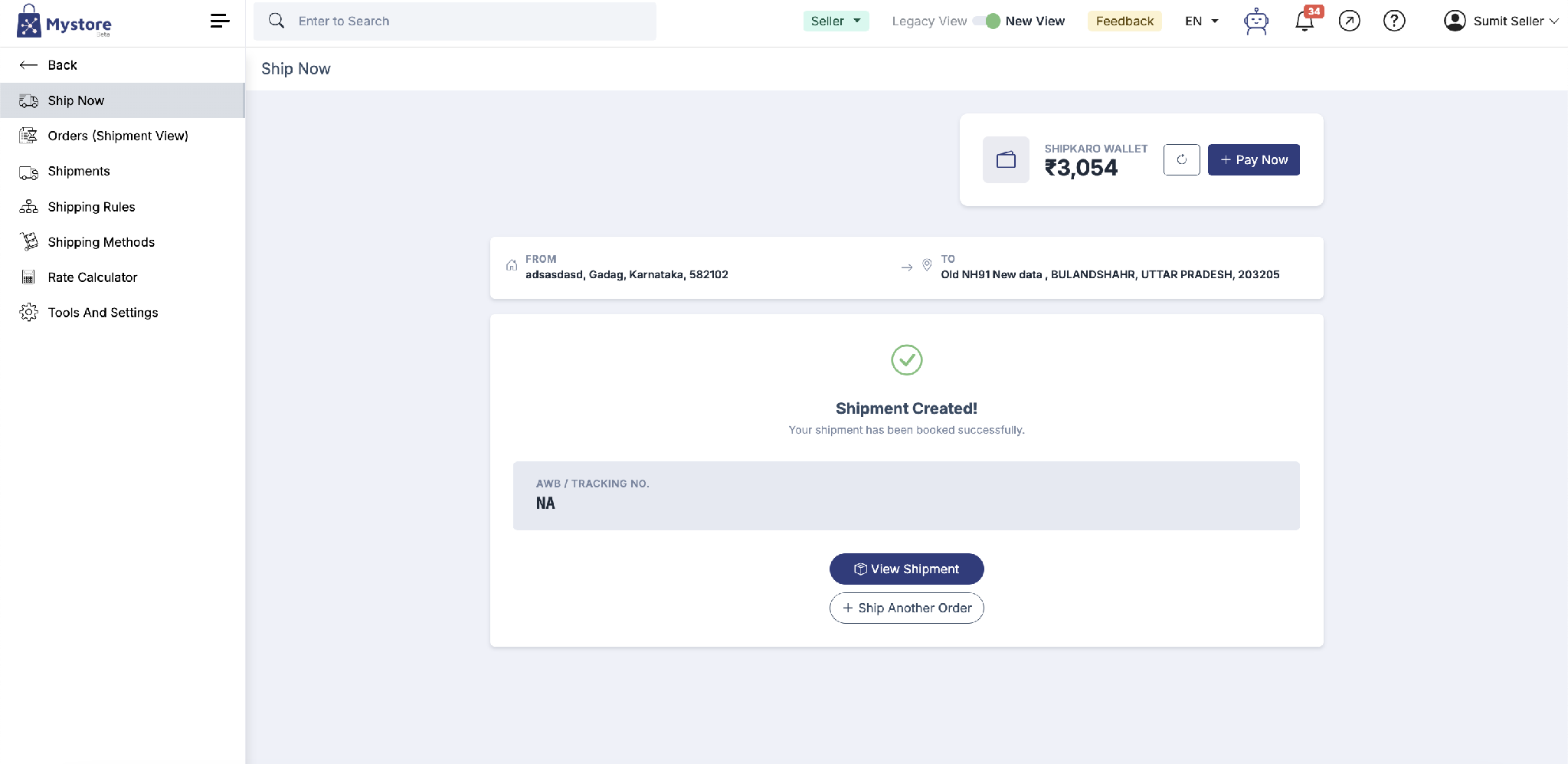
Note: A tracking number may show as NA for a short while right after booking, until the courier assigns one. It will update automatically — check Shipments a little later.
4. Understanding your courier options
- All-in price: The final price you pay, including pickup, fuel, and taxes no hidden extras.
- Transit: The estimated delivery time, shown in days.
- Recommended: The option we think gives the best balance of price and speed.
- Cheapest: The lowest-priced option.
- Fastest: The quickest delivery, which may cost more.
Tip: The cheapest courier isn’t always the fastest. Sort by what matters most for that order price for bulk sends, speed for urgent ones.
5. Package sizes at a glance
Pick the preset closest to your item, or choose Custom to enter exact dimensions. Larger and heavier parcels cost more.
</table class="table table-bordered ">6. The Shipkaro WalletShip Now runs on a prepaid wallet, shown at the top of the screen.
- Balance: Your available money for booking shipments.
- Pay Now: Adds funds to your wallet.
- Refresh: The circular icon updates your balance after a payment.
- Auto-deduct: Every booking is taken from this balance automatically.
Tip: Keep a healthy balance — especially before a busy sale day — so bookings never fail for lack of funds.7. Managing your shipmentsOnce an order is booked, these menu items help you keep track:
- Orders (Shipment View): See orders that are ready to be shipped.
- Shipments: Track everything you’ve booked; open any one to view details or print the label.
- Shipping Rules & Shipping Methods: Set up your delivery rules and the options buyers see.
- Rate Calculator: Check prices for any route and parcel before you book.
- Tools and Settings: Manage your Ship Now setup.
8. Handy tips
- Recharge before rush days. Top up the wallet ahead of a sale so no booking fails.
- Measure and weigh accurately. The right size and weight means the right price — and fewer courier adjustments.
- Compare before you pick. Use Sort to weigh price against speed for each order.
- COD payouts. Cash-on-delivery amounts reach you in about D+2 after delivery.
- Save regular addresses. Keep your common pickup and delivery addresses saved to book faster next time.
Size | Dimensions (cm) | Typical weight |
|---|---|---|
Small Polybag | 25 × 18 × 5 | up to 250 g |
Medium Box | 30 × 22 × 10 | up to 500 g |
Large Box | 40 × 30 × 20 | up to 1000 g |
Custom | Your own dimensions | Your own weight |
6. The Shipkaro Wallet
Ship Now runs on a prepaid wallet, shown at the top of the screen.
- Balance: Your available money for booking shipments.
- Pay Now: Adds funds to your wallet.
- Refresh: The circular icon updates your balance after a payment.
- Auto-deduct: Every booking is taken from this balance automatically.
Tip: Keep a healthy balance — especially before a busy sale day — so bookings never fail for lack of funds.
7. Managing your shipments
Once an order is booked, these menu items help you keep track:
- Orders (Shipment View): See orders that are ready to be shipped.
- Shipments: Track everything you’ve booked; open any one to view details or print the label.
- Shipping Rules & Shipping Methods: Set up your delivery rules and the options buyers see.
- Rate Calculator: Check prices for any route and parcel before you book.
- Tools and Settings: Manage your Ship Now setup.
8. Handy tips
- Recharge before rush days. Top up the wallet ahead of a sale so no booking fails.
- Measure and weigh accurately. The right size and weight means the right price — and fewer courier adjustments.
- Compare before you pick. Use Sort to weigh price against speed for each order.
- COD payouts. Cash-on-delivery amounts reach you in about D+2 after delivery.
- Save regular addresses. Keep your common pickup and delivery addresses saved to book faster next time.