
Shop now
This template helps you send customers a WhatsApp message with a Shop Now button that opens your Mystore.
Follow these steps to create a “Shop Now” WhatsApp Template in Mystore
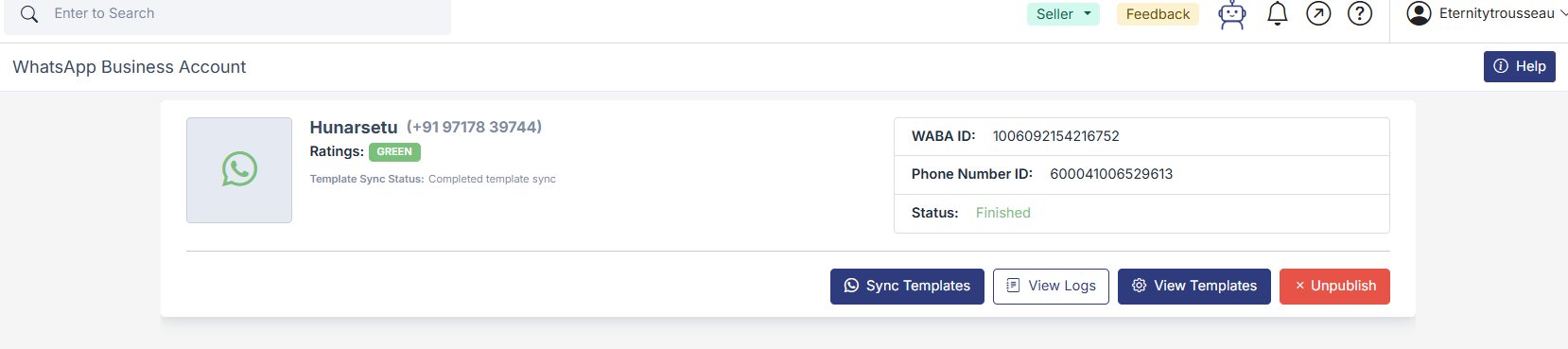
Step 1: Go to WhatsApp Templates
- Open Settings and go to WhatsApp Account in your Mystore dashboard.
- Click on View Templates.
- Click Add Template.
Step 2: Fill Basic Details
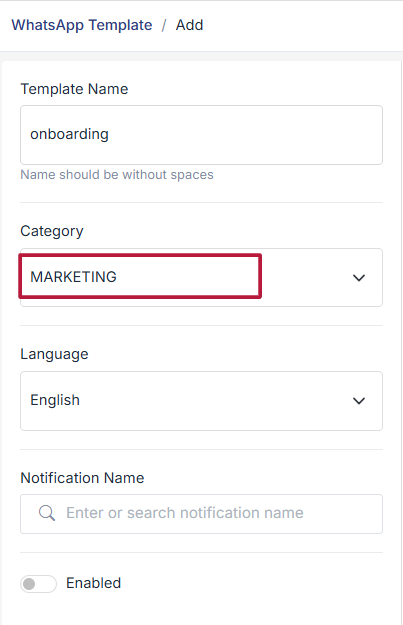
- Enter a Template Name. The template should not have any capital letters and should not contain spaces.
- Select Category → Marketing.
- Choose the Language (for example, English).
- Turn on Enabled if required.
Step 3: Add Header (Optional)
- In the Header section, select Text.
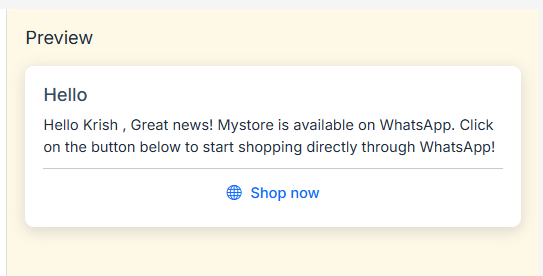
- Enter a short heading like Hello.
Step 4: Write Message Content
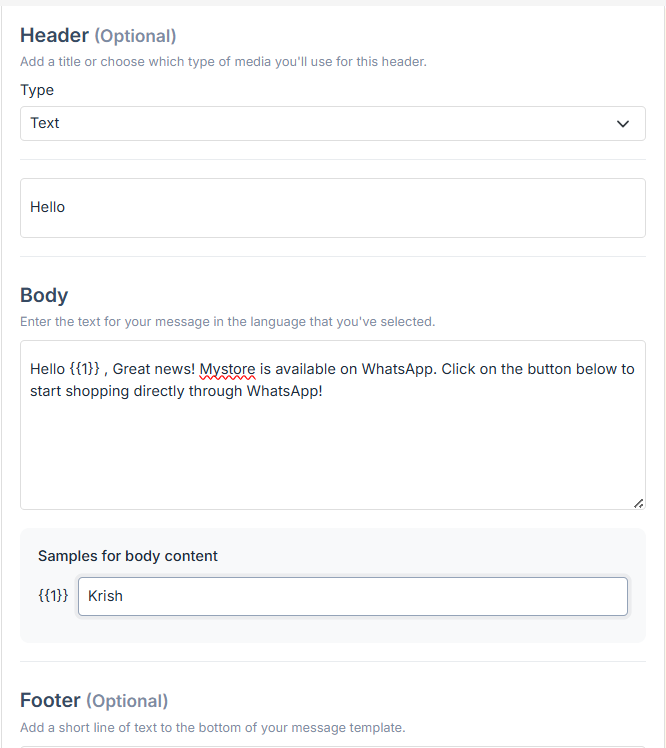
- In the Body section, write your message.
- This is the sample structure of the Shop Now template that the seller will create.
- It will have one notification variable, which will be the customer’s name (WhatsApp name).
- You can use {{1}}. to add the customer’s name.
Example message:
Hello {{1}}., Great news! Mystore is now available on WhatsApp.
Click the button below to start shopping.
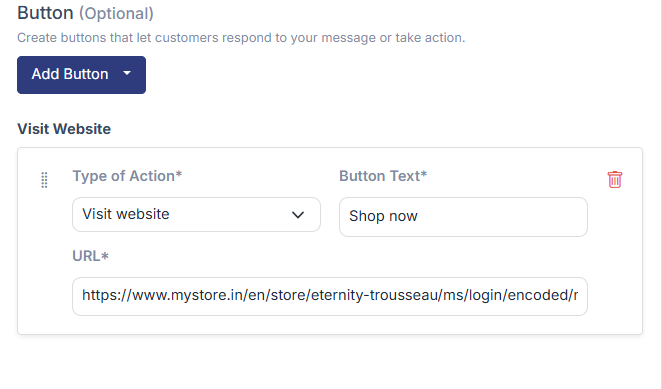
Step 5: Add “Shop Now” Button
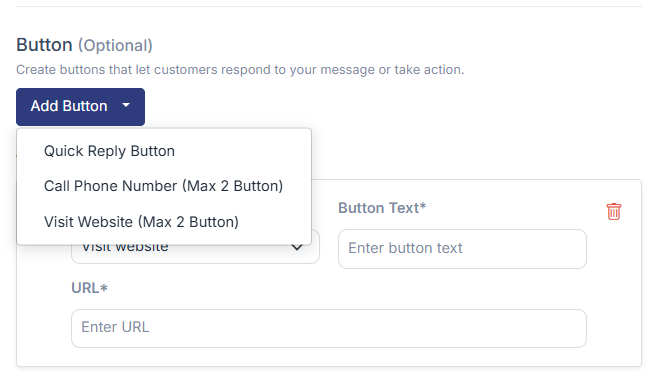
- Click Add Button.
- Select Visit Website.
- Enter:
- Button Text: Shop Now
- URL: The URL will contain one dynamic value in the following format:
domain + ms/login/encoded/multipass/{{1}}. where {{1}}. is the button variable.
Step 6: Preview and Save
- Check the Preview to make sure everything looks correct.
- Click Save to submit the template.
What Customer Sees on WhatsApp (Shop Now Feature)
When a customer sends “Hi” or any message to your WhatsApp number:
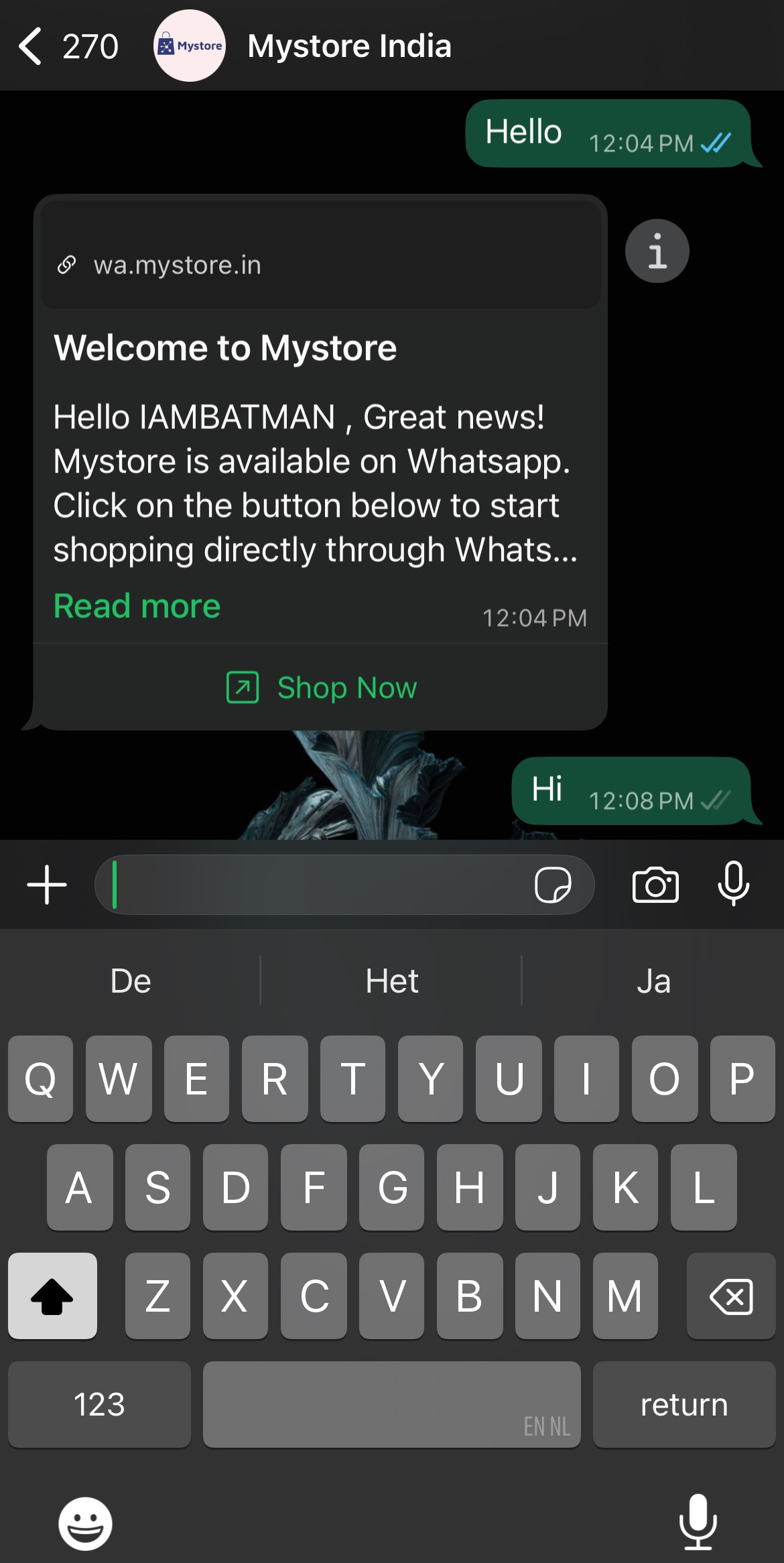
- The customer automatically receives a WhatsApp message from your store.
- The message shows a welcome text and informs them that your Mystore is available on WhatsApp.
- A Shop Now button is shown in the message.
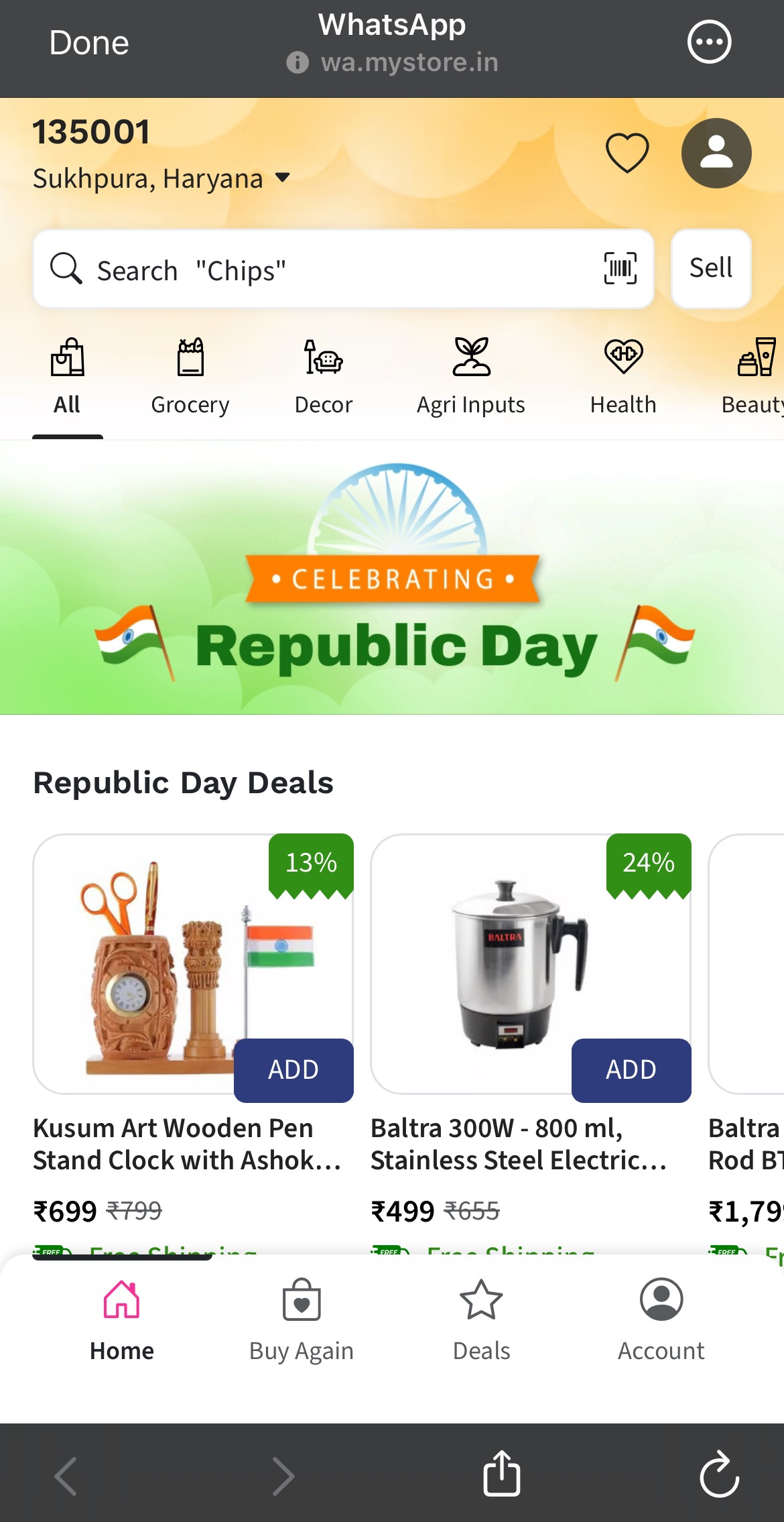
- When the customer clicks on Shop Now:
- They are redirected to your Mystore website.
- Your store opens inside WhatsApp (no extra app needed).
Was this page helpful?