
WhatsApp Commerce
WhatsApp Commerce allows customers to browse products directly on WhatsApp, add items to their cart, and continue checkout on your Mystore website seamlessly. Once your WhatsApp catalogue is connected with your Mystore product feed, customers can send their cart from WhatsApp and complete the purchase through your store checkout.
This integration creates a connected shopping experience between WhatsApp and your Mystore storefront.
How WhatsApp Commerce Works
The integration works in the following flow:
- Customers browse products from your WhatsApp catalogue.
- Customers add products from the WhatsApp Catalogue and click on Place order in WhatsApp.
- Customers receive a checkout link (Register link in case of a non-registered user with that number)
- A cart is automatically created on your Mystore website.
- Customers complete checkout on your website using WhatsApp’s in-app browser.
WhatsApp Commerce Setup
Follow the steps below to connect your WhatsApp catalogue with Mystore.
Step 1: Get Your Product Feed URL
Mystore automatically generates a product feed URL containing your store catalogue in a format supported by WhatsApp.
To get the feed URL:
- Go to the Settings > WhatsApp Integration section in your Mystore seller dashboard.
- Copy the generated product feed URL.
Note: Keep this URL private. It is unique to your store and is used by Meta to sync products to WhatsApp.
Step 2: Add the Feed to Meta Business Suite
You need to add the Mystore product feed URL inside Meta Commerce Manager.
- Log in to Meta Business Suite.
- Go to Settings.
- Navigate to Data Sources and then Catalog.
- Click Add new.
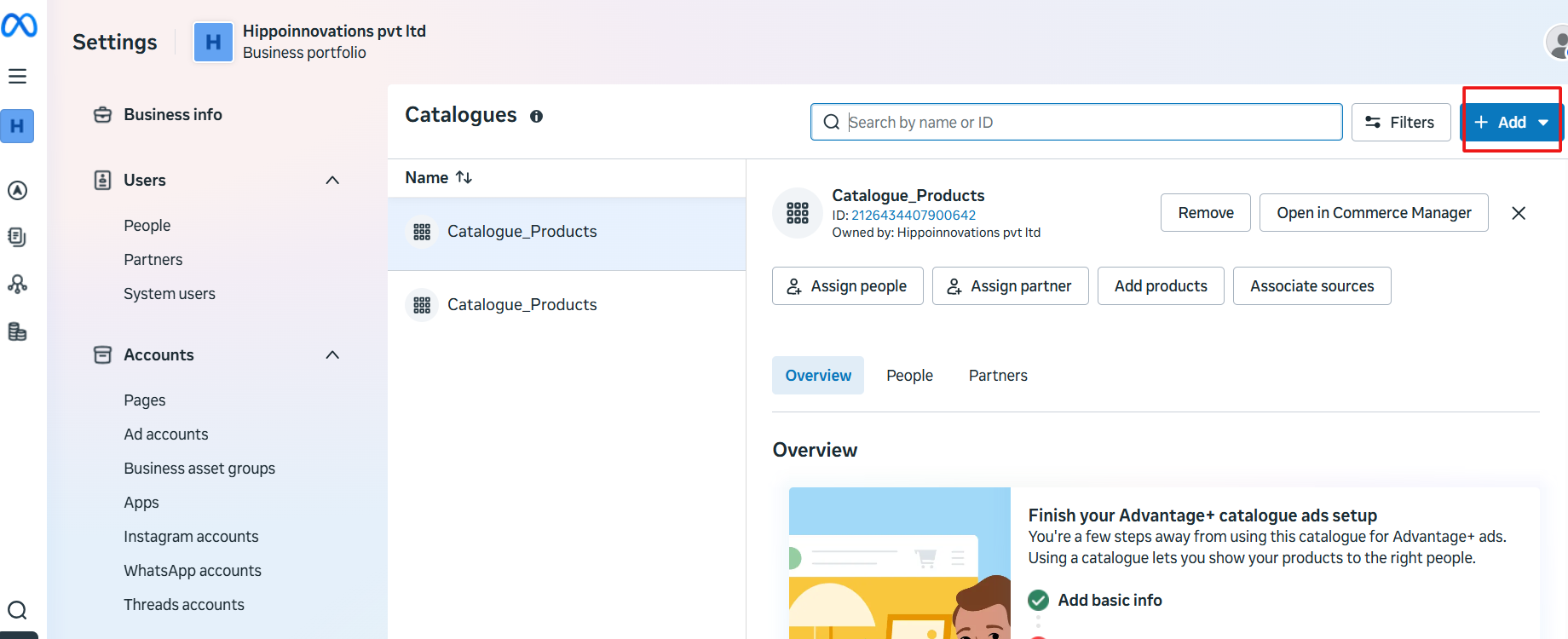
- Paste the Mystore Product Feed URL.
- Configure the sync frequency:
- Hourly
- Daily
This sync keeps your WhatsApp catalogue updated with your Mystore products.
Step 3: Link the Catalogue to Your WhatsApp Business Account
After adding the catalog, connect it to your WhatsApp Business Account (WABA) so customers can view products directly inside WhatsApp chats.
Go to Settings and navigate to WhatsApp Accounts. Select the WhatsApp account you want to integrate. In the Summary tab, scroll down and click WhatsApp Manager.
From there:
- Open the Catalogues section.
- Select the catalogue that has been added for integration.
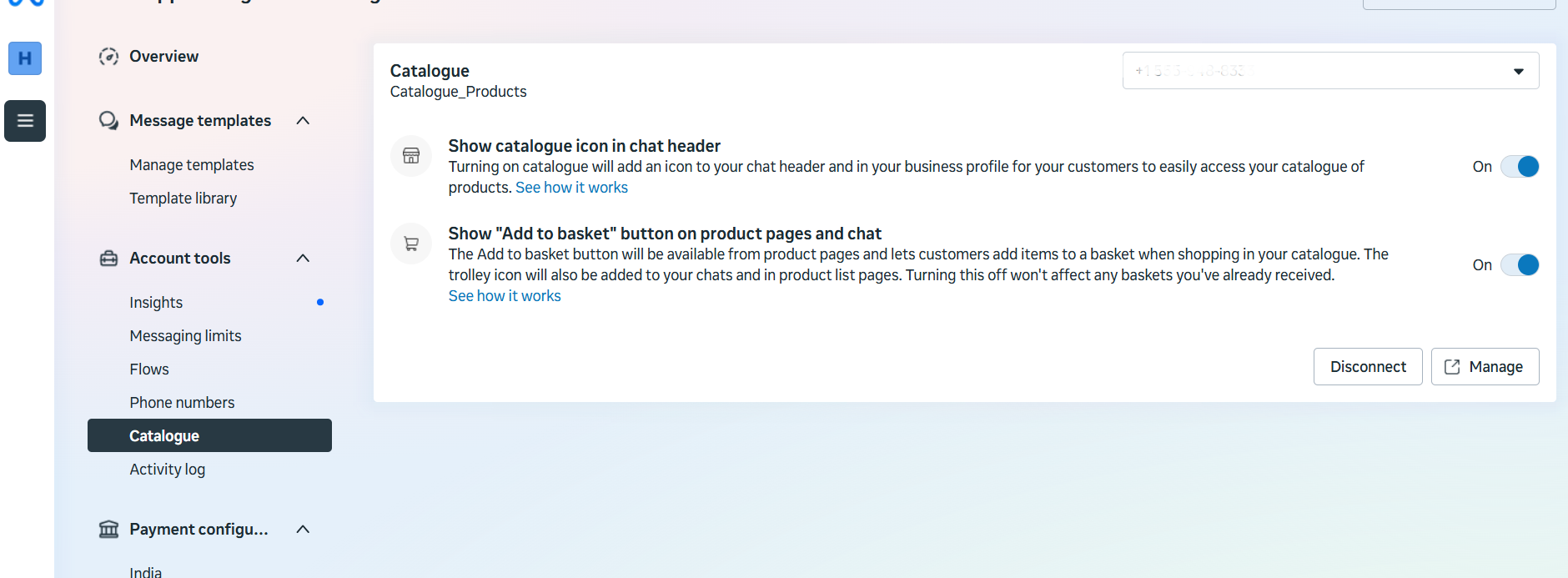
Note: Catalogue configuration and WABA linking are fully managed within Meta Business Suite. Mystore does not manage or control this setup.
Step 4: Configure the Order Webhook
Once your WhatsApp Business number is connected to Mystore, setup happens automatically.
Whenever a customer sends a cart on WhatsApp:
- Mystore receives the cart details automatically.
- The customer’s cart is created on your website.
- No manual setup is required from your side.
How the Order Flow Works
Once the customer sends their cart from WhatsApp, the following happens automatically:
| Step | Stage | What Happens |
|---|---|---|
| 1 | Cart Sent | The customer browses your catalogue in WhatsApp, adds products, and taps Place order. |
| 2 | Webhook Received | WhatsApp sends Mystore an order webhook containing product IDs, quantities, and the customer’s phone number. |
| 3 | Cart Created | Mystore parses the webhook and creates a cart on your website with the selected products. |
| 4a | Registered User | If the phone number matches an existing account, an auto-login link is generated, and a CTA message with a Complete Order button is sent to the customer. |
| 4b | Unregistered User | If no account is found, a text message with a registration link is sent. The customer must register first and then place their order again. |
| 5 | Checkout | The customer taps the link or button, which opens in WhatsApp’s in-app browser. The customer completes checkout on your website. |
WhatsApp Messages: What Customers Receive
When customers add products using the catalogue option in WhatsApp, Mystore sends one of the following messages, depending on whether the customer already has an account on your store.
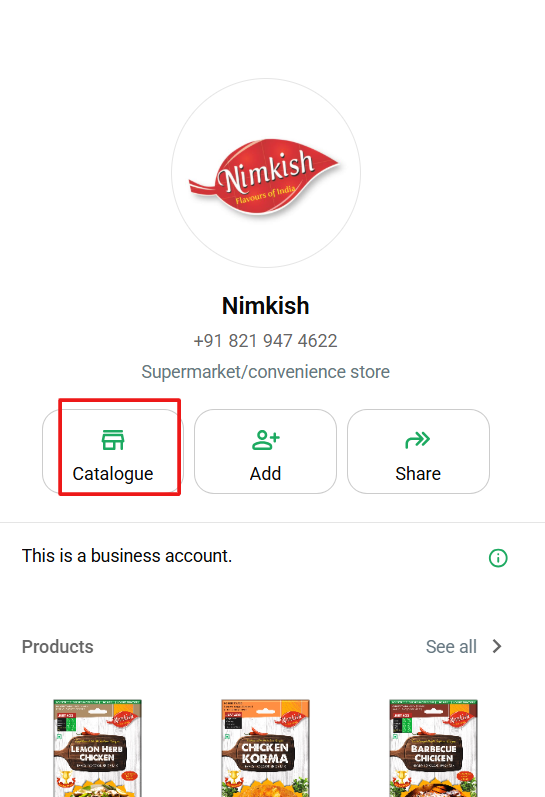
Registered User: CTA Button Message
If the customer’s phone number matches an existing account, Mystore sends a WhatsApp CTA message containing a Complete Order button.
Customer message: Hi [Name], complete your order by clicking the link below. ↗ Complete Order
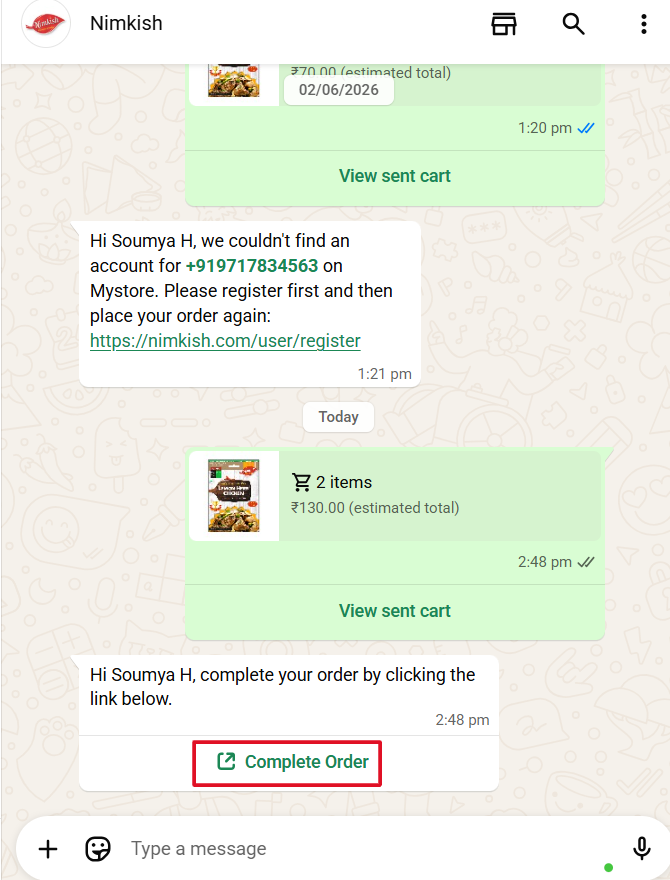
The button opens the customer’s cart through a secure auto-login URL within WhatsApp’s in-app browser. The customer can review the cart, click Place Order, and proceed to the payment page. Once the payment is completed, the order will be successfully placed through WhatsApp.
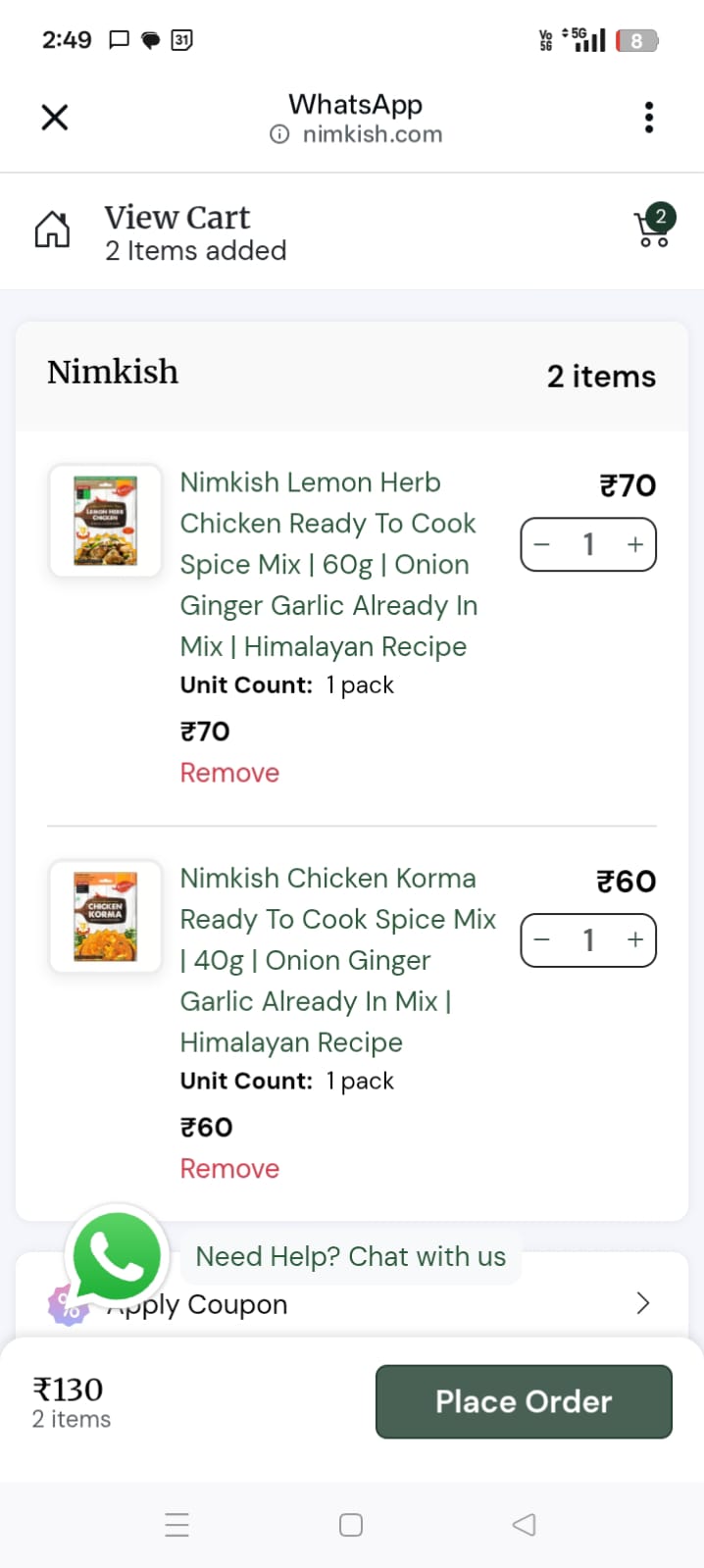
Note: The button label “Complete Order” is fixed and cannot be customised due to WhatsApp platform limitations.
Unregistered User: Registration Link Message
If the customer’s phone number is not associated with any account on your store, Mystore sends a plain-text registration link.
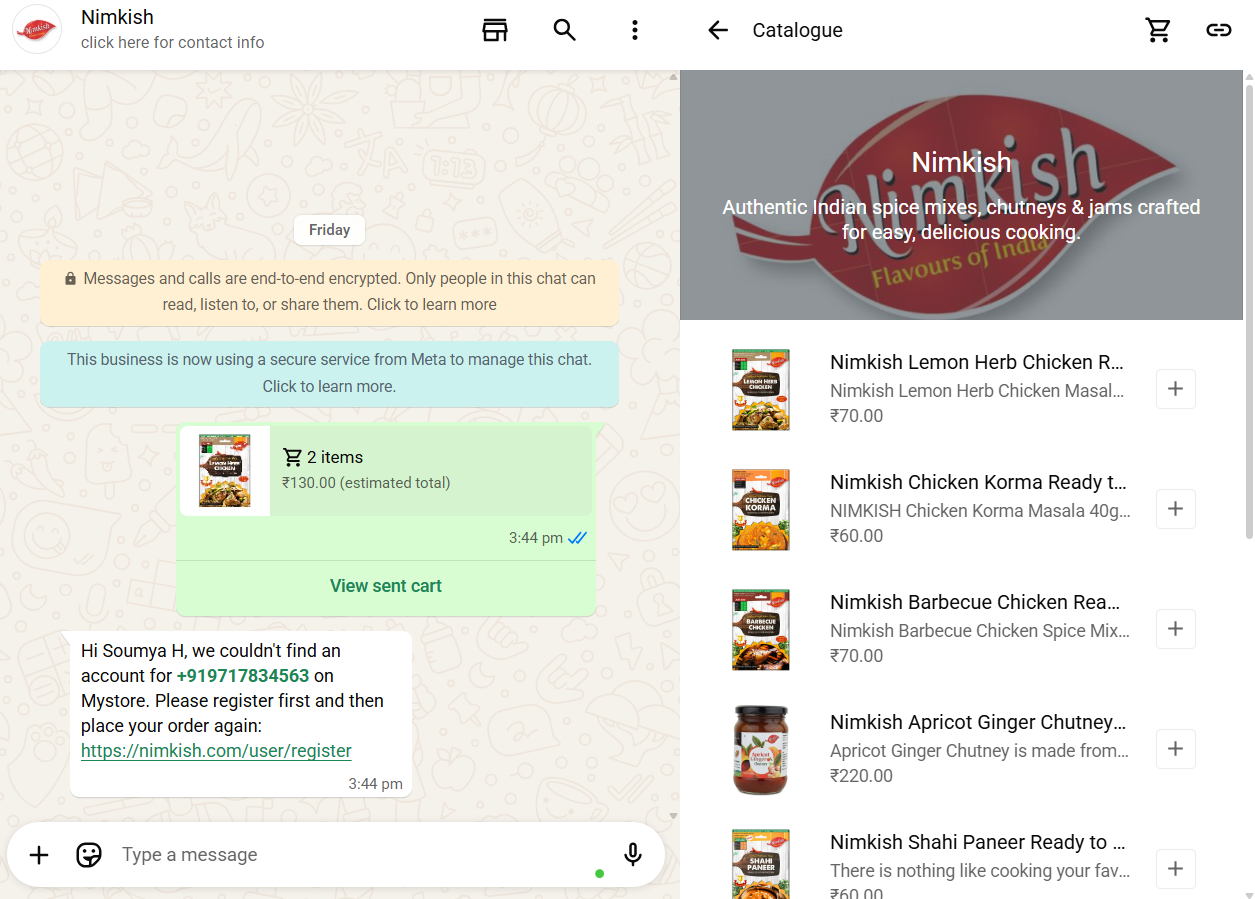
Customer message: Hi [Name], we couldn’t find an account for [phone number] on Mystore. Please register first and then place your order again: https://yourstore.com/user/register
Note: After completing registration, the customer must return to WhatsApp and resend the cart. A new Complete Order message will then be generated automatically.
What Mystore Handles
Once an order webhook is received from WhatsApp, Mystore takes care of the following automatically:
- Receiving the WhatsApp order webhook (type: order).
- Parsing product items and building the cart on your website.
- Checking whether the customer has a registered account by phone number.
- Generating a one-time auto-login link for registered users.
- Sending the appropriate WhatsApp message: a CTA button for registered users, and a registration link for unregistered users.
Note: Mystore does not manage the WhatsApp catalogue, product feed syncing, or the checkout process on your website. Catalogue management is your responsibility inside Meta Business Suite, and the customer completes checkout on your Mystore website independently after clicking the link.