
WhatsApp Templates & Campaigns
Sending a WhatsApp message to your customers takes two steps. First you create a template the reusable design of your message, with its text, image, and buttons. Then you send that template to your chosen audience as a campaign. This guide covers both, in order.
Note: WhatsApp usually reviews a new template before it can be sent, so a template may take a little while to become available to use in a campaign.
Part A: Create a WhatsApp template
Open the template builder
- Go to Marketing → WhatsApp Account, then click View Templates.
- Click Add to open the template builder (you’ll see WhatsApp Template / Add at the top).
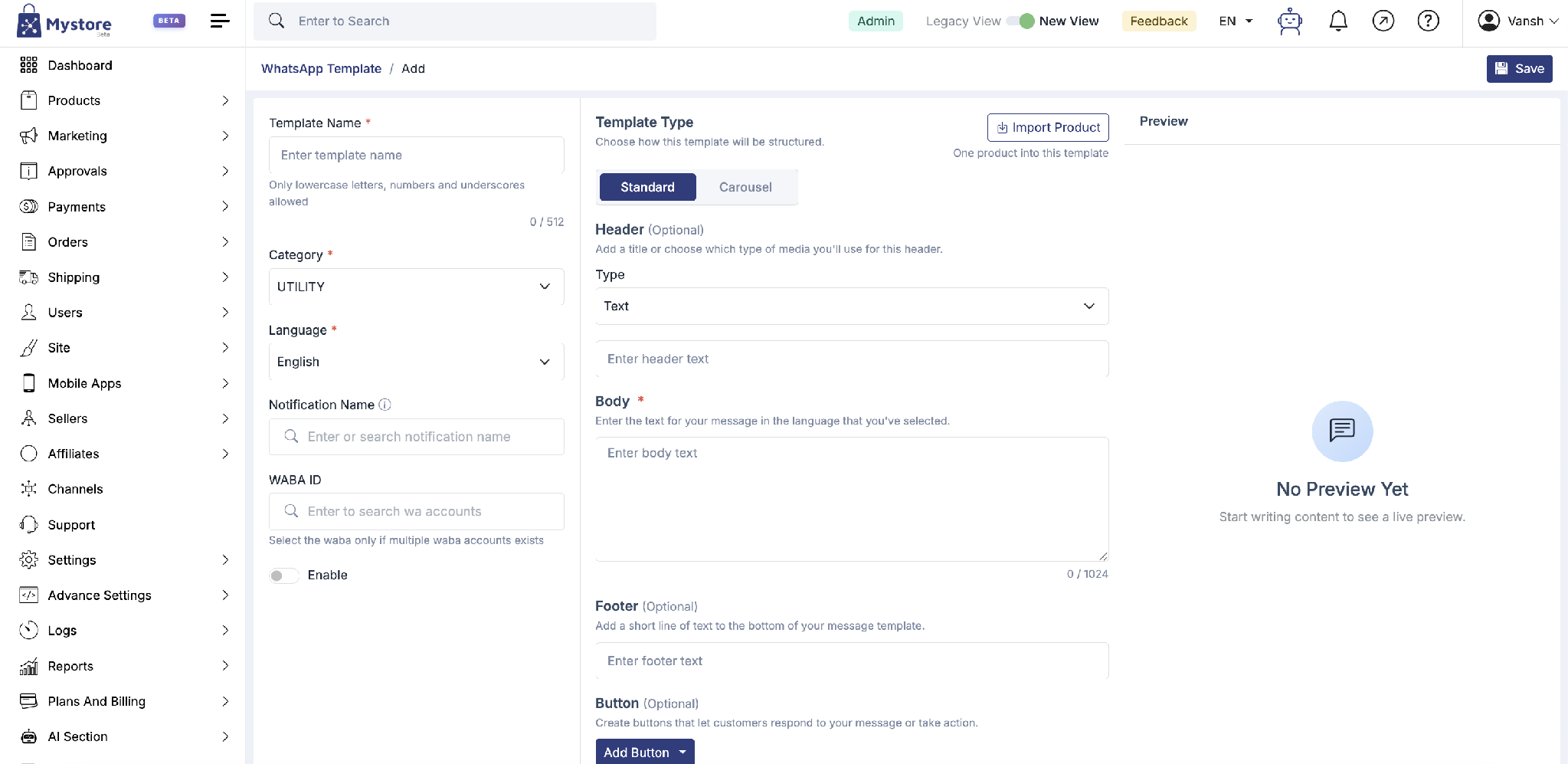
Step 1 Fill in the basics
On the left, set up the template details:
- Template Name: Lowercase letters, numbers, and underscores only (e.g. summer_shake_offer). Up to 512 characters.
- Category: Choose Utility (updates and alerts) or Marketing (promotions and offers).
- Language: The language your message is written in.
- Notification Name: Optional a friendly name to help you find the template later.
- WABA ID: Only needed if you have more than one WhatsApp Business account pick which one this template belongs to.
- Enable: Turn this on to make the template active.
Step 2 Choose a template type
In the middle, pick how your message is structured:
- Standard: A single message with one product or offer.
- Carousel: A swipeable set of cards up to 10 products in one message.
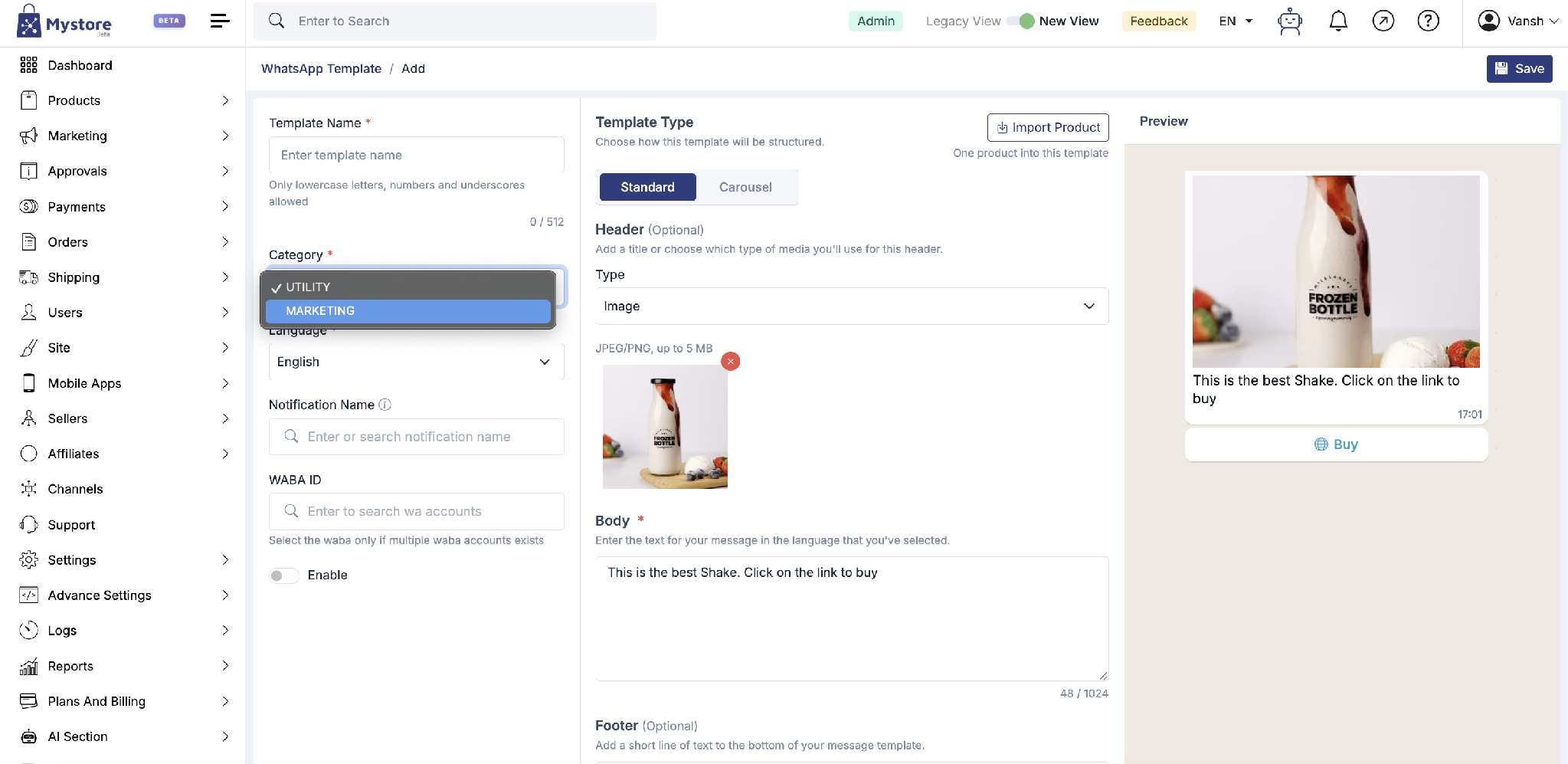
Building a Standard template
A Standard template shows one product or message.
- Header (optional): choose a Type Text or a media type like Image then add the title or upload the media (JPEG/PNG, up to 5 MB).
- Body (required): write your message (up to 1024 characters). You can personalise it with variables like {{user.first_name}}.
- Footer (optional): a short line of text at the bottom.
- Button (optional): add a button see Buttons below.
The Preview on the right updates live as you type.
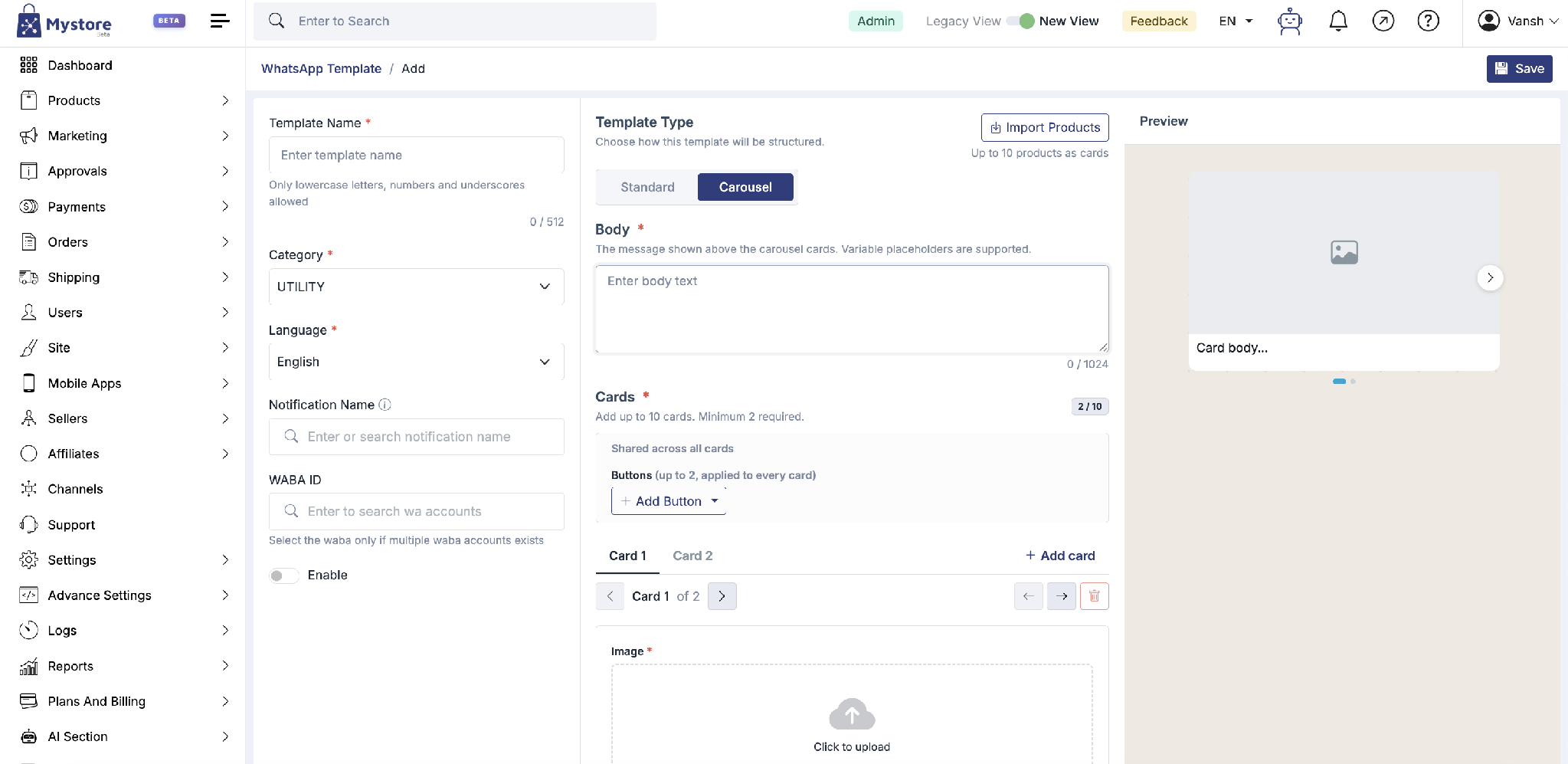
Building a Carousel template
A Carousel template shows up to 10 products as swipeable cards.
- Body (required): the message shown above the cards. Variables are supported.
- Buttons shared across all cards: add up to 2 buttons that apply to every card.
- Cards: add between 2 and 10 cards. For each card, add an Image (JPEG/PNG, up to 5 MB; recommended 800 × 418 px landscape or 800 × 800 px square), a body, and a button/link.
- Use Add card to add more, and the arrows to move between cards.
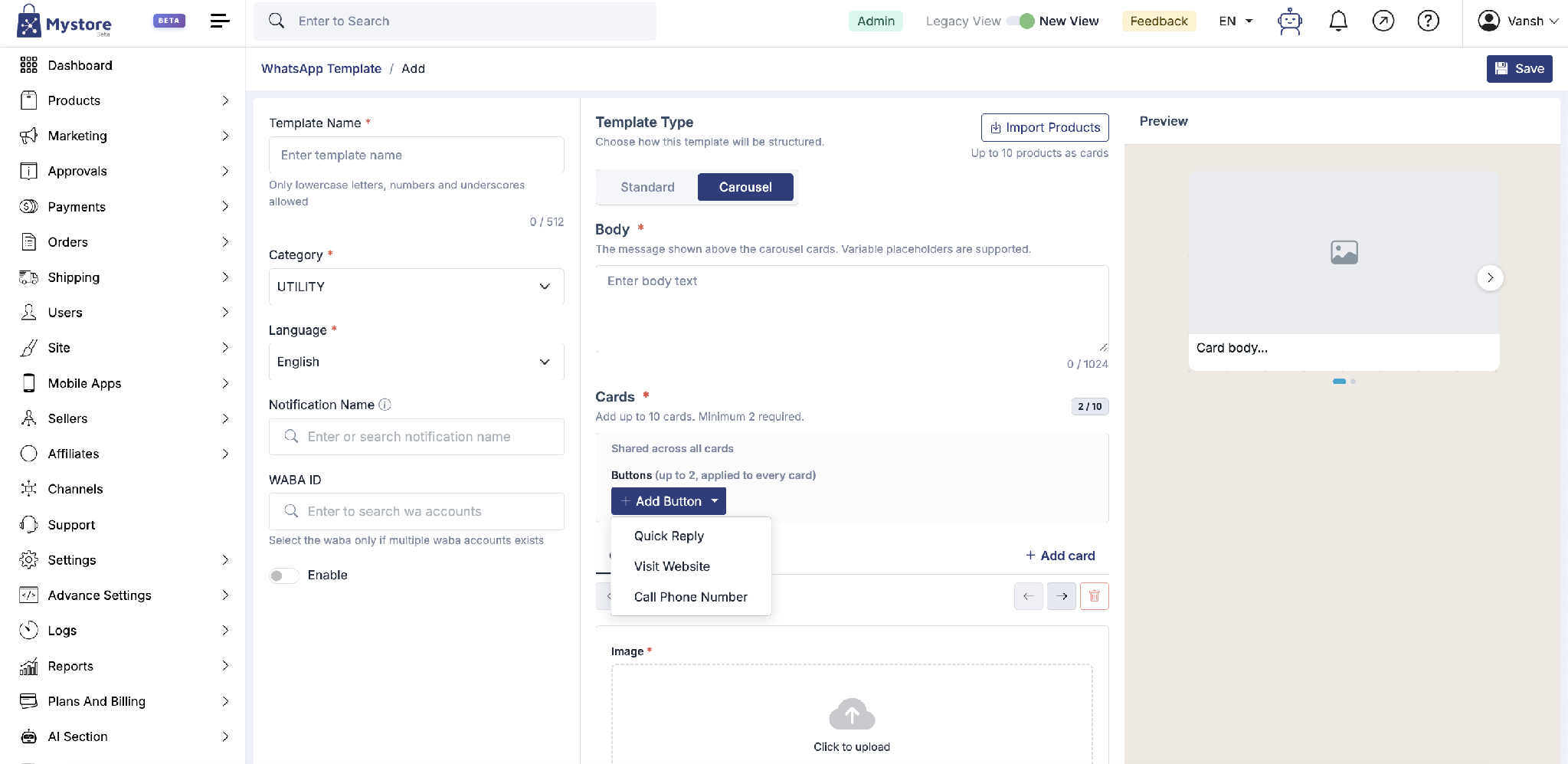
Buttons
Buttons let customers respond or take action. Click Add Button and choose:
- Quick Reply: Sends a ready-made reply back to you.
- Visit Website: Opens a link, such as your product page.
- Call Phone Number: Dials a phone number.
Shortcut: Import products from your catalogue
Instead of filling everything by hand, click Import Products at the top to pull products straight from your catalogue. Their image, name, and link fill in automatically.
- Standard: Choose one product.
- Carousel: Choose up to 10 products one per card.
Save your template
When you’re done, click Save (top right). Your template is saved and will appear in your templates list, ready to use in a campaign.
Part B: Send your template as a campaign
- Go to Marketing → Campaigns.
- You’ll see all your campaigns with their status. Use the tabs (All, Pending, Finished, Cancelled, Scheduled) or the search box to find one.
- Click Add New to start a new campaign.
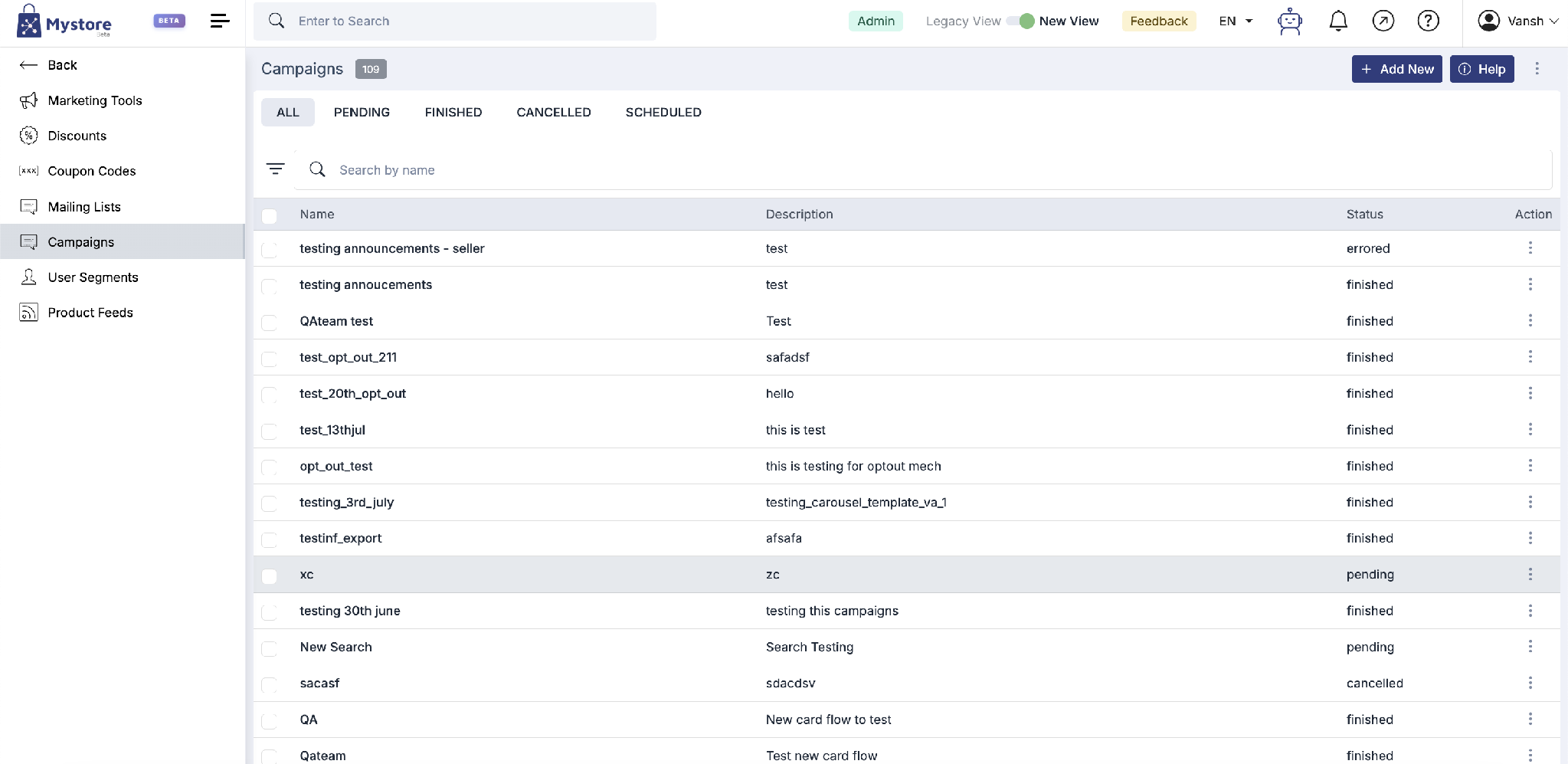
Creating a campaign has three steps, shown along the top: Details → Content → Review.
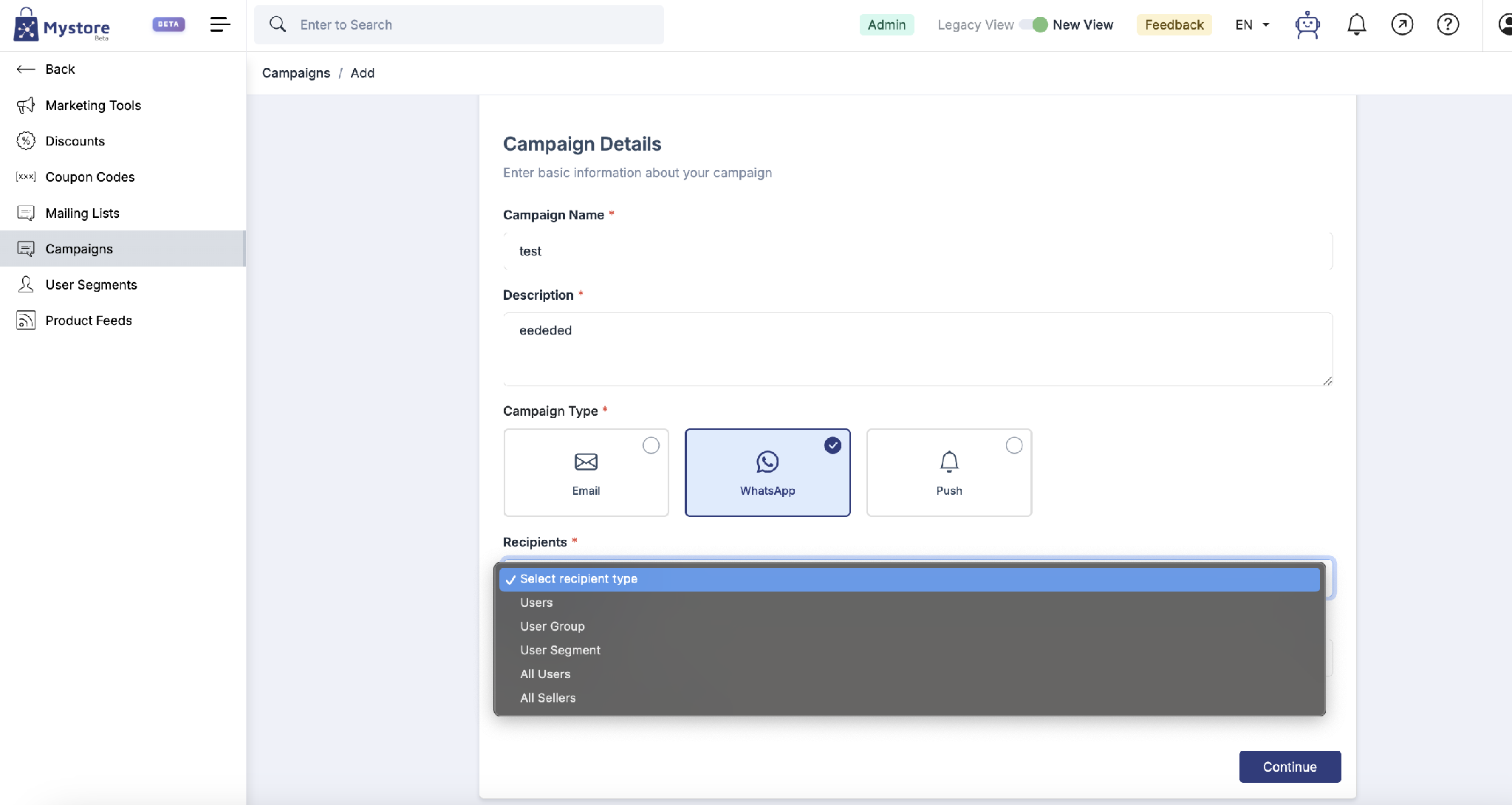
Step 1 Add Details
- Enter a Campaign Name and Description.
- Choose the Campaign Type: Email, WhatsApp, or Push. For a WhatsApp template, pick WhatsApp.
- Choose your Recipients Users, User Group, User Segment, All Users, or All Sellers.
- Optionally set a Schedule (date and time) to send later or leave it blank to send now.
- Click Continue.
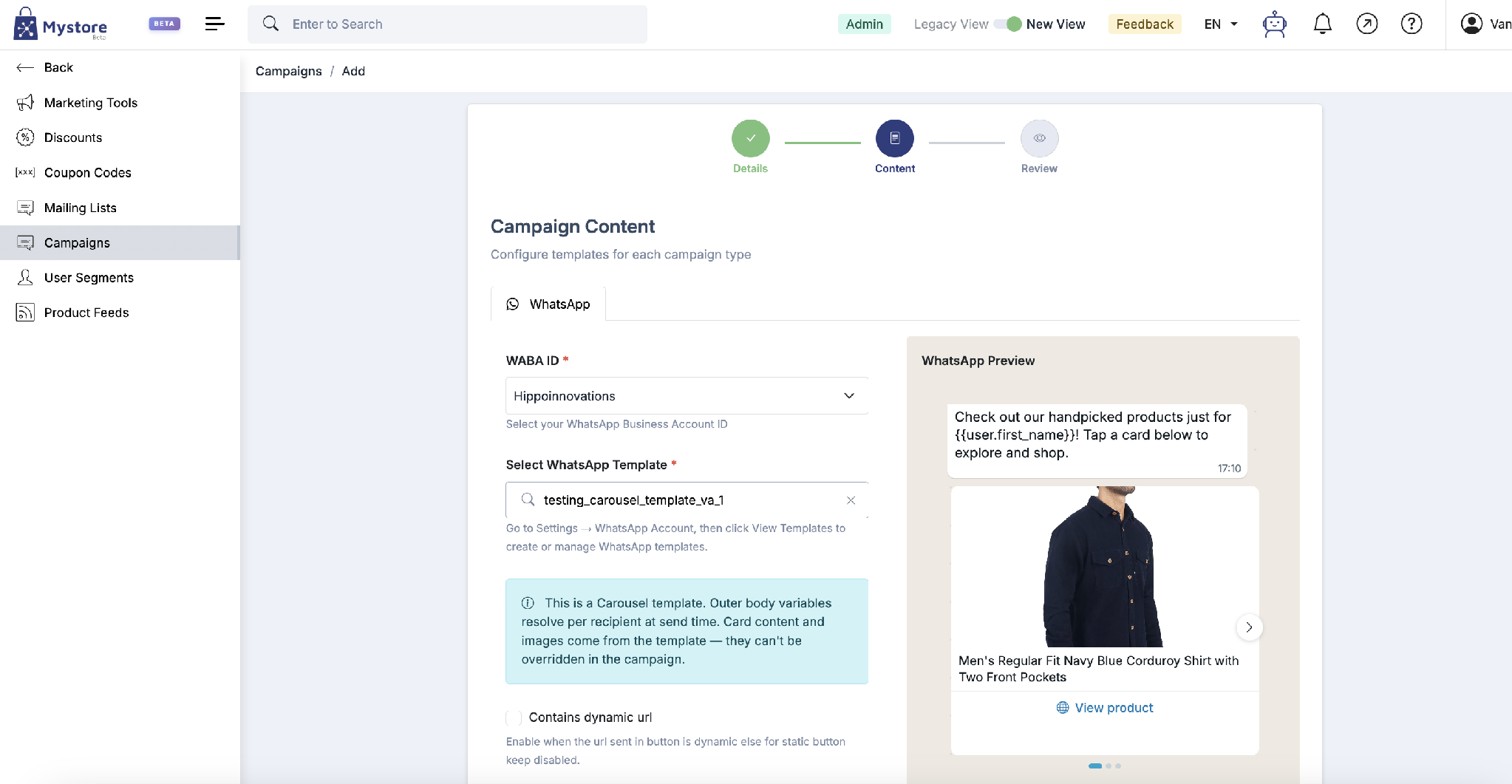
Step 2 Content
- Choose your WABA ID (your WhatsApp Business Account).
- Search and select the WhatsApp Template you created.
- Check the live WhatsApp Preview on the right.
- If your button uses a changing link, tick Contains dynamic url; otherwise leave it off.
Note: For a carousel template, the outer message personalises per recipient at send time, but the card images and content come from the template and can’t be changed here.
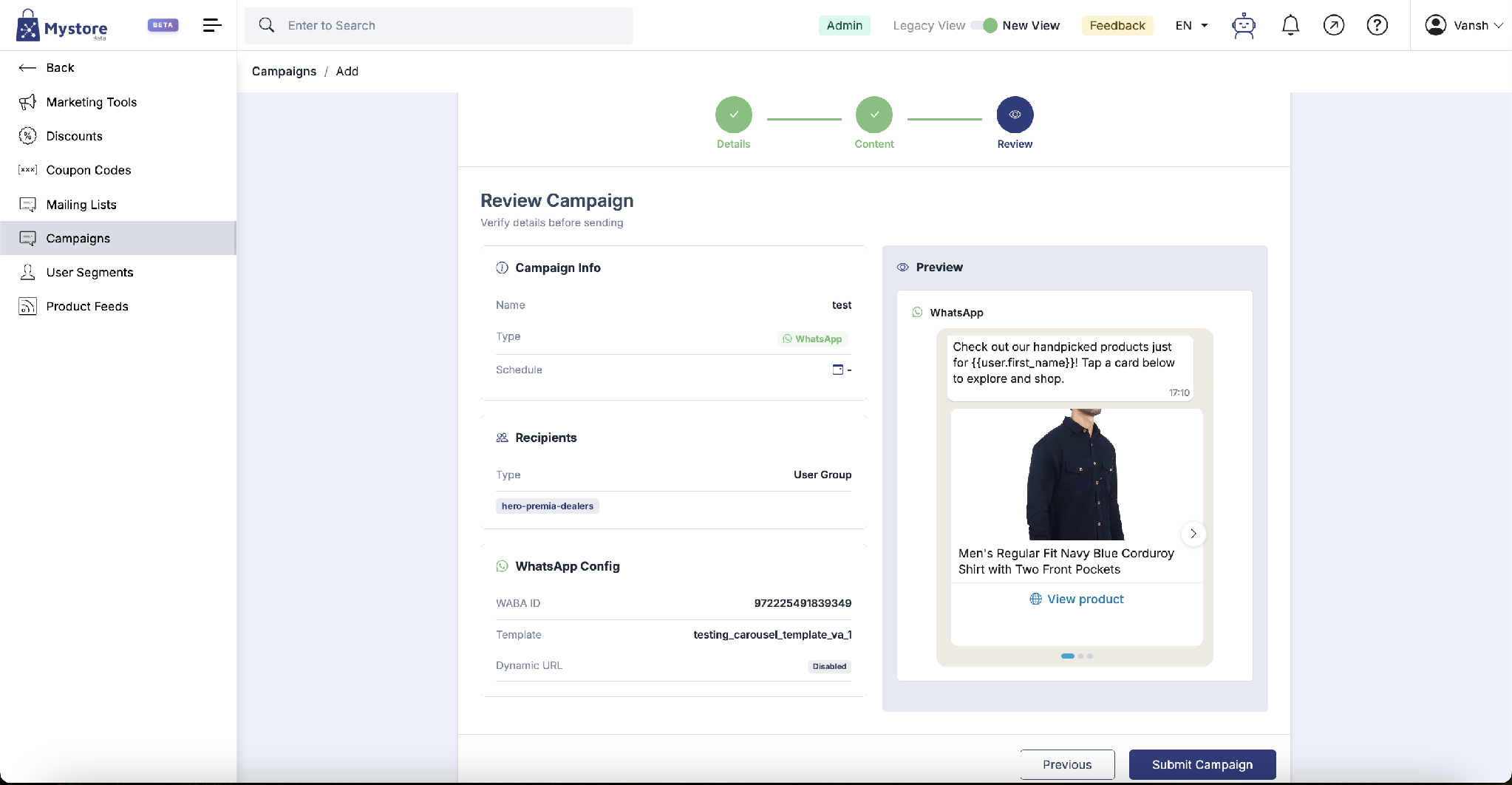
Step 3 Review & send
- Check the Campaign Info, Recipients, and WhatsApp Config.
- Preview the message one last time.
- Click Submit Campaign to send (or schedule) it. Use Previous to go back and edit.
Part C: View template analytics
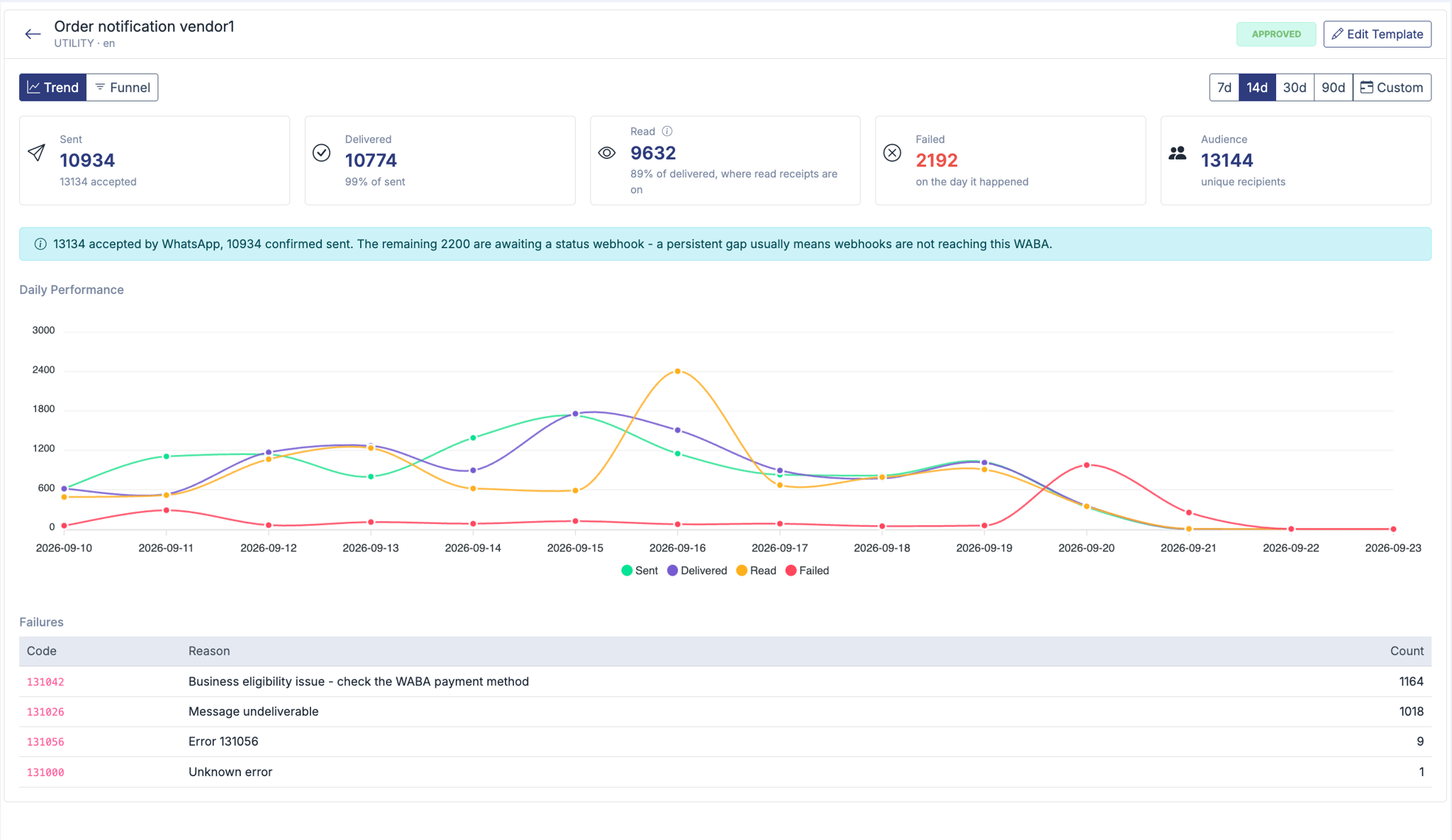
Go to Marketing→ WhatsApp Account → View Templates, then click any template to see how it performed.
- Trend / Funnel: See day-by-day performance, or where messages drop off.
- Date range: Pick 7d, 14d, 30d, 90d, or a Custom range.
- Summary cards:Sent, Delivered, Read, Failed, and Audience (unique customers reached).
- Daily Performance: A chart of sent, delivered, read, and failed messages for each day.
- Failures: The error code, reason, and count for messages that didn't go through.
Note: Read counts only include customers with read receipts turned on. If failures show code 131042, check the payment method on your WhatsApp Business Account.
Quick reference
Standard vs Carousel
Type | What it shows | Products | Best for |
|---|---|---|---|
Standard | One message | 1 product | A single offer or update |
Carousel | Swipeable cards | Up to 10 | Showcasing several products |
Categories: Utility vs Marketing
- Utility: Transactional messages order updates, reminders, and alerts.
- Marketing: Promotions, offers, new arrivals, and announcements.
Campaign statuses
- Pending: Waiting to be sent.
- Scheduled: Set to send at a future date and time.
- Finished: Sent successfully.
- Cancelled: Stopped before sending.
- Errored: Something went wrong open it to check the details.
Handy tips
- Name templates clearly (lowercase_with_underscores) so they’re easy to find later.
- Use Import Products to save time and avoid typos in product links.
- Personalise with variables like {{user.first_name}} for friendlier messages.
- Preview before saving or sending what you see is what your customer gets.
- Target the right people with a User Segment or User Group instead of All Users.
- Schedule marketing campaigns for a time your customers are most active.