
Download Shipping Label
You can download shipping labels for individual orders or in bulk. Simply follow the steps below to download or print the labels:
Download shipping label for single order
1. Log in to Your Mystore Seller Admin Panel
- Open your Mystore Seller Admin Panel.
- Log in using your registered credentials.
2. Access the Orders Section
- In the left-hand menu, click on “Orders.”
- Go to the “Open Orders” tab and select the order for which you need the shipping label.
3. Download the Shipping Label
- You can download the label from the shipment section under the same order.
- Click on the Order ID to open the order details.
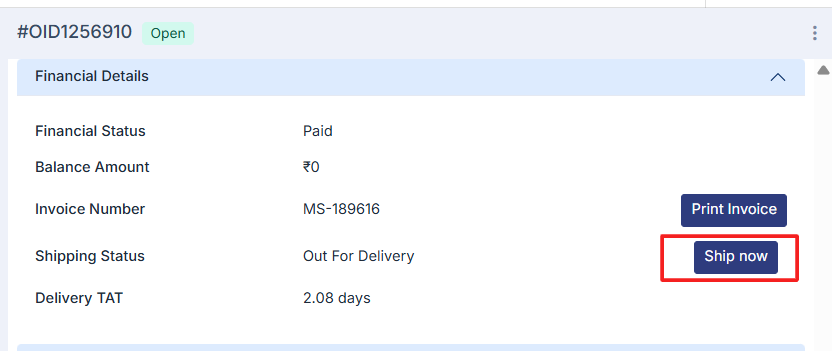
- Then click on “ship now”.
- Fill in the details and select the shipping label size from package details.
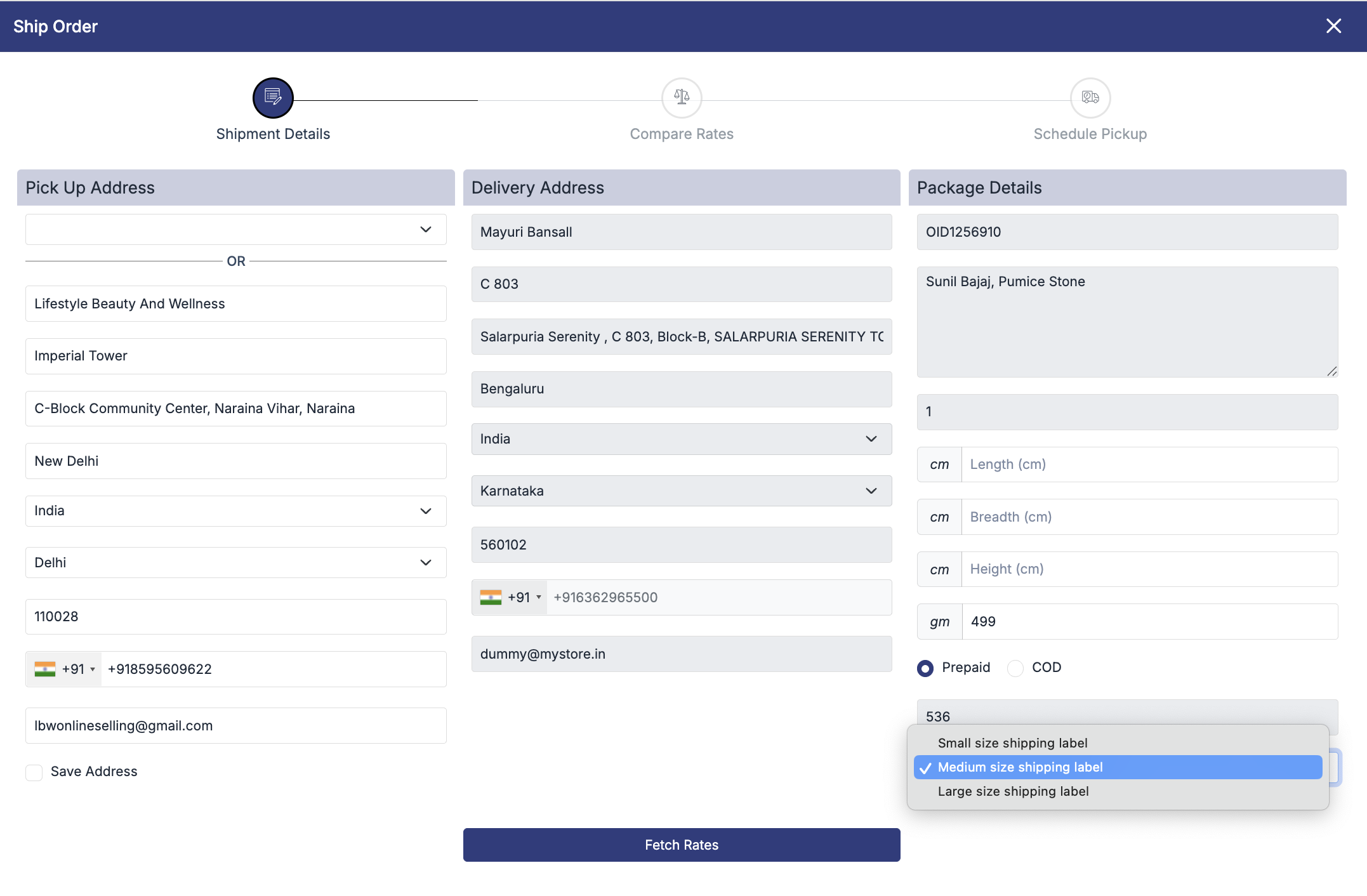
Click on Fetch Rate and select the logistics partner. The shipping label will then be downloaded in the selected size.
Note: The available sizes for the shipping label are Small, Medium, and Long, with Medium set as the default option.
4. Download the Shipping Label from the Fulfillment Section
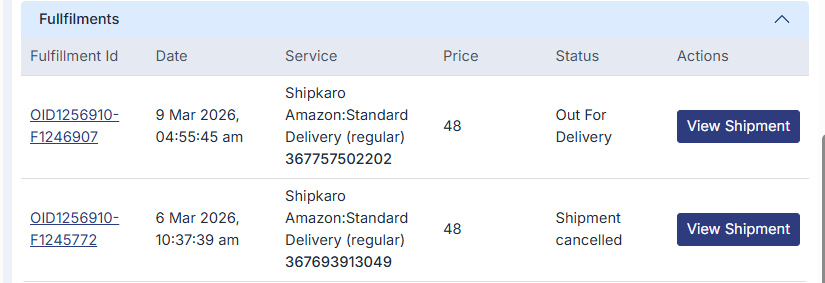
- Scroll down to the Fulfillment section.
- Click on “View Shipment.”
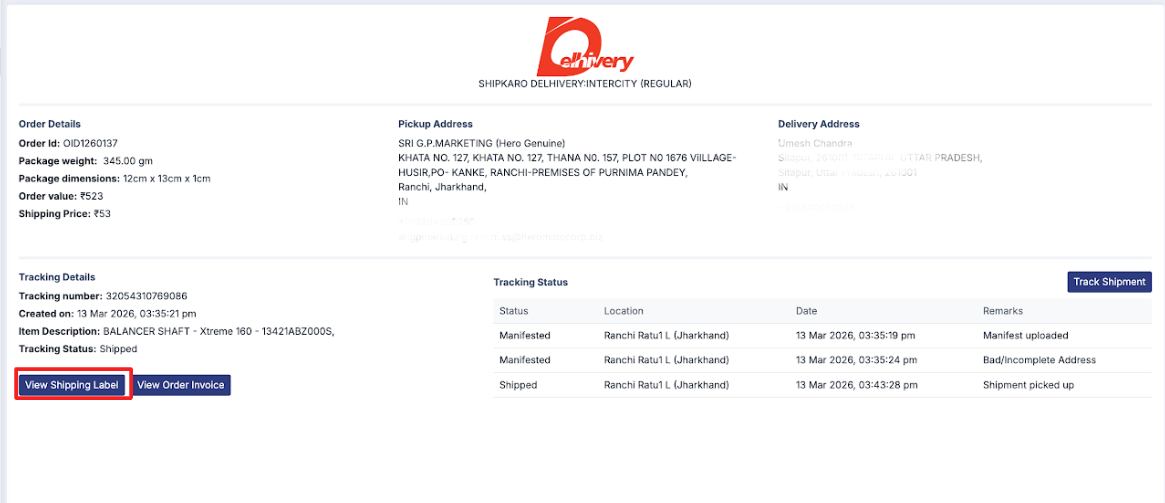
- In the shipment details window, click on “View Shipping Label.”
- The shipping label will automatically download to your system.
5. Alternate Way to Download the Shipping Label
- You can also download the label from the shipment section under the same order.
- Click on the Order ID to open the order details.
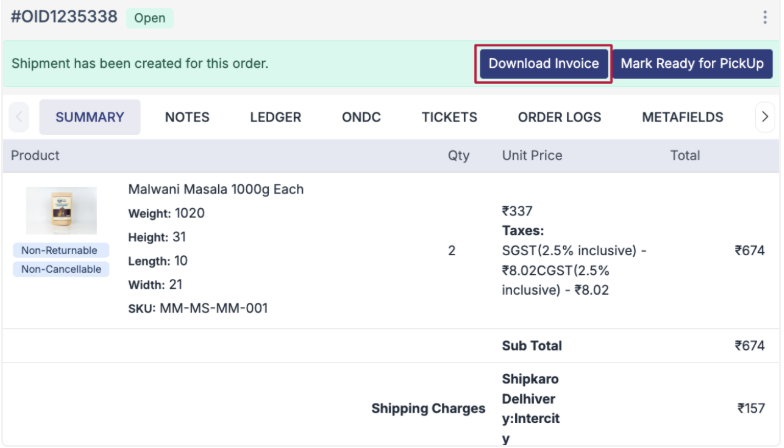
- Then click on “Download Shipping Label” to download it directly.
Download Shipping Labels in Bulk
1. Go to Orders > Shipments
- This page shows all your shipment records.
2. Select the shipped orders you want to print labels for
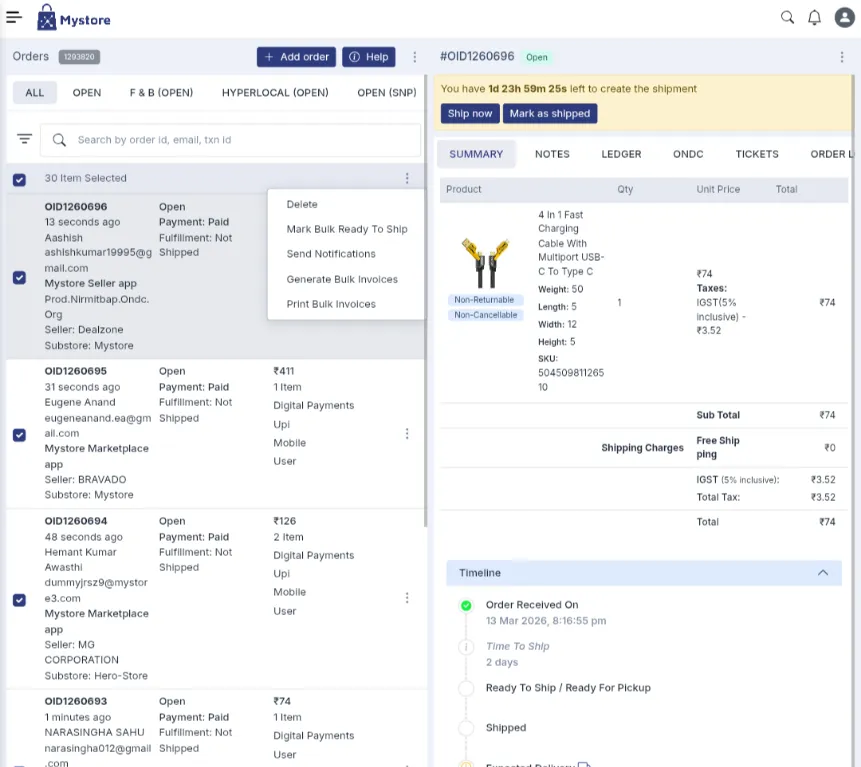
- Use the checkboxes to select multiple shipments at the same time.
3. Generate the bulk shipping labels
- At the top-right of the table header, click on the three-dots (⋮) menu.
- Choose “Generate Bulk Shipping Labels.”
- Wait for a few seconds while your labels are being processed.
Print the labels
- A PDF containing all the selected shipping labels will open.
- From there, you can download or print the labels easily.
Was this page helpful?