
Magic Edit
Mystore provides built-in image editing tools to help you enhance product images directly from your dashboard; no external software is needed.
You can adjust, crop, or use Magic Edit (AI) to make your product images look professional and marketplace-ready.
How to Access Image Editing
- Go to Products → Add/Edit Product
- Upload a product image in the Images section
- Hover on the image and click the Magic icon

When adding a product manually, you can edit your uploaded product images directly within Mystore. Here’s how you can use the Image Editor:
2. Magic Edit (AI Editing)
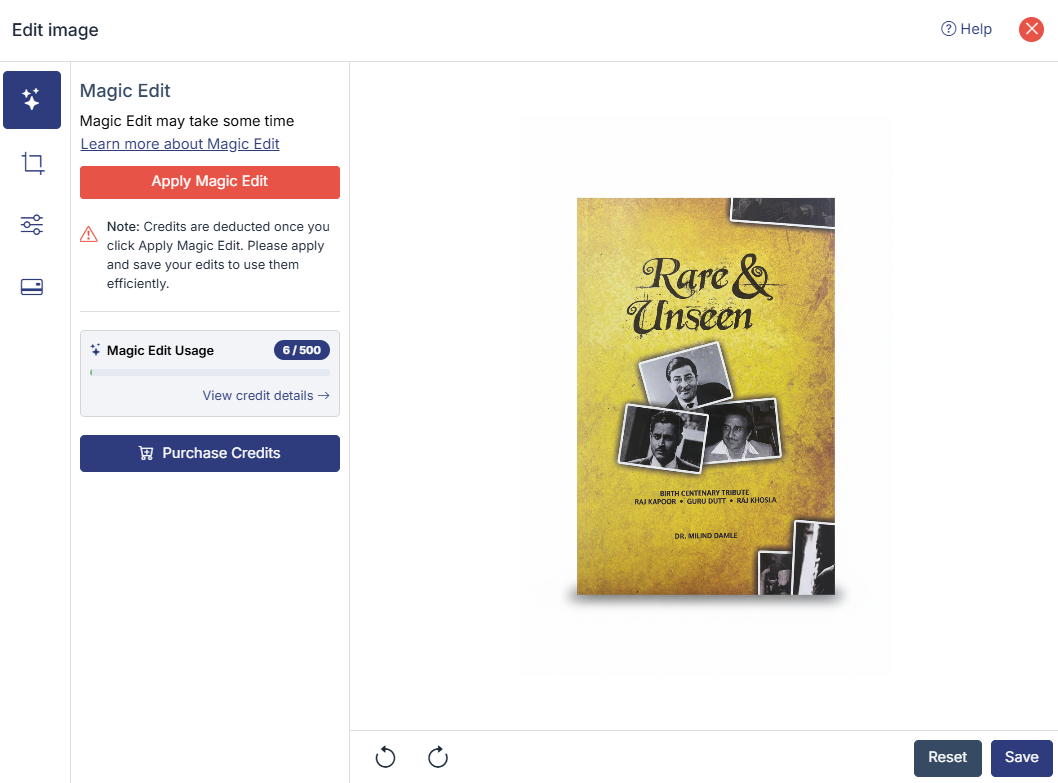
- The first option is Magic Edit.
- Click Apply Magic Edit and the system will automatically enhance your product image using AI.
- This may take a few seconds.
3. Crop & Rotate

- The second option allows you to crop and adjust the image.
- You can:
- Set aspect ratio (Custom, 1:1, 3:4, or 4:3).
- Rotate the image.
- Flip the image horizontally or vertically.
4. Adjustments & Filters
Use this option to fine-tune the look of your image.

Filters: Here you can add filters available to your product image.
- Click the Adjust / Filters icon
- Select the required filter or move sliders
- Preview changes in real time
- Click Save to apply
Image Adjustments
- Remove White: removes white background
- Brightness: adjust light levels
- Saturation: control color intensity
- Contrast: enhance clarity
- Noise: reduce grain
- Tint / Multiply / Blend – advanced visual effects
5. Save Your Changes
- Once you are happy with the edits, click on apply to use it and click on Save to confirm. You can switch back to the original image anytime before saving.
- Your updated image will now be attached to your product listing.
Credit Usage (Production Limits):
- Freemium Plan: 5 credits/month
- Basic Plan: 50 credits/month
- Enterprise Plan: 100 credits/month
Was this page helpful?