
WhatsApp Business Account (WABA)
This guide walks you through the process of connecting your WhatsApp Business Account (WABA) to the Mystore platform.
Once set up, you’ll be able to send automated or manual messages to your customers directly through WhatsApp helping you engage, assist, and update them instantly.
1. Navigate to WA Accounts
- Log in to your Mystore admin dashboard.
- Access WA accounts
- On the WA Accounts page, click the "Create new WABA account" button.
2. Sign up to Facebook business account
- Log in or sign up with your Facebook Business Account by entering your email ID and password.
- Click Get started.

3. Select Business portfolio
- Choose your business portfolio and Business name from the list.
- Click “Next.”

4. Create or Select a WhatsApp Business Account
- From the dropdown, select “Create a WhatsApp Business Account.”
- Then, select “Create a New WhatsApp Business Profile.”
- Click “Next.”

5. Set Up Your WhatsApp Business Profile
- Enter the following details:
- WhatsApp Business Account Name
- WhatsApp Business Display Name
- Business Category
- Click “Next.”

6. Add Your WhatsApp Phone Number
- Select “Add a New Number.”
- Enter your WhatsApp phone number.
- Choose your preferred verification method Text Message or Phone Call.
- Click “Next.”

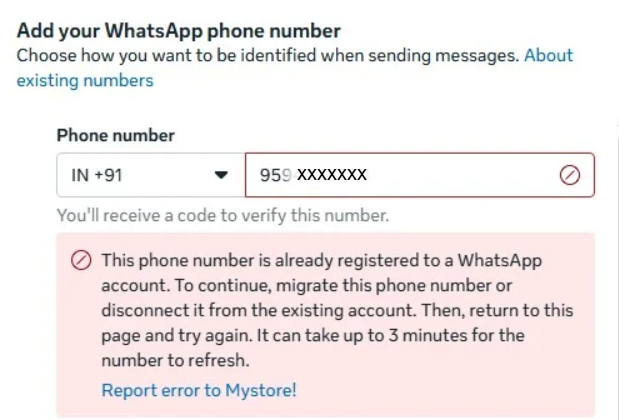
Note: If the phone number is already registered to a whatsapp account then they either need to delete the whatsapp account or get a new number
7. Verify Your Number
- Enter the verification code received via your chosen method.
- Click “Next.”
- Review Mystore’s access request and click “Confirm.”

8. Complete Setup
- Click “Finish.”
That’s it! Your WhatsApp Business Account is now successfully connected with Mystore.
You can start sending messages to your customers directly through your Mystore dashboard.

After your WABA is connected, you can manage and monitor your account easily:
- Sync Templates → Click this to sync all default templates if they are missing or not yet imported.
- View Templates → Redirects to the Template List Page, showing all approved and active message templates.
- View Logs → Opens the WhatsApp Messages Logs Page, where you can track message delivery statuses (sent, delivered, read) with timestamps.
- Publish/Unpublish → Publish or Unpublish the templates, once unpublished messages won't be sent from the associated WABA.
Note: You won’t be able to add, edit, or make any changes until the payment is completed. Once the payment is made, full access will be restored.
9. Add Payment Method
To send WhatsApp messages through Mystore, you need to add a valid payment method to your WhatsApp Business Account (WABA). Follow the steps below to set up your payment method.
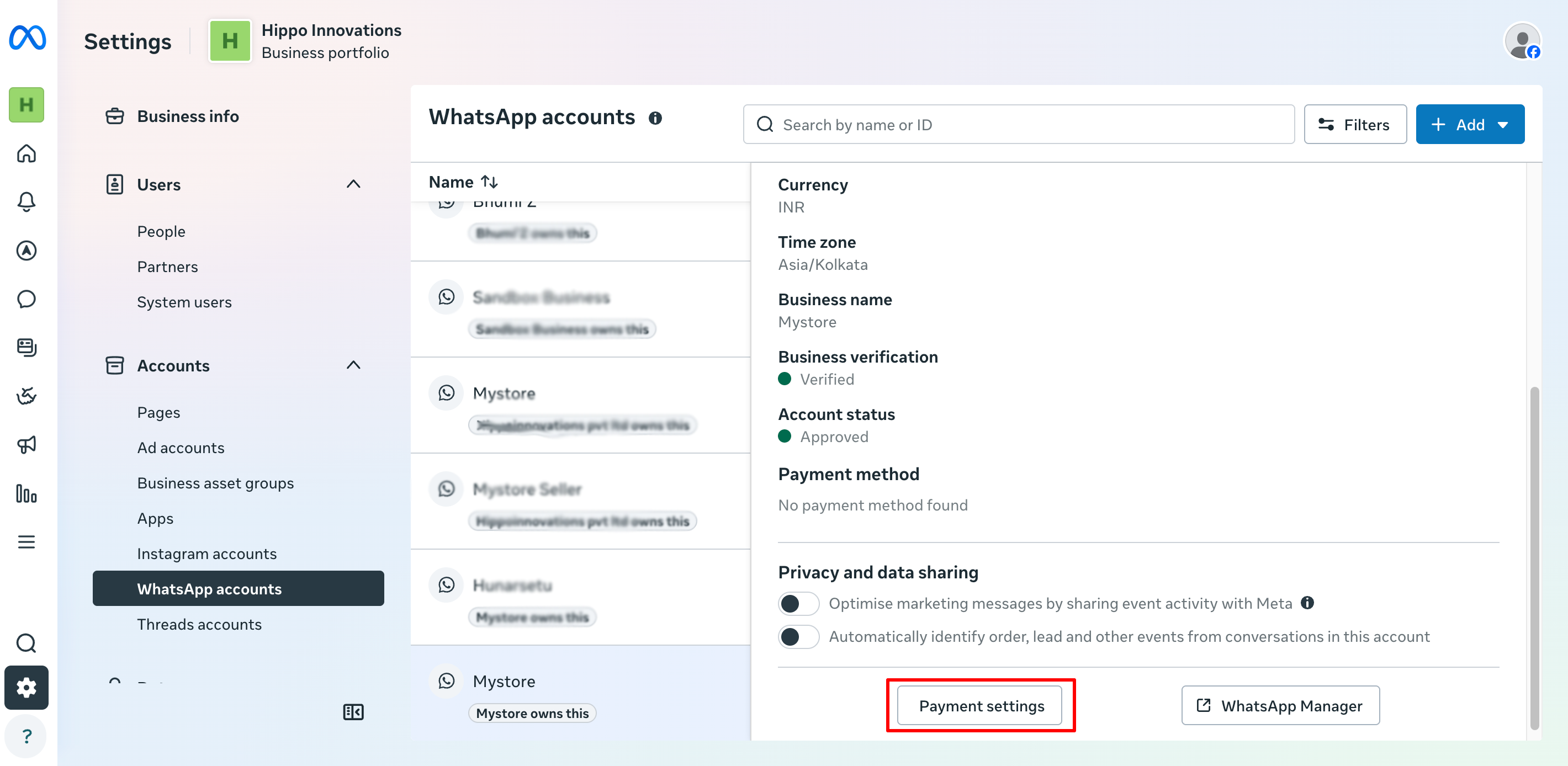
- Go to Business Settings
- Click Accounts → WhatsApp Accounts
- Select your WABA
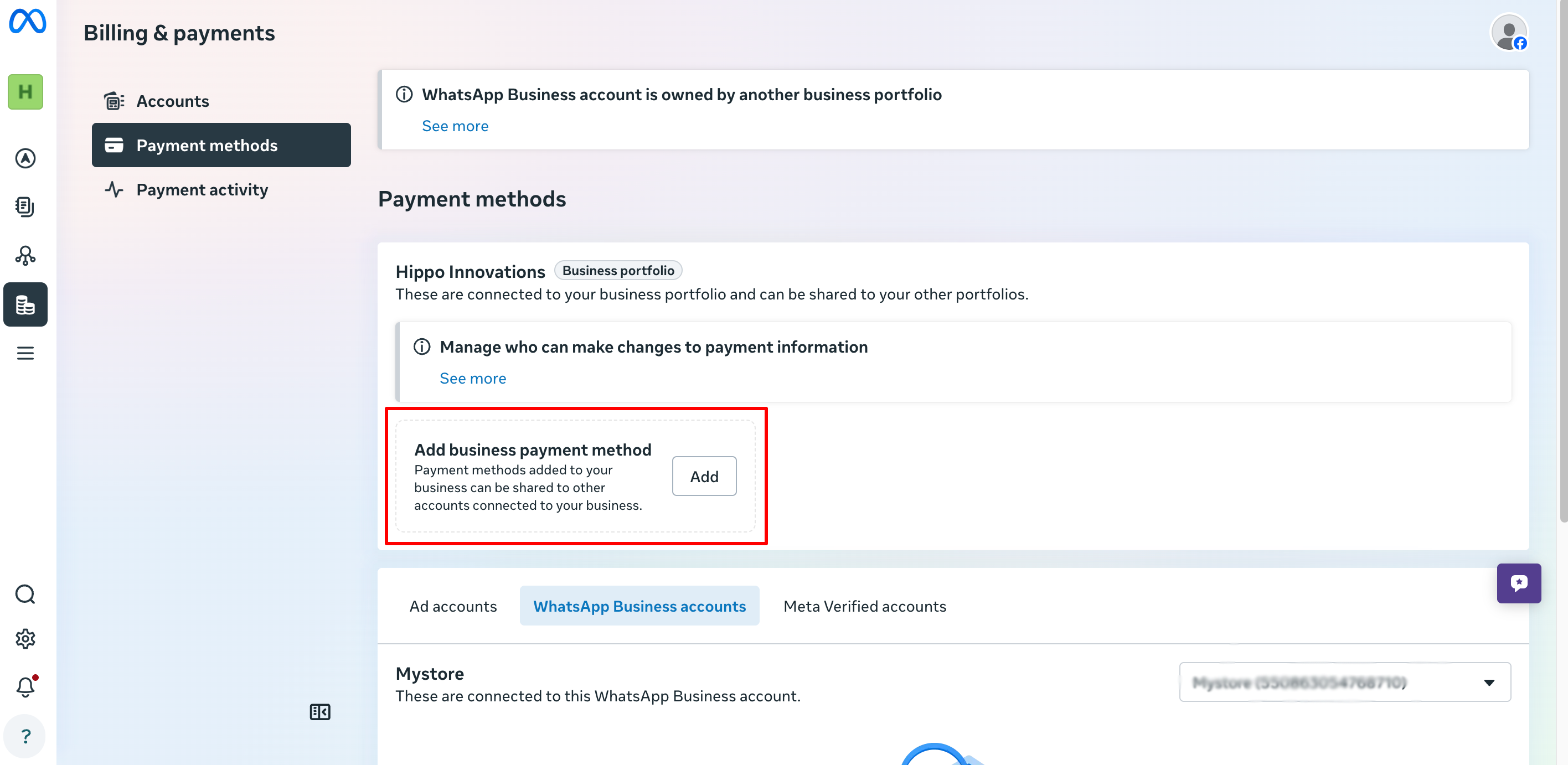
- Open Payment Settings You will be redirected to the Billing & payments page. The WhatsApp Business accounts tab will be selected by default.
Add a Business Payment Method
Click the Add button to add your payment method.
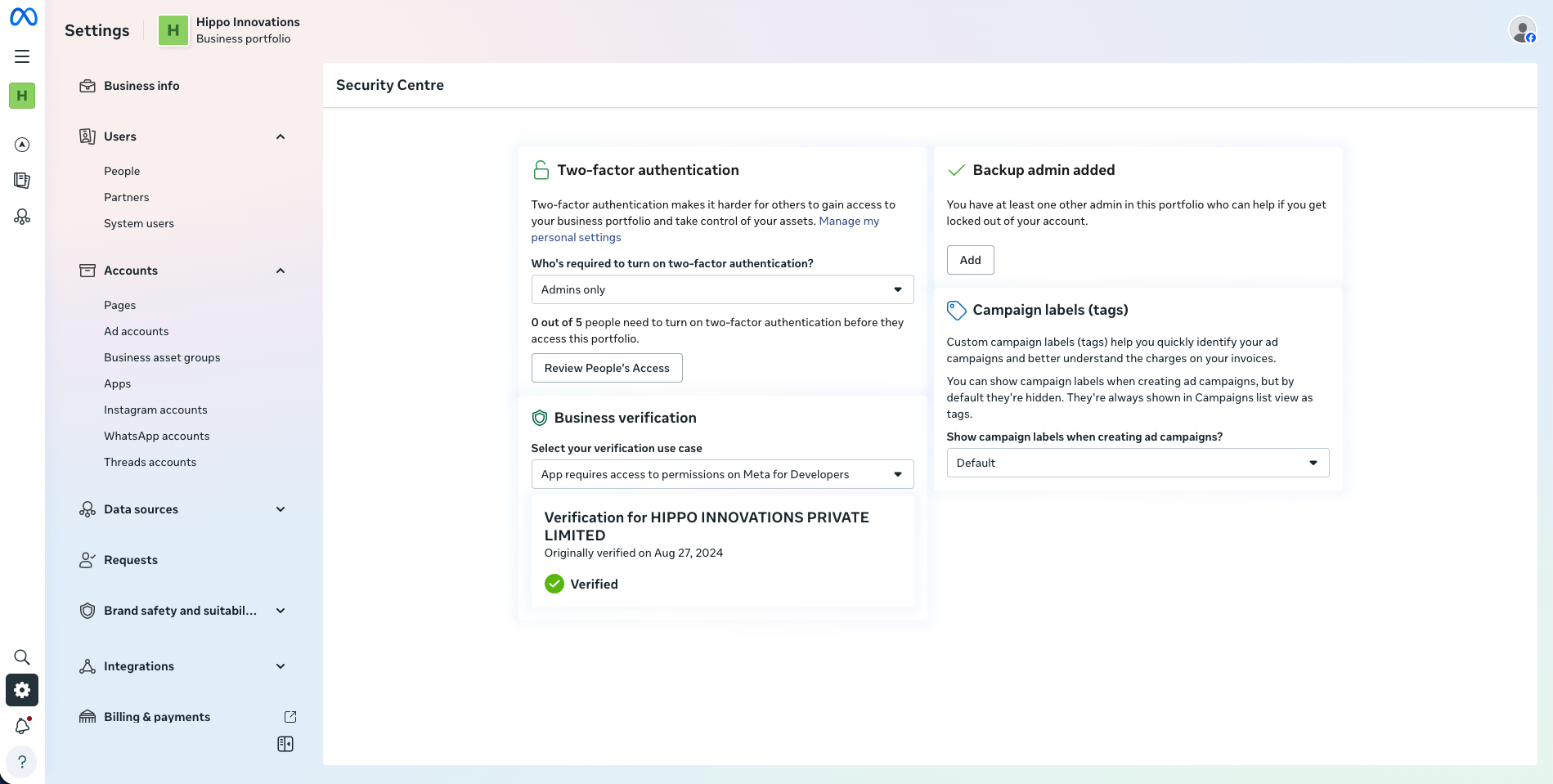
10. Verify your Business profile
To verify your business profile follow below steps,
- Open WhatsApp Accounts in Business Settings
Go to Business Settings in Meta Business Manager.
Click Accounts in the left sidebar.
Select WhatsApp Accounts.
Choose your account from the list.
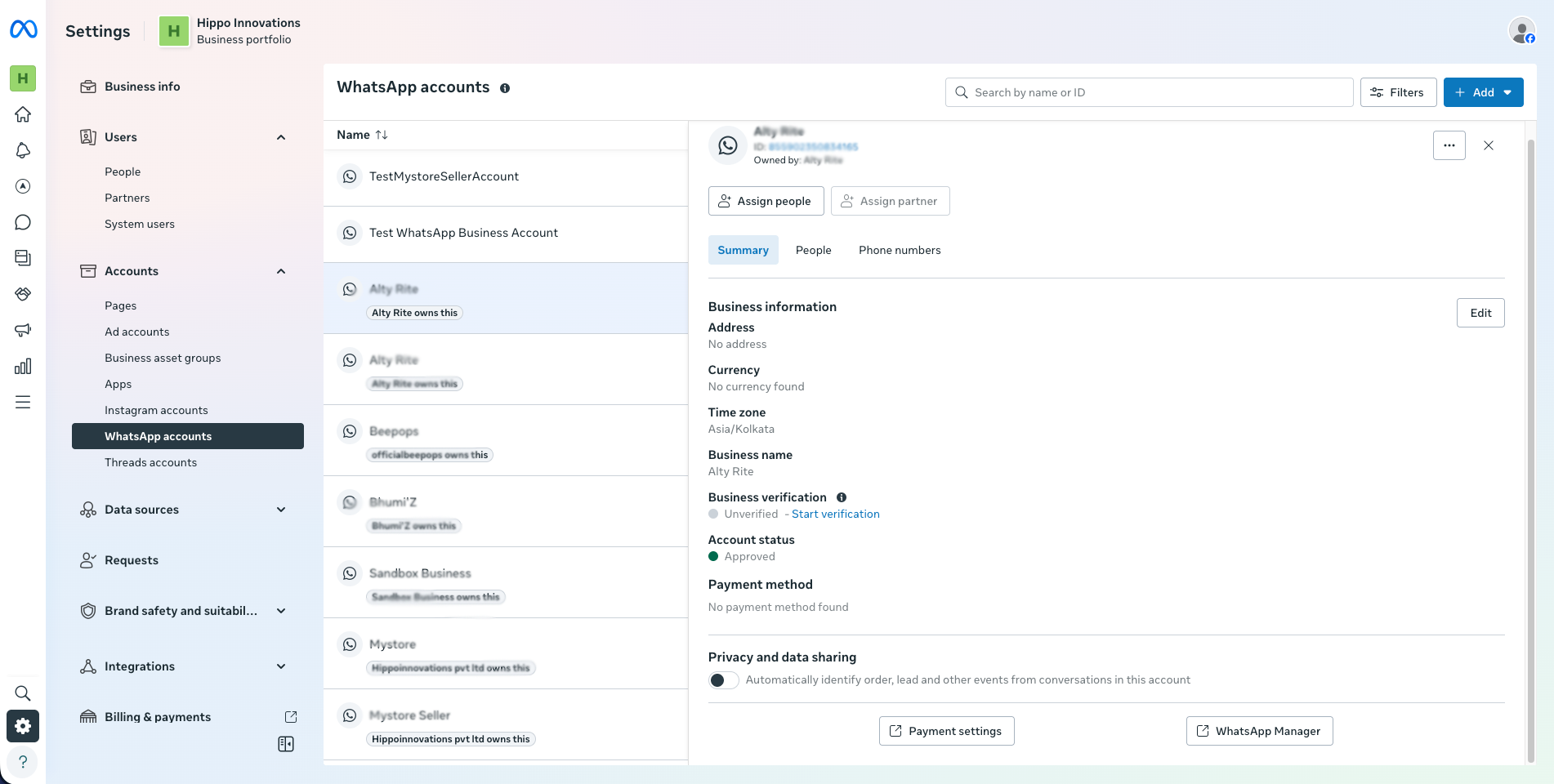
In the right panel, find Business verification.
Click Start verification.
You will be redirected to the security/verification workflow.
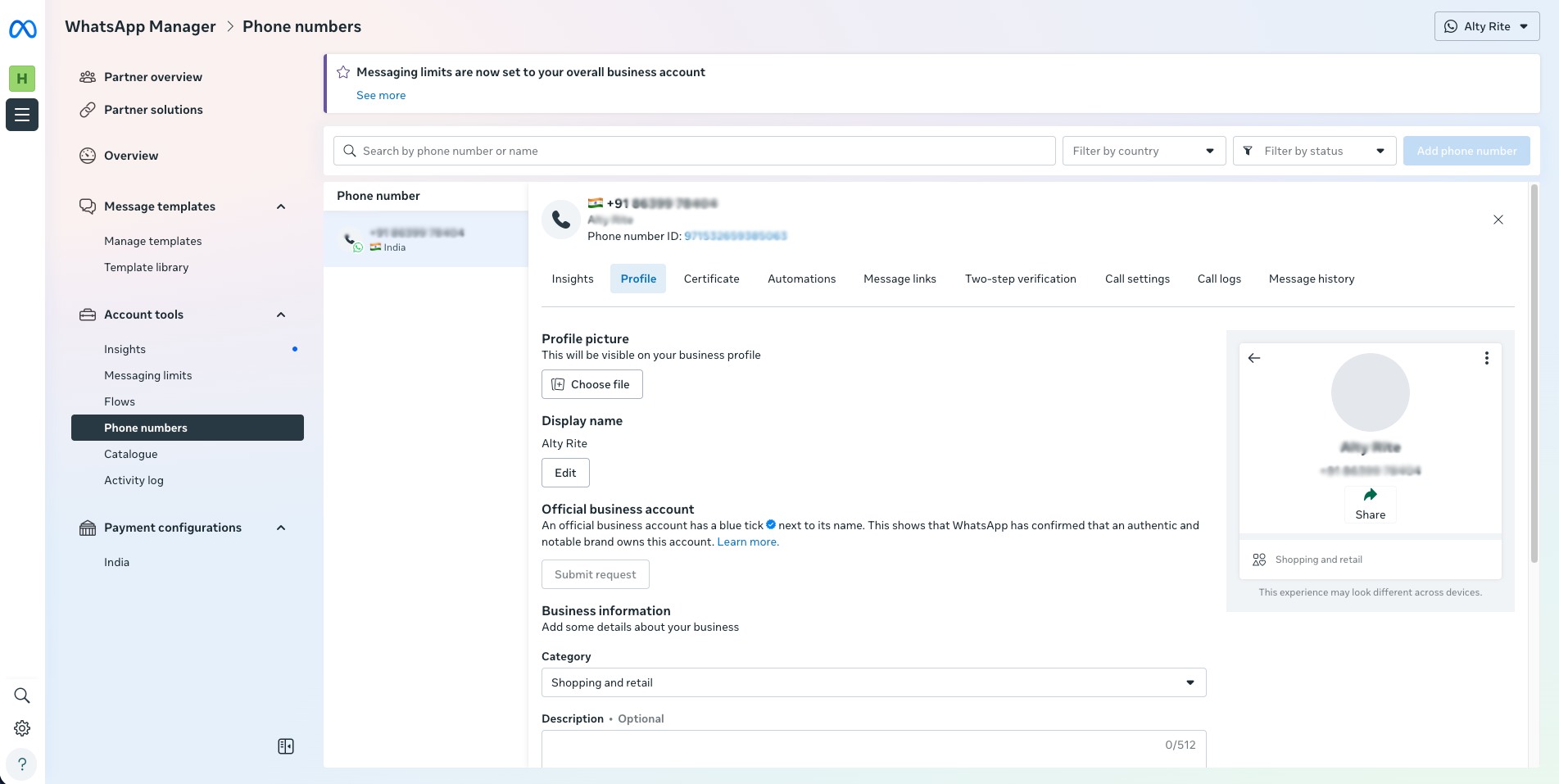
11. Complete your profile
Click on WhatsApp manager, It will redirect to following page, fill in all the information like business name, upload profile picture etc.
Note: The businesses using WABA are charged on a per-message basis for each message. Utility SMS charge is₹0.115, Marketing SMS charge is ₹0.8631. For more redails refer to Pricing on WhatsApp business.