
WhatsApp Messages
The WhatsApp Messages section in Mystore lets you monitor and track all WhatsApp notifications sent to your customers. It provides complete visibility into each message’s delivery status, timestamp, and any errors that may have occurred helping you ensure smooth communication and quick troubleshooting.
Viewing WhatsApp Message Logs
1. Access Template Settings
- Click on View logs from your WhatsApp Accounts section.
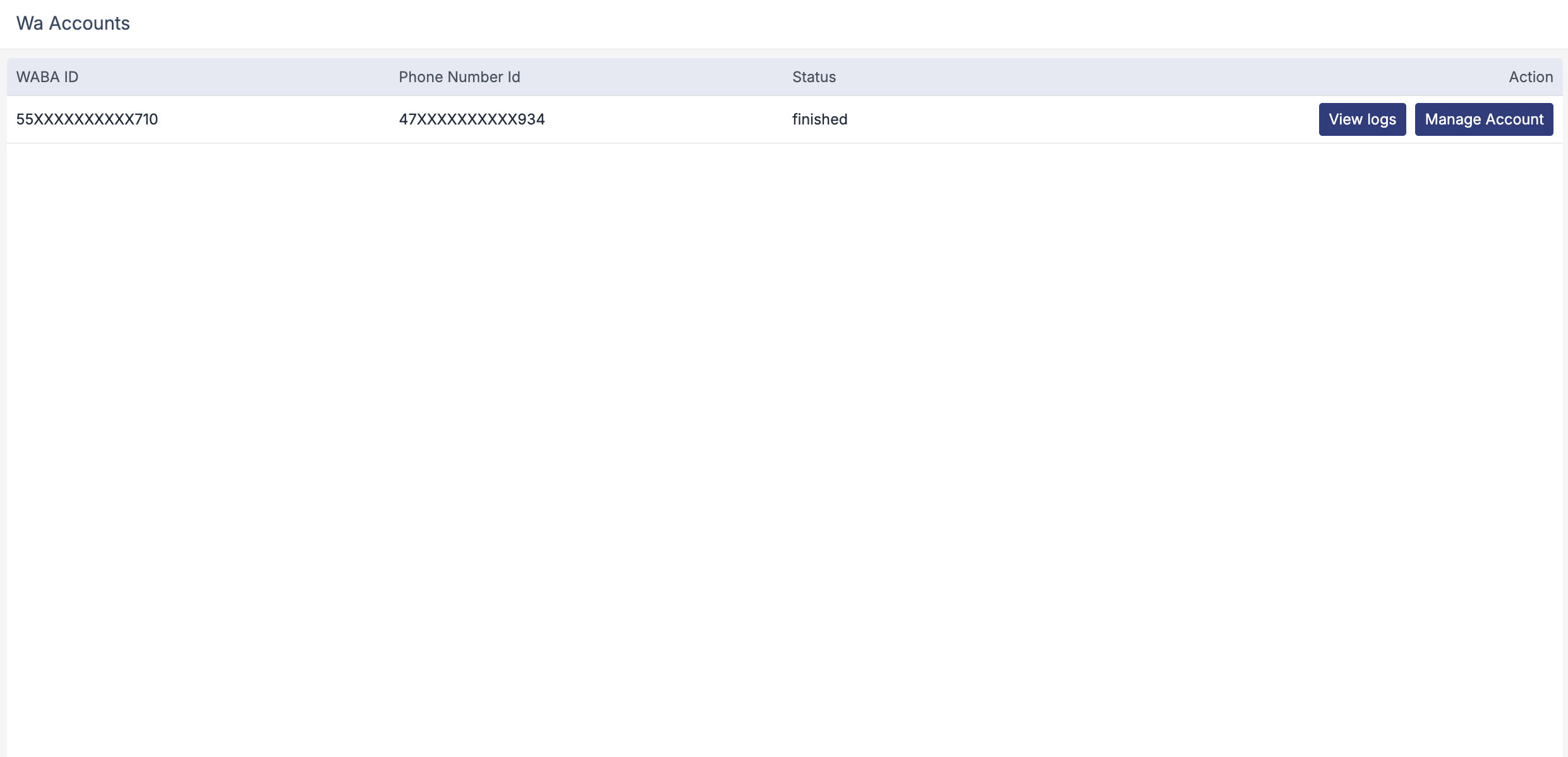
- You’ll be redirected to the WhatsApp Messages page.

2. Message Overview
This page displays a list of all messages sent via WhatsApp, including details such as:
- Message Category
- Template Name
- Recipient Number
- Status (e.g., sent, delivered, read, failed)
- Timestamp
- Direction (inbound/outbound)
3. View Message Status Details
- In the Status column, click the preview icon to see detailed timestamps for each stage such as Sent, Delivered, and Read.
- A pop-up window will appear showing the exact time and progress of the message delivery.
4. Check Error Details (if any)
- In the Error column, click the preview icon to view any errors encountered while sending messages.
- A pop-up window will display the error code and a short error message (e.g., “Message undeliverable”), making it easier to diagnose and fix issues.
Was this page helpful?