
Agentic
Set up Genie on your store so shoppers can find products, add to cart and place orders just by chatting.
1. What is Genie?
Genie is a chat assistant that appears as a chat bubble on every page of your storefront. A shopper can ask for what they want in their own words, for example "a red cotton saree under ₹2,000", and Genie finds matching products from your catalogue.
Genie can also add items to the cart and take the shopper through checkout, all inside the chat. You decide its name, logo, colours and what it is allowed to do.
2. What Genie can do for your shoppers
- Find products: search your catalogue, show matching products and open them.
- Add to cart and check out: add items, choose a delivery address and payment method, and place the order without leaving the chat.
- Track and reorder past orders: show order status and reorder something bought before. Genie only shows a shopper their own orders, so the shopper must be signed in.
3. Before you start
You need the following:
Requirement | Details |
|---|---|
Agentic enabled | Agentic must be turned on for your store. If you do not see Agentic in your dashboard menu, contact Mystore Support. |
A storefront | Genie runs on your storefront. If you do not have one yet, the Agentic page shows a Create storefront button. |
AI Credits | Every chat uses credits from your shared AI Credits balance. See section 8. |
4. Where to find Genie
- Sign in to your Mystore seller dashboard.
- From the left sidebar, select Sales Channels.
- Open Agentic.
You will see two pages:
Page | What it is for |
|---|---|
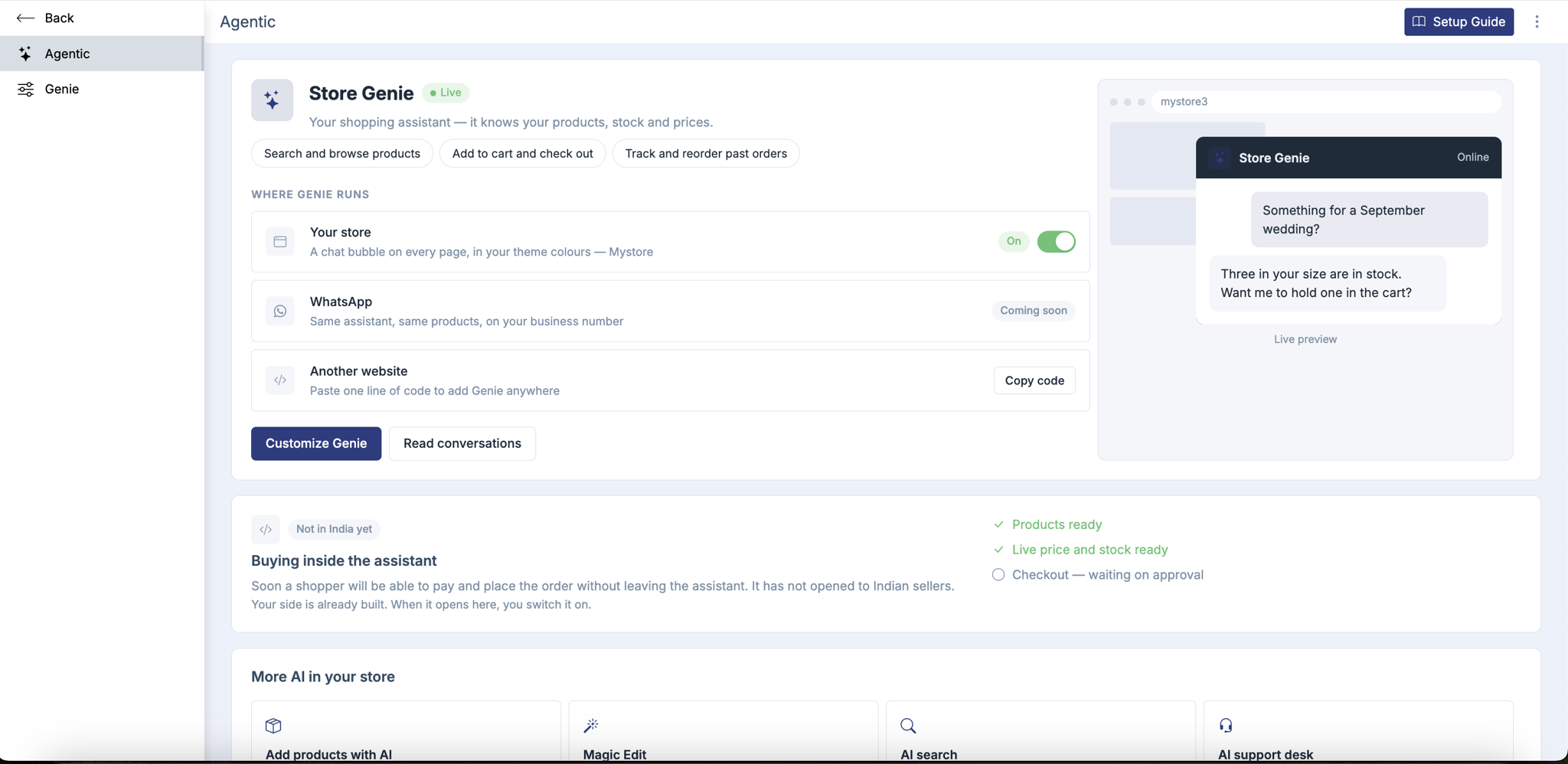
Agentic | Switch Genie on or off for your store, see where Genie runs, and check whether it is live or paused. |
Genie | Change Genie's name, logo, colours, voice, what it can do and its opening prompts. |
5. How to switch Genie on
- Go to Sales Channels → Agentic → Agentic.
- Under Where Genie runs, find Your store.
- Turn the switch On.
A chat bubble now appears on every page of your storefront, and the badge next to Genie's name shows Live.
To remove Genie from your store, turn the same switch Off. Your settings are kept, so switching it back on brings Genie back exactly as you left it.
6. How to customise Genie
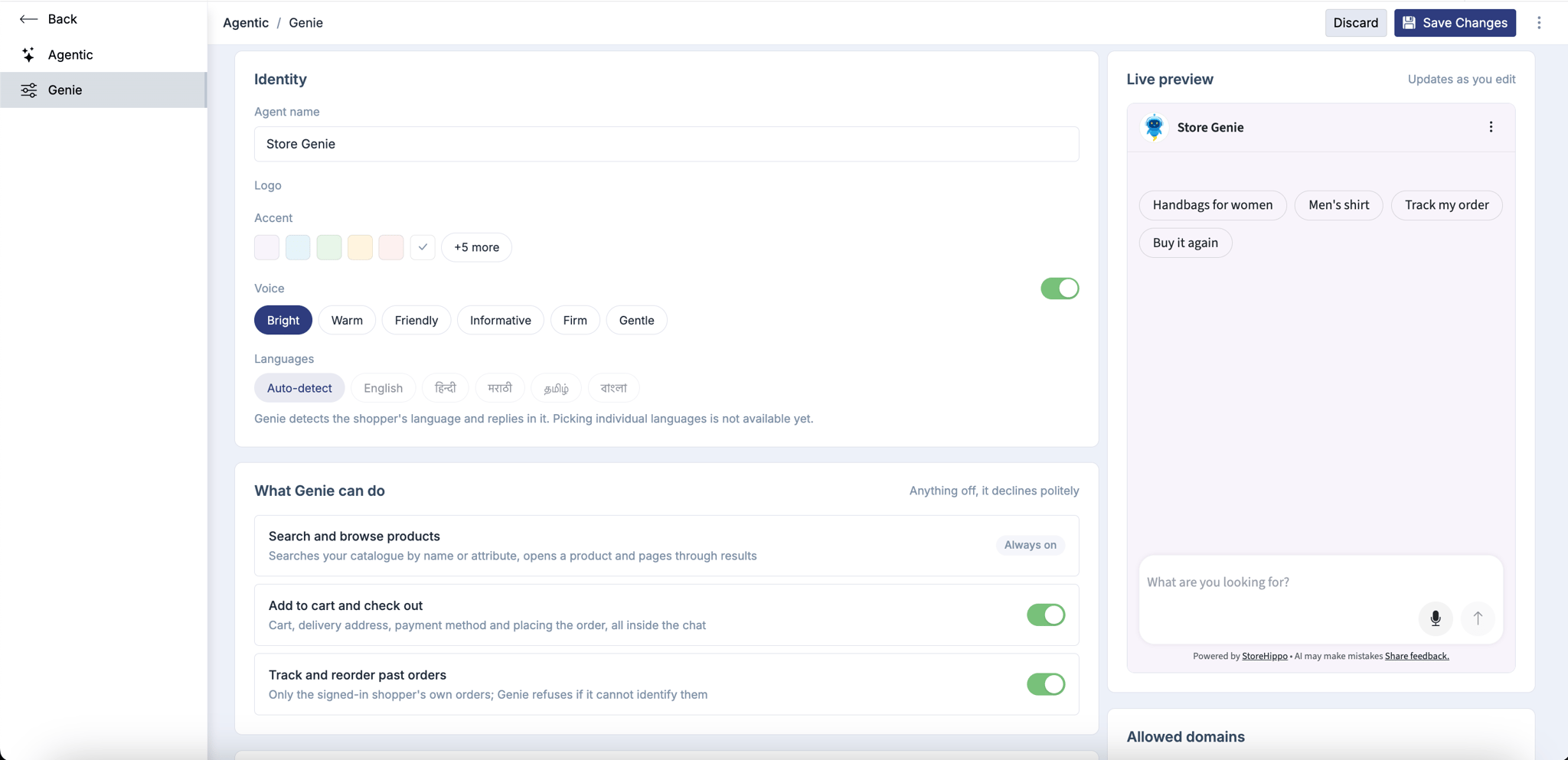
Go to Sales Channels → Agentic → Genie, or click Customize Genie on the Agentic page.
Identity
Setting | How it works |
|---|---|
Agent name | The name shoppers see at the top of the chat, for example "Priya from Sharma Sarees". It is required and can be up to 40 characters. |
Logo | The picture shown next to the name. Click Change to upload a square PNG, JPG, SVG or WebP image. Click Remove to take it off. |
Accent | The colour of the chat window. Pick a colour, or click + more to see all colours. The crossed-out option removes the accent, and Genie then uses your store's own colours. |
Voice | Lets shoppers talk to Genie and hear its replies. Turn the switch on, then choose how Genie sounds: Bright, Warm, Friendly, Informative, Firm or Gentle. |
Languages | Genie detects the shopper's language and replies in the same language. Choosing individual languages is not available yet. |
What Genie can do
Choose what Genie is allowed to help shoppers with:
Option | What it covers |
|---|---|
Search and browse products | Always on. Genie can always find and show your products. |
Add to cart and check out | Cart, delivery address, payment method and placing the order inside the chat. |
Track and reorder past orders | Order status and reorders, for signed-in shoppers only. |
If you turn an option off, Genie politely declines when a shopper asks for it.
Opening prompts
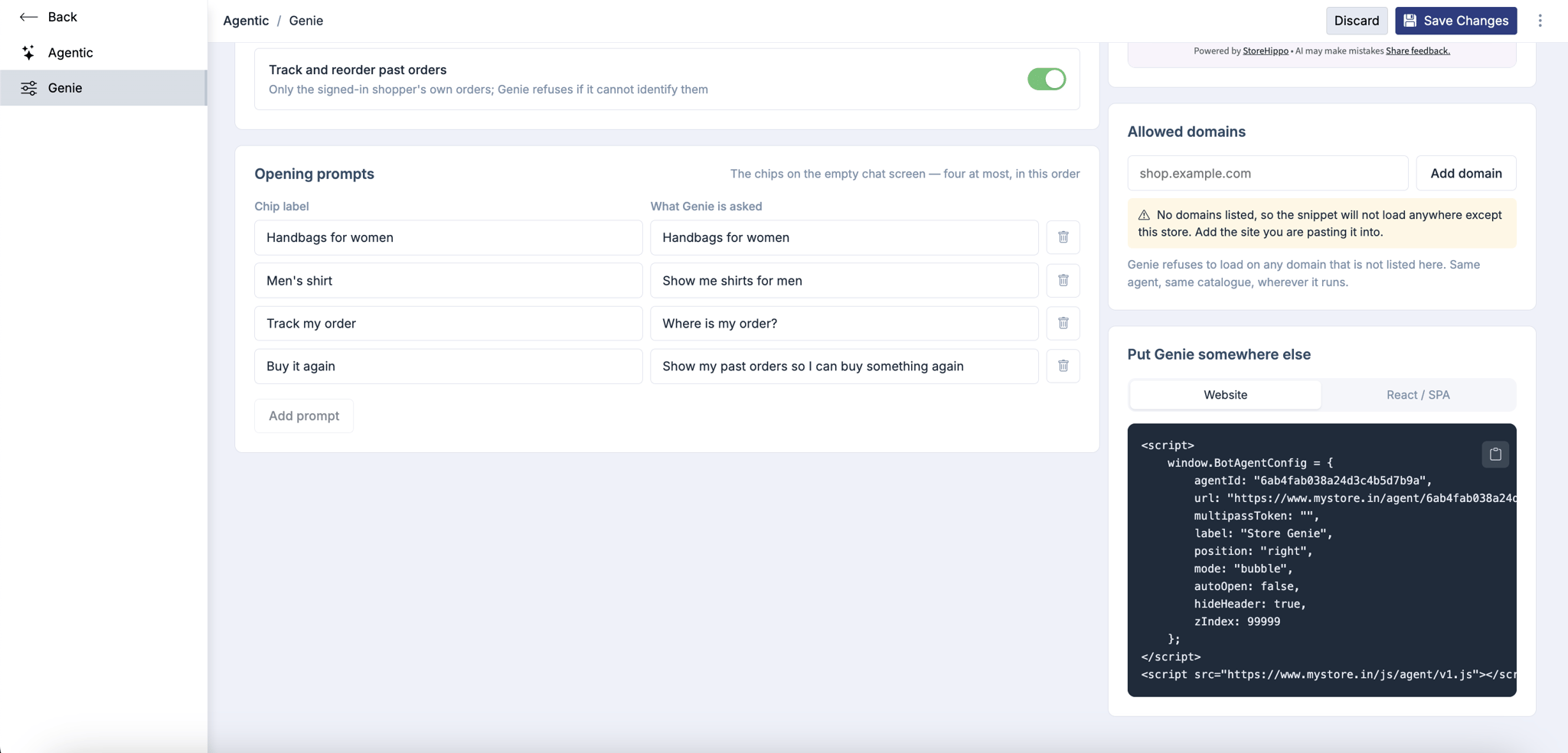
Opening prompts are the ready-made questions shown when a shopper opens an empty chat, for example "Track my order" or "Men's edit". You can add up to four, and they appear in the order you list them.
For each prompt, fill in:
- Chip label: the short text on the button, for example Women's edit.
- What Genie is asked: the question Genie receives when the shopper taps it, for example Show me the new arrivals for women.
Use the delete button next to a row to remove a prompt. Click Save changes when you are done.
7. How to add Genie to another website
If you have another website, such as a blog or brand site, you can show the same Genie there, with the same products and cart.
- Make sure Genie is switched On for your store (section 5). The code is not available until then.
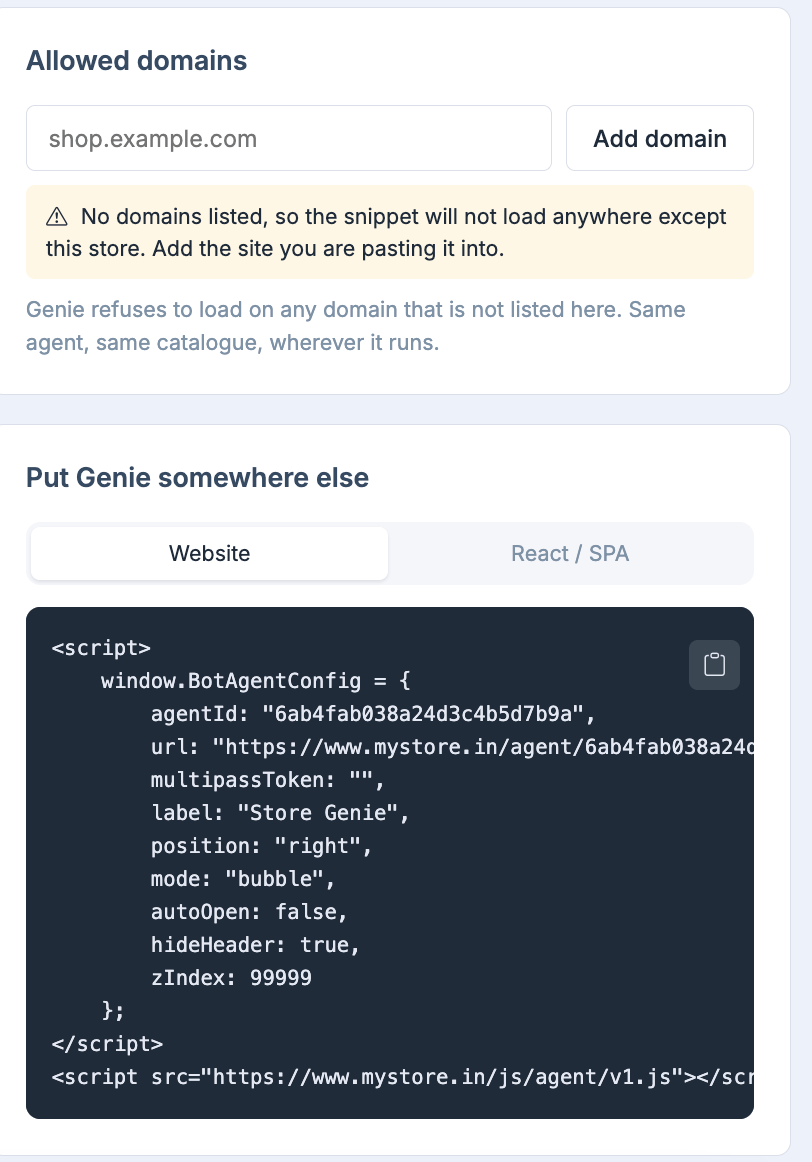
- On the Genie page, under Allowed domains, type your website address (for example www.mybrand.com) and click Add domain. Genie only loads on websites listed here.
- Under Put Genie somewhere else, choose the tab that matches your site: Website for most websites, or React / SPA for sites built with React or a similar framework.
- Click the copy button and paste the code into your website, just before the closing </body> tag. If someone else manages your website, send them the code.
You can also copy the code from the Agentic page: Where Genie runs → Another website → Copy code.
8. Genie and your AI Credits
Every chat with Genie uses credits from your shared AI Credits balance, even though your customer is the one chatting. Shoppers never pay for or see your credits. The number of credits used depends on the length and complexity of each chat.
When your balance is too low to start a chat:
- The Agentic page shows Genie is paused — you are out of AI credits, and the badge changes from Live to Paused.
- Shoppers who try to chat see: "The assistant is unavailable right now. Please try again later."
- Your settings and the storefront switch stay as they are. Nothing is turned off.
Click Top up credits on the banner to buy more. Genie starts working again on its own as soon as credits are added. You do not need to switch it on again.
9. Conversations and orders
- Click Read conversations on the Agentic page to see the chats shoppers have had with Genie.
- Orders placed through Genie show up in your Reports like any other order. The order, the customer and the payment all stay yours.
10. Coming soon
- WhatsApp: the same Genie, with the same products, on your WhatsApp business number.
- Buying inside AI assistants: shoppers paying and placing an order from inside AI assistants. This has not opened to Indian sellers yet. Your side is already built, and you will be able to switch it on when it opens.
11. Frequently asked questions
I do not see Agentic in my dashboard. What should I do?
Agentic has to be turned on for your store. Contact Mystore Support.
The page says "Agentic Sales Channel is not enabled".
Agentic is not yet turned on for your store. Contact Mystore Support.
I see "Create storefront" instead of the switch.
Genie needs a storefront to run on. Click Create storefront, finish setting it up, then return to the Agentic page.
The Genie page is greyed out and I cannot change anything.
You do not have a storefront yet. Create one first, and the settings will become editable.
Why is "Copy code" greyed out?
Switch Genie On for your store first (section 5). The code becomes available after that.
I changed the name or logo, but my store still shows the old one.
Make sure you clicked Save changes. Then open your storefront in a new tab and open the chat again.
Why is the Voice switch locked?
Voice is included on the Basic, Business and Enterprise plans. Upgrade your plan to turn it on.
Genie says "The assistant is unavailable right now".
Your AI Credits balance is too low. Go to the Agentic page and click Top up credits.
Genie does not appear on my other website.
Check that the website address is added under Allowed domains on the Genie page, and that the code is pasted on every page where you want Genie to appear.
Can a shopper see another customer's orders?
No. Genie only shows a signed-in shopper their own orders.
12. Related help articles
Need more help? Contact Mystore Support from your seller dashboard.