
Change and Verify Your Mobile Number and Email
Keeping your contact details up to date ensures you receive important account alerts, order notifications, and OTPs without interruption. From your Seller Admin, you can update the email address and mobile number linked to your account at any time. Each new email or mobile number is confirmed with a one-time password (OTP) before it is saved, so your account always stays secure.
The steps to change your email and your mobile number are the same. You can follow the procedure below for either detail.
Before you begin
- Make sure you have access to the new email inbox or mobile number you want to add, as you will need to enter an OTP sent to it.
- Update one detail at a time to avoid confusion between OTPs.
Change and verify your email or mobile number
- From your Seller Admin dashboard, go to Profile.
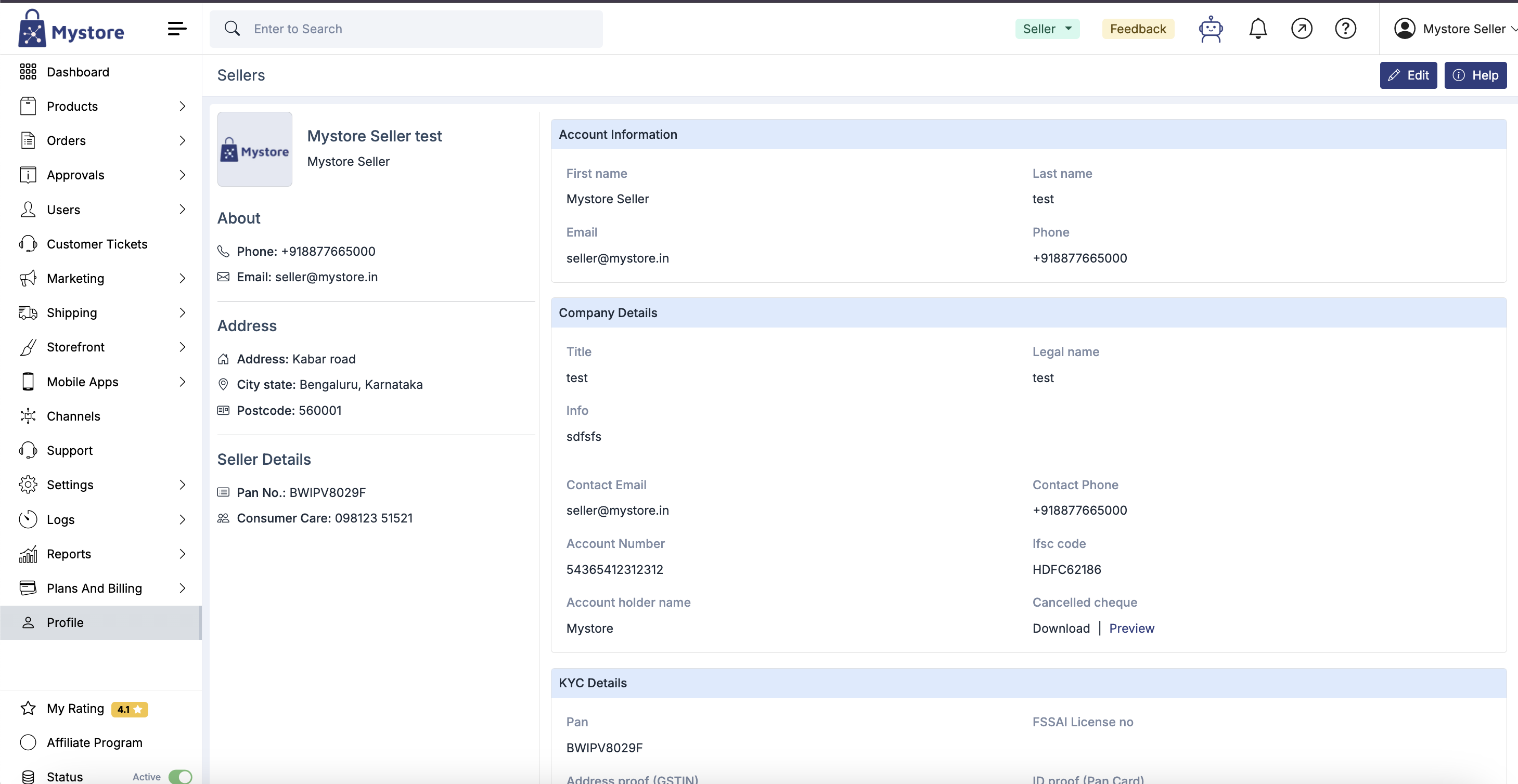
- Click Edit. Your account details, including your Email and Phone number, are displayed.
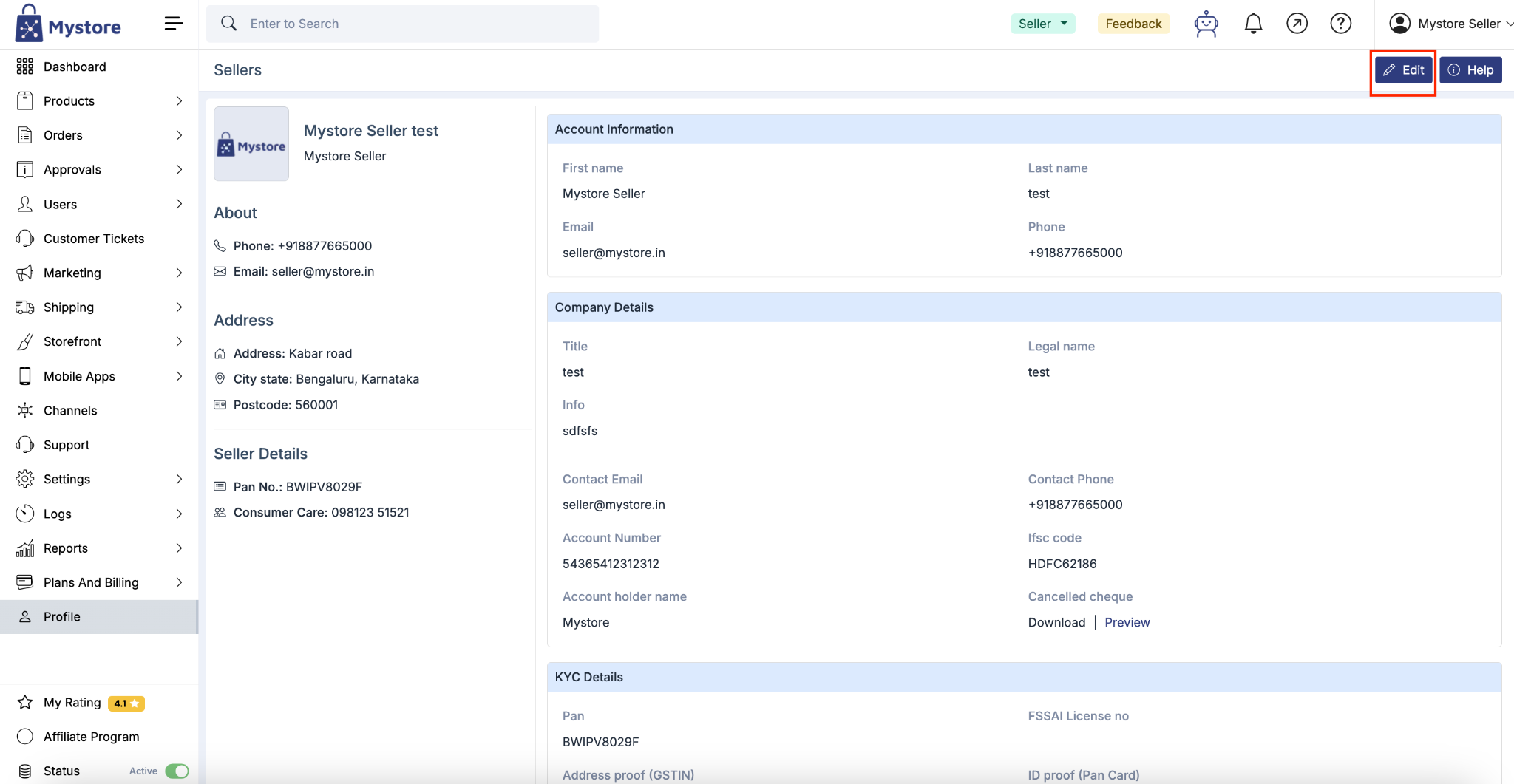
- Click the pencil (edit) icon next to the detail you want to change — either Email or Phone number.
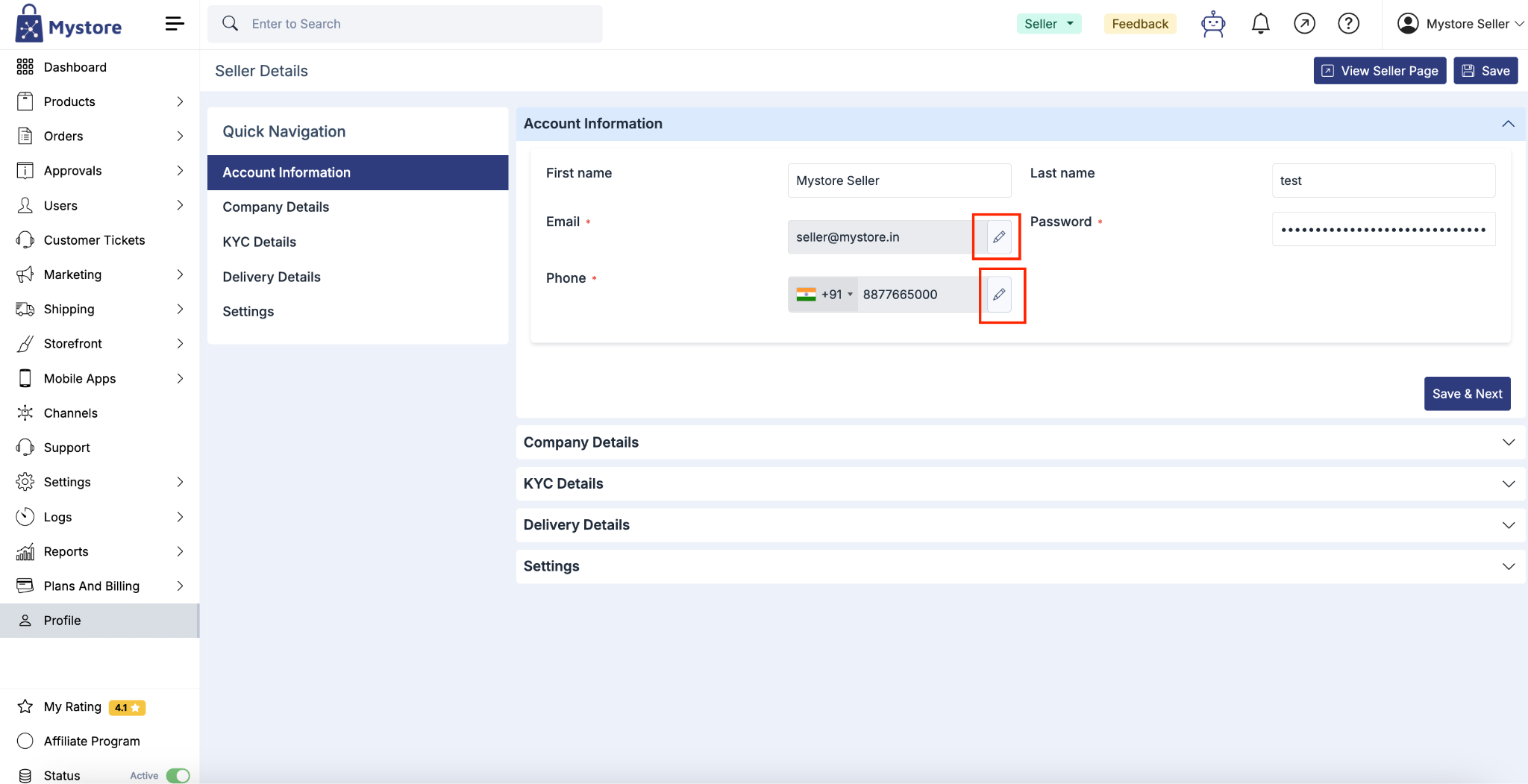
- Enter your new email address or new mobile number in the field.
- Click Send OTP. A one-time password is sent to the new email address or mobile number you entered.
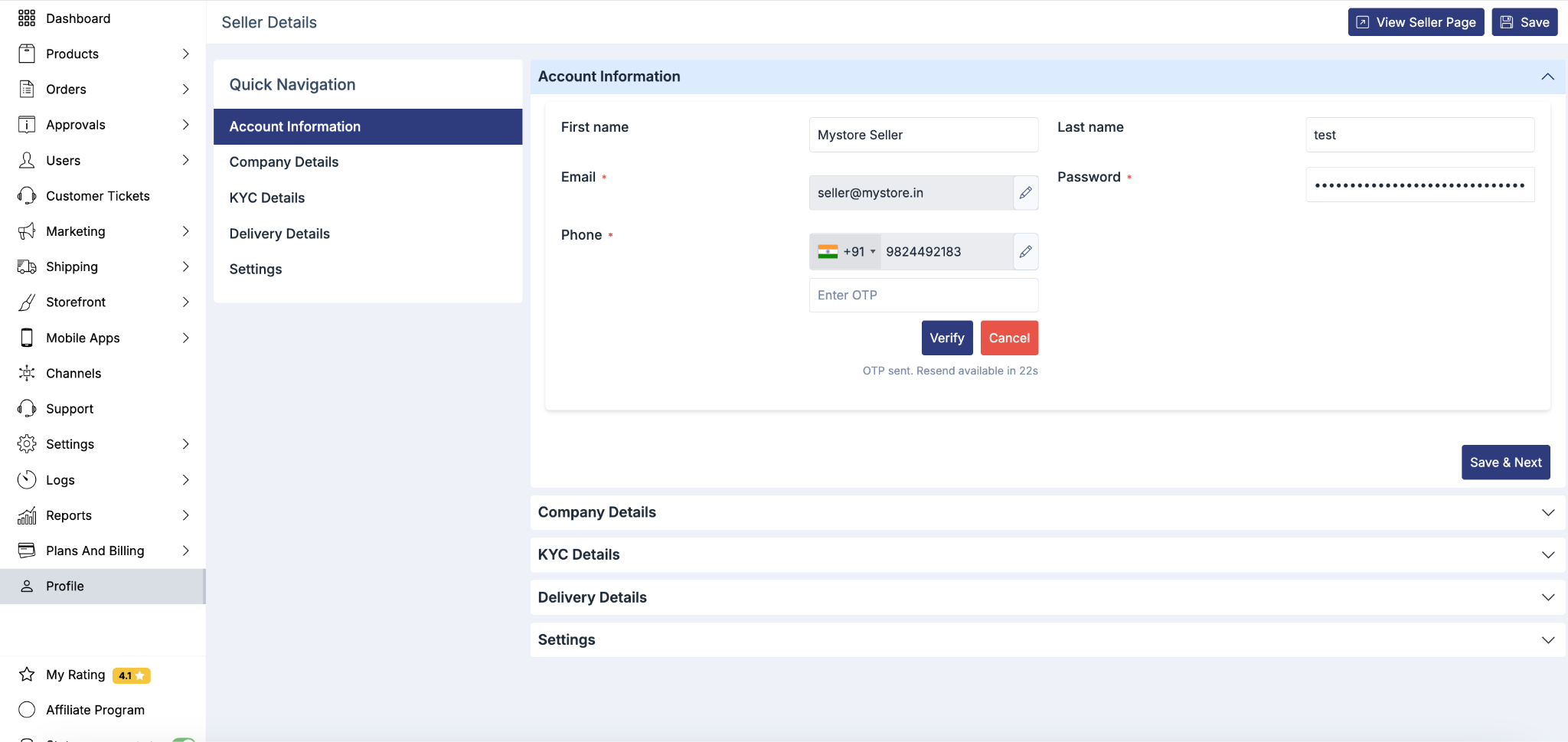
- Enter the OTP you received to validate it.
- Once the OTP is verified, your new email address or mobile number is added to your account.
Your updated contact detail is now saved and will be used for all future account communication.
Note: Your email and mobile number are updated separately. If you want to change both, repeat the steps above for each detail.
Troubleshooting
I didn't receive the OTP.
Wait a few moments, as delivery can occasionally be delayed. Check that the email address or mobile number you entered is correct and, for email, look in your spam or junk folder. If it still hasn't arrived, request a new OTP.
The OTP isn't working.
Make sure you are entering the most recent OTP, as an older code may have expired once a new one is sent. Confirm there are no extra spaces before or after the code.
The verification failed.
Double-check that the new email address or mobile number is entered correctly, then request a fresh OTP and try again.
If you continue to face issues, please raise a ticket with the Mystore support team for assistance.