
Google Merchant Center
Google Merchant Center allows Mystore sellers to list products across Google services like Search and Maps for free listings, driving traffic to their stores. Screenshots in the provided guide show initial setup screens, including business info entry and product feed options, tailored for Indian sellers. This boosts visibility for ONDC-connected marketplaces like Mystore.
Step-by-Step Setup Guide
Follow these steps based on the guide's screenshots and standard process for Mystore users.
1. Visit merchant.google.com and sign in with your Google account.
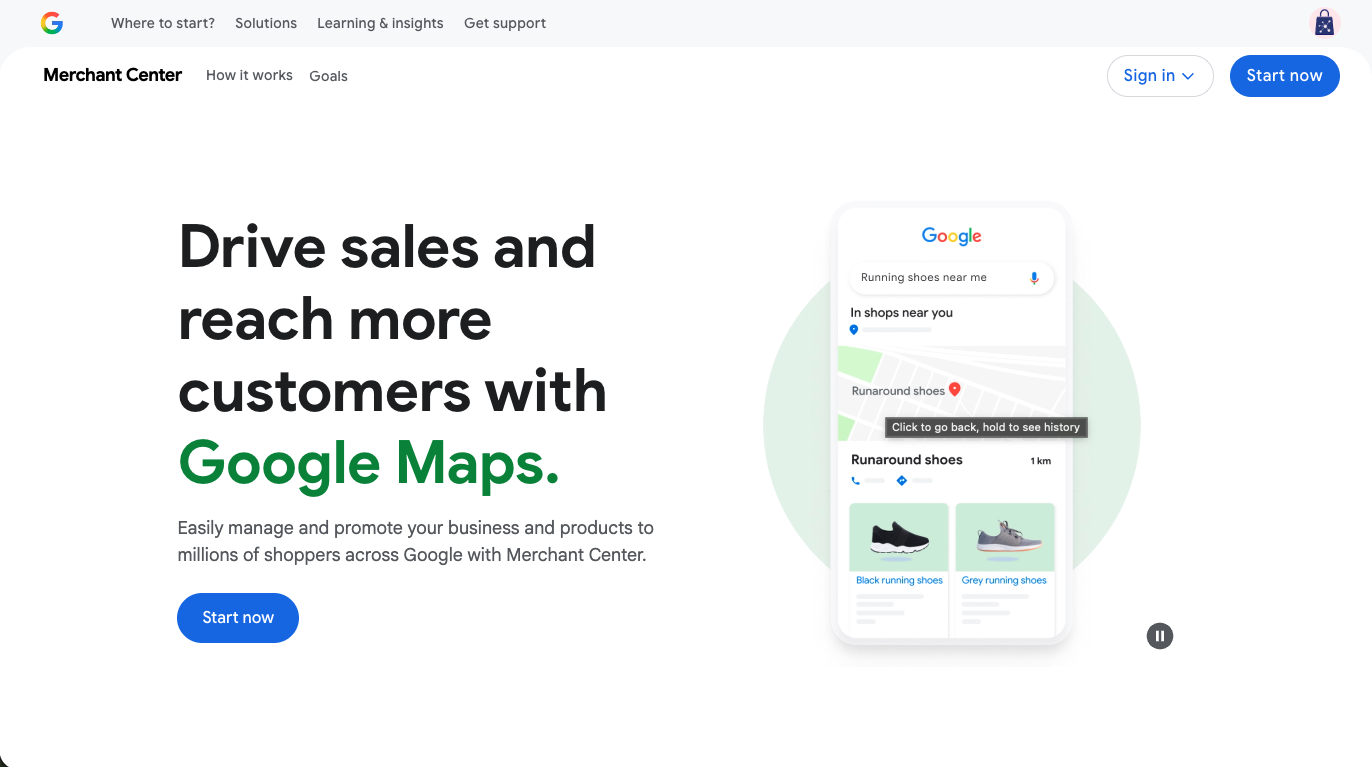
2. Enter business details: Select "Yes" for online sales, input your Mystore website (e.g., mystore.in subdomain), confirm physical store if applicable, and provide the business name and address in India.
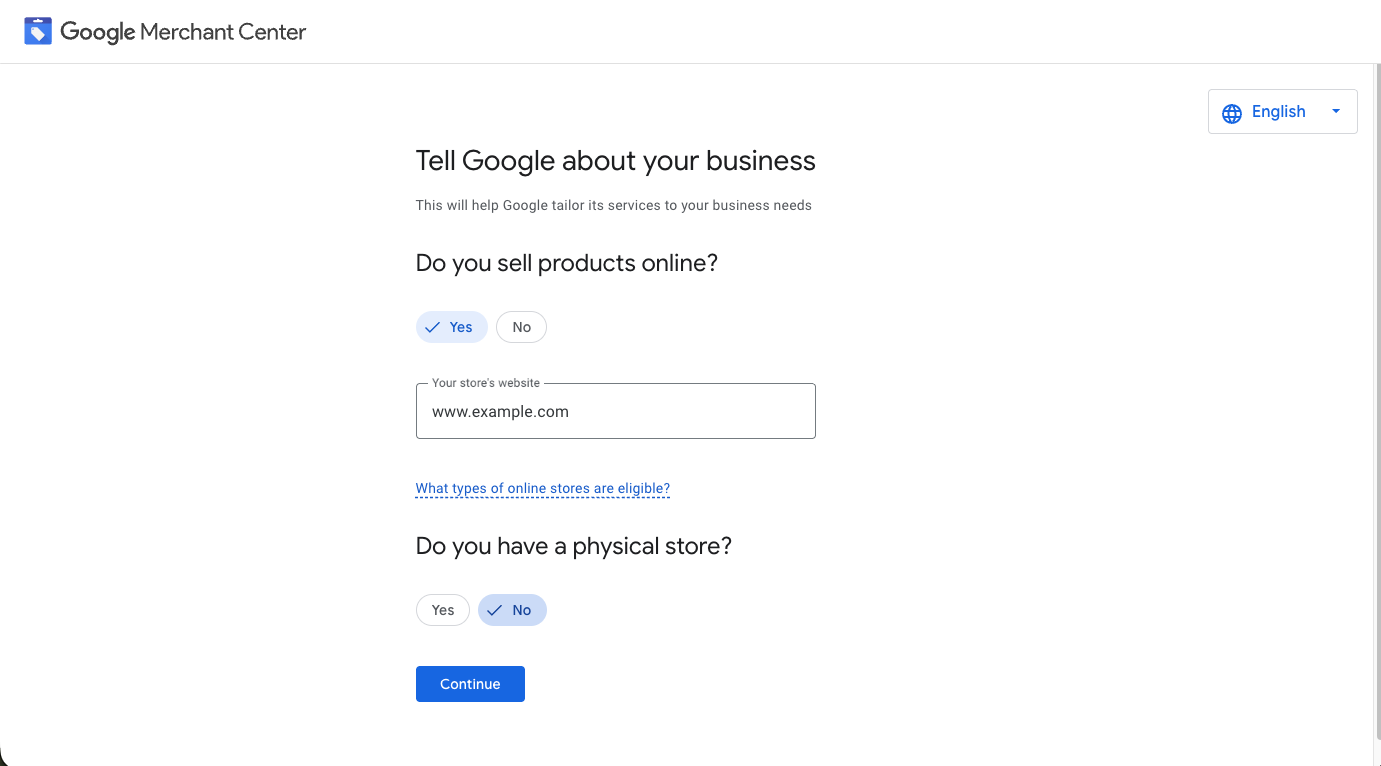
3. Agree to the Terms of Service.
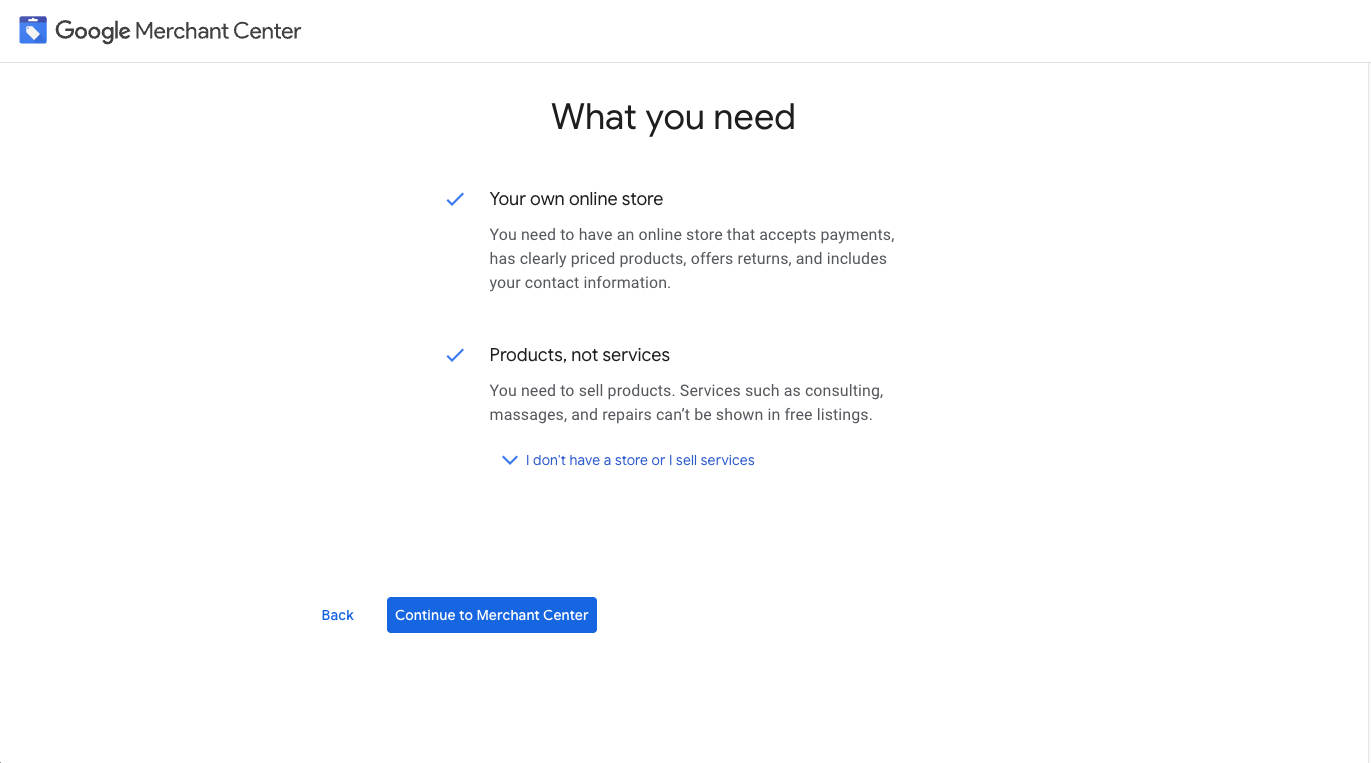
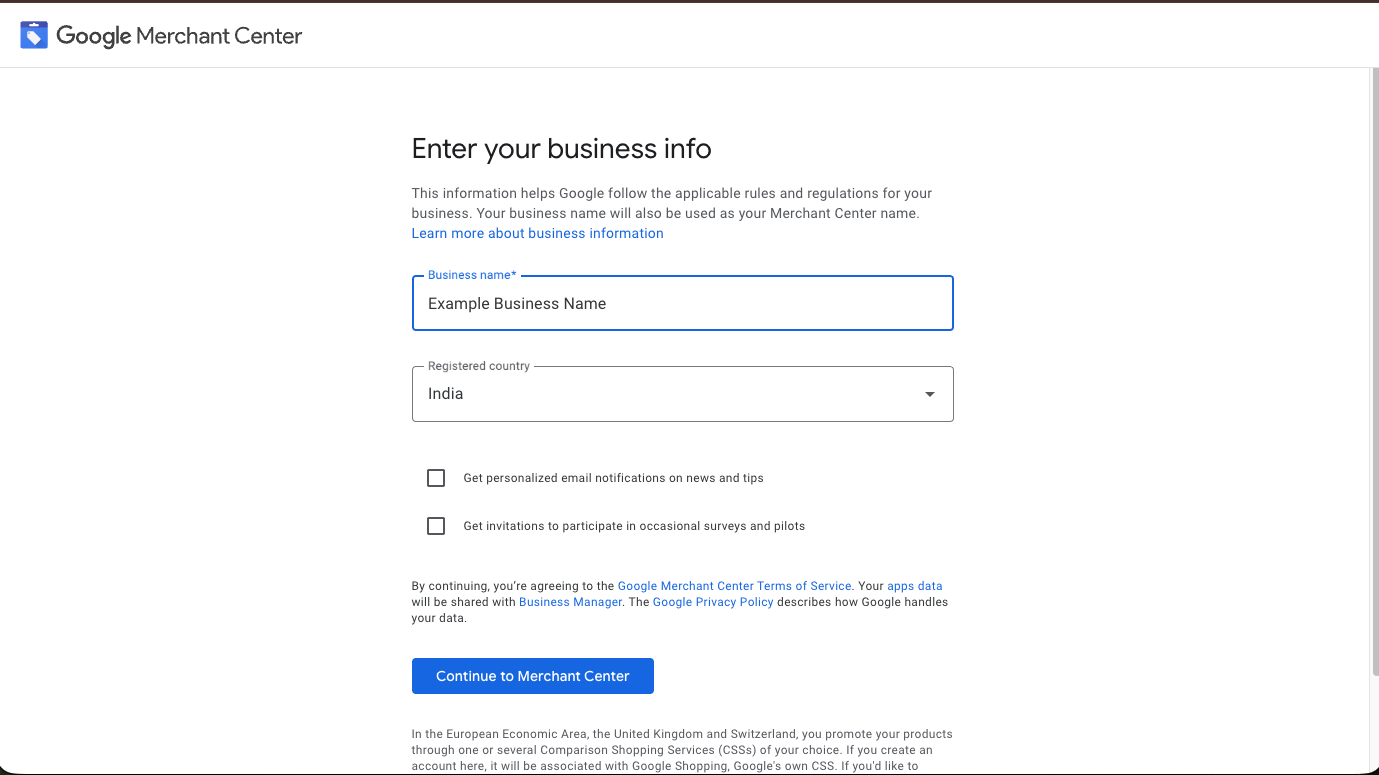
4. Enter your business details and continue.
5. Go to setting and click on data sources
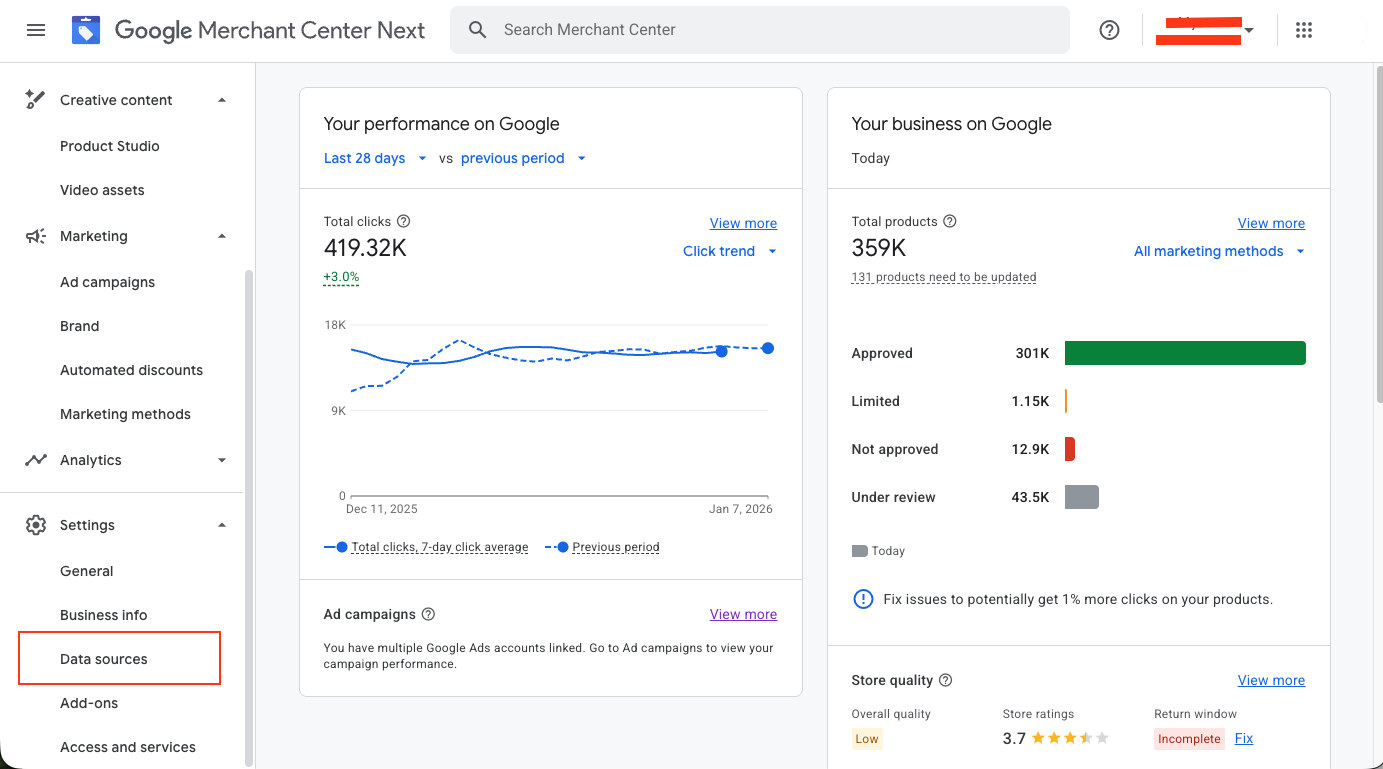
6. Add products: Use "Add product source" for file upload.
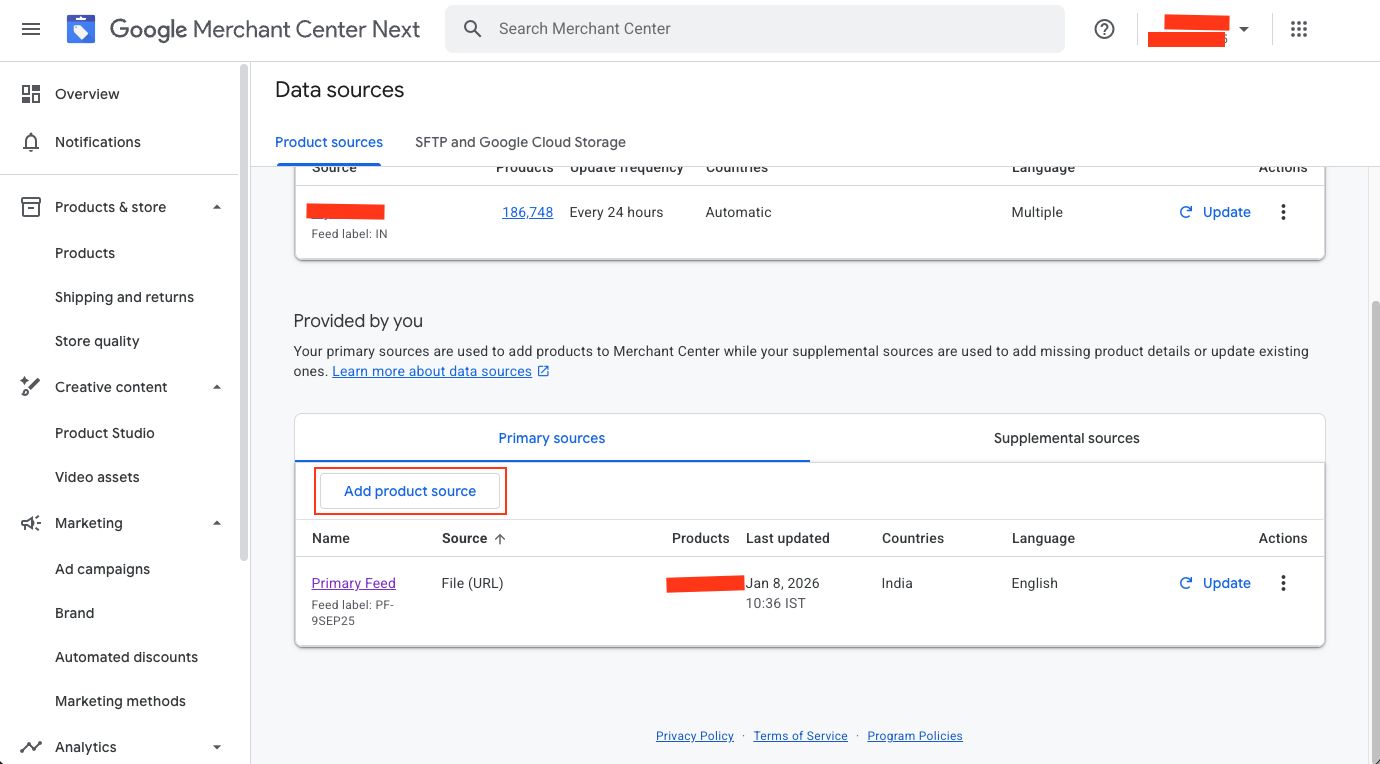
7. Input the Mystore product feed URL example: http//:store.mystore.in/all.atom. Schedule automatic updates (e.g., every 24 hours) and assign a feed label like "IN Products" for India/English.
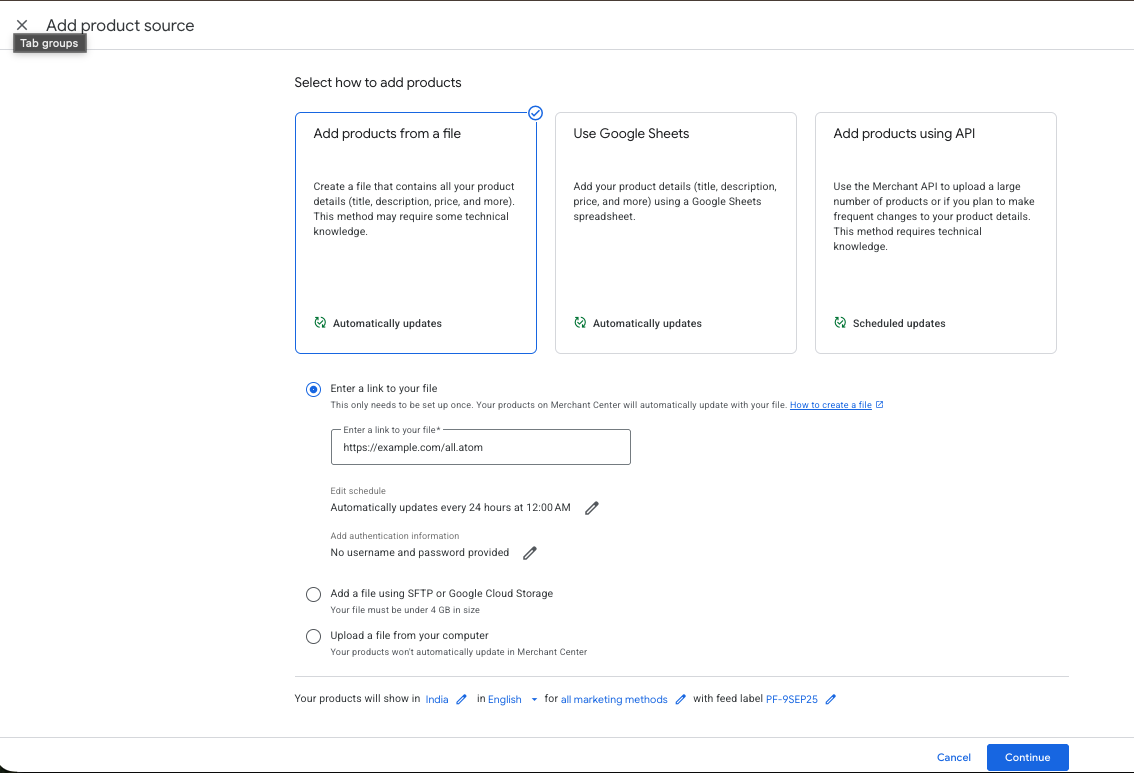
8. Click on continue; go to the data source to monitor diagnostics for approvals and fixes on low store quality or disapprovals.
This is the final step. After the pixel is associated with the relevant ad account, product data will start syncing and should appear correctly within a few hours.