
Register and Connect a Domain to Your Store
A domain of your own, such as yourbrand.in, gives your store an address that customers can remember and trust. From your Seller Admin, you can search for a domain, pay for it online, and connect it to your store. Mystore registers the domain in your name, so you own it, and sets up everything needed to connect it. You don’t need an account with a domain registrar or any technical setup.
Mystore checks your details before you pay, so you are never charged for a domain that can’t be registered.
Before you begin
- Make sure a store is set up for your seller account. Your domain opens this store. If you don’t have one, the Domain registrations page shows a message instead of the search.
- Check that your Contact Phone, Contact Email, business name and address (city, state, PIN code and country) are correct in Profile > Company Details. These are used as the domain owner’s contact details, and the registrar requires them.
- For a .IN domain, keep your registrant ID ready, for example your PAN or GSTIN. The .IN registry won’t register a domain without it. You enter it during checkout.
- Keep a payment method ready. The domain is paid for online through Mystore’s payment gateway.
Note: The contact and address fields in Company Details are locked. If any of them are wrong, raise a ticket with the Mystore support team to update them before you register a domain.
Search for a domain
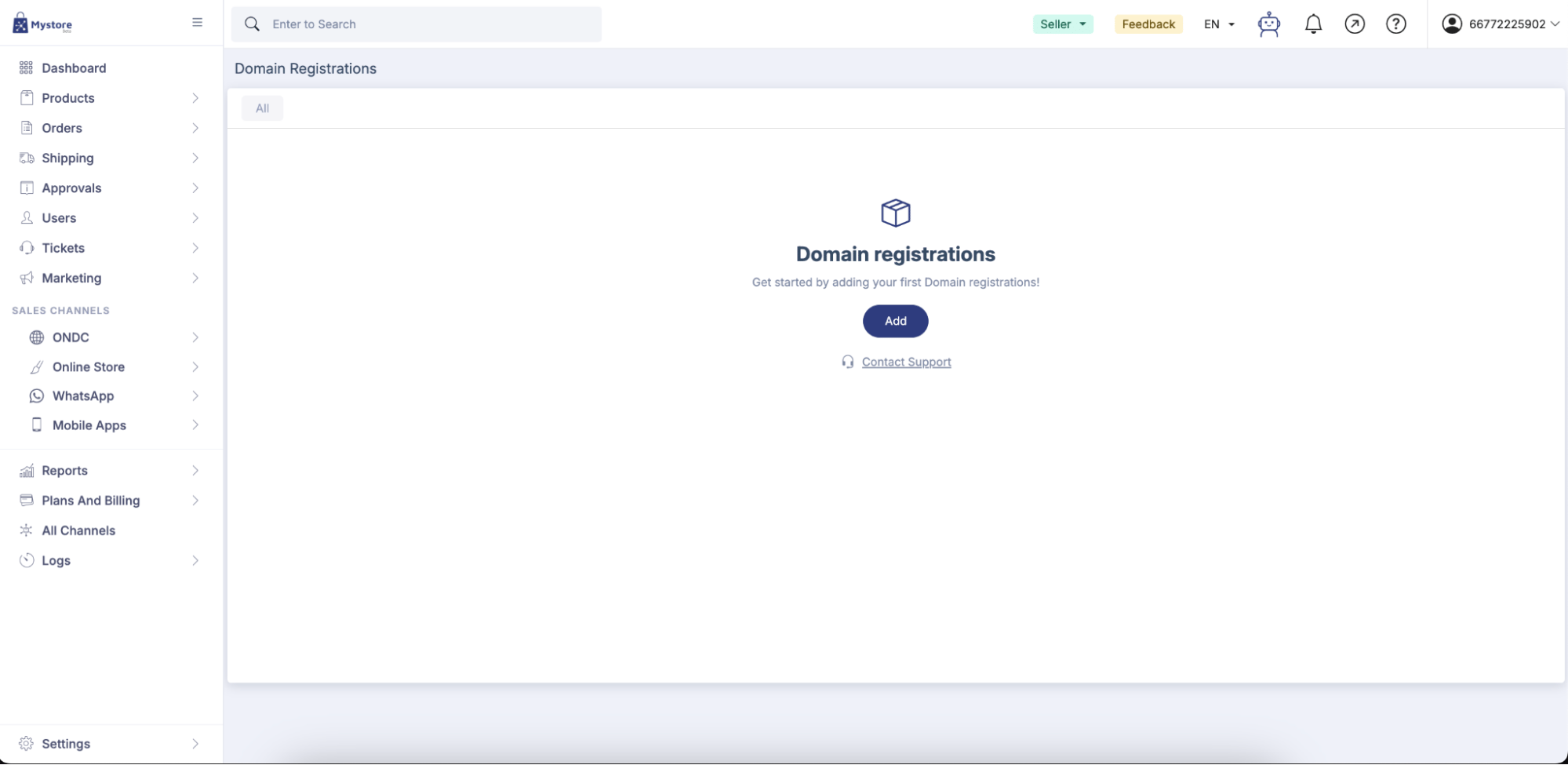
- From your Seller Admin dashboard, go to Settings > Domain registrations.
- Click Add. The domain search page opens.
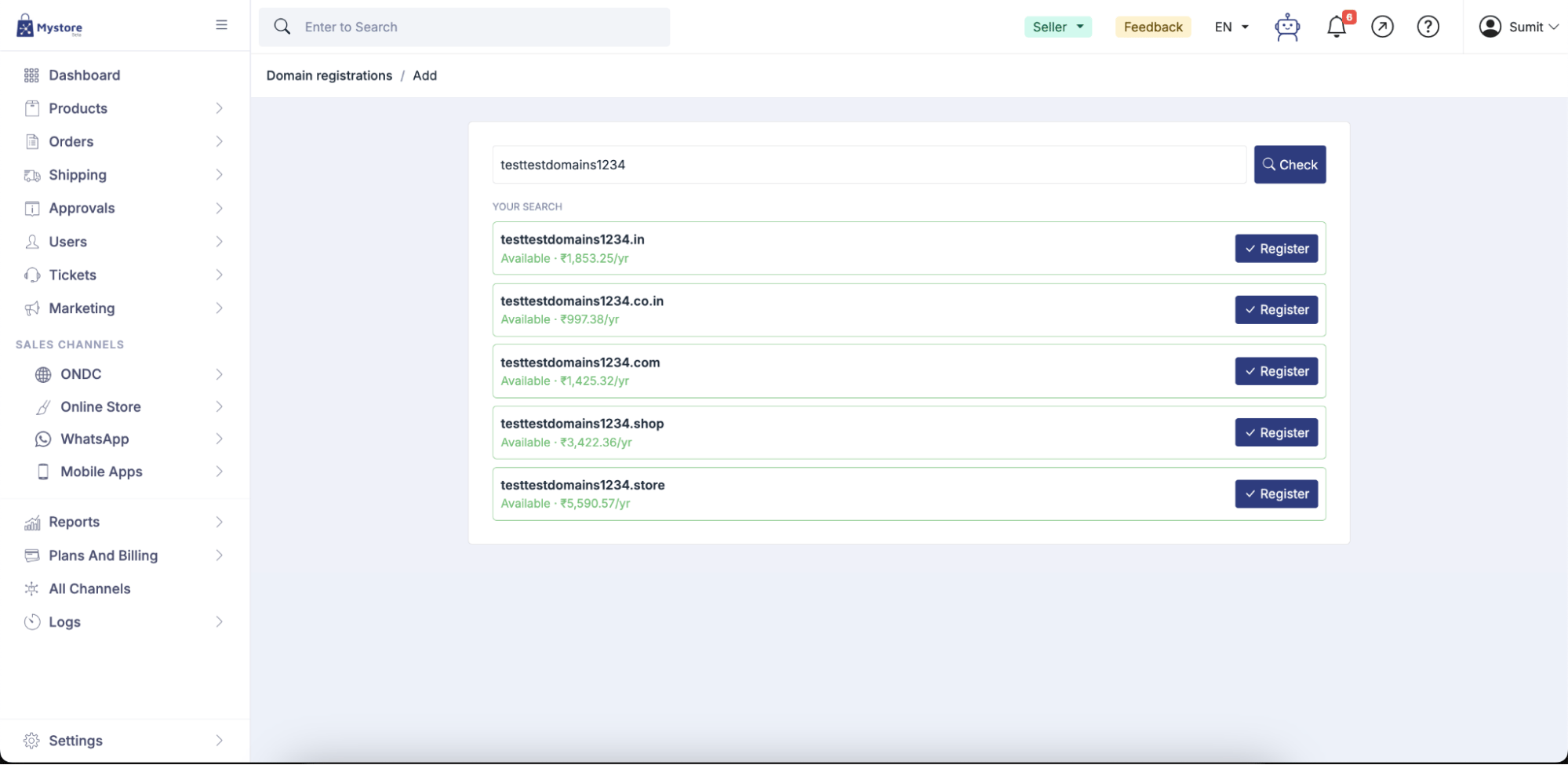
- Enter the name you want, for example yourbrand, and click Check (or press Enter).
- Review the results:
- Your search shows your name on each extension on sale, marked Available with its yearly price, or Taken.
- Similar names available shows up to six available alternatives with their yearly prices.
- Next to the domain you want, click Register.
Choose a registration term and options
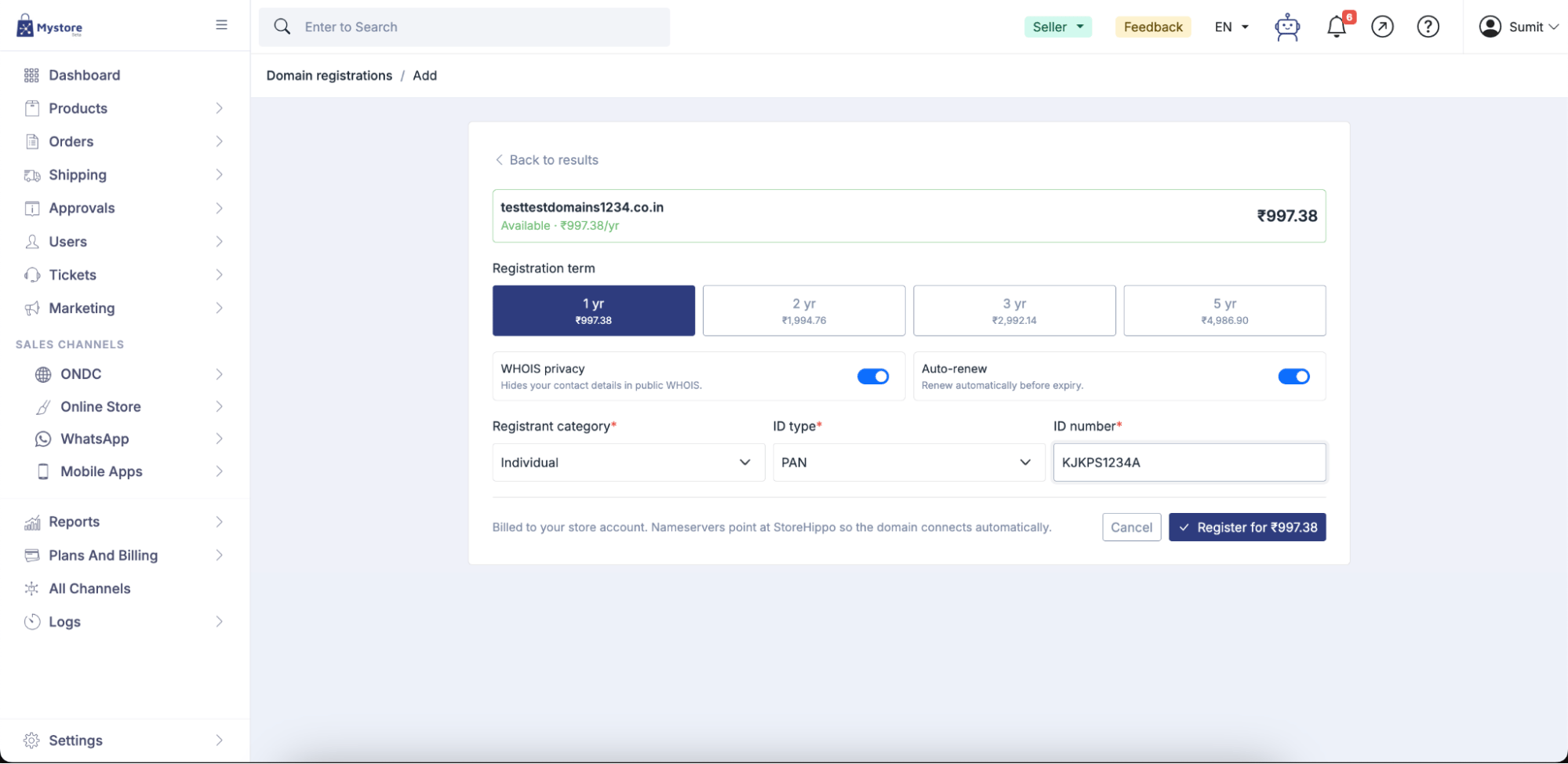
After you click Register, a confirmation screen shows the domain and the total price.
- Select a Registration term: 1, 2, 3 or 5 years. Each option shows the total price for that term. Not offered means that term isn’t available for this extension.
- Turn on WHOIS privacy if you want to hide your contact details in the public WHOIS directory.
- Turn on Auto-renew if you want the domain marked for automatic renewal.
Note: Automatic renewal isn’t available yet. Until it is, renew your domain manually before its expiry date, even if Auto-renew is turned on.
Registrant details for .IN domains
For a .IN domain (.in, .co.in, .net.in, .org.in, .firm.in, .gen.in or .ind.in), fill in all three registrant fields:
- Registrant category: The type of owner. Most sellers choose Business or Individual.
- ID type: The document you are using, for example PAN or GSTIN.
- ID number: The number exactly as printed on the document.
Pay for the domain
The domain is registered only after your payment is confirmed.
- Click Register for ₹…. The amount is the yearly price multiplied by the number of years. [Confirm: does the price include GST?]
- Complete the payment on the payment gateway page.
- You return to the domain’s page in your Seller Admin, which shows Finishing your domain registration… for a moment.
- Once registration is complete, the domain shows as registered with its expiry date.
The payment is recorded against your seller account.
Connect the domain to your store
A new domain isn’t live until you connect it. Mystore has already set up its DNS, so you don’t need to configure anything with a registrar.
- Go to Settings > Domain registrations and open your domain.
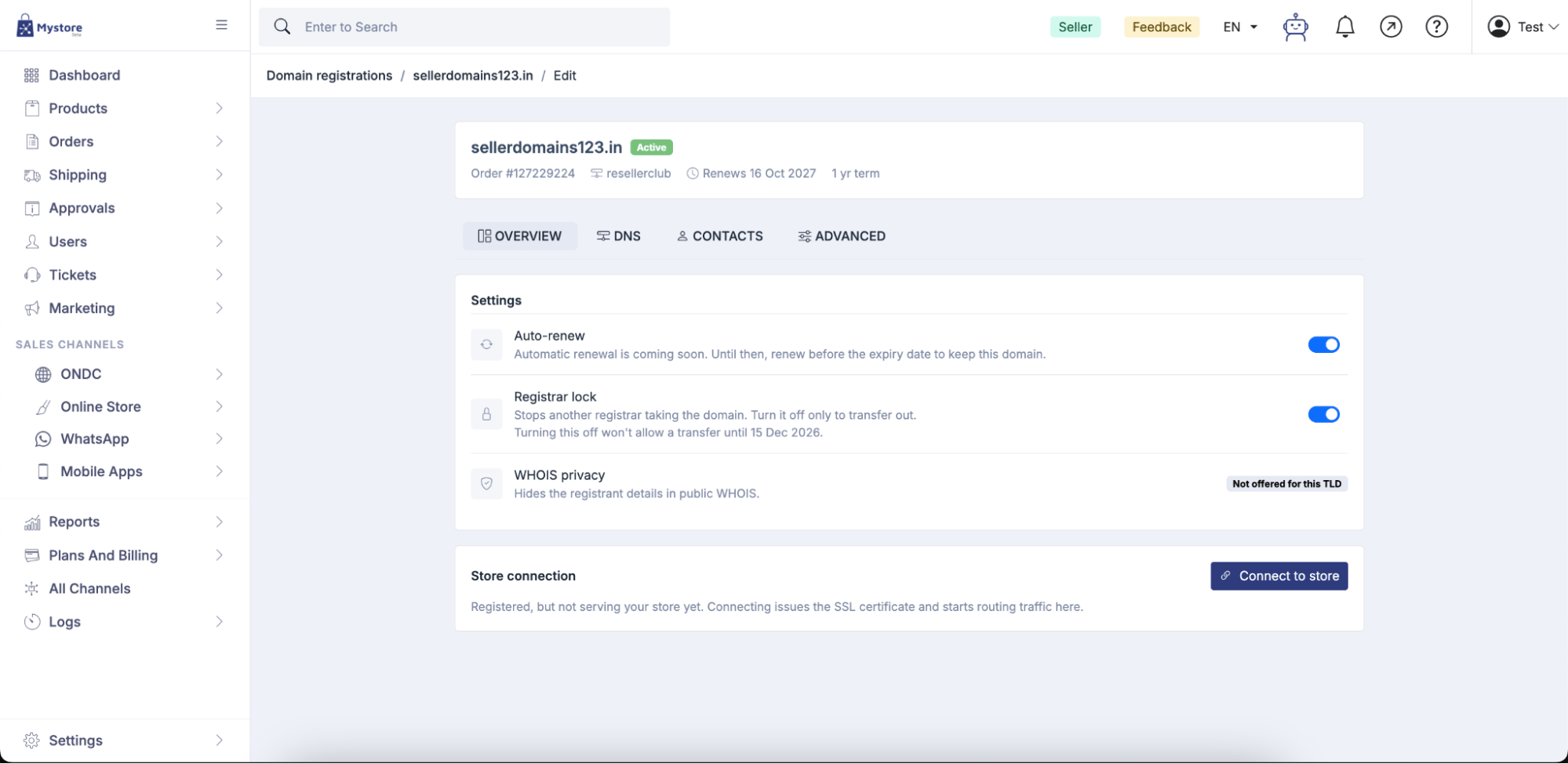
- On the Overview tab, under Store connection, you see Registered, but not serving your store yet.
- Click Connect to store. Your domain always opens your own store, so there is nothing to choose.
- Mystore issues the SSL certificate and starts sending visitors to your store. When this is done, the domain shows Live on your store. [Confirm: typical time to go live]
Note: You can connect one domain per seller account. If another domain is already connected, the page tells you so.
Manage your domain
From the domain’s page, you can:
- Turn Registrar lock and WHOIS privacy on or off on the Overview tab. If WHOIS privacy isn’t available for your domain’s extension, it shows Not offered for this TLD.
- View and add DNS records on the DNS tab, for example an MX record for email.
- Update the domain owner’s contact details on the Contacts tab.
Note: Don’t change or delete DNS records marked Managed by StoreHippo. These records connect your domain to your store, and changing them can take your store offline on that domain.
Troubleshooting
I can’t see the domain search.
A store hasn’t been set up for your seller account yet. Please raise a ticket with the Mystore support team to have it set up.
Checkout stops before I can pay.
A required detail is missing. Check your contact details and address in Profile > Company Details, and for a .IN domain, make sure all three registrant fields are filled in.
My payment went through, but the domain isn’t registered.
Wait a few minutes and refresh the domain’s page, as registration can take a moment to finish. If it still doesn’t show as registered, raise a ticket with the Mystore support team and include the domain name and your payment reference. [Confirm: refund process if registration fails]
I can’t connect my domain to my store.
Another domain is already connected to your seller account, and only one can be connected at a time. Please raise a ticket with the Mystore support team to disconnect the existing domain.
My domain isn’t opening my store.
Check that the domain shows Live on your store under Store connection. If it doesn’t, the SSL certificate may still be in progress. Also make sure no records marked Managed by StoreHippo have been changed on the DNS tab.
If you continue to face issues, please raise a ticket with the Mystore support team for assistance.