
Shipping Method Conditions: Zone and State
Shipping methods in Mystore can be configured with flexible conditions to control when and where specific delivery charges apply. Along with standard conditions such as Order Total, Weight, and Quantity, Mystore now supports advanced conditions like Zone and State. This artcle explains how to configure shipping methods using these conditions to better manage delivery operations and shipping costs.
Configure Your Shipping Method
Log in to your Mystore seller admin panel, go to Shipment>Shpping methods, click on add new.
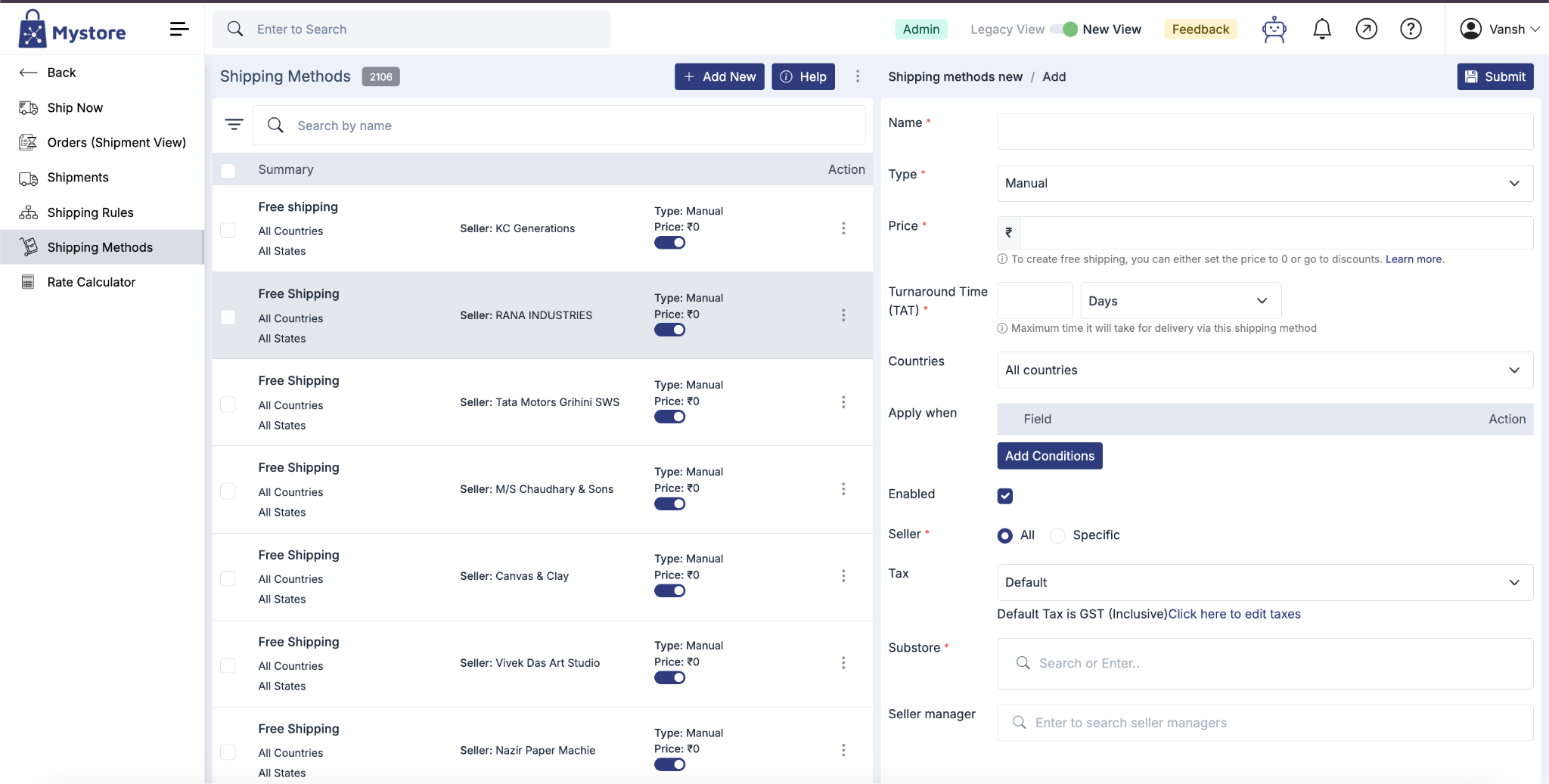
In the form that appears, fill in the basic details:
- Name : Give your shipping method a clear name (e.g., Standard Shipping).
- Type : Choose how the method works:
- Manual : You set up and manage your own logistics. You define your own methods, criteria, and conditions for how delivery charges are applied.
- Provider-based : You select from the logistics providers available on Mystore. Orders are then auto-allocated to the chosen provider for fulfilment.
- Price : The amount that will be charged to the customer for this method (for example, ₹40). Enter 0 to make it free.
- Turnaround Time (TAT ): The expected time to deliver the order. This can be set in days or minutes.
- Countries / Regions : Choose where the method applies. You can set it for all countries, the rest of the world, specific locations, or exclude selected locations.
Setting Conditions for a Shipping Method
Conditions let you control exactly when a shipping method should apply. Each condition is built using three parts:
- Field : What the condition is based on (e.g., Order Total, Zone, State).
- Operator : How the field is compared (e.g., Equal To, Greater Than, Contains).
- Value : The value you want to match against.
To add a condition, scroll down to the “Conditions” section and click “Add New”.
Along with the standard conditions you have Zone and State conditions
Zone
The Zone condition lets you apply charges based on how far an order travels from your store. Zones are not fixed to specific states—they are calculated relative to your store’s location. Zone A always begins from wherever your store is based.
Set the condition like this:
- Field: Zone
- Operator: Equal To / Not Equal To
- Value: The zone you want to target (A, B, C, D, or E)
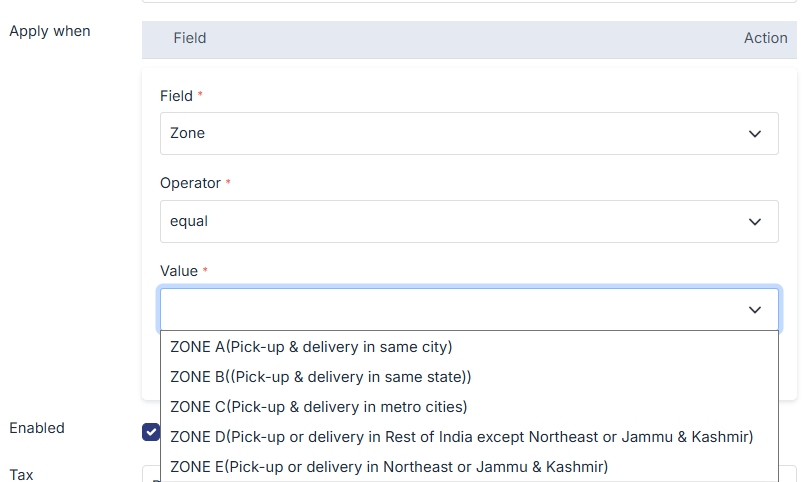
The zones are defined as follows:
Zone | Coverage |
Zone A | Pickup and delivery within the same city |
Zone B | Pickup from your city, delivery within the same state |
Zone C | Metro cities |
Zone D | Rest of India, excluding the North East and Jammu & Kashmir |
Zone E | Jammu & Kashmir and the North East region |
Example: If your store is in Nagpur, Maharashtra, then deliveries within Nagpur fall under Zone A, deliveries elsewhere in Maharashtra fall under Zone B, and a delivery to a metro city such as Bengaluru falls under Zone C.
Because logistics providers usually issue their rate cards by zone rather than by state, the Zone condition makes it easy to align your shipping charges with your courier’s pricing.
Note: The Zone condition is available only to GST-registered sellers.
State
The State condition lets you control serviceability by destination state—useful when you want to deliver to only certain states.
Set the condition like this:
- Field: State
- Operator: Contains
- Country: India
- Value: Select the state(s) you want to serve
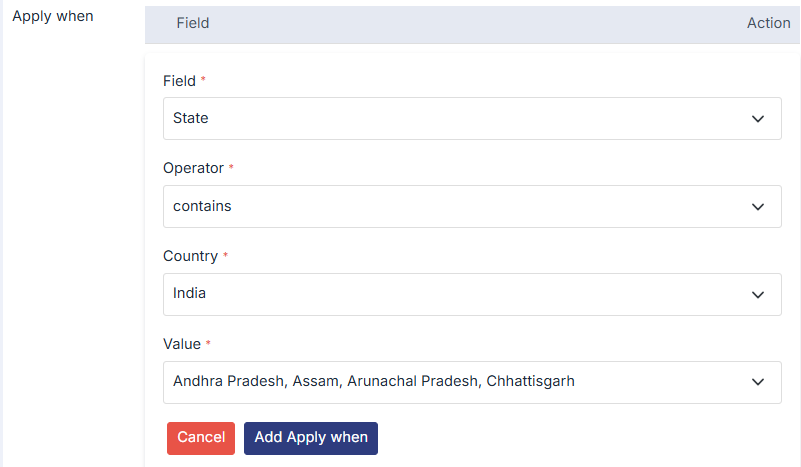
You can select multiple states in a single condition. For example, if you want to ship to only three states, simply select those three and the method will apply only to orders going there.
Note: Non-GST sellers will see a limited set of options. By default, non-GST seller deliveries are restricted to within their own state.
Adding Multiple Conditions
You can combine more than one condition on a single shipping method to fine-tune exactly when it applies. After adding your first condition, click “Add New” again to add another.
A common use case is pairing a SKU condition with a State condition—for example, making certain products available for delivery only to specific states:
- Condition 1 : Field: SKU, Operator: Contains, Value: (your product SKU)
- Condition 2 : Field: State, Operator: Contains, Value: (selected states)
This is especially helpful when you sell through a single catalog but want different products to be served in different regions. You can keep adding more conditions as your requirements grow.
Save the Shipping Method
Once all the details and conditions are filled in, click the “Save” button at the top.
That’s It! Your shipping method is now live.
For related guidance, see the Free Shipping and Manage Shipping Rates help topics.