
Staff Account
Mystore allows sellers to add staff accounts so team members can help manage the store without sharing the main login credentials. Each staff account can be assigned specific roles and permissions, ensuring secure and controlled access to different sections of the dashboard. This helps you delegate tasks such as product management, order processing, analytics review, or support handling without sharing your main login credentials.
This feature is available only in Basic and above plans.
What is a Staff Account?
A staff account is an additional user profile created under your Mystore seller account. Staff members can log in using their own credentials and access only the features permitted to them by the store owner or admin. With staff accounts, you can:
- Create custom staff roles
- Define permissions for each role
- Add staff members and assign roles
- Enable or disable staff access anytime
How to Add a Staff Account
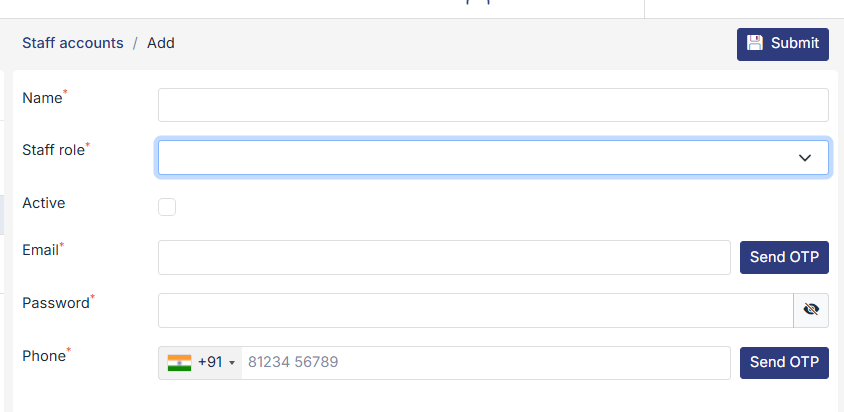
Steps to Add Staff
- Go to Settings > Staff Accounts and click Add.
- Enter the Name of the staff member.
- Select a Staff Role from the dropdown.
- Enable Active to allow immediate access.
- Enter the Email ID and click Send OTP for verification.
- Set a Password.
- Enter the Phone Number and verify using Send OTP.
- Click Submit to complete the setup.
Once added, the staff member will receive login access based on the assigned permissions.
Benefits of Using Staff Accounts
- Avoid sharing the primary seller login
- Assign role-based access to team members
- Improve operational efficiency
- Maintain security and accountability