
Staff Role
Roles define what a staff member can view or manage in the dashboard. You can assign predefined roles or customize permissions based on your business needs. The following steps guide you to add staff roles.
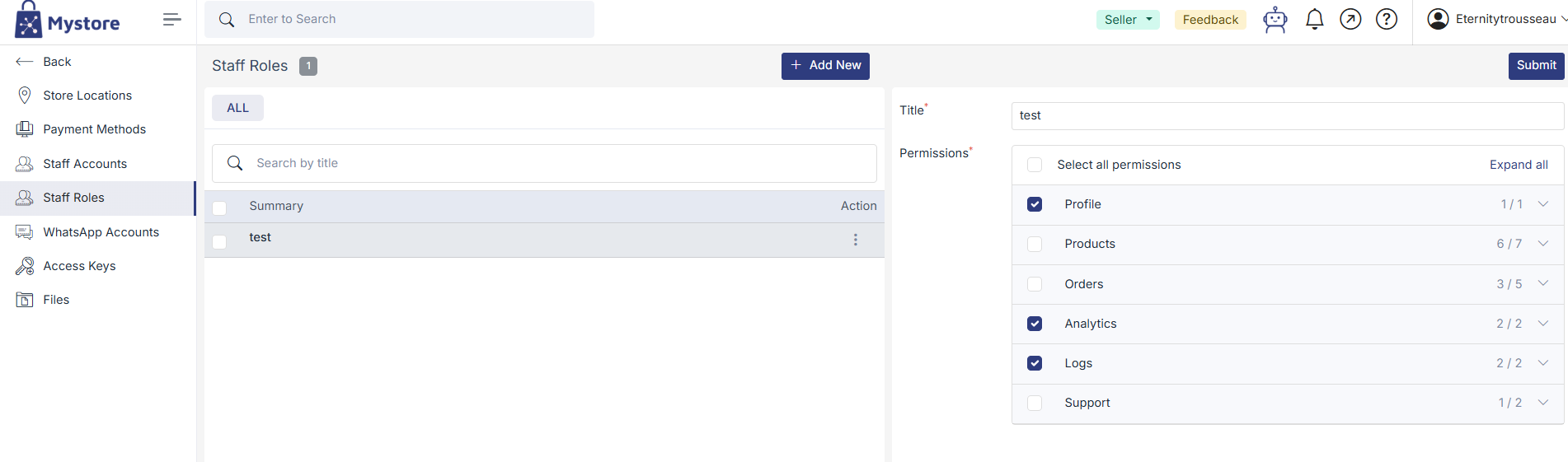
- Go to Setting > Staff Roles from seller dashboard.
- Click Add staff / Edit staff.
- Enter a Title (for example: Order Manager, Product Executive).
- Under Permissions, select the required access.
- Use Expand all to view detailed permissions.
- Click Save.
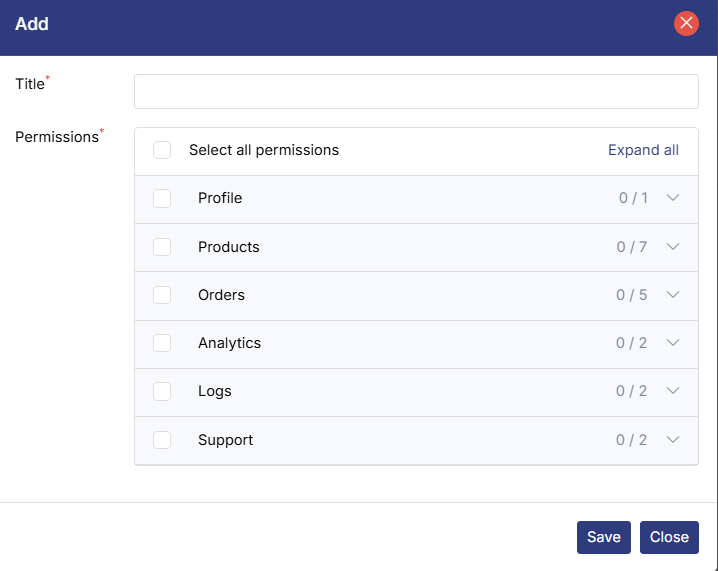
Available Permission Categories
- Profile: View or manage store profile details
- Products: Add, edit, or manage product listings and inventory
- Orders: View and process customer orders
- Analytics: Access sales and performance reports
- Logs: View system and activity logs
- Support: Manage support tickets and customer queries
Note: Use Expand all to view detailed permissions.
Edit or Delete Staff Role
You can edit or delete staff accounts by clicking on the ellipsis menu.
- To edit a staff account, select the staff member and update their role or details.
- To disable or remove access, deactivate or delete the staff account from the list.
Important Notes
- Only the store owner or admin can add, edit, or remove staff accounts.
- Staff members cannot access sections not permitted by their assigned role.
- Always review permissions carefully before assigning access.
Was this page helpful?