User Segments
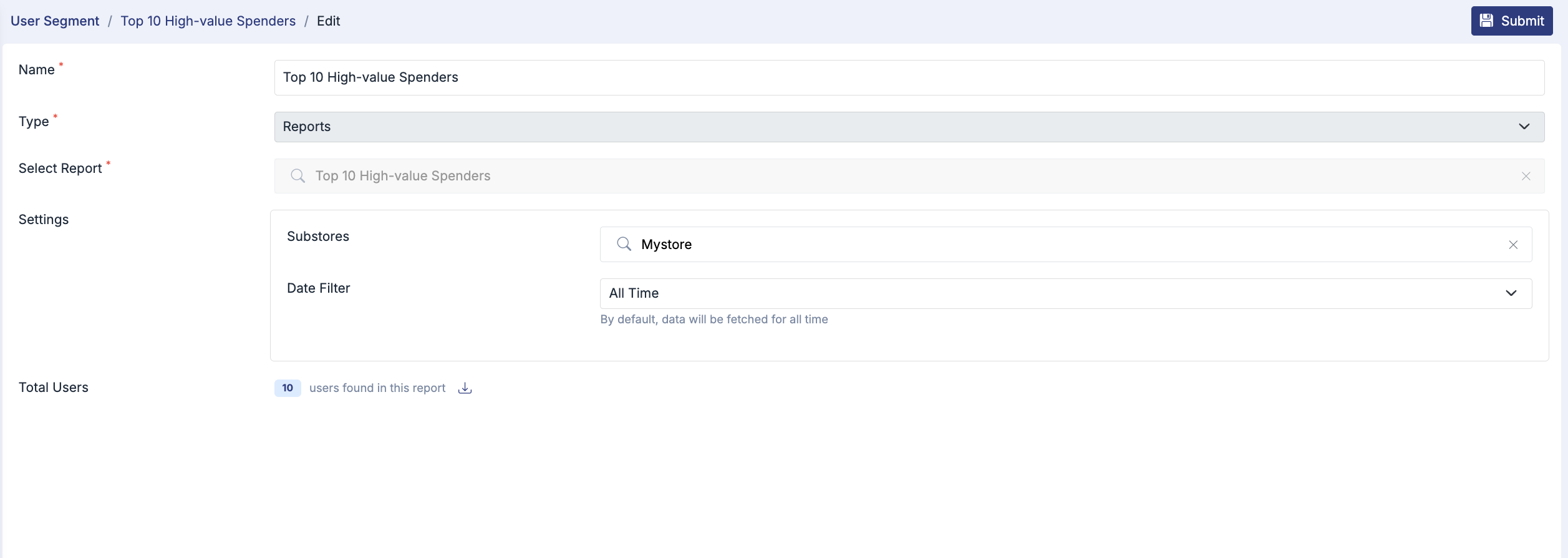
The User Segments feature in Mystore allows sellers to group customers. You can either upload a CSV or use some user filters like email, phone, or created on. These segments can be used for targeted marketing campaigns. By organizing customers into meaningful groups, sellers can communicate more effectively and improve overall sales performance.
Accessing User Segments
To access this feature, navigate to the Dashboard and go to Marketing> user segment. The page displays a list of all available segments along with their name, type, and available actions. You can search for a segment using the search bar or manage an existing segment using the action menu.
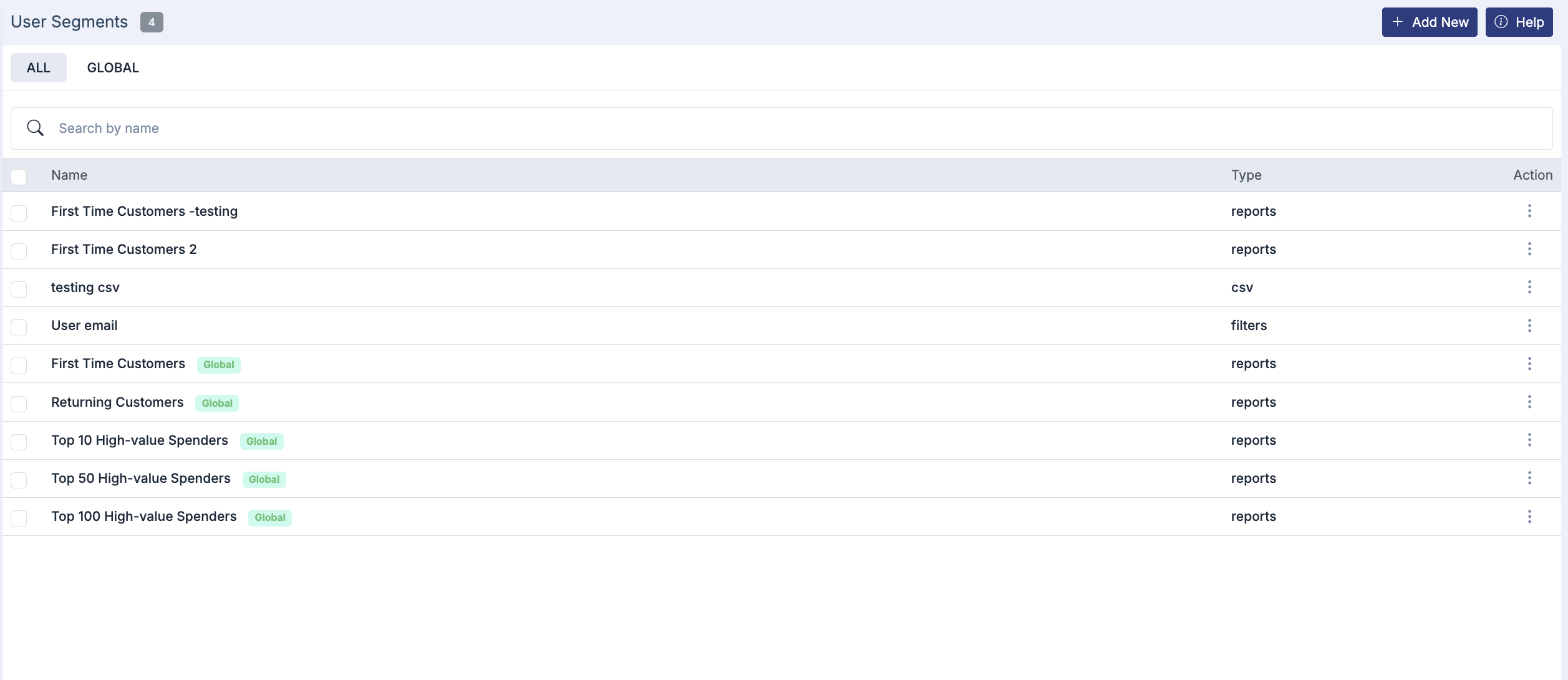
Predefined report segments are automatically generated. First Time Customers include customers who have placed only one order. Returning customers include customers who have placed multiple orders. High-value spender segments such as Top 10, Top 50, and Top 100 High-Value Spenders are based on total purchase value and are updated dynamically by the system by default.
Creating a New User Segment
To create a new segment, click on Add New in the top-right corner of the User Segments page. You will be redirected to the segment creation form.

In the Name field, enter a unique and meaningful name for the segment, such as New Visitors or Festival Buyers. In the Type field, select CSV if you want to upload a custom customer list or select Filter.

Uploading a CSV File
When the CSV type is selected, you must upload a CSV file containing customer data. The file must be in .csv format and should include a header row. The file must contain a phone number column and an email column.
Ensure that the phone numbers are valid and properly formatted without special characters. The column names in the CSV must match exactly with the names entered in the Column Map section.
Column Mapping
After uploading the CSV file, you must map the CSV columns to the system fields. In the Phone Column field, enter the exact header name used for phone numbers in your CSV file. In the Email Column field, enter the exact header name used for email addresses.
If the column names do not match exactly, the system will not correctly import the data.
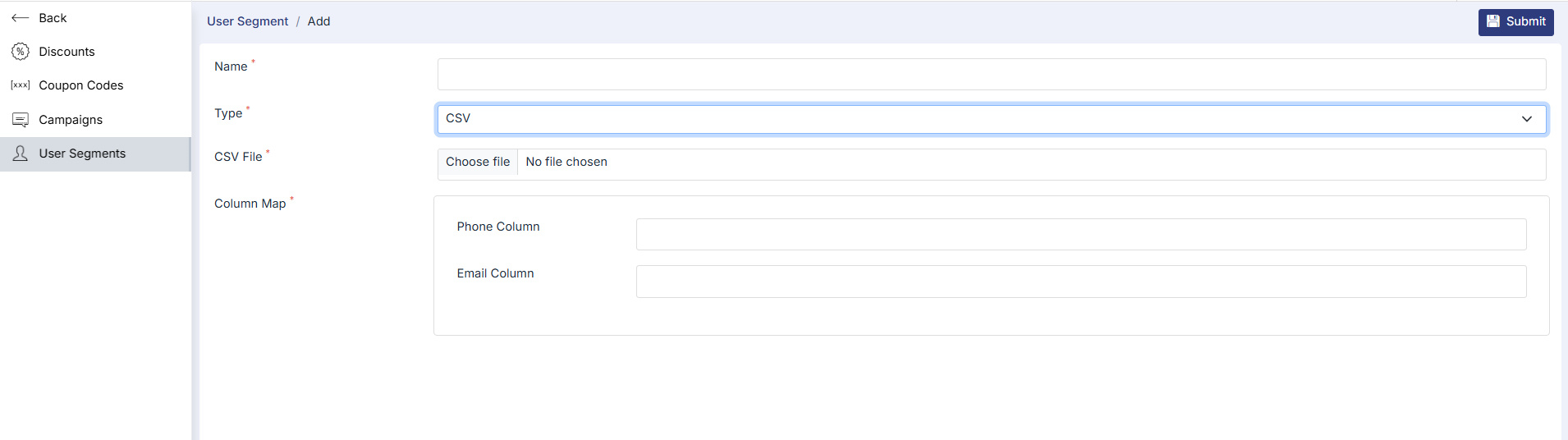
Note: The name of the column must not include space. For example, "ph no" is wrong, but "ph_no" is right.
Applying Filters
You can further refine your segment by applying filters. Available fields include Email, Phone, and Created On. After selecting a field, choose the appropriate operator and provide the value. For example, you can filter customers created after a specific date or include only customers whose email contains a particular domain.
Filters help narrow down the customer group based on specific conditions. You can remove a filter using the delete option if needed.

Submitting the Segment
Once all required details are completed, click Submit to create the segment. After submission, the segment will appear in the User Segments list and can be used for campaigns or reporting purposes.
Editing or Deleting a Segment
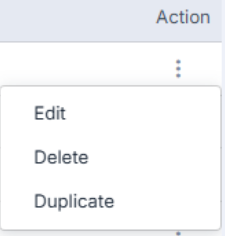
Existing segments can be managed using the action menu available next to each segment. You may be able to edit, delete, or duplicate a segment from the three dots' action menu.
Global User Segments
You can check the Global user segments by clicking on the "Global" tab from the user segment list.
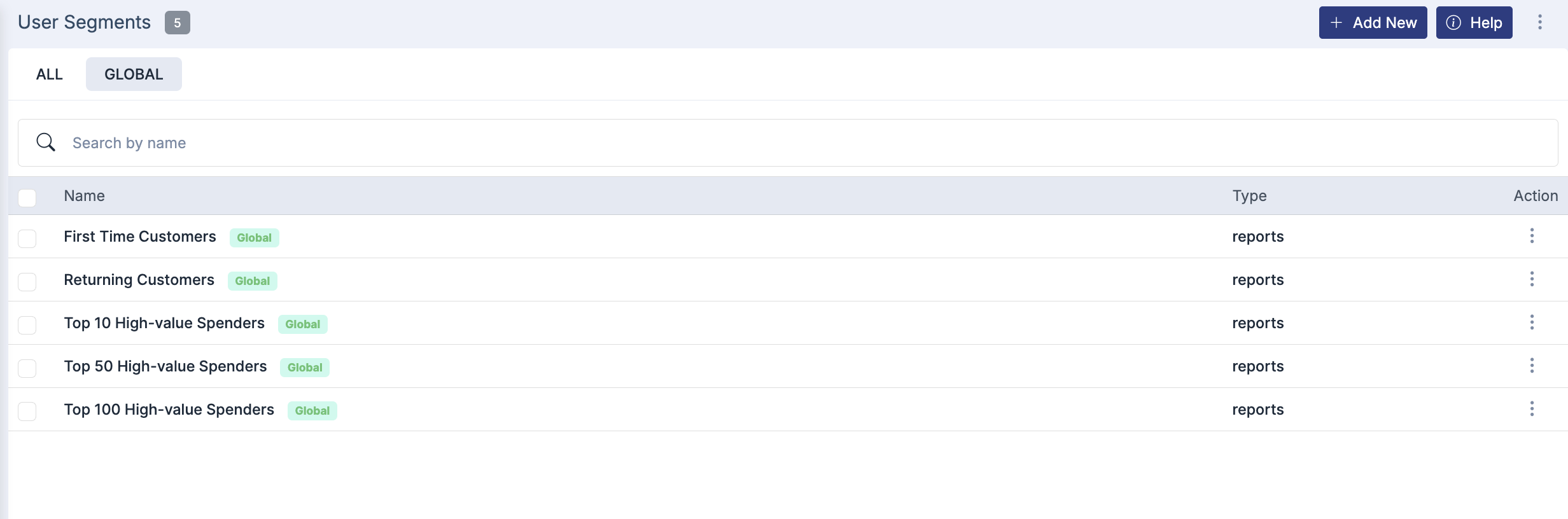
You can see the total users in the selected user segment list.