
WhatsApp Channel
The WhatsApp channel connects your WhatsApp Business account to your store. Once it’s set up, you can sync your product catalogue to WhatsApp, Facebook, and Instagram so shoppers can browse your products right inside the chat.
Setup has three simple parts: first you connect your WhatsApp Business account through Meta, then you connect your product catalogue, and finally you register your product feed so it stays in sync.
Note: You’ll connect through Meta (Facebook) using your existing WhatsApp Business account and number, so keep your Meta login handy. Your WhatsApp number must already be configured with Meta before you start.
1. Before you begin
Make sure you have:
- A WhatsApp Business account already set up with Meta.
- A phone number registered on that WhatsApp Business account.
- Access to your Meta (Facebook) Business login.
To open the channel: from your Mystore Seller Dashboard, go to Channels and open WhatsApp.
Part 1 Connect your WhatsApp Business account
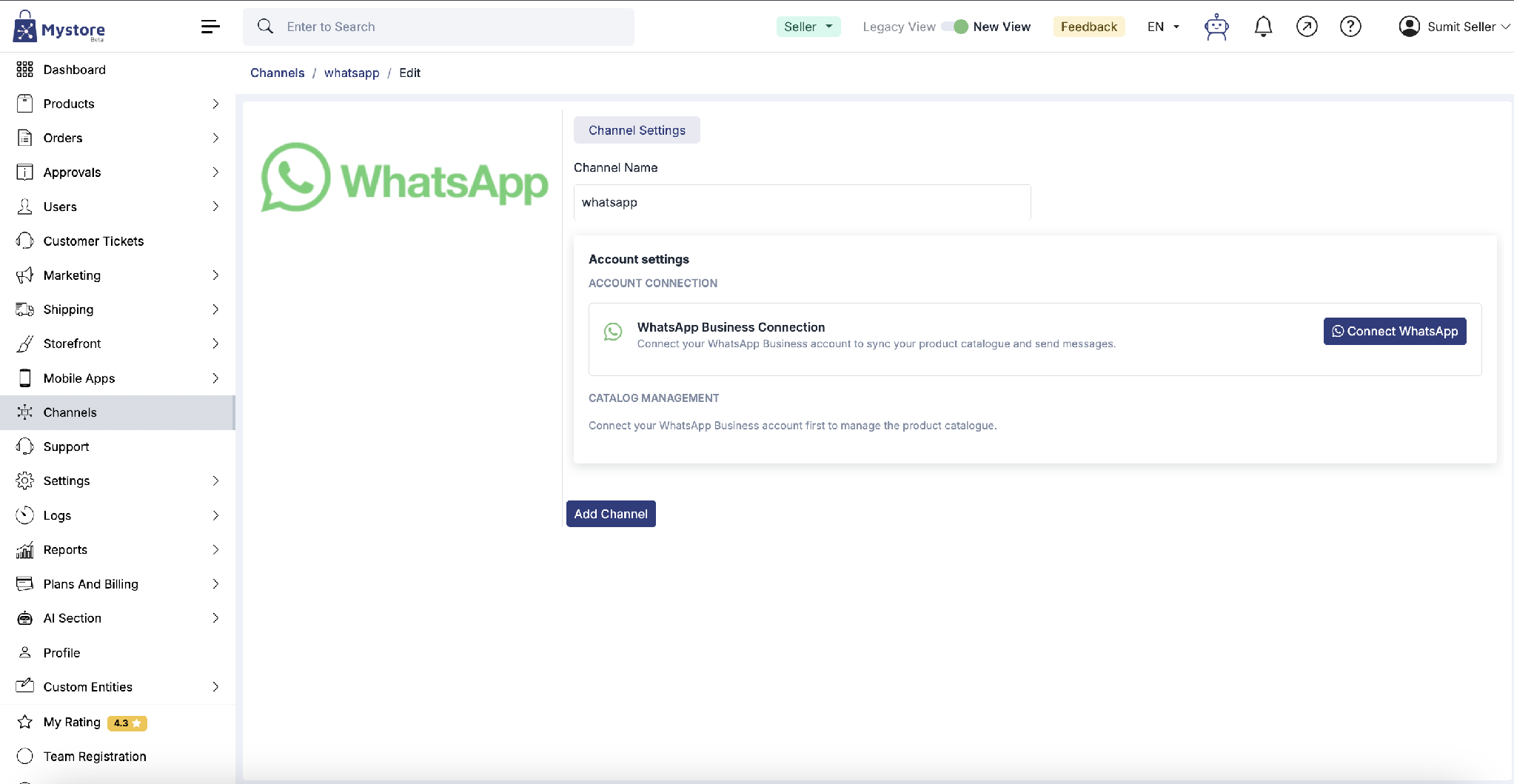
- On the WhatsApp channel page, you can set a Channel Name (for example, “whatsapp”).
- Under Account Connection, click Connect WhatsApp.
- A Meta Facebook Login for Business window opens. Select the business assets to share with Mystore your Business portfolio and your WhatsApp Business account (the WhatsApp number you configured with Meta).
- Click Next and follow the on-screen prompts to finish connecting.
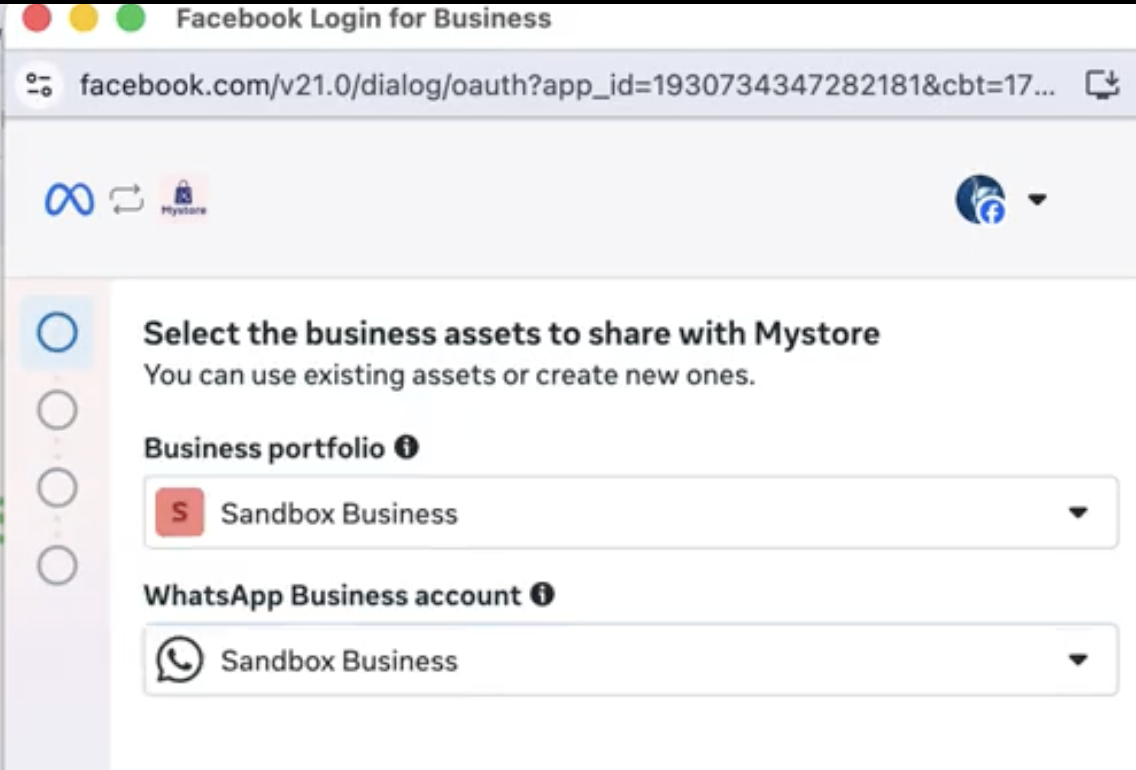
- Meta’s login window choose your business portfolio and WhatsApp Business account.
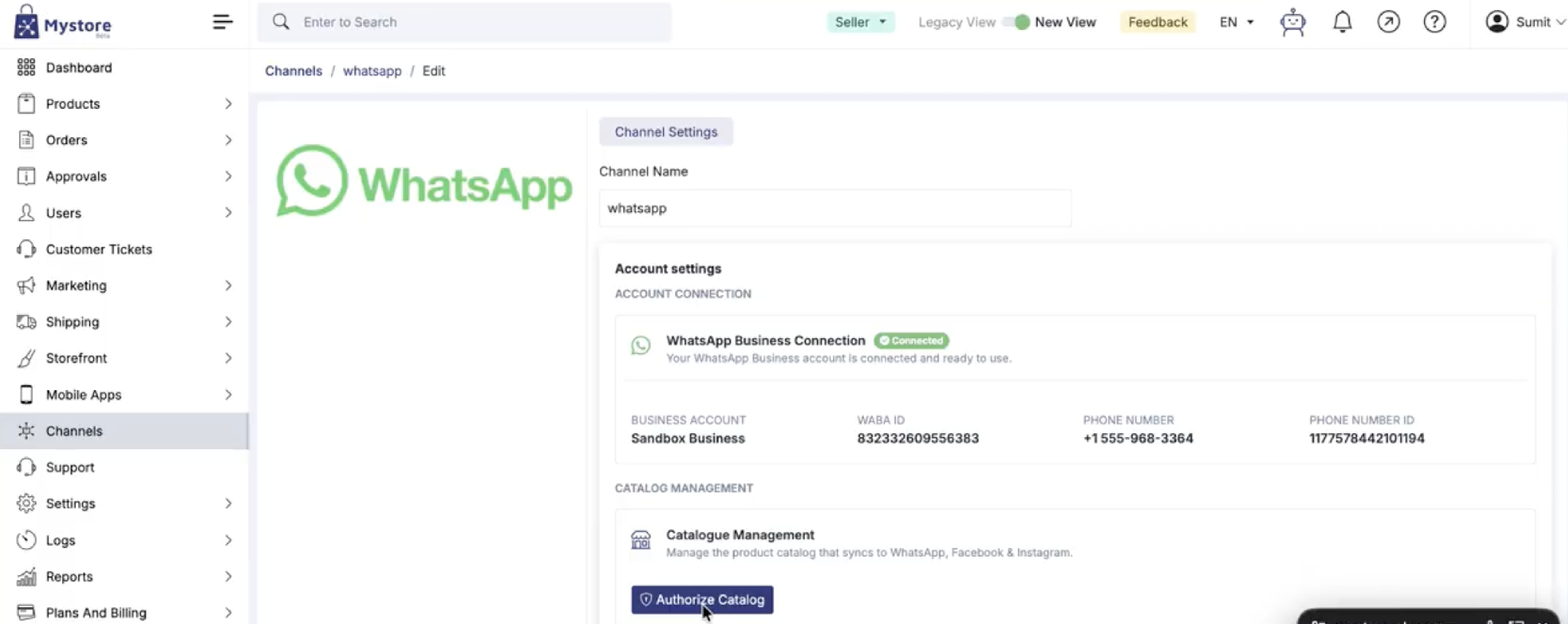
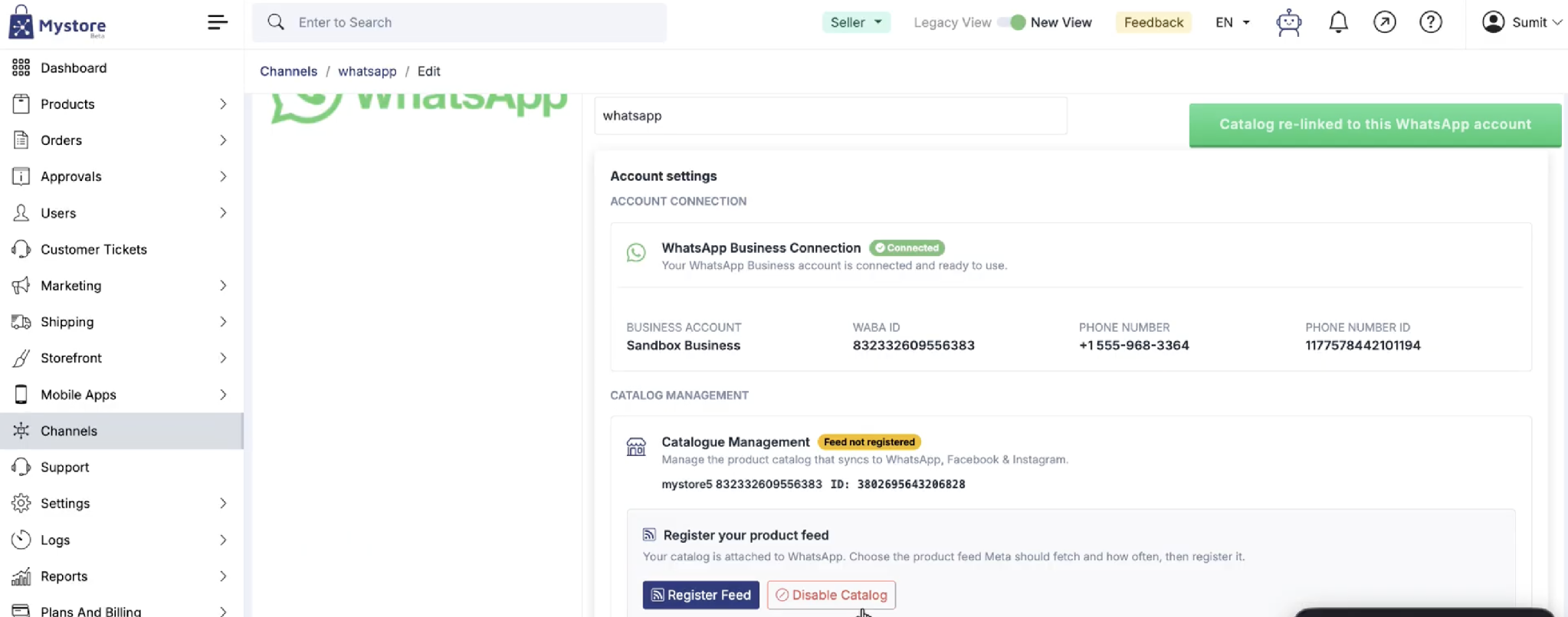
- Once connected, the WhatsApp Business Connection shows a green Connected badge, and your account details appear: Business Account, WABA ID, Phone Number, and Phone Number ID.
Part 2 Connect your product catalogue
Your catalogue is the list of products that syncs to WhatsApp, Facebook, and Instagram.
Under Catalog Management, click Authorize Catalog.
If you see an error: Your WhatsApp account may already be linked to a different catalogue. If so, the status shows Failed with a message like “This WhatsApp account is already linked to a different catalog… Unlink it in Commerce Manager before linking a new one.” Simply click Unlink & Relink (or Retry Setup) to link it to this store instead.
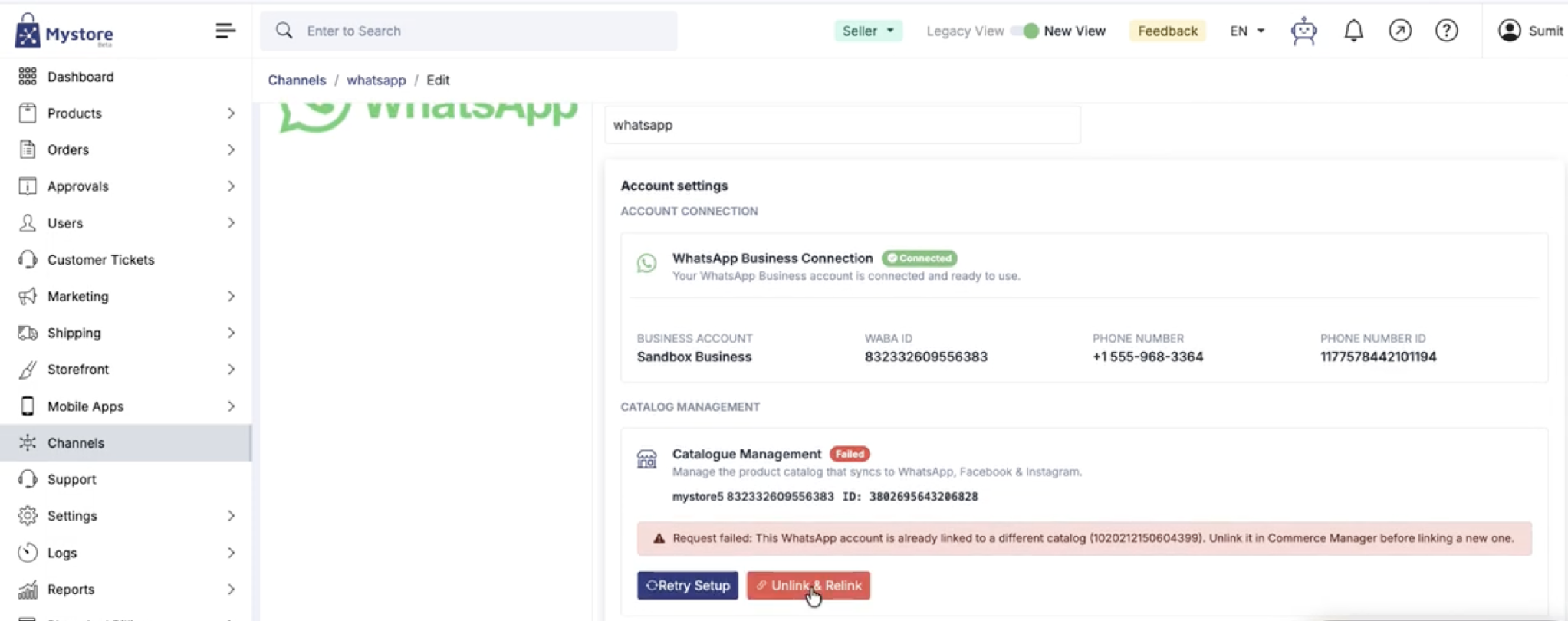
When it succeeds, you’ll see a green Catalog re-linked to this WhatsApp account message.
Part 3 Register your product feed
Registering the feed tells Meta which products to fetch from your store, and how often to refresh them.
- Under Catalogue Management (now showing Feed not registered), click Register Feed.
- Choose what to send in the Product feed either All products, or a Specific collection.
- Set the Sync frequency (for example, Daily) and the Time the sync should run.
- Click Register Feed.
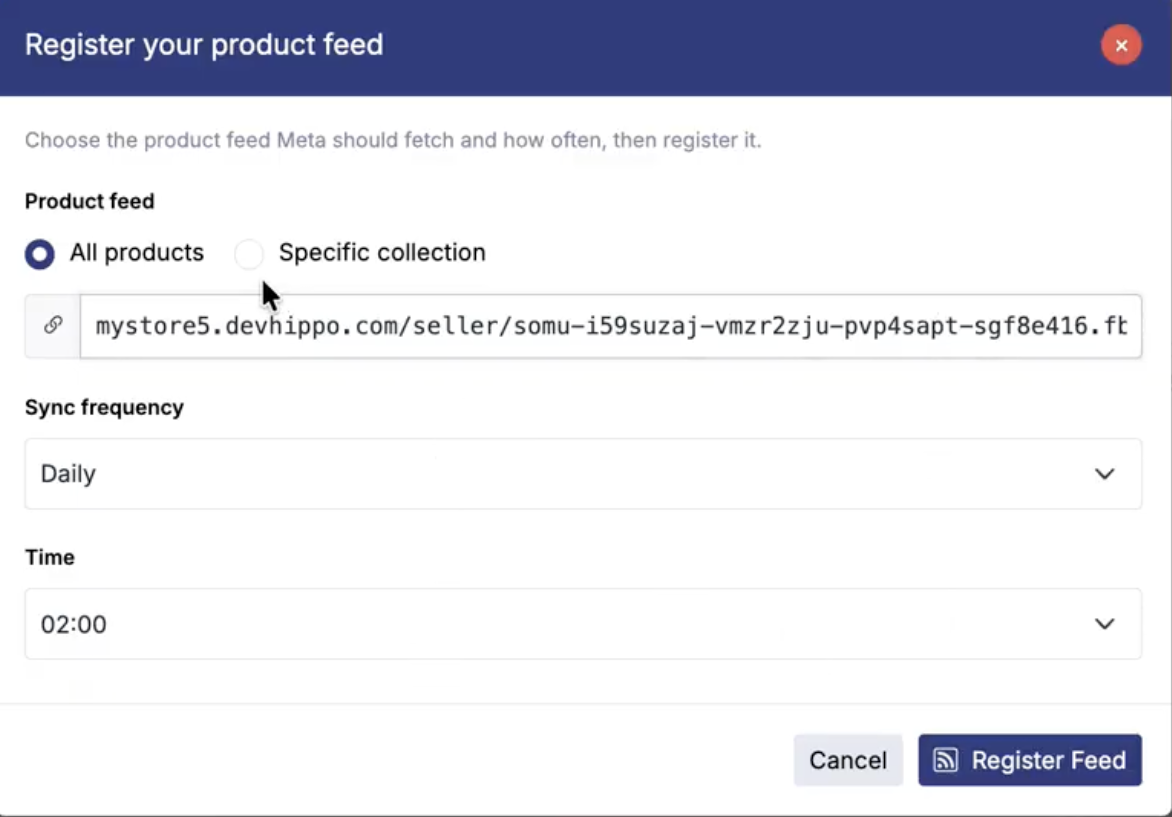
Choose All products or a collection, set the sync frequency and time.
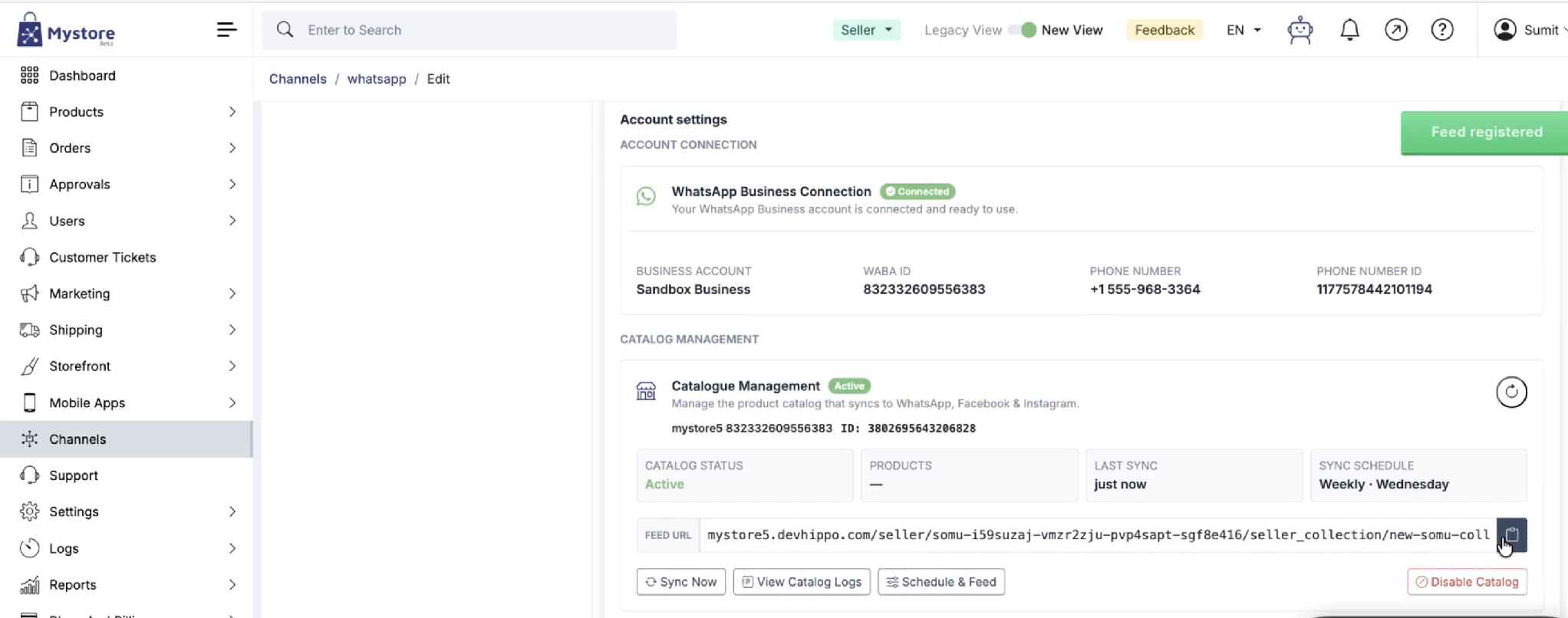
You’ll see a green Feed registered message, and the catalogue status changes to Active. Your products will now sync to WhatsApp on the schedule you chose.
What the connection details mean
After connecting, you’ll see a few technical values. Here’s what they are you don’t need to change them:
- Business Account: The name of your Meta business profile linked to WhatsApp.
- WABA ID: Your WhatsApp Business Account ID a unique number Meta uses to identify your account.
- Phone Number: The WhatsApp number customers will message.
- Phone Number ID: Meta’s internal ID for that phone number.
Managing your catalogue after setup
Once the catalogue is Active, the panel gives you a few controls:
- Catalog status: Shows whether syncing is Active.
- Last sync: When your products last refreshed on WhatsApp.
- Sync schedule: How often the feed refreshes (e.g. Weekly · Wednesday).
- Sync Now: Pushes your latest products to WhatsApp straight away.
- View Catalog Logs: Shows a history of syncs, useful for checking what happened.
- Schedule & Feed: Change the feed source, frequency, or time.
- Disable Catalog: Stops syncing and removes the catalogue link.
Fixing common issues
What you see | What to do |
|---|---|
“Already linked to a different catalog” (Failed) | Click Unlink & Relink to move the catalogue to this store, or Retry Setup. |
“Feed not registered” | Click Register Feed and choose your products and schedule. |
Products not showing on WhatsApp | Open the catalogue and click Sync Now, then check View Catalog Logs. |
Need to change what syncs | Use Schedule & Feed to update the feed source, frequency, or time. |
Handy tips
- Connect WhatsApp first: The catalogue options only appear once your WhatsApp Business account is connected.
- Use “All products” to start: You can switch to a specific collection later from Schedule & Feed.
- Pick a quiet sync time: Scheduling the sync for off-peak hours (like 2:00 AM) keeps things smooth.
- After big catalogue changes, use Sync Now so WhatsApp updates without waiting for the next scheduled sync.
Once your WhatsApp app channel is integrated, you can use WhatsApp Templates and Campaigns to promote products or send utility messages.