
WhatsApp Templates
WhatsApp Templates in Mystore allow you to create, customize, and manage predefined message formats that are automatically sent to customers for different order or event updates. These templates ensure professional, consistent, and personalized communication through WhatsApp.
Managing WhatsApp Templates
1. Access Template Settings
- Click on Manage Account from the WhatsApp Accounts section.
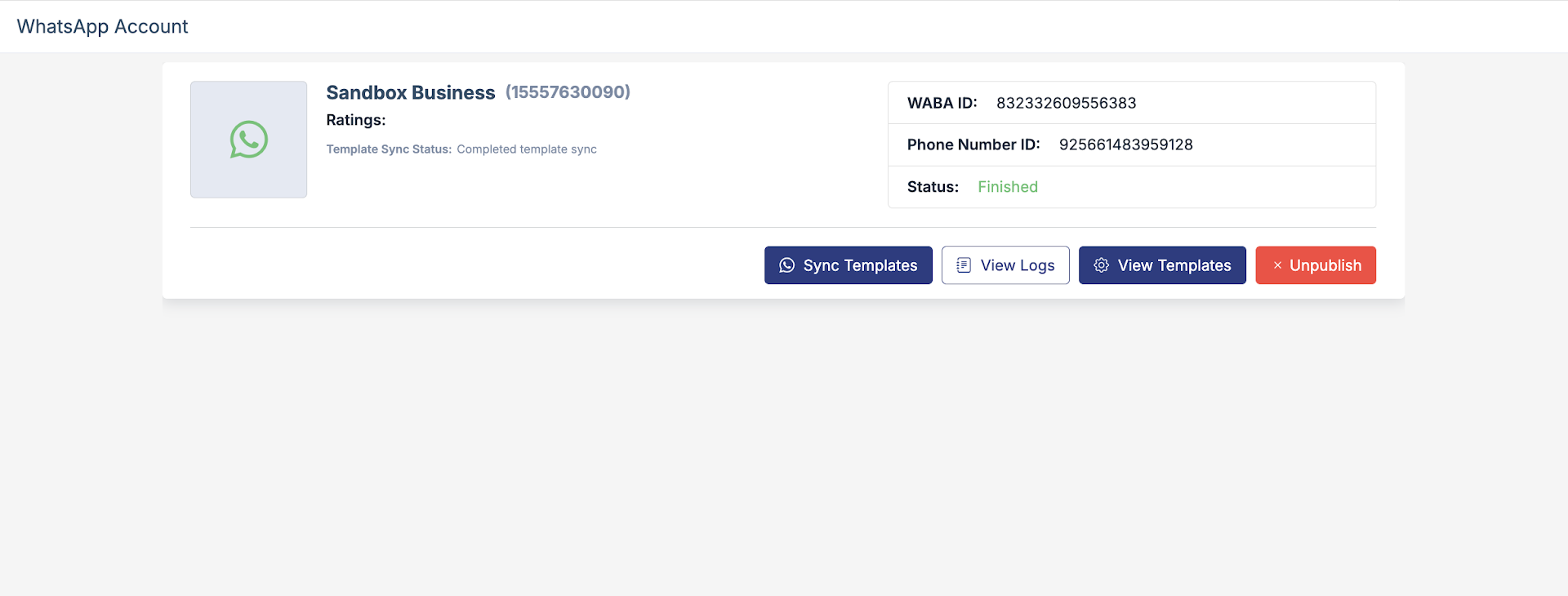
- You will be redirected to the WhatsApp Template page.

2. Select a Template
- Click on the template you want to customize.
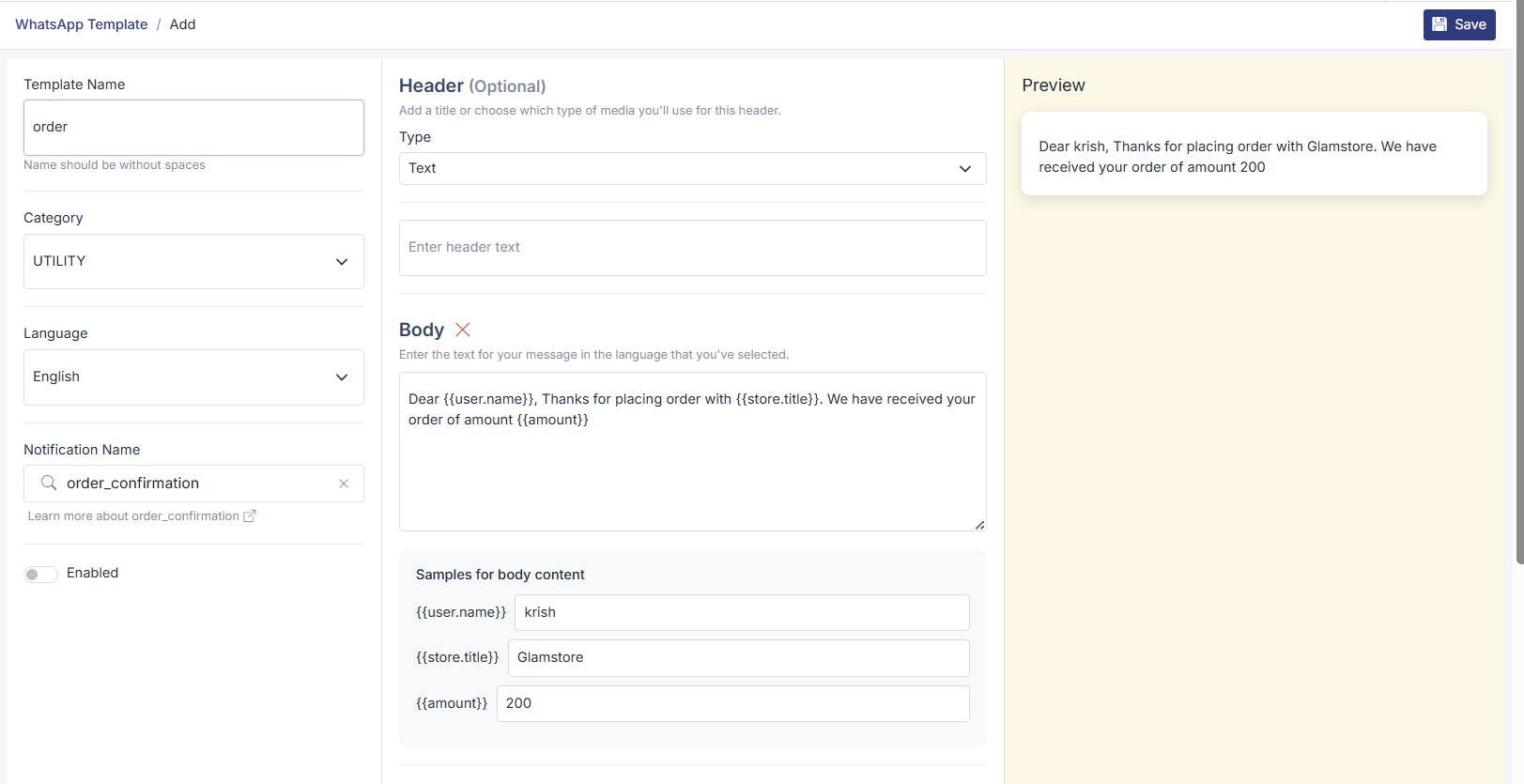
3. Left Panel – Template Configuration
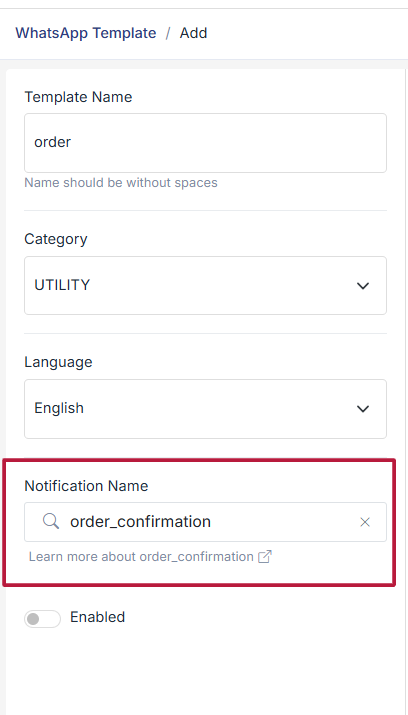
- Enter a Template Name such as product_feedback, on_hold_gift_card, ready_for_pickup, order_delayed.
- The template name must be without spaces (use underscores if required).
- Select the Category (for example, UTILITY for transactional messages and Marketing for promotion messages).
- Choose the Language of the template.
- Under Notification Name, select the event that should trigger this template (for example,
order_confirmation). You can refer to the Help Center shown below the field and directly add variables such as {{ order.order_id }} in the message body. - Enable or disable the template as required.
4. Center Panel – Template Content
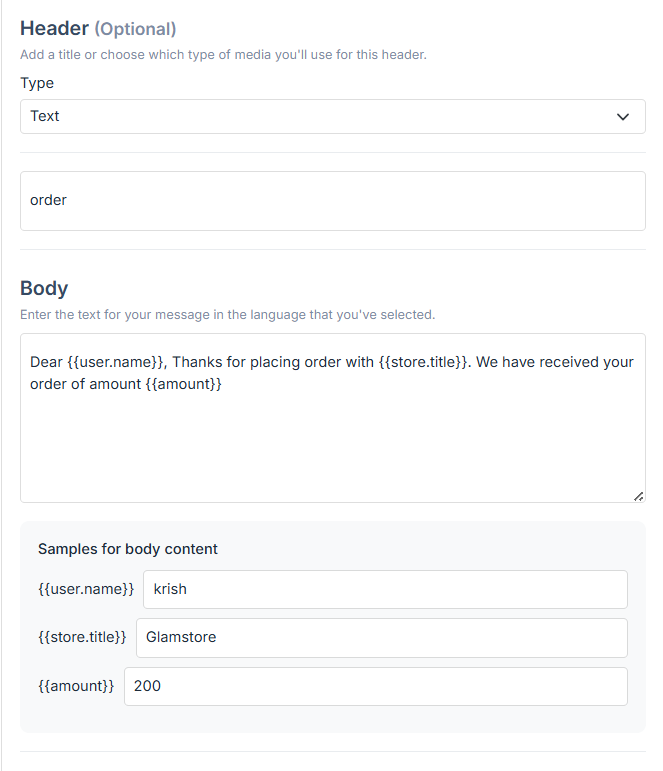
- Header (Optional): Add a short title or key detail. You can include one variable such as {{ order.order_id }} or {{ store.title }}.
- Body: Customize the main message content. You can include multiple variables by enclosing them within {{ }}.
- Once a variable is added, an input field appears at the bottom to define its value.
- The entered values are reflected in real time in the preview panel.
To ensure your templates are approved by Meta, follow these rules:
- No Ending Variables: A message must not end with a variable.
- ❌ Incorrect: "Your order is confirmed, {{ user.name }} "
- ✅ Correct: "Hi {{ user.name }}, your order is confirmed."
- Consistency in Formatting: Use either named variables (e.g., {{ user.name }}) or numeric placeholders (e.g., {{ 1 }} "). Named variables are recommended for clarity.
- Strict Editing Rules: Once a template is approved, only minor edits (such as spelling corrections) are allowed. The core message intent cannot be changed.
- Footer (Optional): Add additional information, disclaimers, or closing notes.
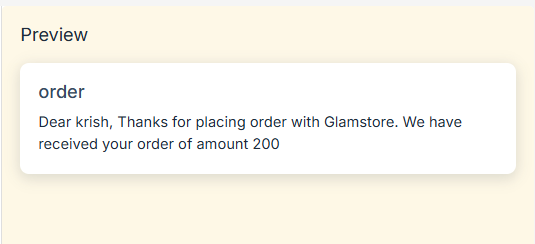
5. Right Panel – Real-Time Preview
- Preview how the message will appear on WhatsApp, including variables and formatting.
6. Save Changes
- Click Save to apply and store your changes.
Was this page helpful?