
Building the iOS App
The process for creating an iOS app is slightly more complex than Android because Apple requires extra steps like certificates, provisioning profiles, and signing keys. Don’t worry — follow the steps below carefully, and you’ll have your iOS app ready in no time.
Join the Apple Developer Program
- Visit the Apple Developer Program.
- Register with your Apple ID and complete the enrollment.
- Make sure your Apple Developer account is active and verified.
Generate CSR and Private Key in Mystore
1. Log in to Mystore Seller Panel.
2. Go to Mobile Apps > Mobile Signing Keys.
3. Click Generate Key and CSR.
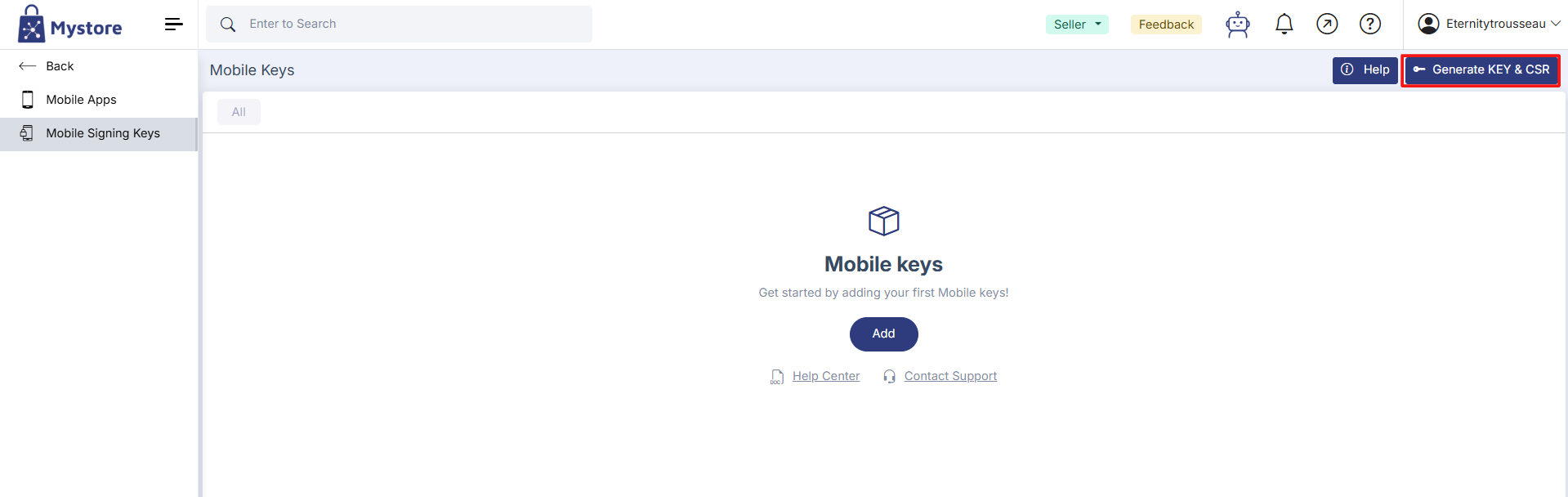
4. Fill in the required details:
- Country: 2-letter code (e.g., IN).
- State: Full name (e.g., Karnataka).
- City: Your locality (e.g., Bengaluru).
- Organization: Your company name.
- Department: e.g., Sales, Admin.
- Domain: Your domain (e.g., mystore.com).
- Email: Your registered email.
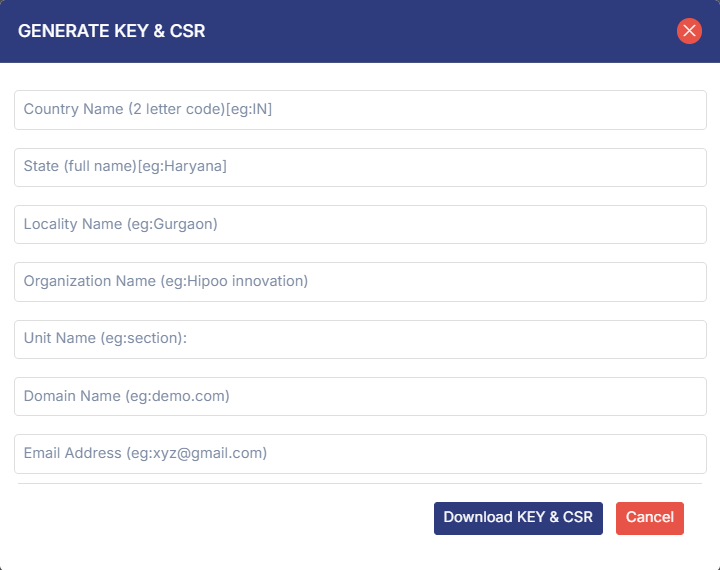
5. Click Download Key & CSR.
- This gives you two files: CSR (Certificate Signing Request) and Private Key.
- Keep them safe — you’ll need both in the next steps.
Create Certificate & Provisioning Profile in Apple Developer Account
1. Generate iOS Certificate (.cer file):
- Log in to your Apple Developer account.
- Go to Certificates → Click +.
- Select iOS Distribution (App Store and Ad Hoc).
- Upload the CSR file you downloaded from Mystore.
- Download the generated .cer certificate.
2. Create an App Identifier (Bundle ID):
- Go to Identifiers → Click +.
- Choose App IDs → App.
- Enter:
- Description: Your app’s name.
- Bundle ID: Use reverse domain format (e.g., com.mystore.app).
- Enable the following capabilities:
- Push Notifications
- Associated Domains
- Click Register.
3. Create a Provisioning Profile:
- Go to Profiles → Click +.
- Choose App Store (Distribution).
- Select your newly created App ID.
- Provide a profile name and generate it.
- Download the Provisioning Profile (.mobileprovision file).
Follow Generating iOS certificate and Provisioning profile for more details.
Upload Signing Files to Mystore
1. In Mystore Admin Panel, go to Mobile Apps > Mobile Signing Keys.
2. Click Add New → Select iOS.
3. Upload the following:
- Private Key (from Step 2).
- Certificate (.cer file) (from Step 3).
- Provisioning Profile (.mobileprovision) (from Step 3).
4. Enter your password – This password will be associated with the certificate.
5. Save the signing key.
Fill in App Details (General Tab)
Go to Mobile Apps > Add New / Edit App, and in the General tab fill in:
- Title: Your app’s name.
- Package: Reverse domain format (e.g., com.mystore.abc).
- Version: Enter the version (must be higher than your live app).
- Description: Short description of your app.
- Domain: Select your connected domain.
- Splash Image: Upload splash screen image. Splash image must be in following specifications,
- Format: PNG
- Dimensions: 1280x1920 pixels for ios
- App Icon: Upload your app icon. Incon must be in following specifications,
- Format: PNG
- Dimensions: 1024x1024 pixels
- Google Service Settings (optional):
- Upload GoogleService-info.plist (for Push Notifications/Google Login).
- Upload service-account.json if required.
- Platform: Select iOS.
Note: You can either choose Android or iOS not both.
Attach Signing Key to the App
- In the app settings, check the iOS platform box.
- Select the signing key you uploaded earlier.
- Save changes.
Configure Advanced & Social Settings
1. Social Login Tab (Optional):
- Add Google or Facebook login credentials if needed. (Refer social login for more details)
2.Create an Expo Account and Generate an Access Token
Create an Expo account and generate an access token to enable app build and deployment in Mystore. Add the token and your Expo organization name in the general settings tab to complete the setup.
Build the iOS App
- Save all settings.
- Click Build.
- Wait for the build process to complete.
- Once ready, you’ll see an option to Download the iOS App file (IPA).
That’s it! Your iOS app is now built and ready. You can test it on devices using your provisioning profile or submit it to the App Store via your Apple Developer account.