
Google Business Profile
A Google Business Profile (GBP) helps your store appear in Google Search and Google Maps, making it easier for buyers to find you online.
Why Google Business Profile Matters?
- Increases visibility on Google Search & Maps
- Builds trust with verified business information
- Helps buyers reach you easily (via call, directions, or website link)
- Free tool provided by Google
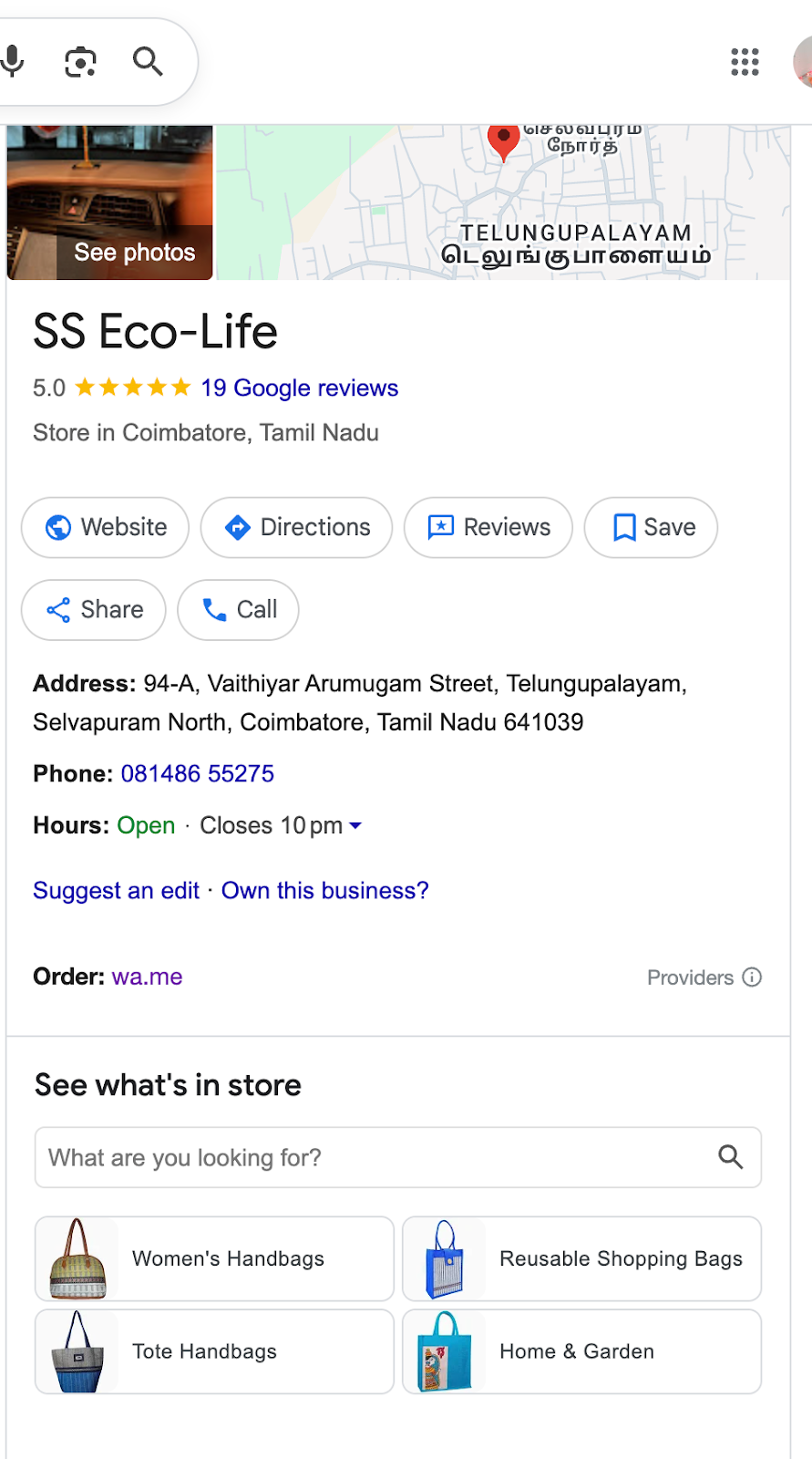
How to Create Your Profile
Step 1: Sign In
- Go to https://www.google.com/business/
- Sign in with your Google Account (Gmail ID).
Step 2: Add Your Business
- Click “Add your business to Google”.
- Enter your Business Name (must match your store brand).
Step 3: Choose Business Category
- Select the category that best fits your business (e.g., Clothing Store, Electronics Shop).
Step 4: Add Location
- If you have a physical store, add your address so it shows on Maps.
- If online only, choose “I deliver products/services to my customers”.
Step 5: Add Contact Details
- Enter your phone number and website/store link (e.g., Mystore shop URL).
Step 6: Verify Your Business
- Google will send a postcard with a code to your business address (or phone/email in some cases).
- Enter the code in your account to complete verification.
Best Practices for Your Profile
- Business Name → Use your exact registered brand/store name.
- Logo & Photos → Upload a clear logo and good product/shop photos.
- Opening Hours → Mention your working hours (buyers check this often).
- Products/Services → List your top products or categories.
- Updates/Posts → Share offers or new arrivals to engage customers Google Feed
Was this page helpful?