
Meta Ads (Facebook & Instagram Ads)
Meta Ads help you promote your store and products on Facebook, Instagram, Threads, and WhatsApp, allowing you to reach a large and relevant audience. With Meta Ads, you can show your products to customers based on their interests, location, age, and shopping behavior. This makes your marketing more targeted and effective.
By integrating Meta Ads with your store, you can track customer actions such as product views, add-to-cart, and purchases. You can create ads to promote new products, seasonal offers, discounts, or your overall brand.
Prerequisites
- Active Meta Business Manager account with configured Ads Manager with your location and currency selected
- ONDC network store is live on Mystore, and the product feed URL or sheet is available (generated from Mystore).
- Meta pixel is correctly configured and sends inventory events from your store. Refer: Meta pixel
Step 1: Open Commerce Manager
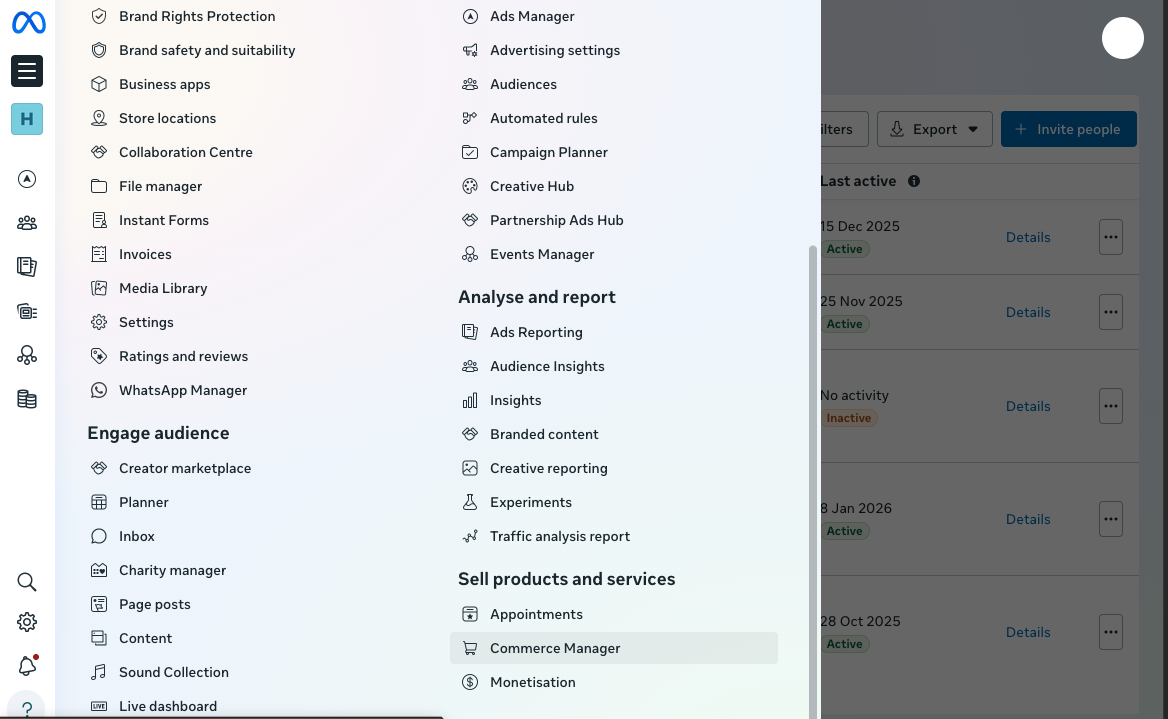
- Log in to Meta Business Suite and go to Commerce Manager from the left navigation.
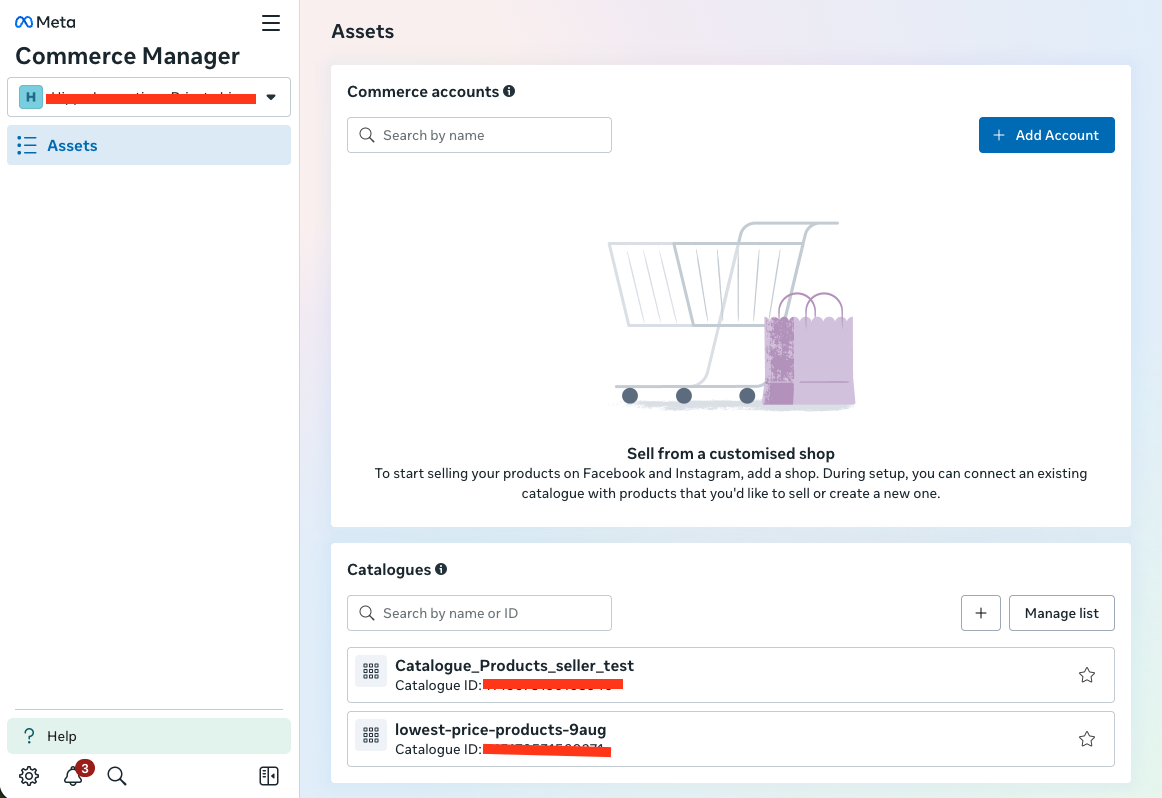
2. In Commerce accounts, scroll to Catalogues and click Add Account or use the + button to create a new catalogue.
Step 2: Create a New Catalogue
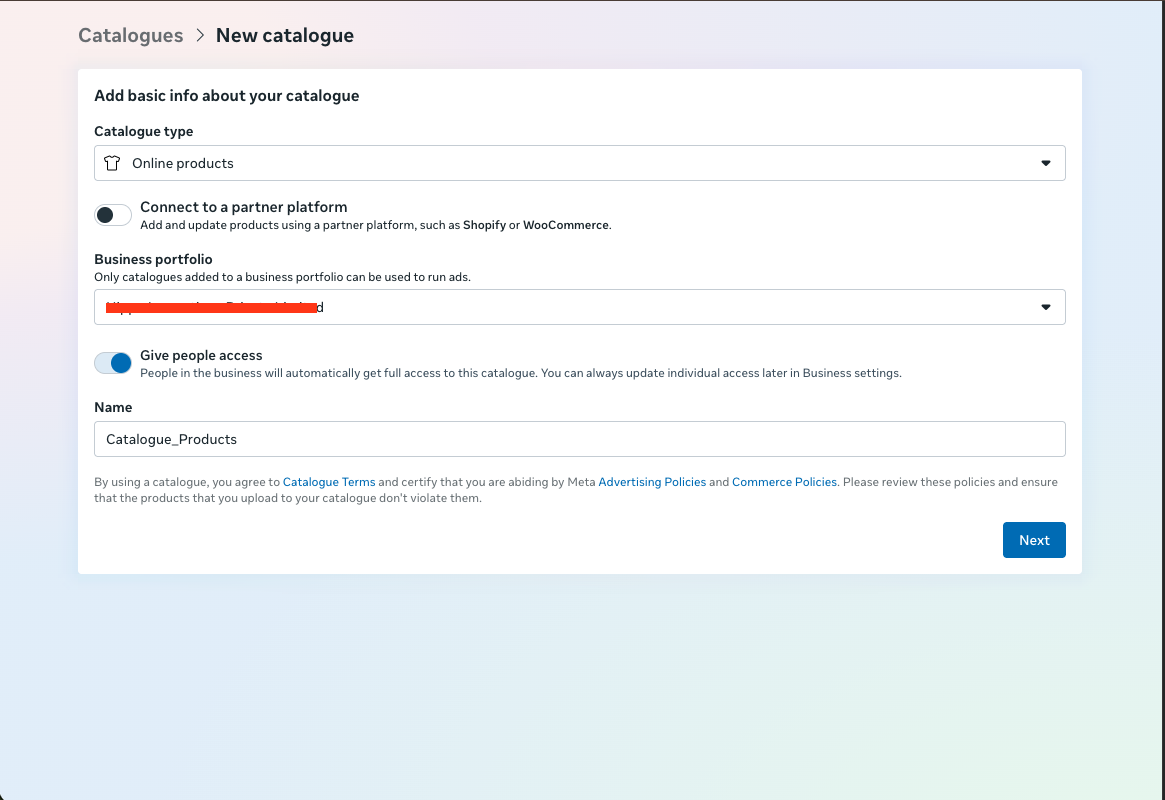
- Click Catalogues > New catalogue.
- Under Catalogue type, select Online products.
- In Connect to a partner platform, keep this unchecked (you will use a data feed from Mystore, not Shopify/WooCommerce).
- Enter a clear name, such as Mystore_ONDC_Products.
- Confirm that the catalogue is added to your business portfolio so it can be used for ads.
- Click Next.
Step 3: Connect Tracking (Pixel / Dataset)
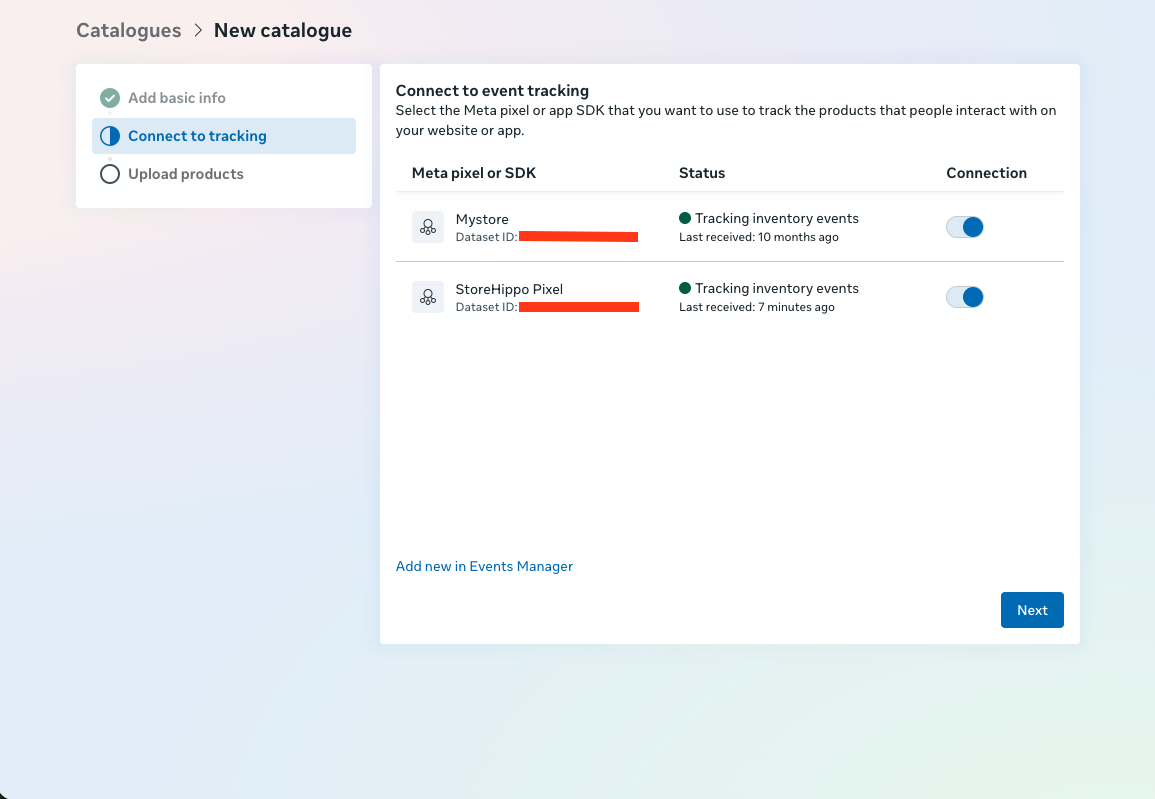
- In the Connect to tracking step, choose the correct Meta pixel or SDK.
- Select your Mystore pixel dataset, which tracks inventory and product events.
- Ensure status shows as tracking inventory events with a recent Last received timestamp.
- If you need a new pixel/dataset, click Add new in Events Manager and then return to connect it.
- Click Next.
Step 4: Choose Product Upload Method
- In the Upload products step, choose Connect to a data feed to sync your Mystore products automatically.
- Click Next.
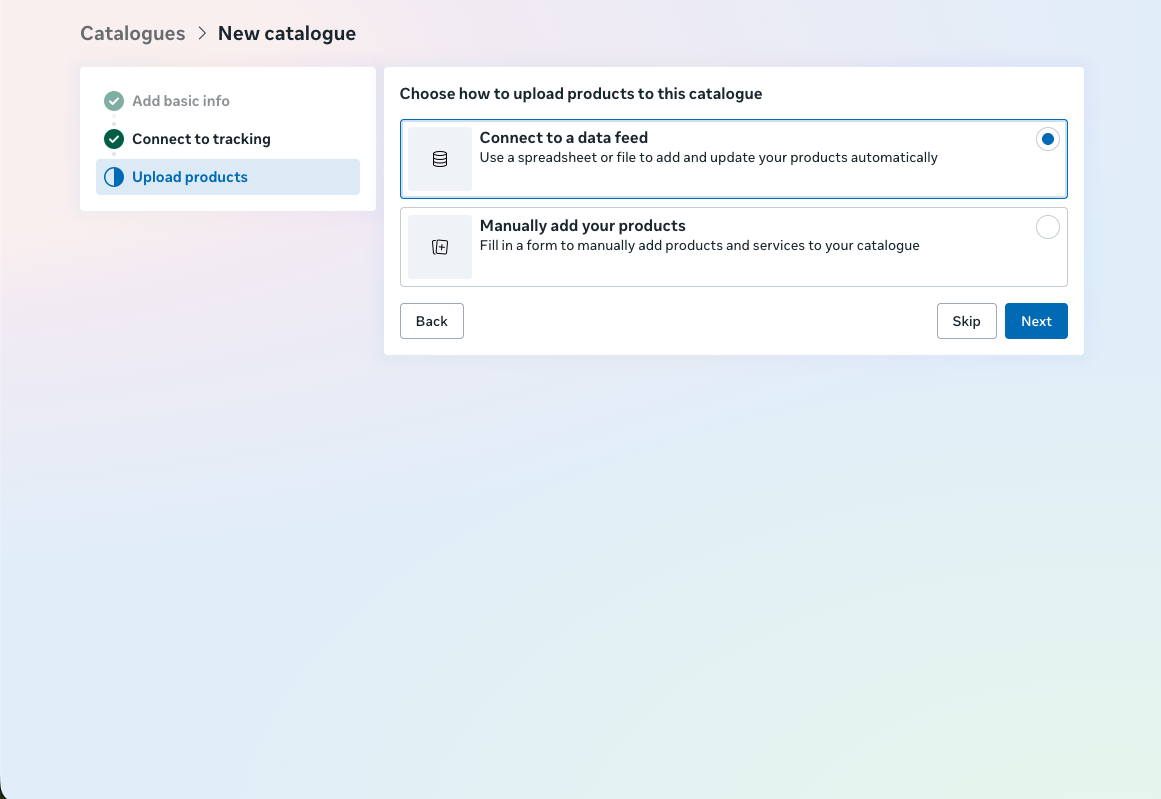
Step 5: Add Products via Data Feed
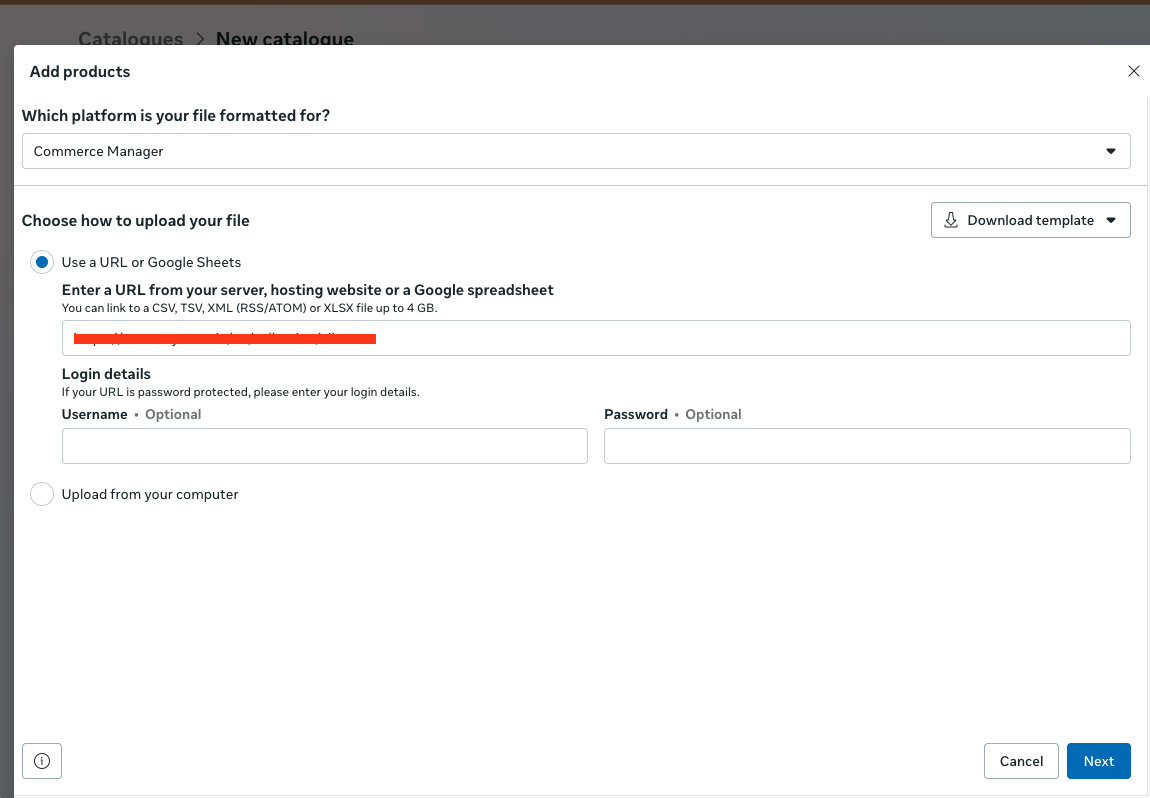
- In Add products:
- Choose Use a URL or Google Sheets.
- Enter the feed URL from Mystore (https://www.mystore.in/en/seller/store.atom).
- You can also upload from your computer if you downloaded the feed file from Mystore.
- Click Next.
Step 6: Confirm Feed Settings and Schedule
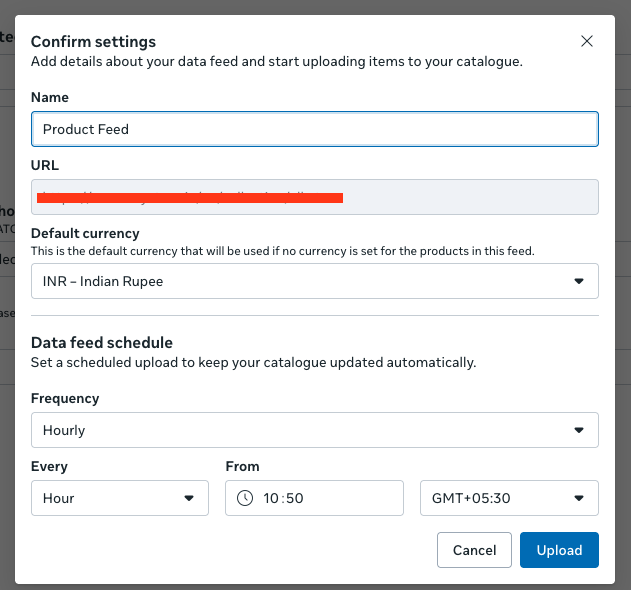
- In Confirm settings, set a clear name for the feed, for example, Product Feed.
- Confirm the URL is correct and accessible.
- Set the default currency to INR Indian Rupee.
- Configure the data feed schedule to keep the catalog updated:
- Frequency: Hourly or daily, depending on how often your inventory changes.
- Set the From time and time zone (e.g., GMT+05:30).
- Click Upload to start the first sync.
Step 7: Review Catalogue and Products
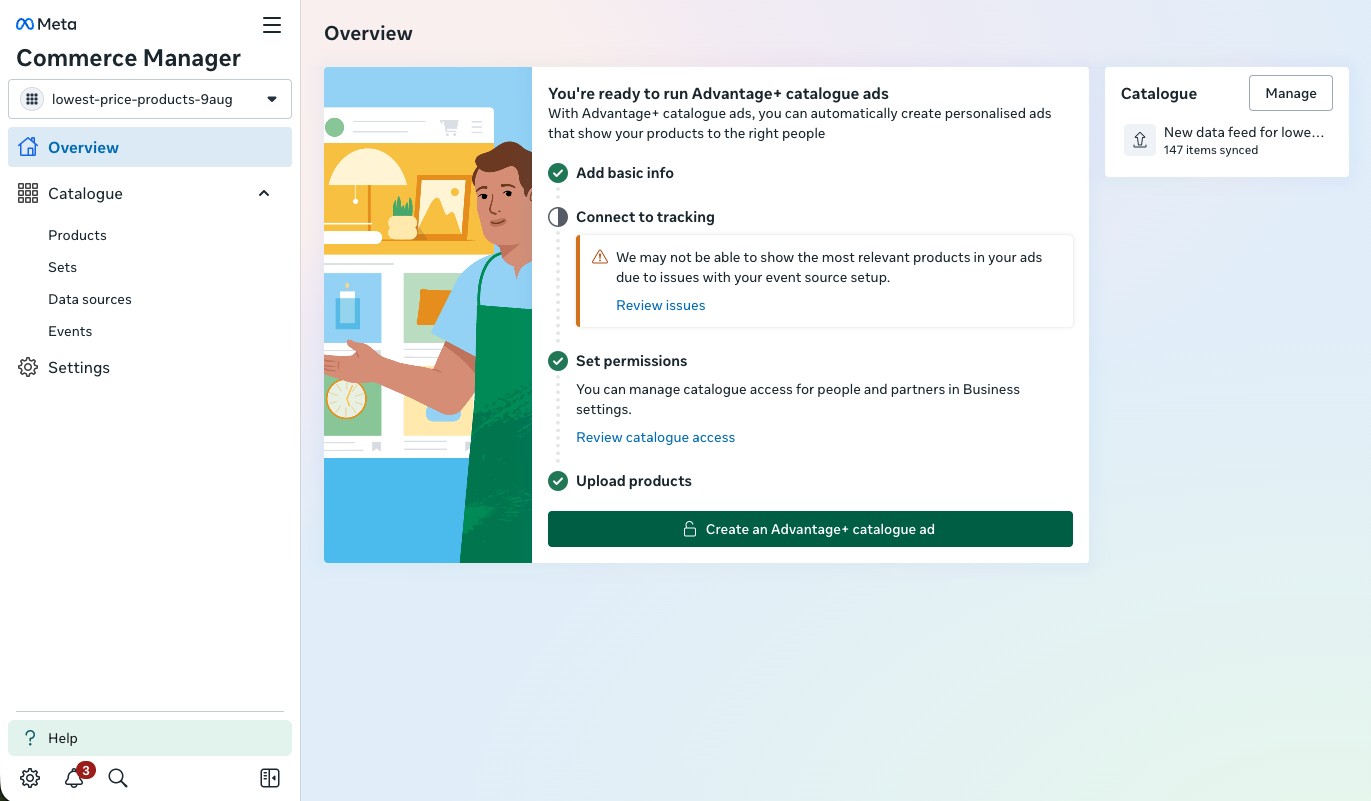
- Open your catalogue (e.g., lowest-price-products-9aug) and go to Overview.
- Confirm that you see a message like “You’re ready to run Advantage+ catalogue ads” and that items are synced (for example, 147 items synced).
- Go to the Products tab to see all products and variants imported from your feed.
- Use search and filters to verify titles, availability, prices, and issues.
Step 8: Manage Products and Variants
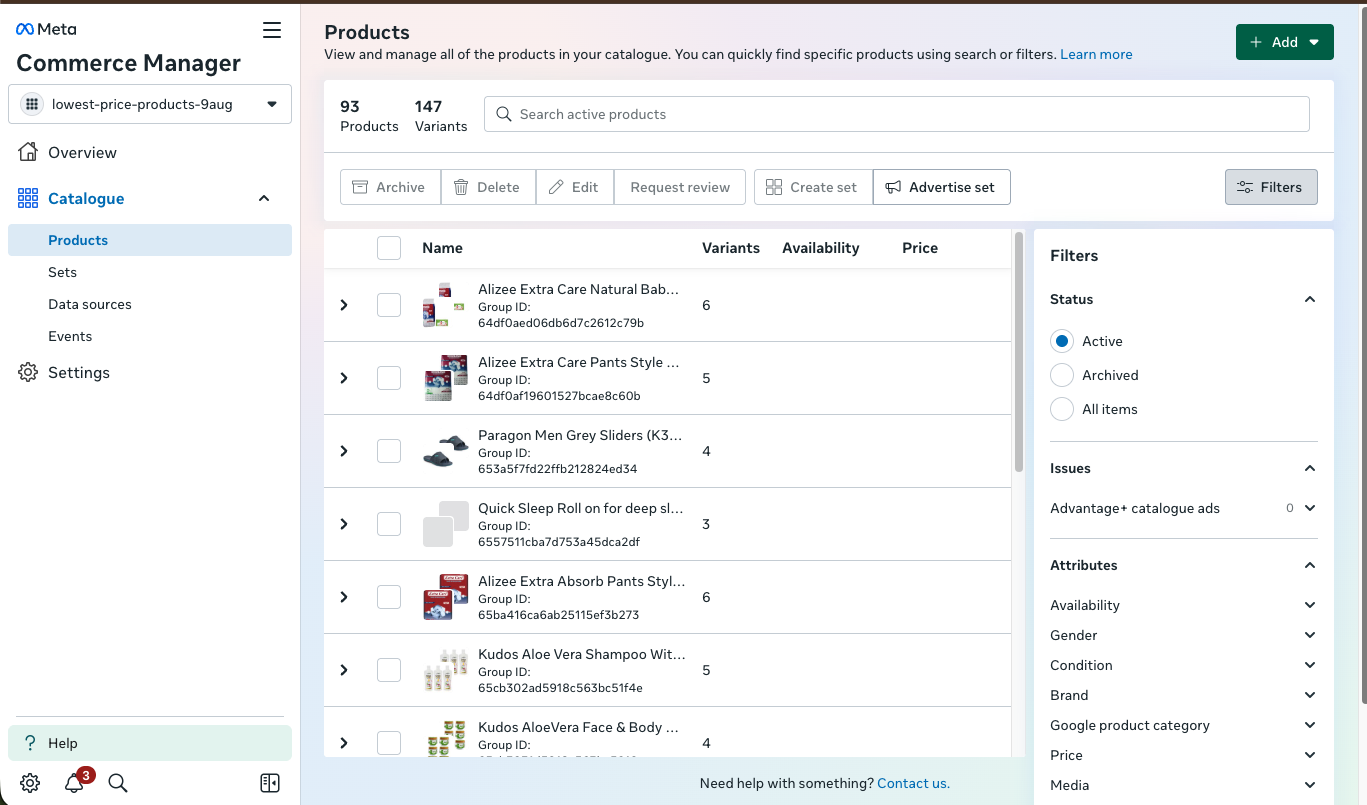
- In Products, you will see:
- Product and variant counts (e.g., 93 products, 147 variants).
- Status, availability, price, brand
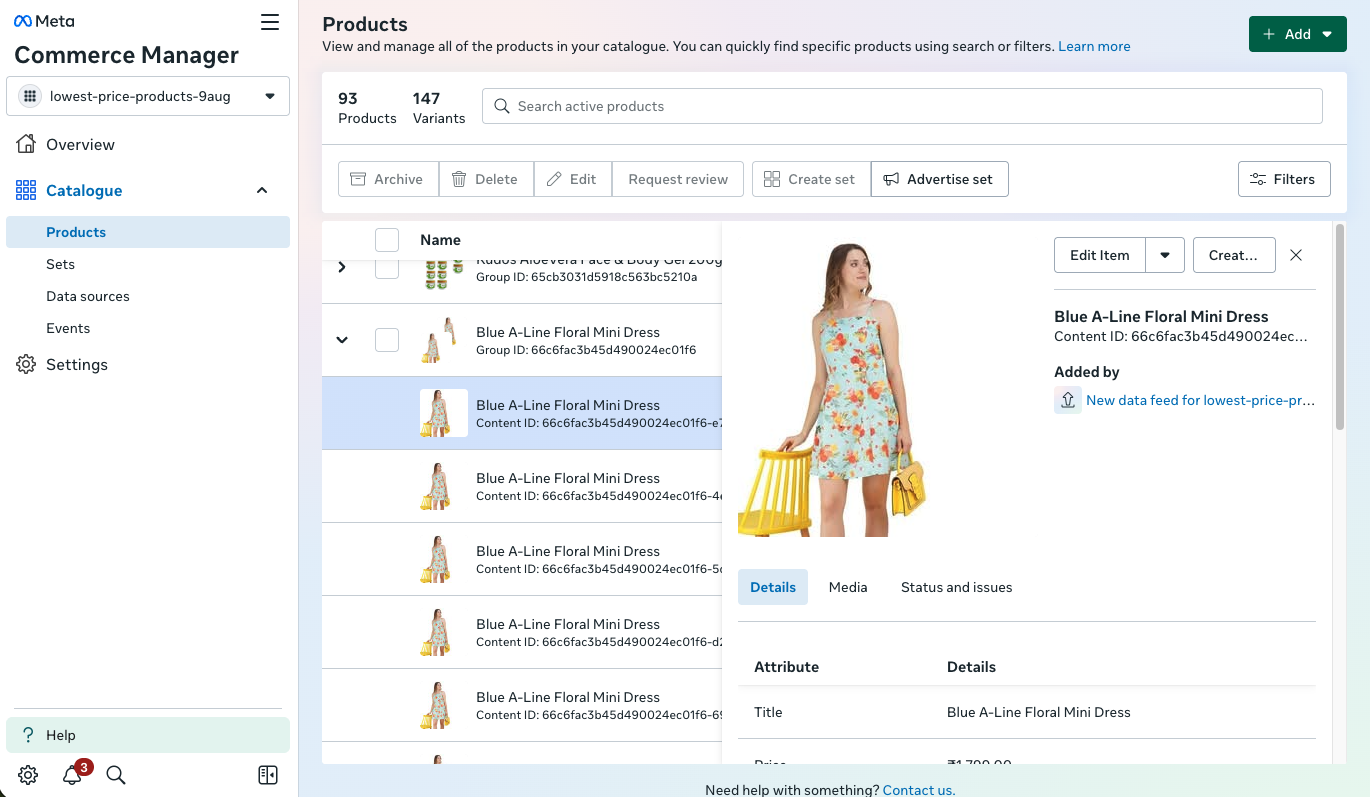
- Click any item to review:
- Content ID, title, price, and media.
- Status and any issues.
- Use Archive, Delete, Edit, or Request Review for individual products if needed.
Step 9: Create Product Sets for Ads
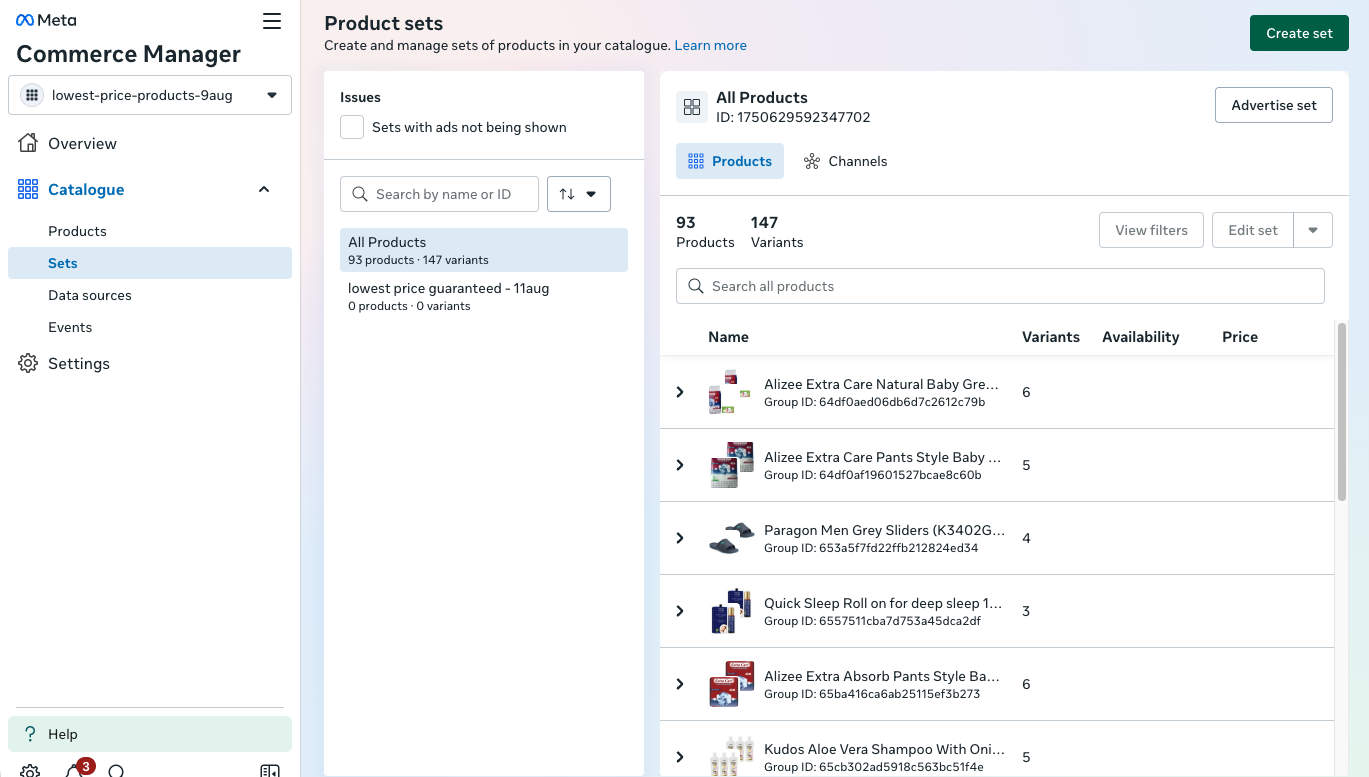
- Open the Product Sets or Sets tab in your catalog.
- Click Create set.
- Enter a Set Name (e.g., Price_Above_500, ONDC_Discounts).
Process of adding product set
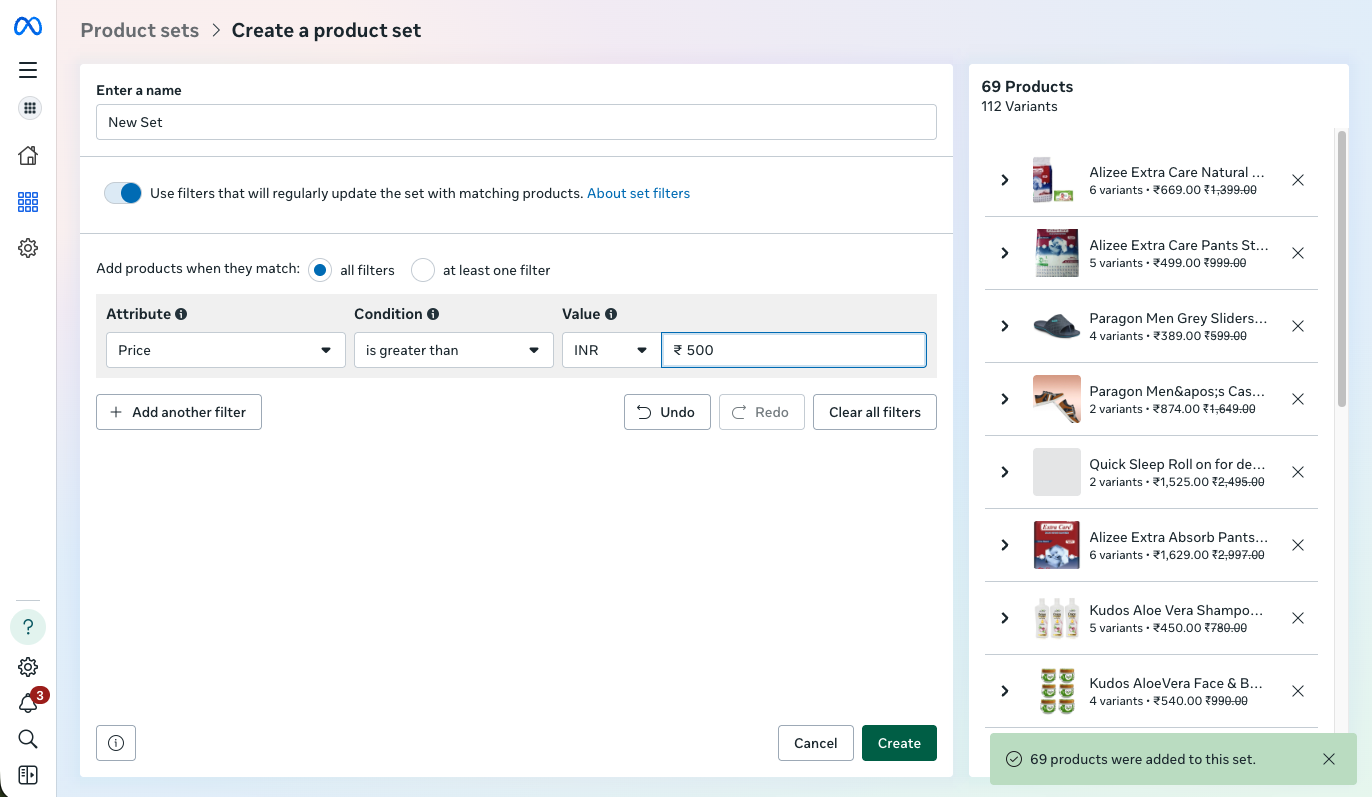
- Use filters to build dynamic sets that auto-update:
- Attribute: Price
- Condition: is greater than
- Value: 500 (INR)
- Example:
- Confirm the number of products/variants added (e.g., 69 products, 112 variants).
- Click Create to save the set.
Step 10: Use the Catalogue in Meta Ads
- In Ads Manager, choose a sales or catalogue objective that supports Advantage+ catalogue ads.
- Select your Mystore ONDC network catalog and relevant product set as the source.
- Complete targeting, budget, and creative settings to launch your campaign.
Troubleshooting Tips
- If you see a warning like "We may not be able to show the most relevant products in your ads due to issues with your event source setup," open "Review issues" in Commerce Manager and check your pixel/event configuration.
- If products are missing or prices look incorrect, verify the Mystore feed file (columns, currency, and availability) and then re-run the feed upload.
- Use Settings > Review catalogue access to ensure the right team members and ad accounts can use this catalogue.
Was this page helpful?