Campaigns
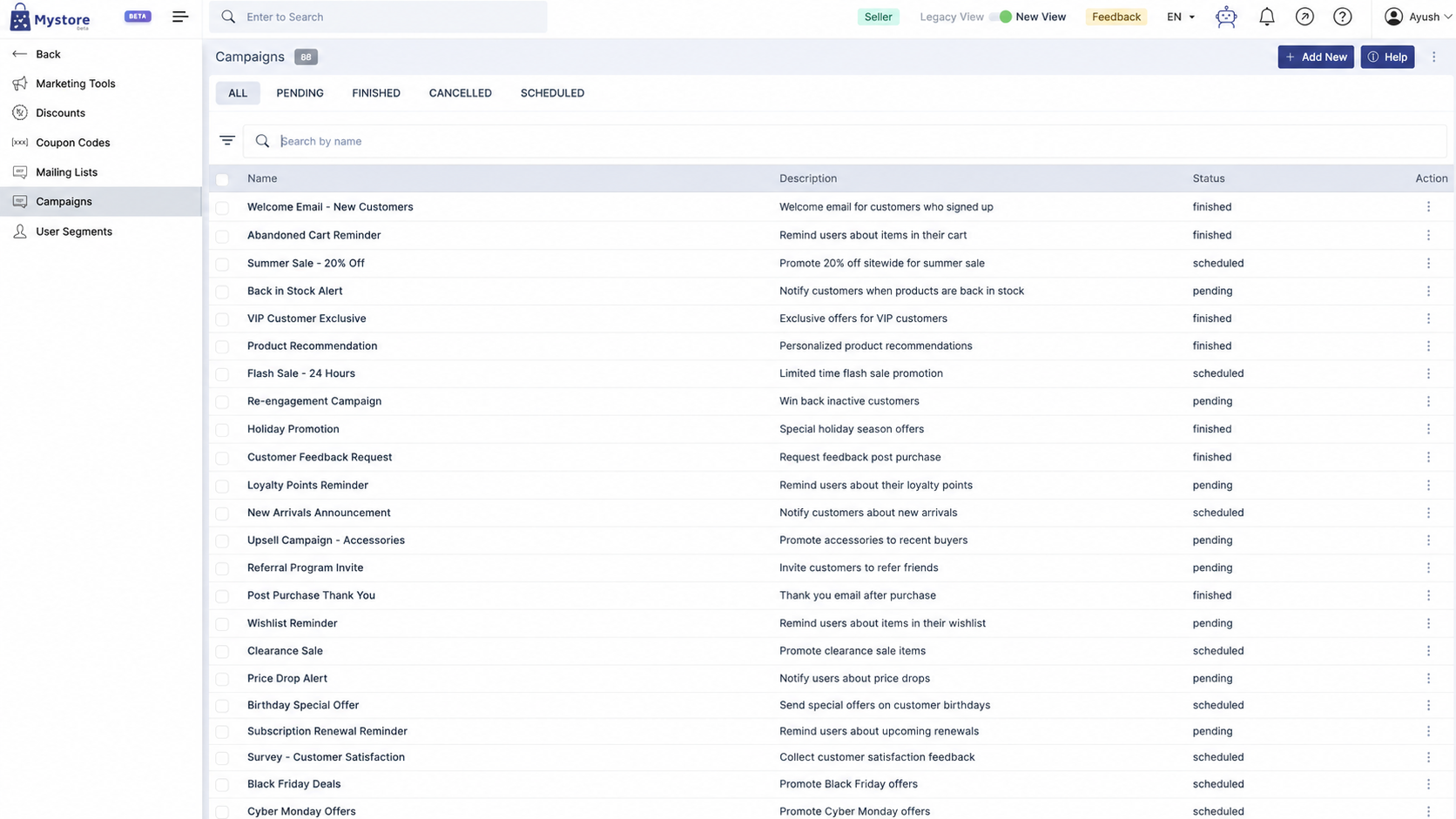
The Campaigns feature in Mystore allows sellers to send marketing messages to their customers directly from the Seller Panel. Currently, campaigns are supported via WhatsApp marketing templates. Sellers can send campaigns either to a single customer or to a selected user segment.
Go to Marketing> campaigns from your dashboard for accessing campaigns.
The campaign listing page displays all previously created campaigns along with their status. You can search campaigns by name and filter them based on their current status, such as Pending, Started, Finished, Scheduled, or Cancelled. From this page, you can also create a new campaign by clicking on “Add New."
Creating a Campaign
To create a campaign, click on “Add New” and complete the required steps.
Step 1: Campaign Details
In this step, you must enter the basic campaign information. Start by providing a unique campaign name. This name is used internally to identify your campaign.
Then, select the campaign type. Currently, WhatsApp is the active option.

Next, select the recipient type. You can choose either users or a user segment. If you select User Segment, you must choose from the saved segments available in your account.

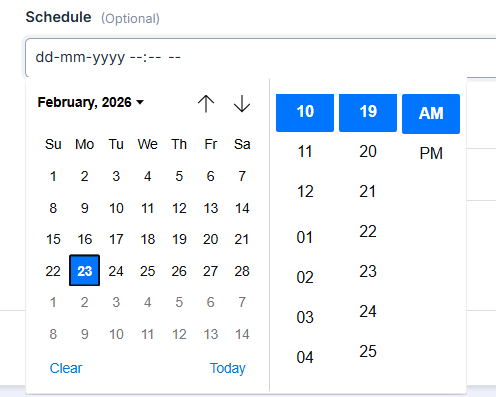
You may optionally schedule the campaign by selecting a date and time. If you do not schedule it, the campaign can be sent manually after submission.
Once all details are filled in, click Continue.
Step 2: Content Configuration (WhatsApp)
In this step, you configure the WhatsApp message.
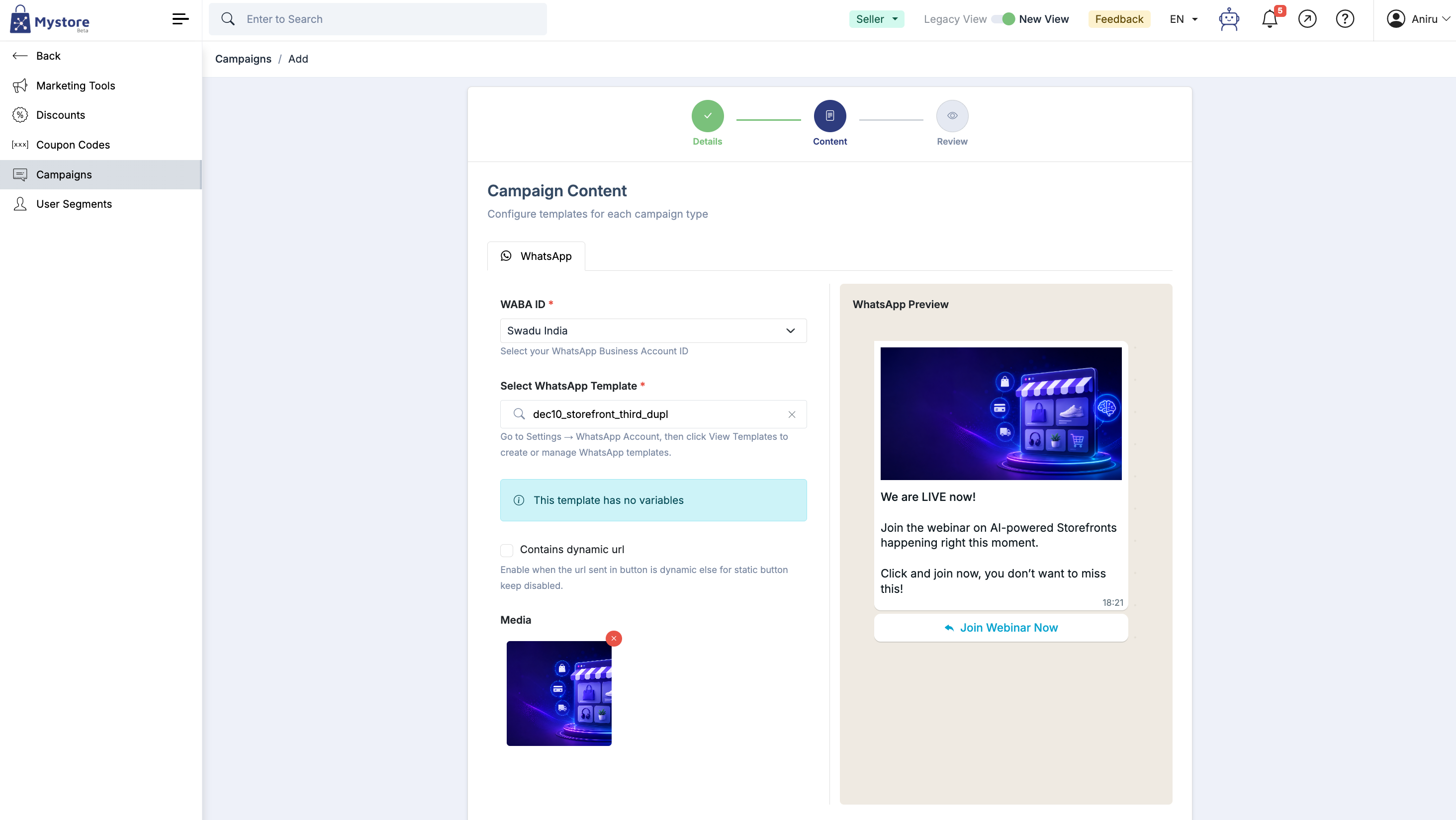
First, select your WABA ID (WhatsApp Business Account ID). Then, choose an approved WhatsApp template from the list. Templates must already be created and approved in the WhatsApp account settings.
Some templates include variables such as user.name, order.order_id, or store.title. These variables allow you to personalize the message. If the template contains multiple variables, you must enter values in the same order as defined. Incorrect variable mapping may cause message delivery failure.
If your template includes a dynamic button link, enable the “Contains dynamic URL” option. If the button link is static, this option should remain disabled.
A live WhatsApp preview is displayed on the right side so you can review how the message will appear to customers. After reviewing, click Continue.
Step 3: Review and Submit
The final step allows you to review all campaign details before submission. You should carefully check the campaign name, recipient type, selected segment, schedule (if any), selected template, variables, and message preview.
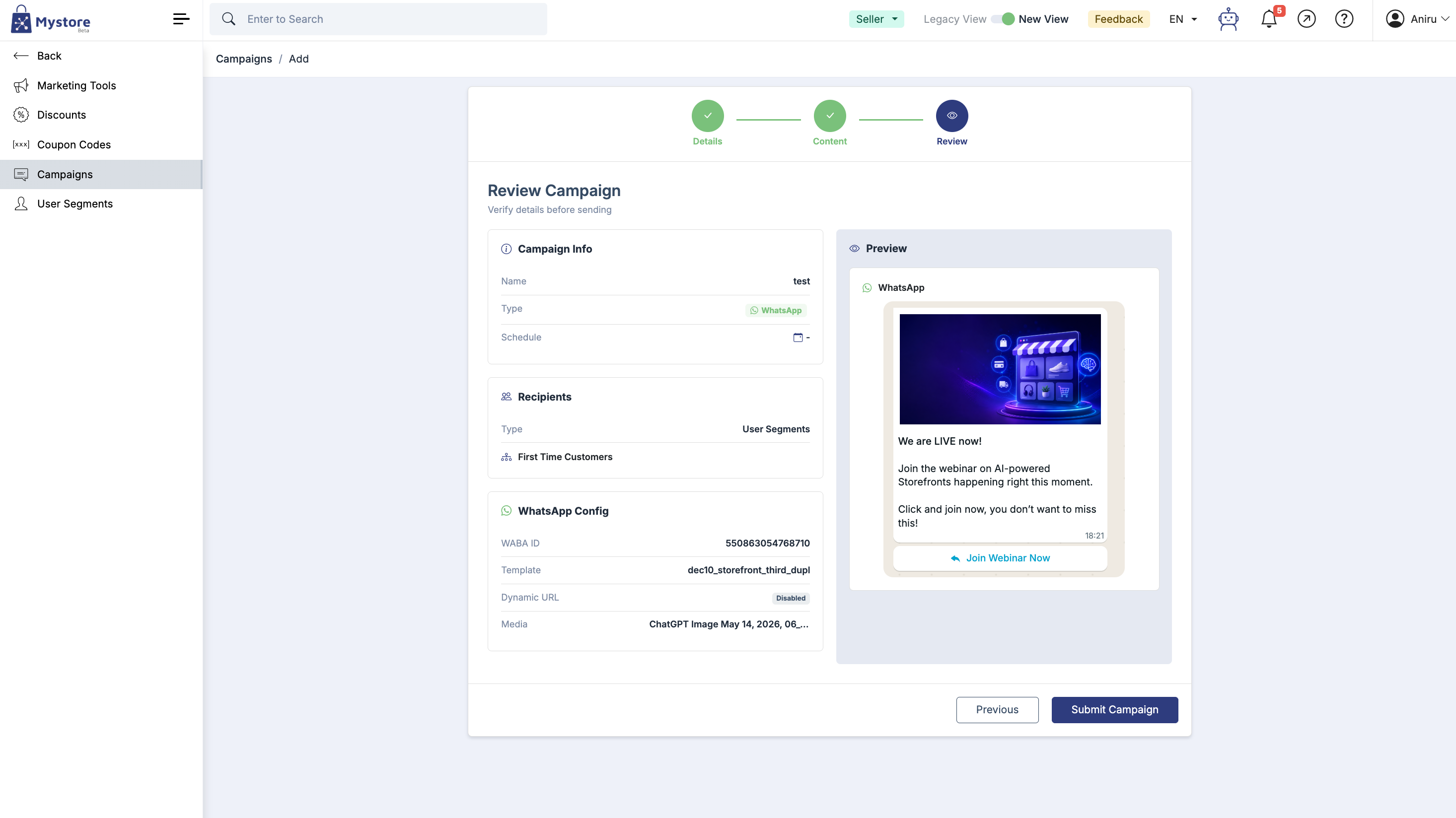
Once confirmed, click Submit Campaign.
The campaign will be saved successfully, but it must be sent manually from the Campaign Listing page. Even if the campaign is scheduled, you still need to click on “Send” from the Action menu to trigger it.
Managing Campaigns
After creating a campaign, you can manage it from the listing page. By clicking the three-dot menu next to a campaign, a campaign that has already started or finished cannot be edited or cancelled.
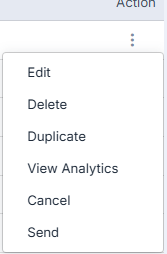
Edit: Modify campaign (before sending)
Delete: Remove campaign
Duplicate: Create a copy
View Analytics: Check performance
Cancel: Stop scheduled campaign
Send: Used to trigger the campaign, whether it is set to send immediately or has been scheduled.
Viewing Analytics
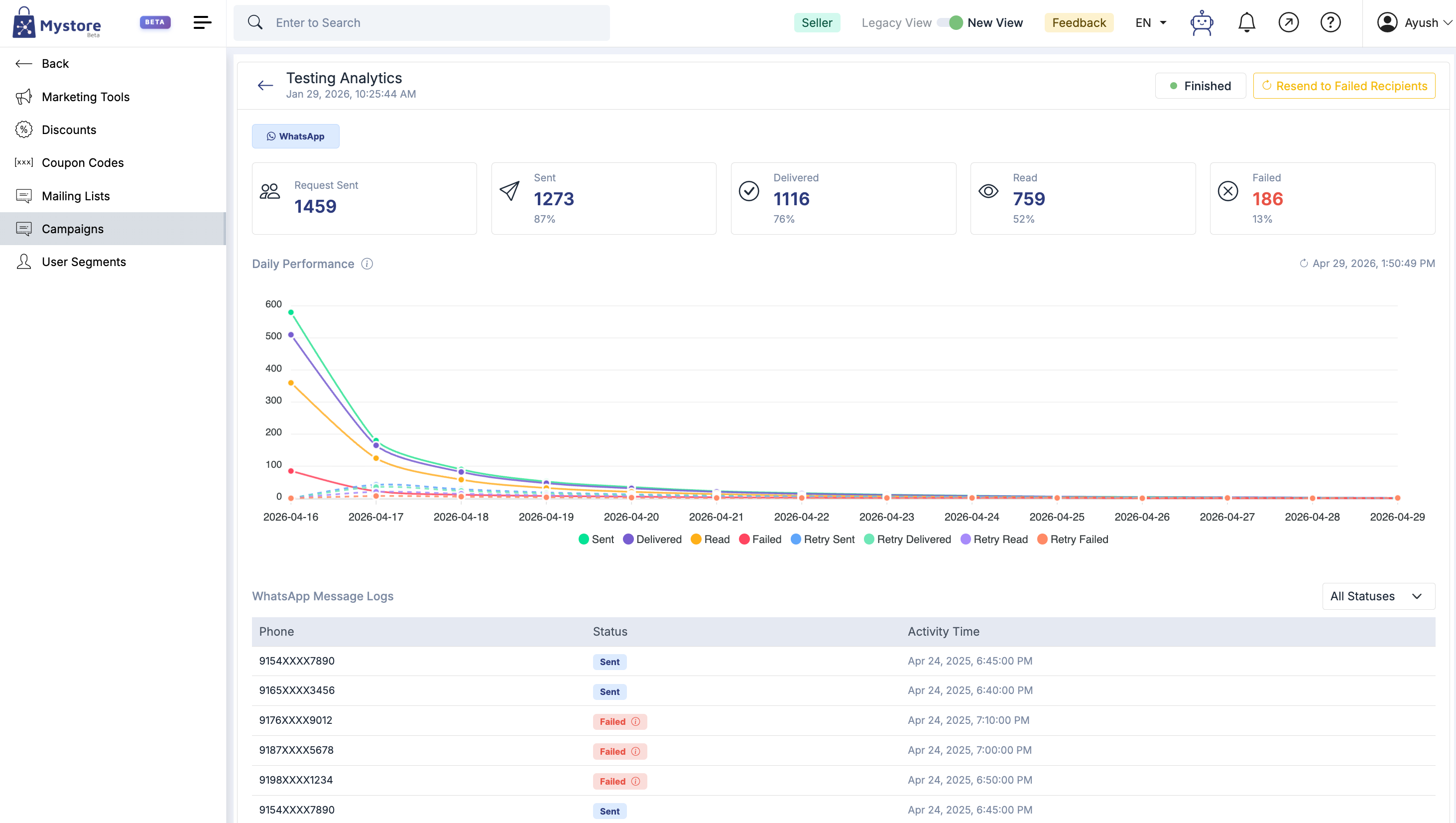
Once a campaign is completed, you can view its analytics from the actions menu. Analytics help you understand the campaign’s performance and delivery status.