
Order Fulfillment
Order fulfillment is the process of preparing, shipping, and completing customer orders placed on Mystore. Depending on your shipping setup, you can fulfill orders through ONDC-integrated logistics (on-network) or manage it manually (off-network). Below is a quick summary of key topics involved in the order fulfillment process:
The following steps will guide you through the order management process once an order is received from the customer.
Step 1: Generate Invoice
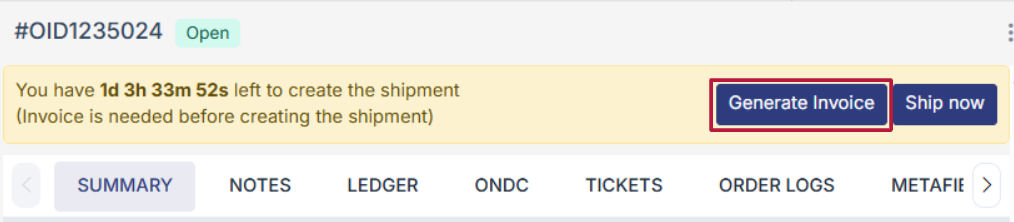
Go to the order section from the seller dashboard and click on the order; you will see the generate invoice option on top of the right panel.
The following pop-up will open click on "generate" to generate the invoice.
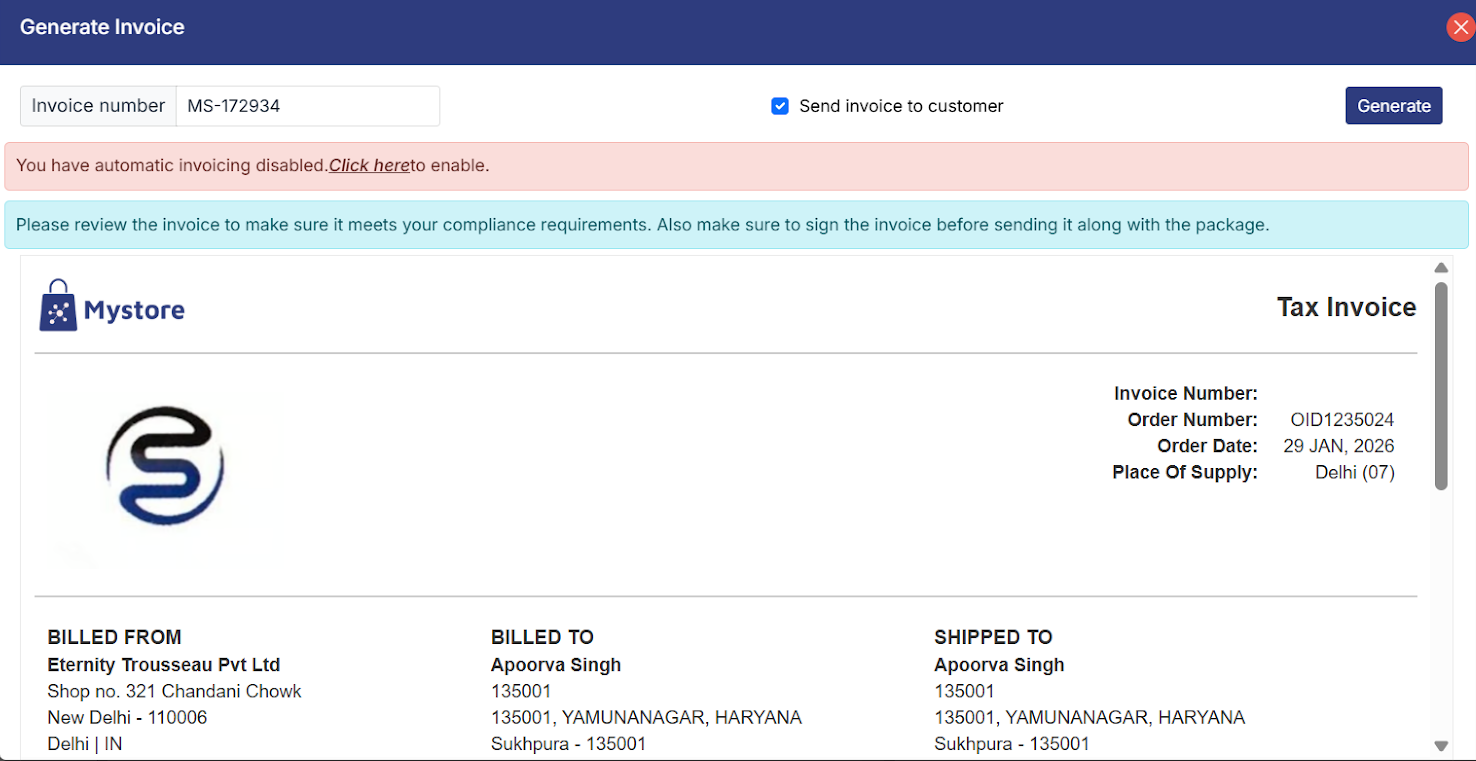
Note: You can change/ edit invoice number while generating invoice from left corner of the pop up.
Step 2: Download the Invoice
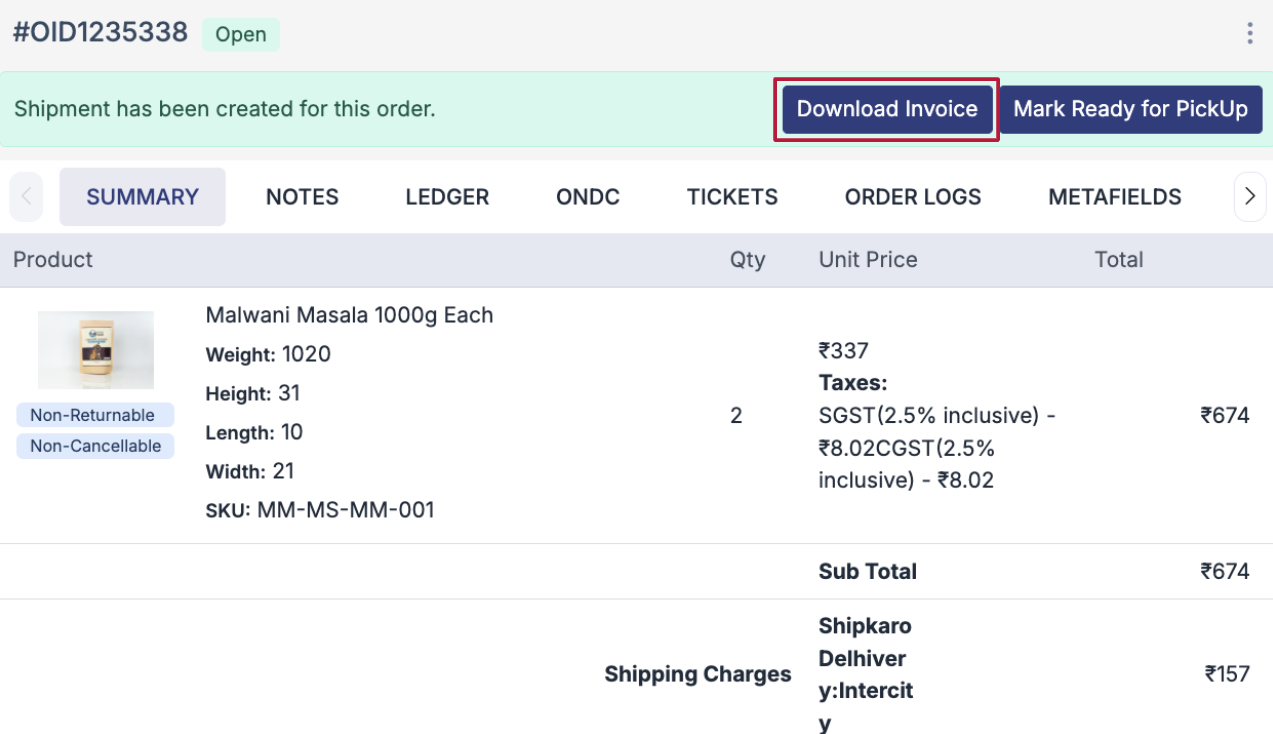
Note: In case if you want, to avoid the manual step of manual invoice generation, choose the Auto Invoice option from Settings in Seller profile Mystore will automatically generate as order is received.
Step 3: Shipping the Order
Once you complete these steps now your order is ready for shipping. Go to orders and click on Ship now from order detail page to proced with shipping order.
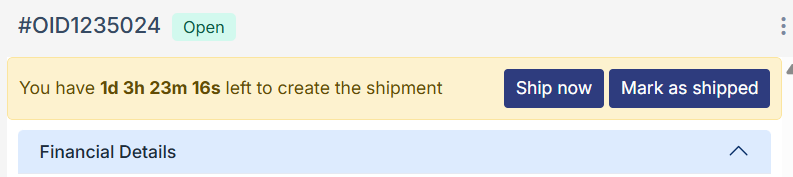
Step 4: Dowload the Shipping Label.
Once shippment is ready next step is to Download Shipping Label dowload the shipping lable.
There are two methods to ship your order:
- On-Network ( ONDC logistics partners): In this setup, sellers don’t need to manually arrange shipping the system automatically assigns a logistics provider once an order is confirmed.
- Off-Network (Manual/using your own logistics partner): Off Network or Manual Shipping refers to the process where the seller handles all shipping tasks independently, outside the ONDC-integrated logistics system. In this setup, sellers are responsible for booking their own courier service, generating shipping labels, and manually updating order tracking details on the Mystore platform.
If you have Whatsapp integrated with Mystore, you can fulfill order via whatsapp. Once an order is received, sellers can process on-network orders or update shipment details for manual shipments. For on-network orders, the status is automatically updated to "delivered." For manual shipments, sellers update the delivery OTP via WhatsApp to mark the order as delivered.
Step 5: Upload Package Image
When preparing orders for dispatch, it’s important to upload a clear image of the packaged item for records and verification. Mystore allows sellers to Upload Package Image directly through the Seller Admin Panel for orders marked as Ready for Pickup.
Step 6: Pickup and Delivery
Logistic partner picks up the package (for On-Network shipping) or ships manually. Order status changes to Shipped. When the courier delivers the order Status becomes Delivered.
Sub topics:
- Reship Order: Allows you to create and process a new shipment for an order that needs to be sent again to the customer.
- Customer Tax Invoice: Enables viewing or downloading the official tax invoice generated for the customer’s completed order.
- Regenerate Invoice for an order: Provides the option to recreate the invoice when changes or corrections are required after initial generation.
- Mark Bulk Ready to Ship: Lets you update multiple orders at once as ready for shipment to speed up the fulfillment process.